Create a webform
Make a form, set what it says and asks for, check it and go live, and see what visitors see.
A webform is a sign-up page for one of your businesses: a headline, a mobile number field, a consent box and a button. People who join become subscribed contacts of that business and get your welcome text straight away. This guide covers making one, every setting on its Edit tab, and what visitors see.
You don’t need a carrier connected to build a form, but you do before it can go live and send welcome texts. See Messaging Setup.
Make the form#
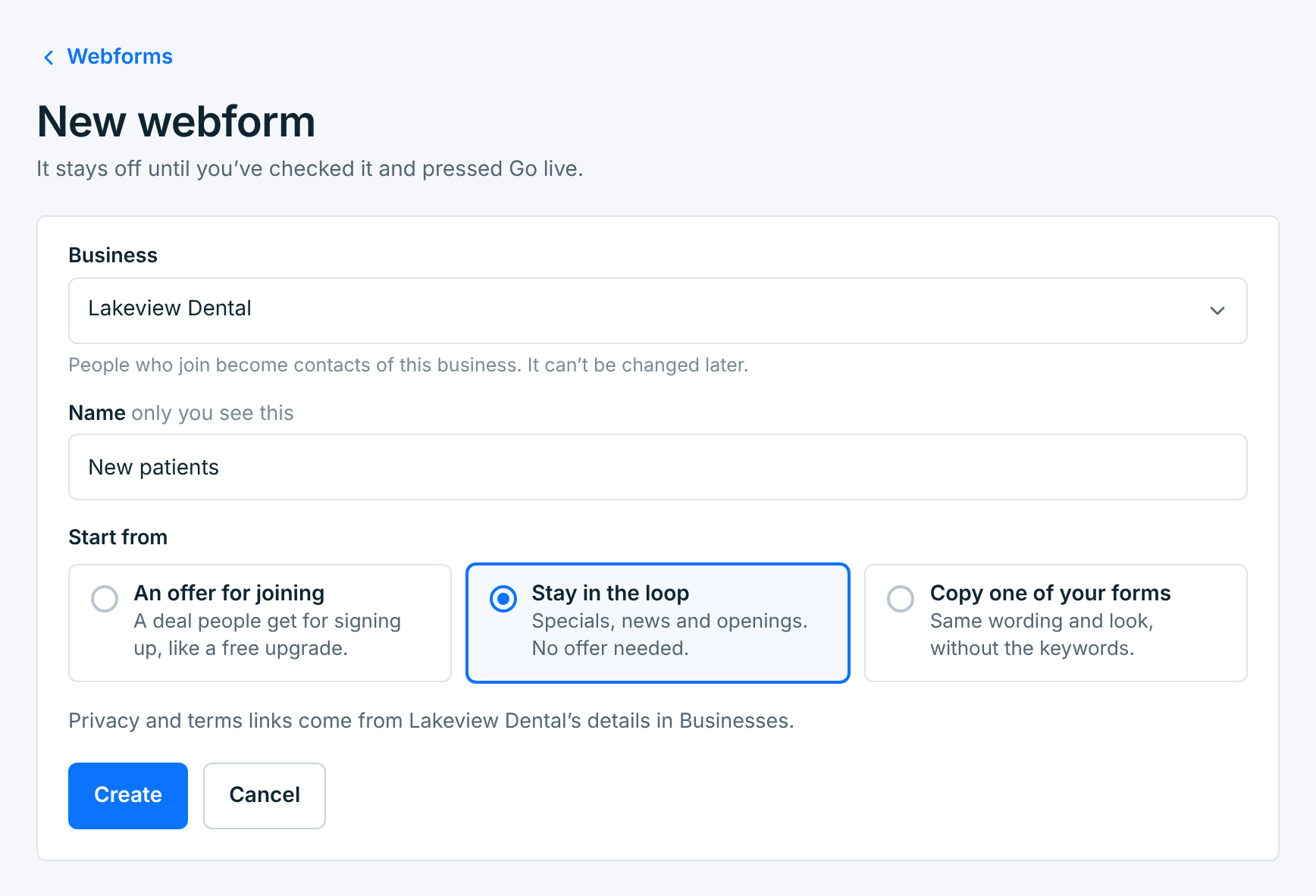
On Webforms, click New webform.
| Field | What it does |
|---|---|
BusinessRequired |
People who join become contacts of this business. It can’t be changed later. |
NameRequired |
Only you see it. Name it after where it’ll be used: Front counter QR, Website footer. |
Start from |
An offer for joining fills in a deal (Get 10% off your next visit). Stay in the loop fills in news and openings, with no offer. Copy one of your forms takes the wording and look of another of this business’s forms, without its keywords. |
Privacy and terms links come from the business’s details in Businesses. Click Create. The form opens on its Edit tab, Not live yet:
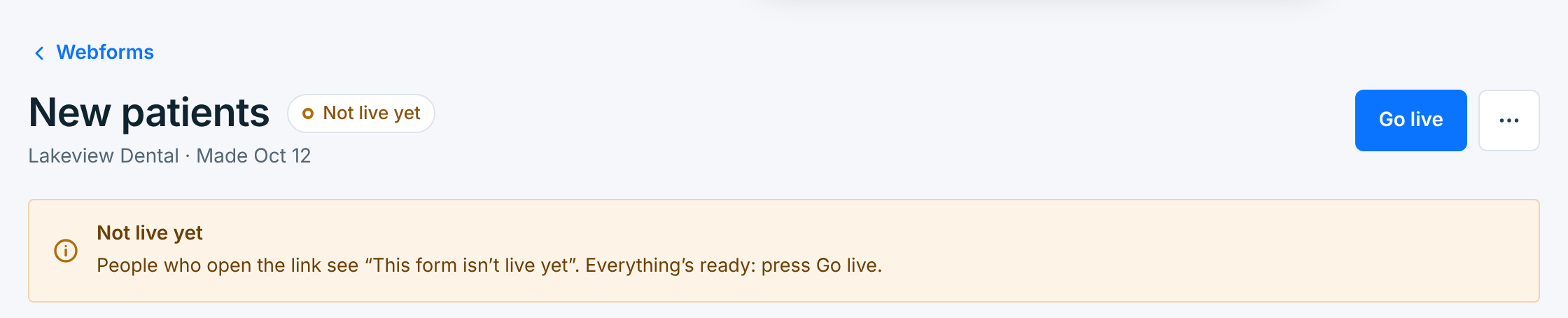
Until it goes live, anyone who opens its link sees “This form isn’t live yet”, and its keywords sign nobody up. Change what you like first. The preview beside the settings shows the page as you go.
Go live#
At the top of the Edit tab, a checklist shows what carriers look for on a sign-up page. Until every line is ticked, it’s headed N things to do before it can go live. Then it says Ready to go live:
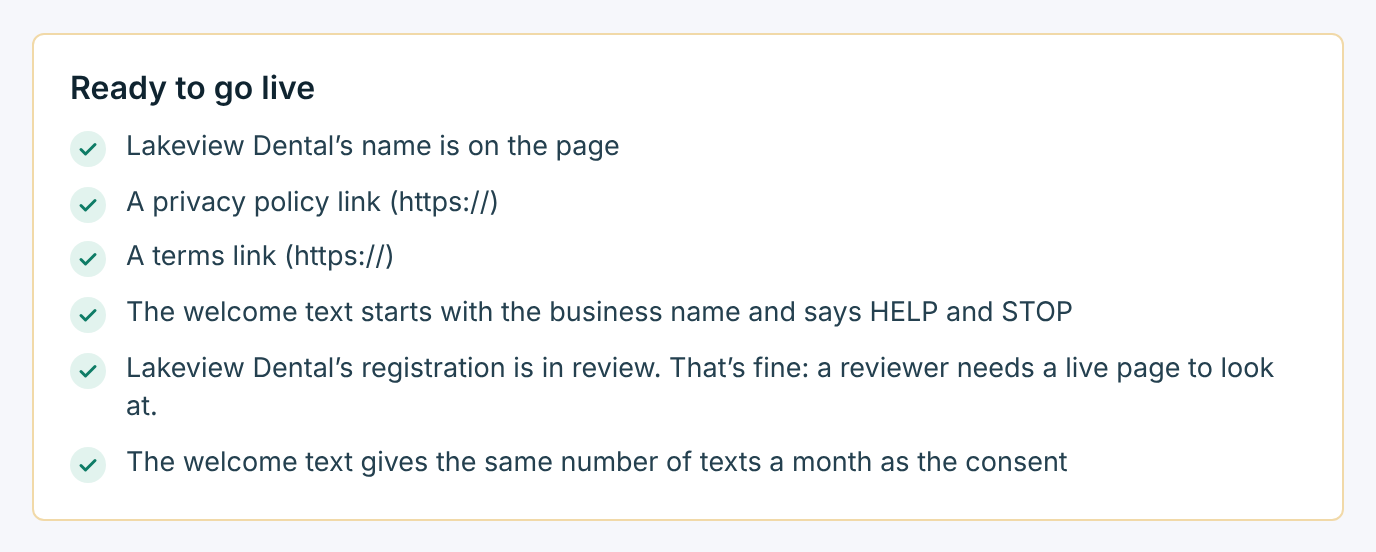
- the business’s name is on the page;
- a privacy policy link and a terms link, both starting with https://;
- the welcome text starts with the business name and says HELP and STOP;
- the business can send texts. A registration that’s in review is fine: the reviewer needs a live page to look at;
- the welcome text and the consent give the same number of texts a month.
A welcome text that still has a template fill-in, like [OFFER], adds a line too.
When every line has a tick and your changes are saved, click Go live. The link, QR code and keywords work straight away, and the Share tab opens. See Share and embed.
The Edit tab#
Change anything, then click Save changes. The settings are in cards, with the preview beside them.
Wording#
| Field | What it does |
|---|---|
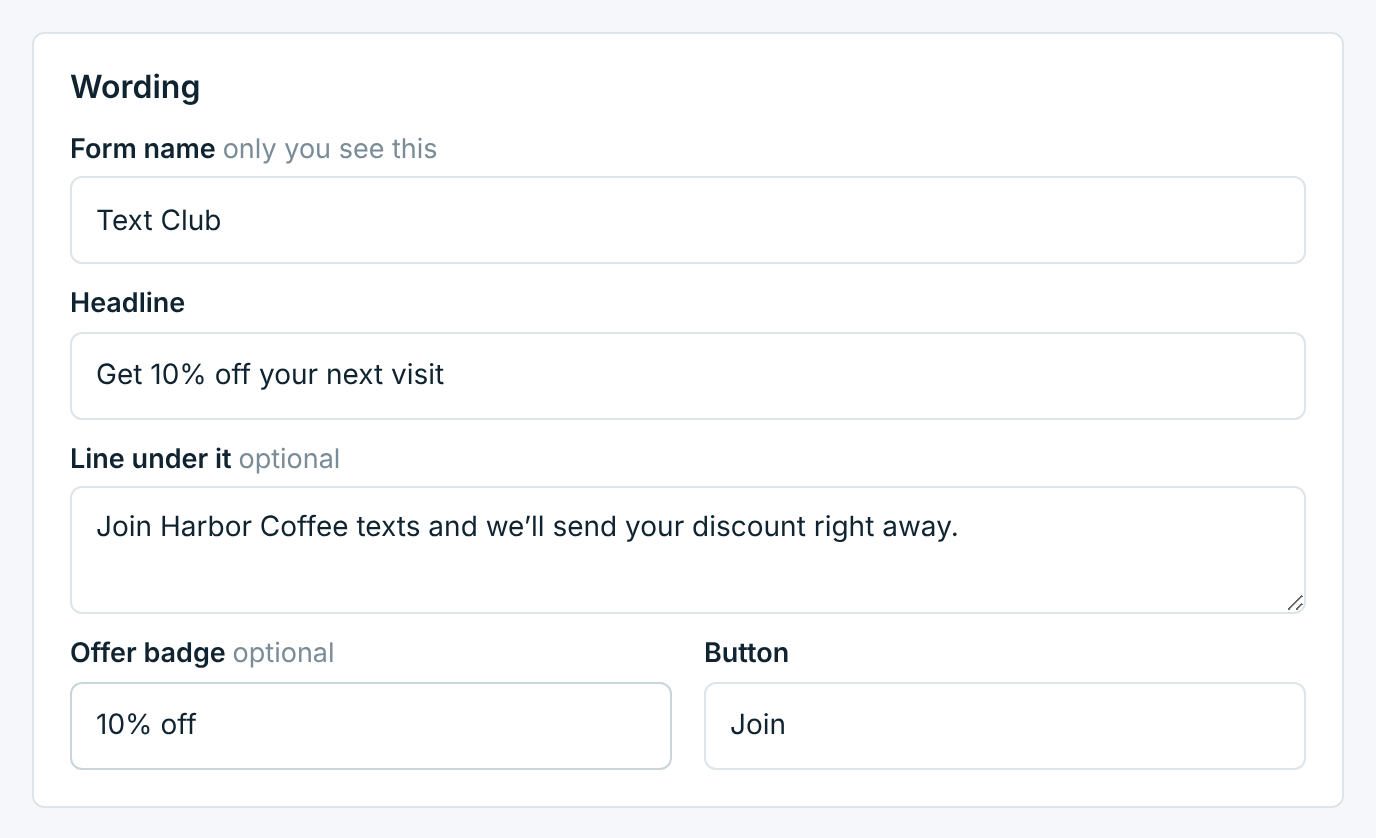
Form name |
Only you see it. |
Headline |
The big line at the top. Say what they get. |
Line under itOptional |
A sentence about what they’re joining. |
Offer badgeOptional |
A small label above the headline, like 10% off. Leave it empty to hide it. |
Button |
The button’s word. Short is best: Join, Get my pass. |
What you ask for#
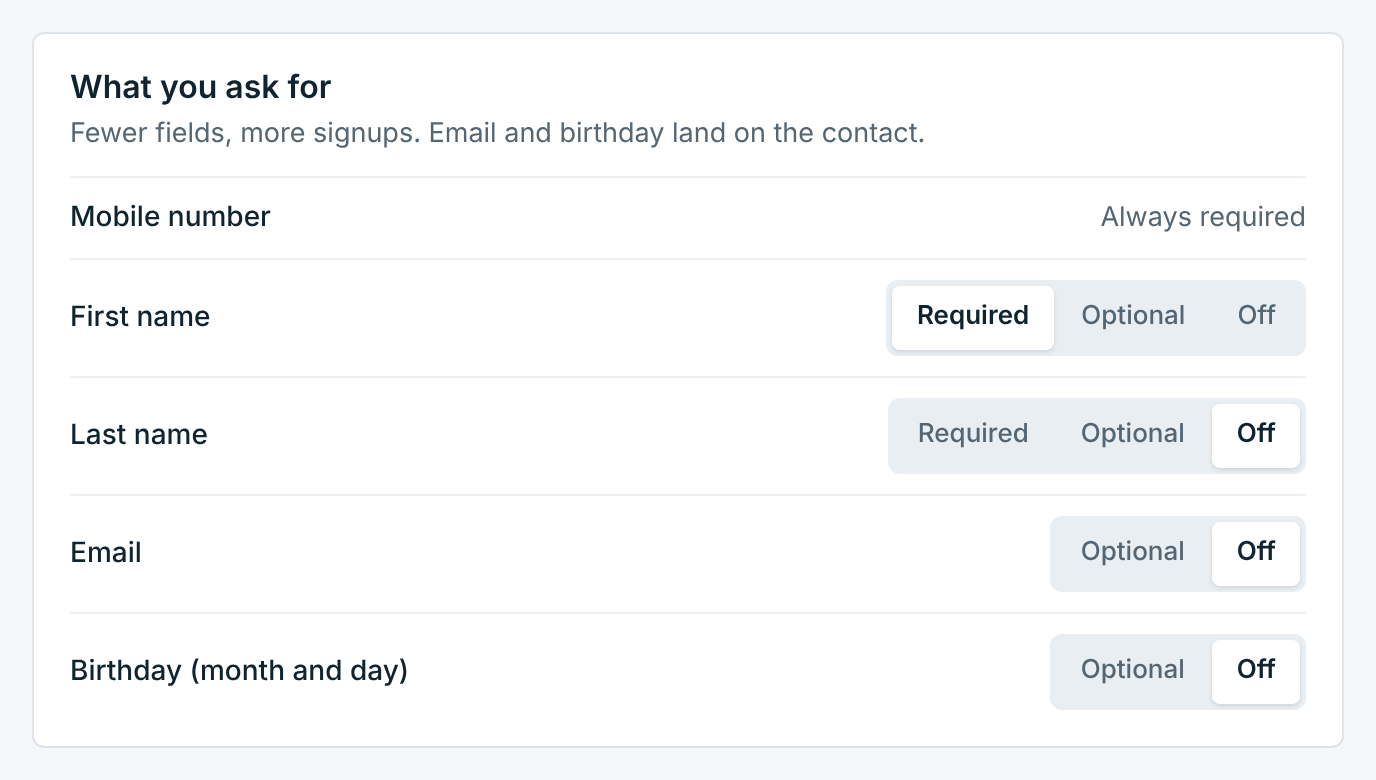
The mobile number is always asked for and always required. First and last name can each be Required, Optional or Off. Email and birthday (month and day) can be Optional or Off. Whatever people fill in is saved on their contact. Fewer fields get more signups.
Look#
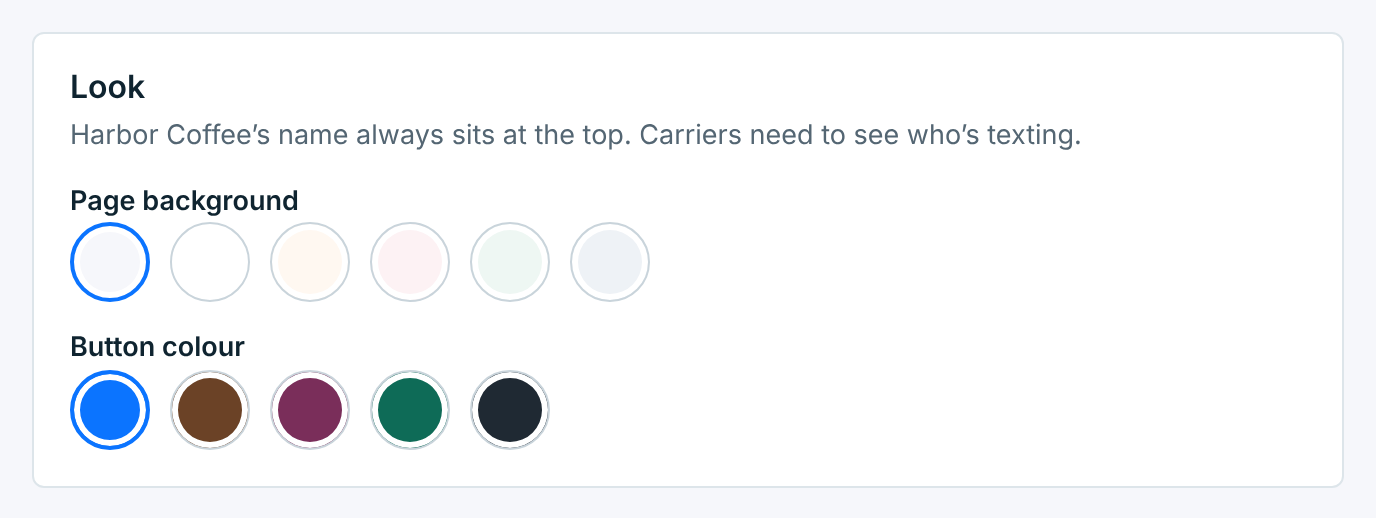
Pick a page background and a button colour. The business’s name always sits at the top of the page, because carriers need to see who’s texting.
After they join#
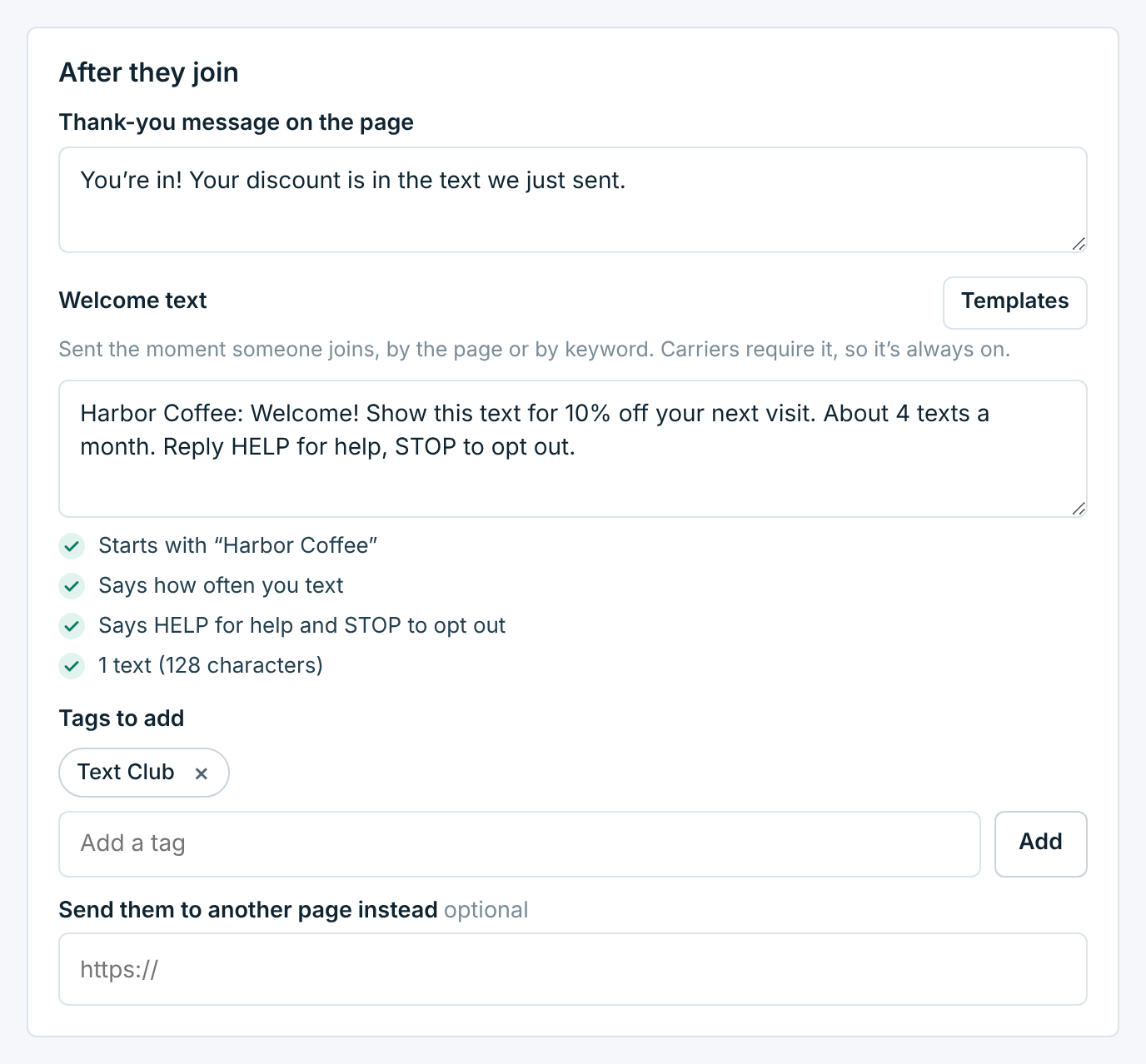
| Field | What it does |
|---|---|
Thank-you message on the page |
What the page says after they join. |
Welcome text |
The text sent the moment someone joins, on the page or by keyword. Carriers require it, so it’s always on. Templates has ready-made ones with the business name, how often you text, “Msg & data rates may apply.”, and HELP and STOP filled in. The ticks under it check the name, how often, and HELP and STOP, and how many texts it takes to send. |
Tags to addOptional |
Tags everyone who joins gets. See How people get a tag. |
Send them to another page insteadOptional |
A web address starting with https://. After joining, people go there instead of seeing the thank-you message. |
Someone gets one welcome text from a business. If they’re already on the list and join again, the page tells them so and they don’t get a second one.
Keywords#
Words people text to your number to join without opening the page. See Keyword opt-in.
Consent#
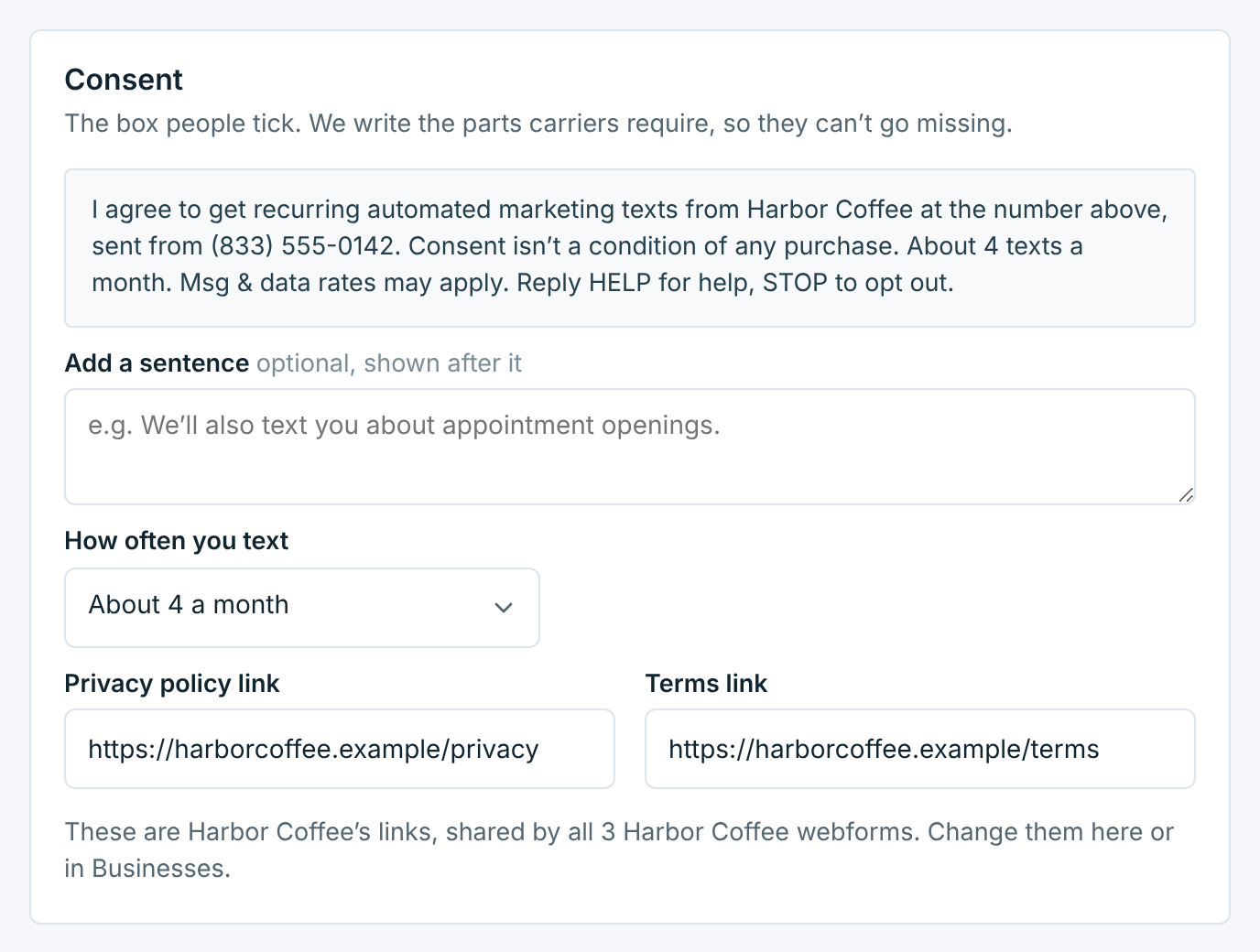
The wording beside the box people tick. We write it with everything carriers require: the business name, the number texts come from, that consent isn’t a condition of purchase, how often you text, that message and data rates may apply, and HELP and STOP. It can’t be left out or edited away.
| Field | What it does |
|---|---|
Add a sentenceOptional |
A sentence of your own after the required wording, like what you’ll text about. |
How often you text |
About 2, 4, 6, 8 or 12 texts a month. Shown in the consent. Say the same in your welcome text. |
Privacy policy link, Terms link |
The business’s own links, shared by all its webforms. Changing them here changes them on every one of its forms, and in Businesses. |
Preview#
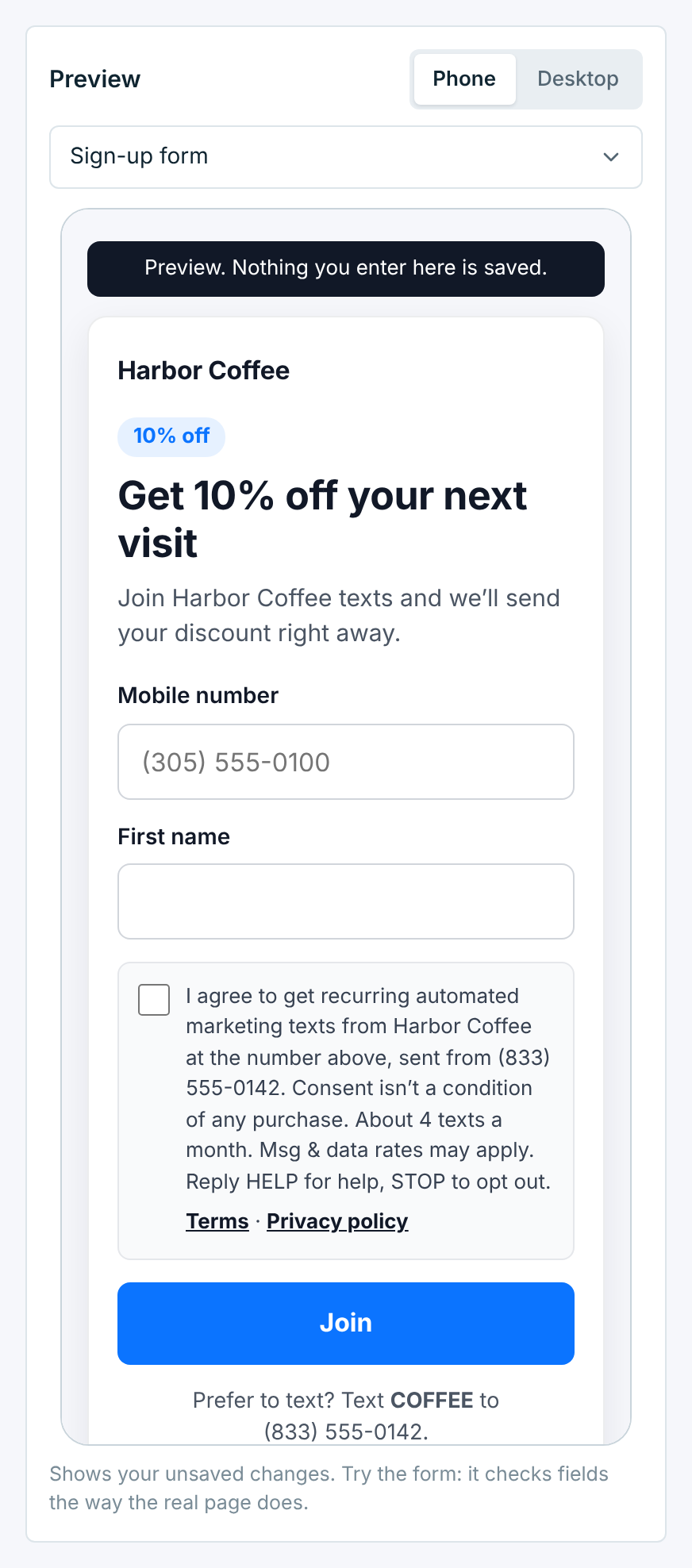
The preview shows your unsaved changes on a Phone or Desktop. You can try the form: it checks the fields the way the real page does, but nothing you enter is saved. What to preview also shows the thank-you page, what someone already on the list sees, what someone who opted out sees, and the page while signups are paused.
Saving#
Once you change something, a bar at the bottom says Unsaved changes:

Save changes saves everything at once. Discard puts it back. Links must start with https://. A live or paused form also won’t save if its welcome text doesn’t start with the business name, doesn’t say HELP and STOP, gives a different number of texts a month than How often you text, or still has a template fill-in. The card with the problem says what to change:
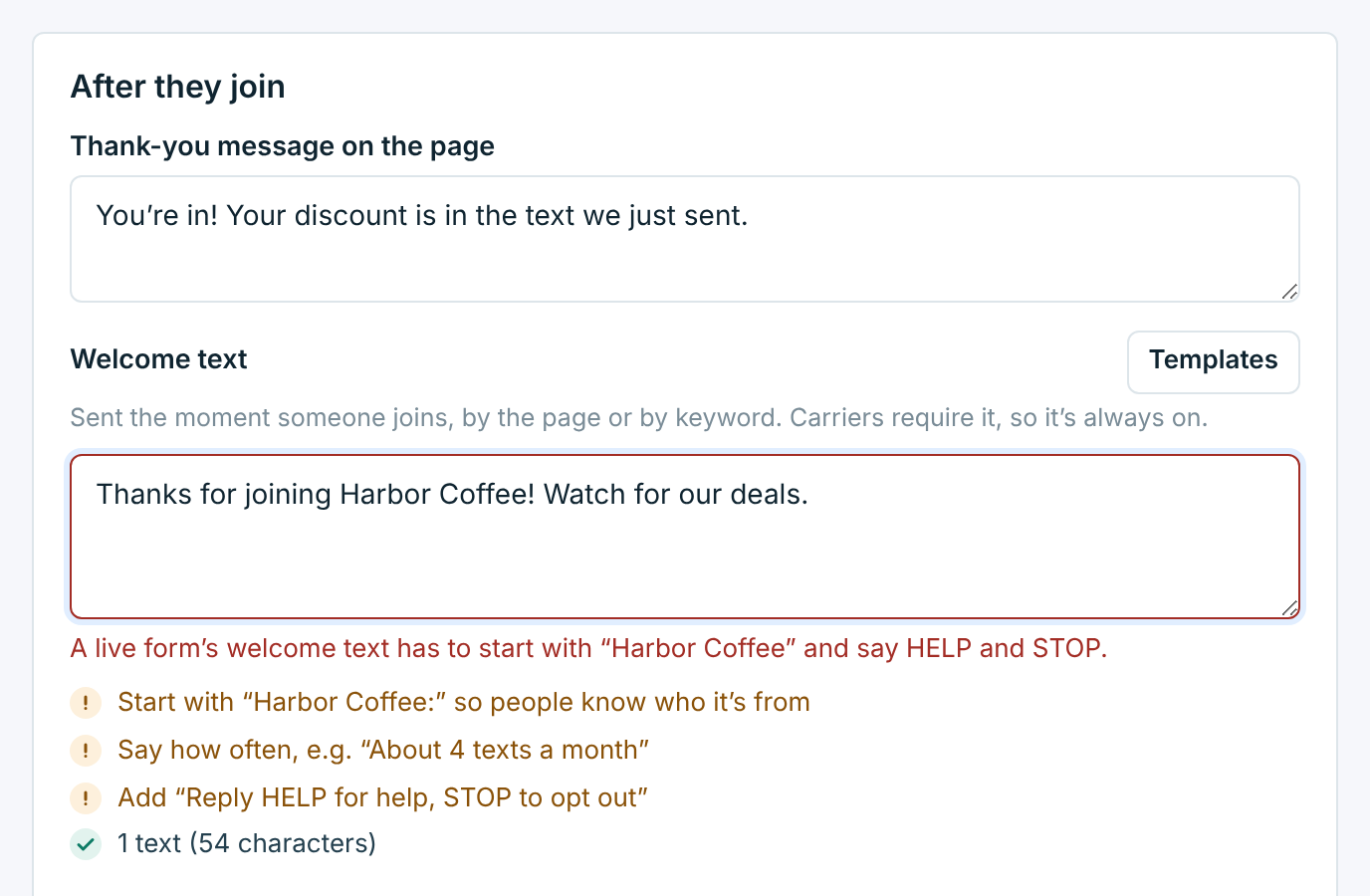
What visitors see#
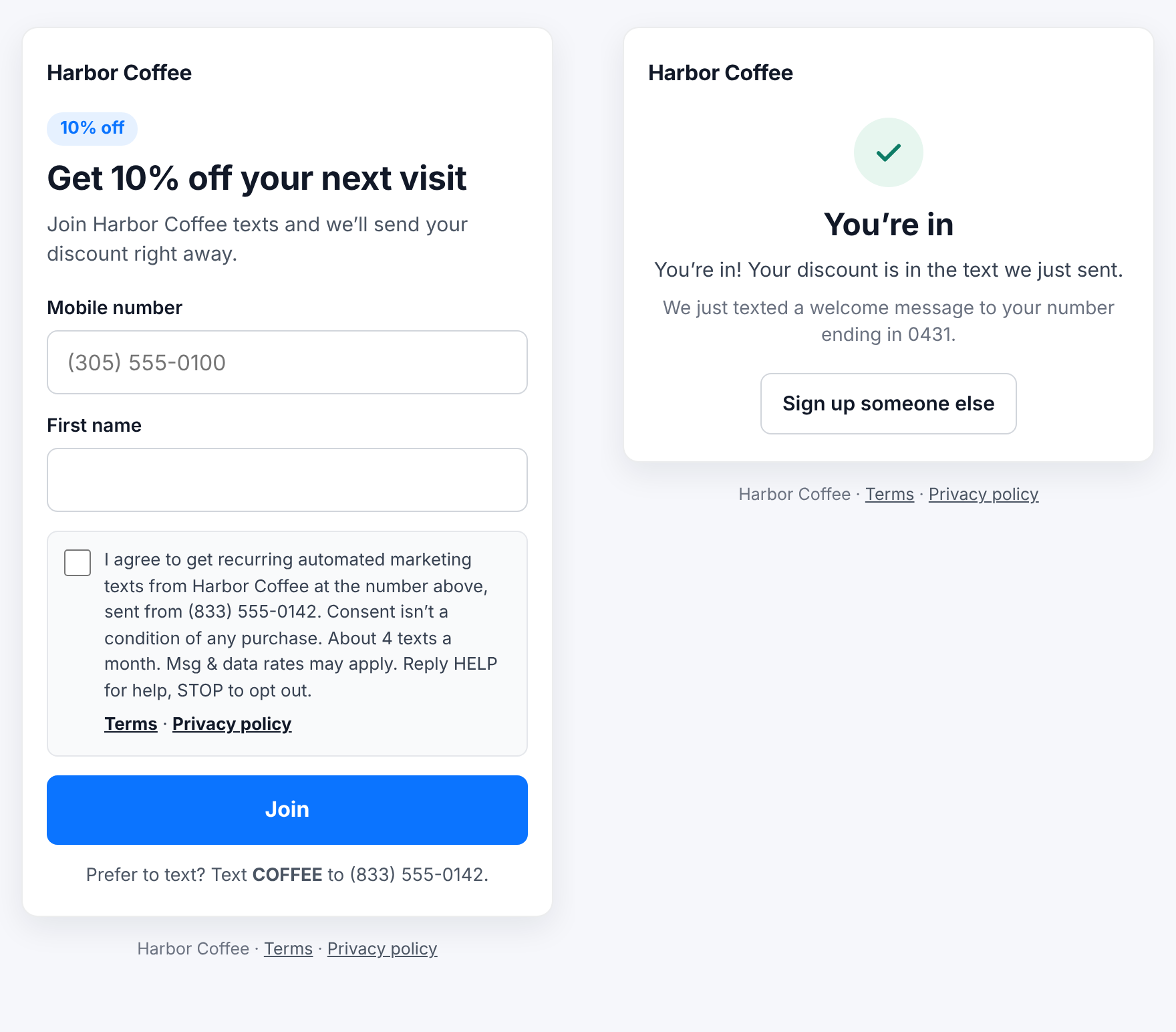
On a phone, the page is the form. When they tick the box and join, the thank-you message replaces it, with the last digits of their number. Sign up someone else clears it for the next person, handy on a tablet at the counter.
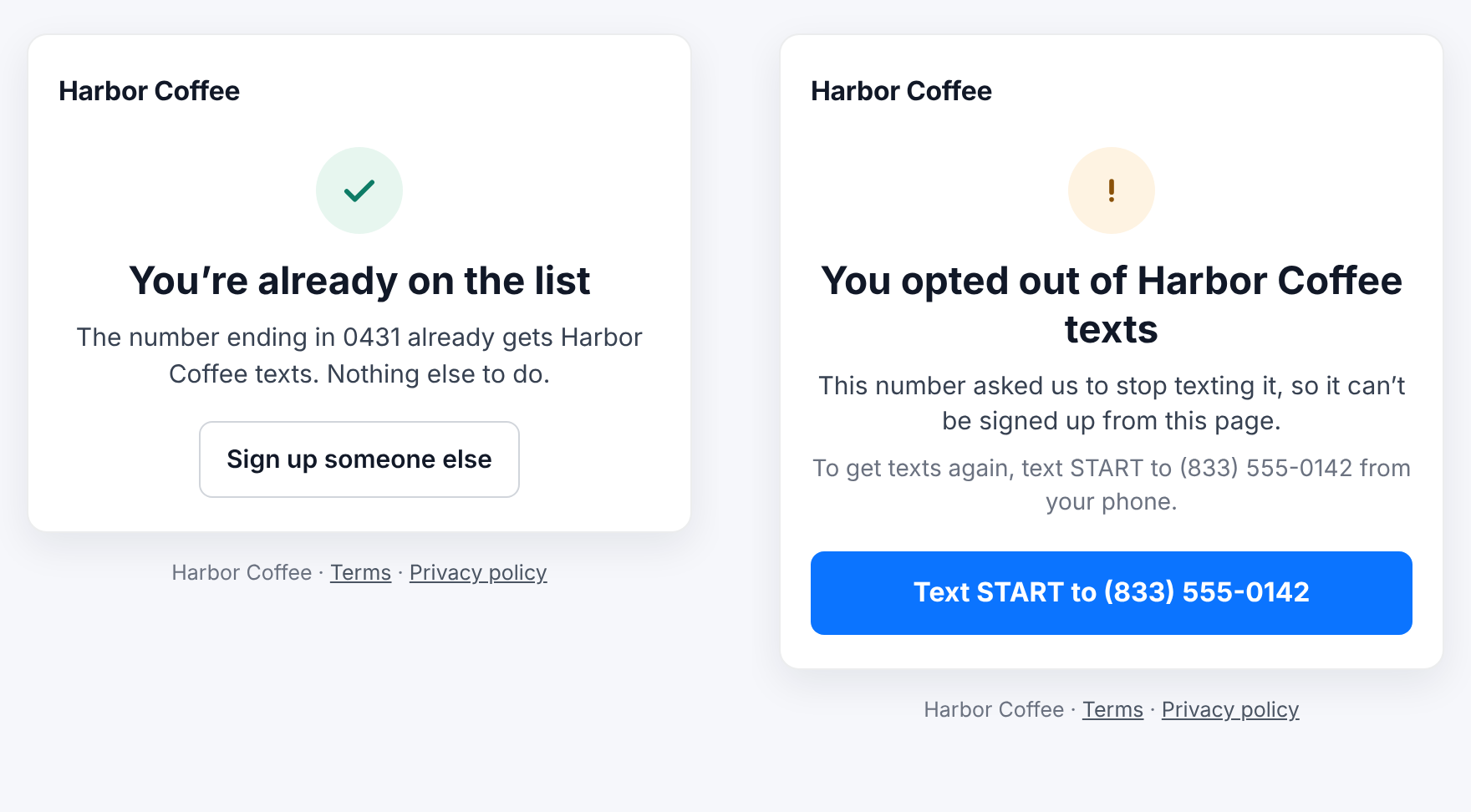
Someone who’s already on the list is told so. Someone who opted out can’t be signed up from the page, because only they can rejoin, by texting START. The page has a button that opens their texting app to do it.
The page keeps a record of the consent each person agreed to: the wording, the page, and when. You can see it on their contact page.