Schedule a campaign
Pick a day and time, see who gets it when, and change, test or cancel it while it waits.
A scheduled campaign is written like any other, then waits for the day and time you pick. Until then you can change it, test it or cancel it. This guide covers picking the time, who gets it when, and what you can do while it waits.
Everything above When it goes out is covered in Send a campaign.
Picking a time#
Under When it goes out, choose Schedule, then a day and a time.
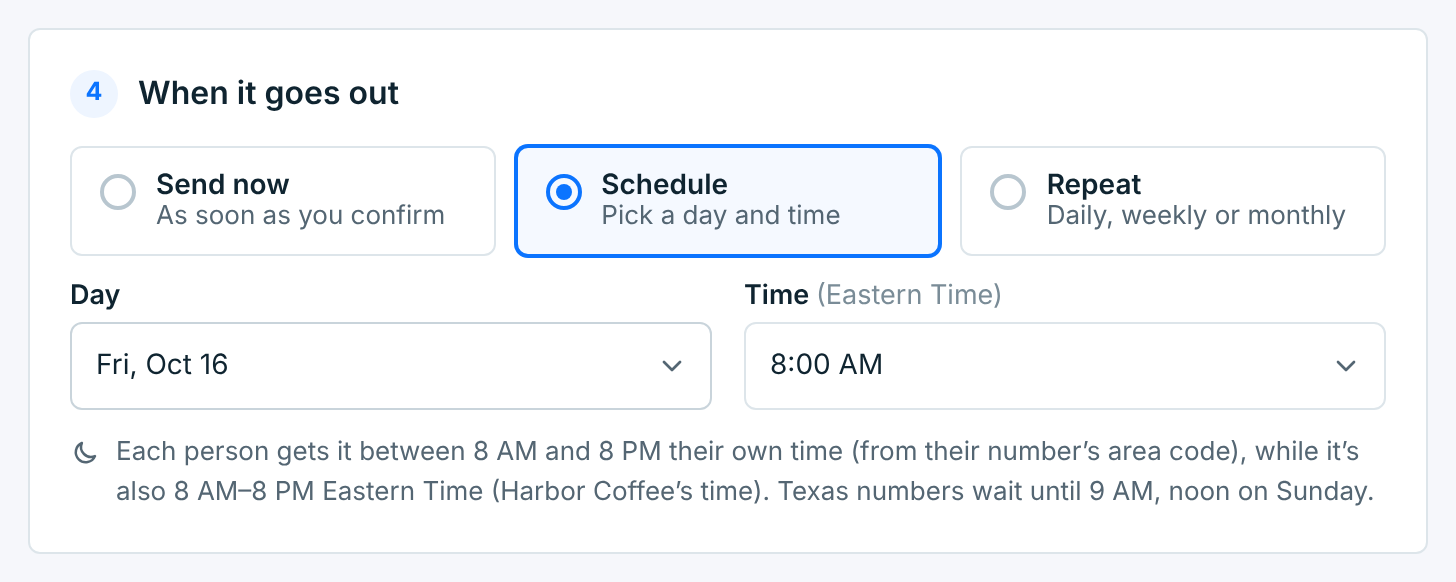
| Field | What it does |
|---|---|
Day |
Today, tomorrow, or a day in the next six weeks. |
Time |
From 8:00 AM to 7:30 PM, every half hour, in the business’s time zone (named above the field). It’s the business’s clock, not yours: a 9:00 AM campaign for a business in Chicago goes out at 9:00 AM there. |
The business’s time zone is set on its page in Businesses. If the time zone shown is wrong, fix it there rather than picking a different time.
Who gets it when#
Nobody gets a text before 8 AM or after 8 PM their own time, worked out from their number’s area code. Texas numbers wait until 9 AM, and until noon on Sunday. So a campaign whose people span time zones goes out in waves: each group gets it when their 8 AM comes.
The summary shows the waves for the time you picked:
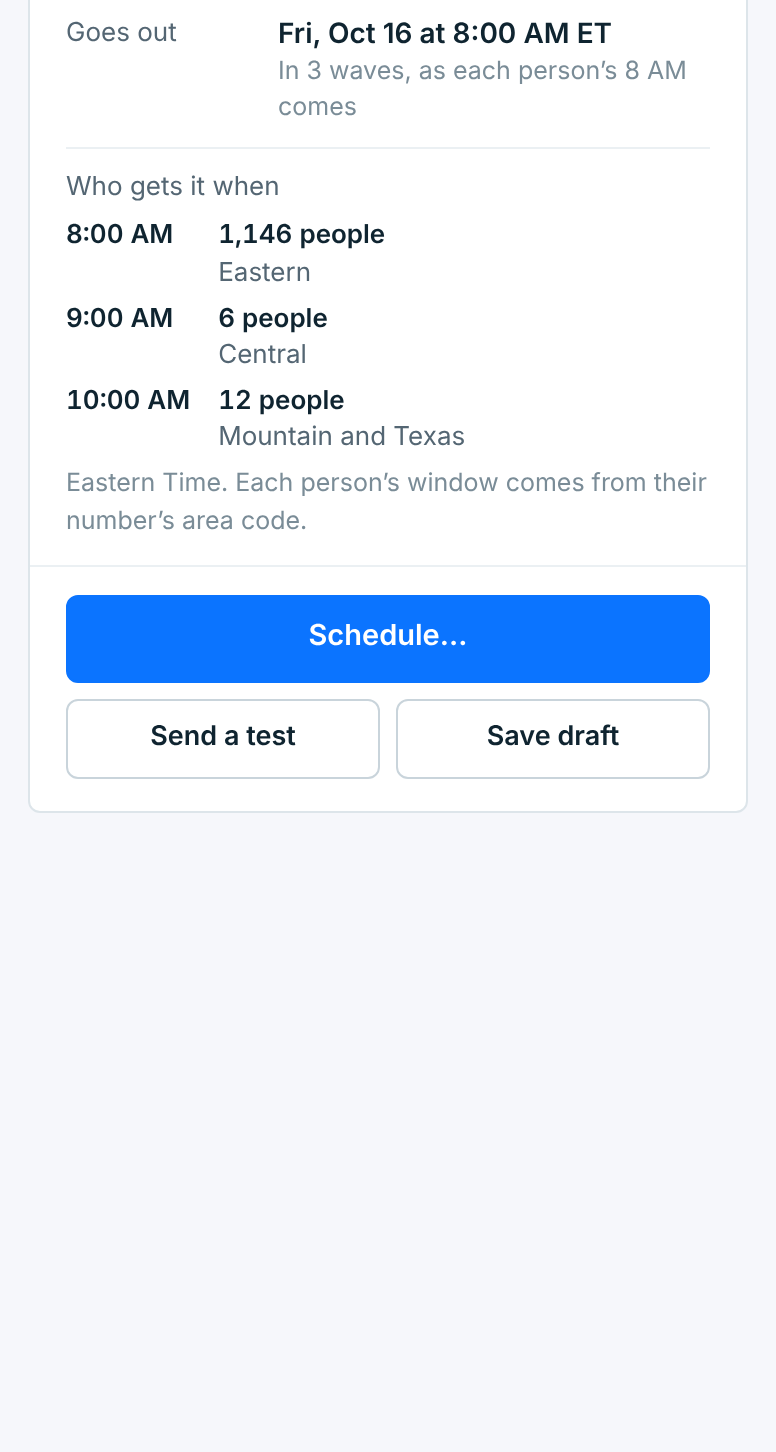
Here, at 8:00 AM Eastern, most people get it at once. Those in Chicago get it an hour later, and those in Denver and Austin two hours later, when it’s 8 AM and 9 AM there. Pick 10:00 AM and everyone gets it at 10:00.
Scheduling it#
Click Schedule…. A last check says when it goes out, to about how many people, and what it costs.
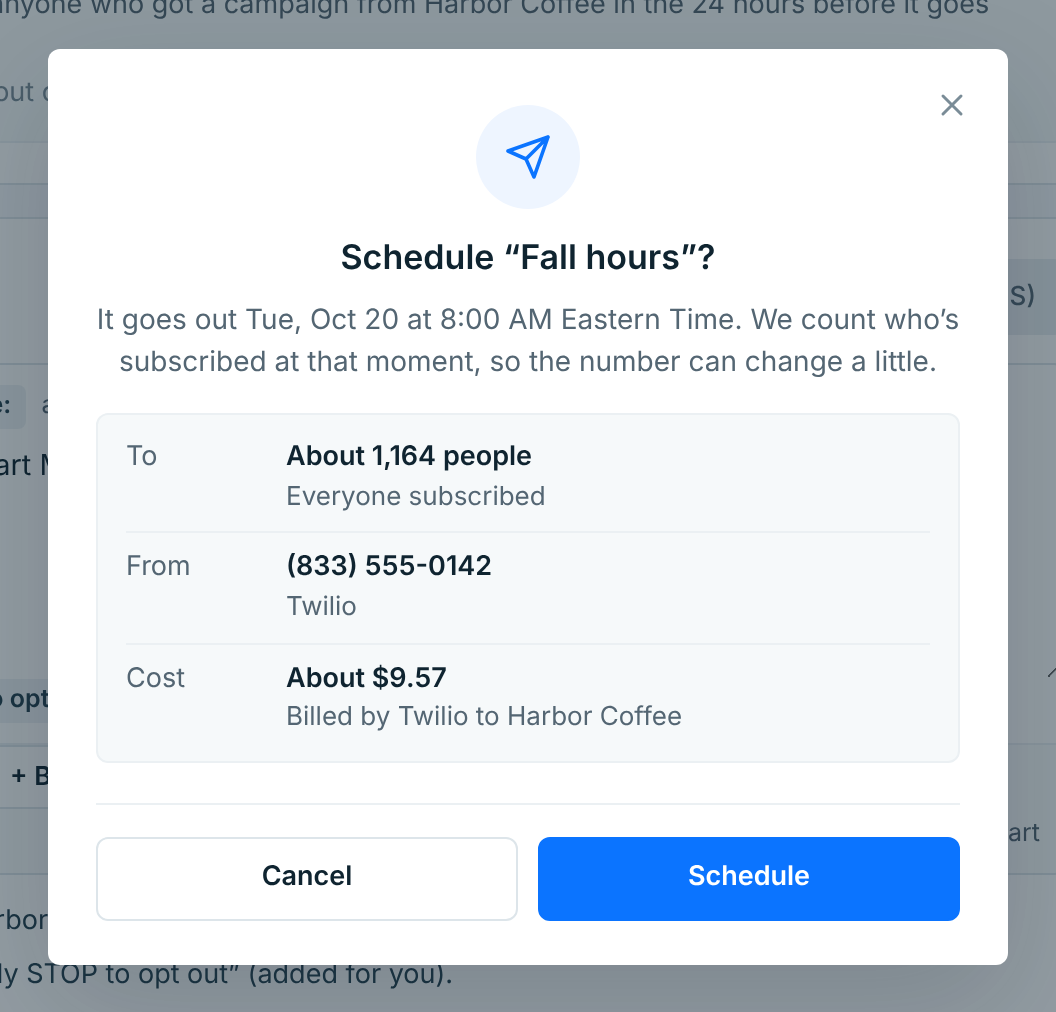
Who gets it is counted again when it goes out, so the number can change a little: people who join before then get it, and people who opt out don’t.
Click Schedule. You’re back on the list, with the campaign under Scheduled and on the calendar.
While it waits#
Open the campaign to see when it goes out, who it would go to now, and the message as people will get it.
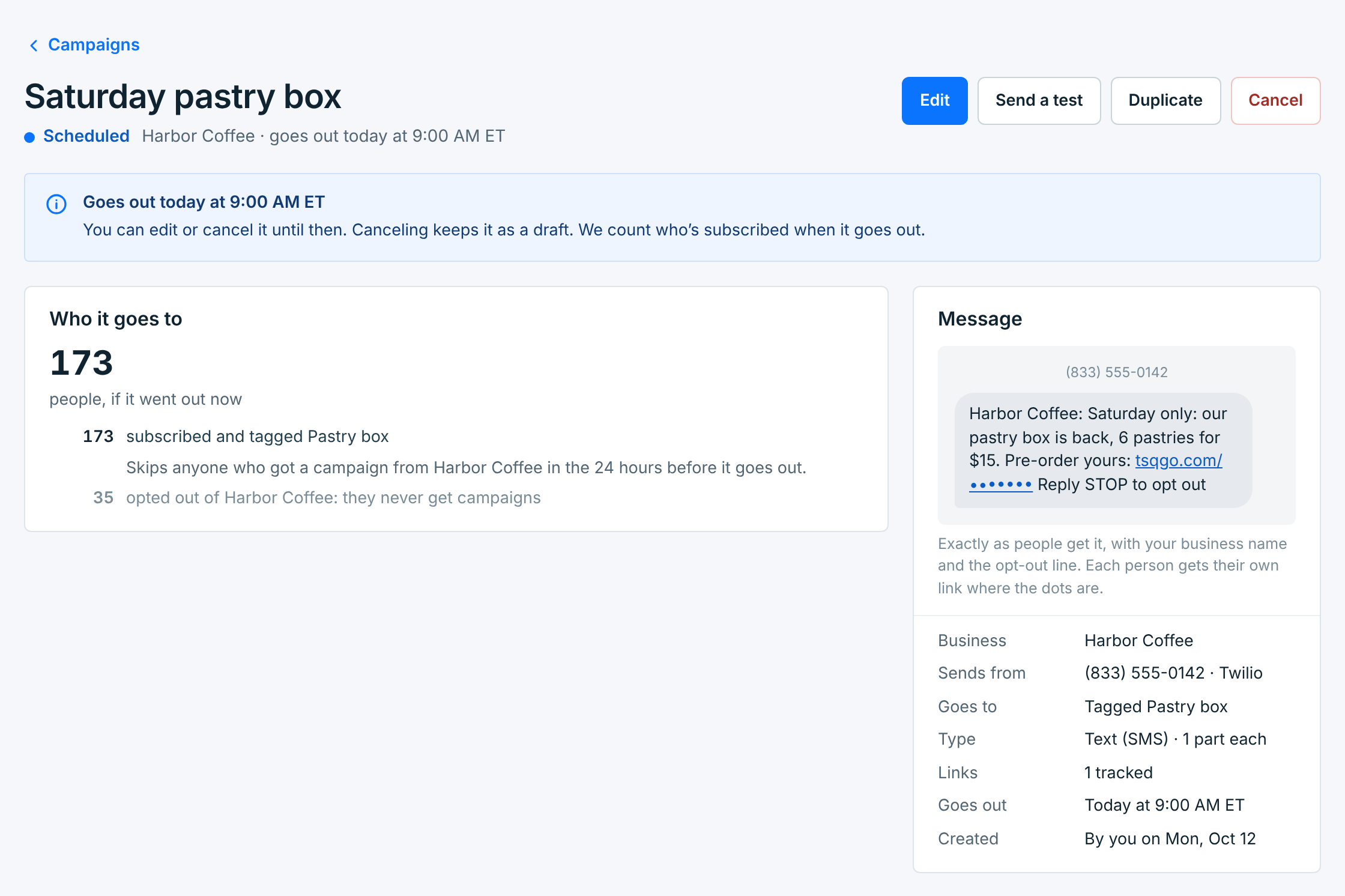
| Button | What it does |
|---|---|
Edit |
Opens it in the composer, as you left it. Change anything, the time included, and save it again. Send now sends it straight away instead. |
Send a test |
One text to your phone, exactly as people will get it. |
Duplicate |
A new campaign with the same business, people and message. |
Cancel |
Stops it going out. It’s kept as a draft (below). |
You can edit or cancel it until a minute before it goes out. After that, it’s on its way: once it starts, you can stop the rest from its page.
Canceling#
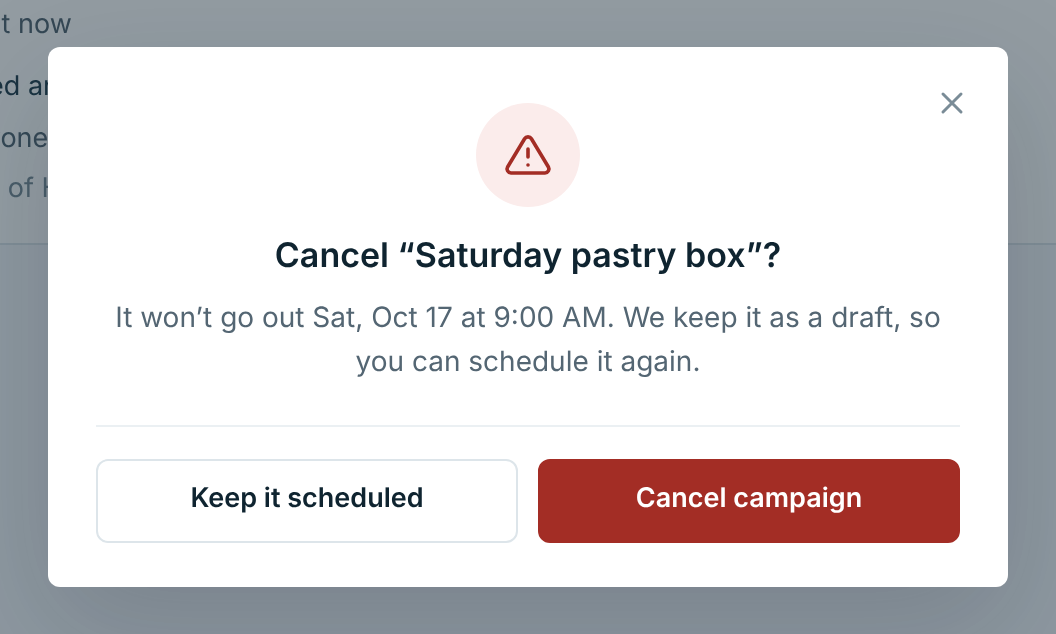
A canceled campaign becomes a draft, so nothing is lost. To send it after all, edit it and schedule it again. To get rid of it, use Delete in its … menu.
If the business can’t send#
A campaign is scheduled while its business can send. If that changes before it goes out (a carrier rejects the saved keys, say), its page warns you:
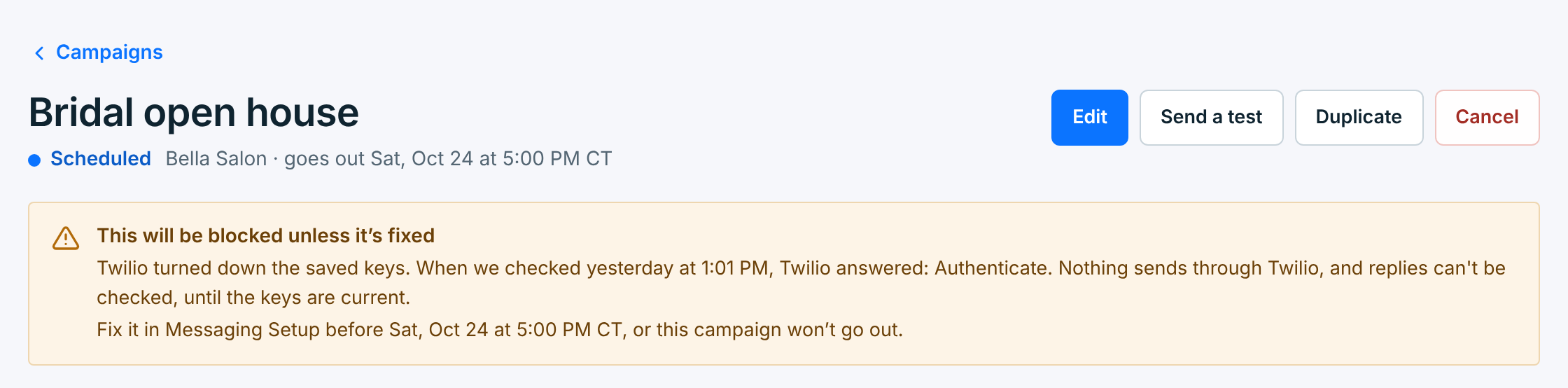
Fix it in Messaging Setup before the time shown, and the campaign goes out as planned. If it isn’t fixed in time, the campaign is blocked: nobody gets it, and it waits for you under Needs attention. You can still edit a scheduled campaign meanwhile; it stays scheduled.
A business that’s paused doesn’t send either: its scheduled campaigns say Won’t go out: business paused. See When a campaign doesn’t go out.
When it goes out#
At its time, the campaign starts by itself; you don’t need to be signed in. Its status turns to Sending, then Sent, and its page shows the results. See A campaign’s results.