Your contacts
The cards, finding people, what each row means, working with many contacts at once, and Export.
Everyone who agreed to get texts from your businesses is on the Contacts screen, with how and when they joined and whether they can still get your texts. This guide covers the screen itself: the cards, finding people, what the words in each row mean, and working with many contacts at once.
To get people in, see Add and import contacts. To see everything about one person, see A contact’s page.
The screen#
Open Contacts from the sidebar.
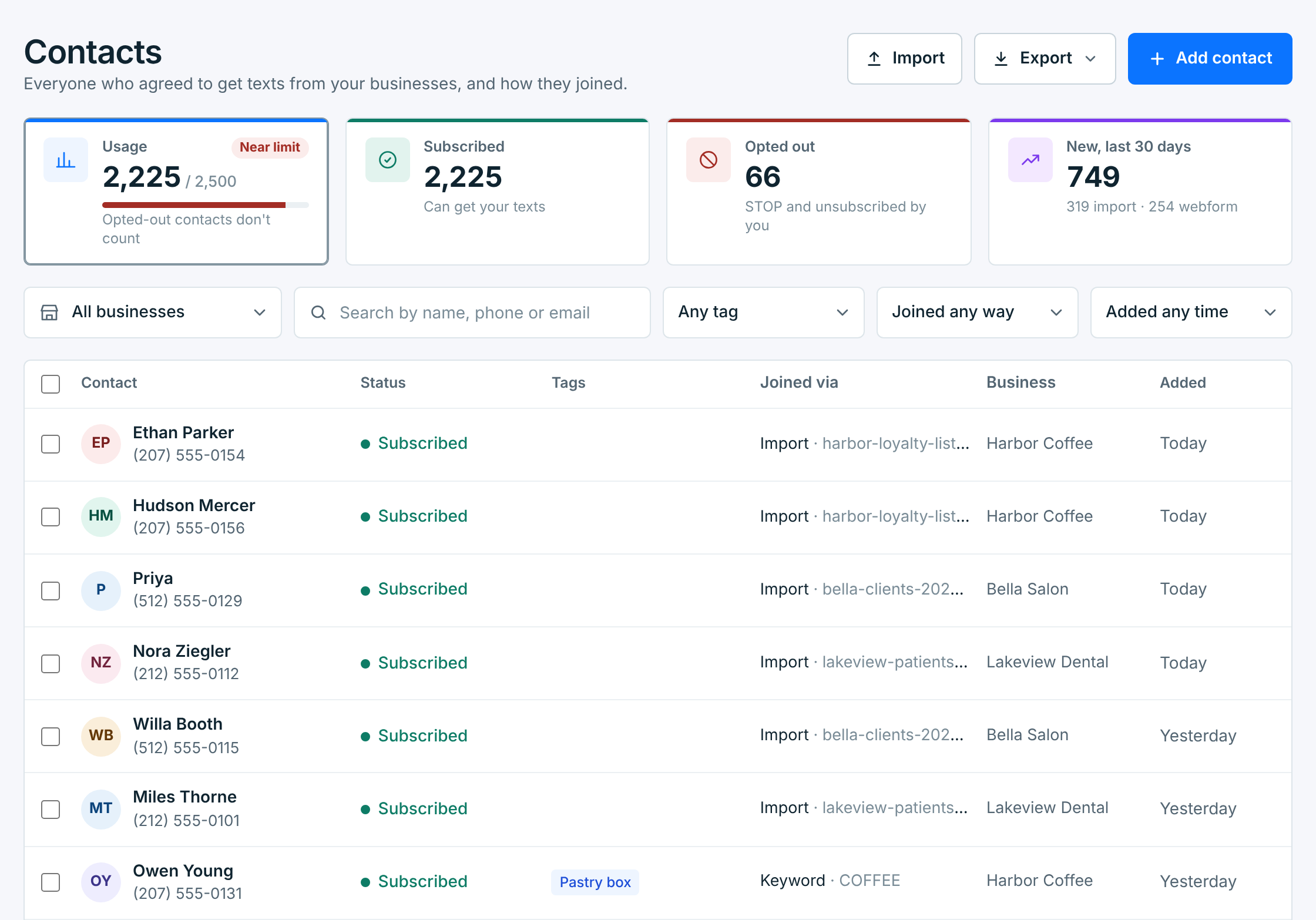
The three buttons at the top are Import, Export and Add contact. Under them are four cards. They follow the business you pick below them, except Usage, which is always your whole account.
| Card | What it counts |
|---|---|
Usage |
Subscribed contacts across all your businesses, against your plan’s limit: 500 on Starter, 2,500 on Growth, no limit on Pro. The label says Healthy, Getting close, Near limit or Full. With one business picked, it also shows that business’s share. With no plan, it says No plan and shows the count only: limits come with the plan you choose. |
Subscribed |
Contacts who can get your texts. |
Opted out |
Contacts who texted STOP or whose carrier reported it, contacts you unsubscribed, and opt-outs carried over from a business you deleted. |
New, last 30 days |
Contacts added in the last 30 days, with the two ways most of them joined. |
Opted-out contacts don’t count toward your plan. Only subscribed ones do, in every business, paused ones included.
Click Subscribed, Opted out or New, last 30 days to show only those contacts. Click the card again, or Clear filters, to see everyone.
Finding people#
The row under the cards narrows the list:
| Filter | What it does |
|---|---|
Business |
One business, or All businesses. Only shows when you have more than one. |
Search |
Name, phone number or email. The list updates as you type. |
Tag |
Contacts with one tag. |
Joined via |
Webform, Keyword, Import, Integration or Added by you. When one business is in view, it also lists that business’s webforms: pick one to see everyone who joined through it, on its page or by its keyword. |
Added |
The last 7, 30 or 90 days. |
The list shows 25 contacts a page, newest first. On a phone, the three drop-downs fold into a Filters button.
What each row tells you#
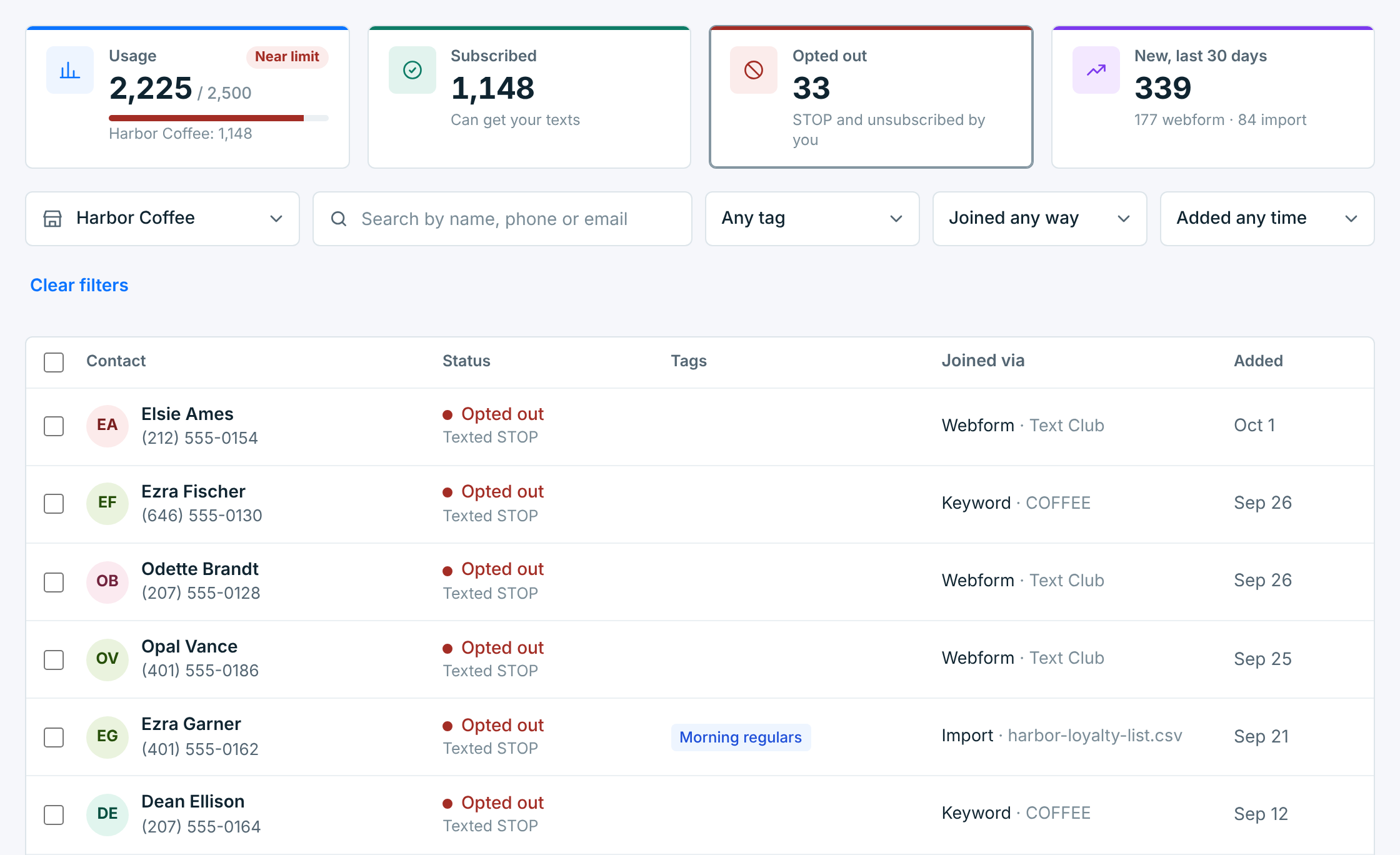
Each row has the contact’s name and number (or No name when we only have the number), their status, up to two tags (+2 means two more), how they joined, the business when you’re looking at all of them, and when they were added. Click a row to open their page.
Here is Harbor Coffee with the Opted out card clicked:
Status#
| Status | What it means |
|---|---|
Subscribed |
They can get your texts. |
Opted outTexted STOP |
They replied STOP or another stop word. Every text from this business stopped. Only they can rejoin, by texting START. |
Opted outSTOP via carrier |
Their carrier told us they opted out. The same as a STOP. |
Opted outAt a deleted business |
They opted out of a business you deleted, and you send from its number again, so their opt-out came back with it. Only they can rejoin, by texting START. |
UnsubscribedBy you |
You unsubscribed them, for example because they asked you in person. Only they can rejoin, by texting START. |
Nobody can put an opted-out contact back on the list: not by hand, not by importing them again, not through Integrations. It’s how carriers handle STOP, it keeps you on the right side of the opt-out rules, and it protects your number.
Joined via#
| Joined via | How they got here |
|---|---|
Webform · Text Club |
They signed up on one of your webforms. The name is the form’s. |
Keyword · COFFEE |
They texted your keyword to your number. |
Import · file name |
They were in a CSV file you imported. |
Integration · Zapier |
Another app sent them in: Zapier, Make, your website or a form tool. |
Added by you · In person |
You added them with Add contact, and said how they agreed. |
Each business keeps its own contacts. The same number in two of your businesses is two contacts, each with its own tags, opt-in and opt-out. Someone who texts STOP to one business is still subscribed to the other.
Working with many contacts#
Tick the boxes beside the contacts you want. A bar appears above the list with what you can do with them:
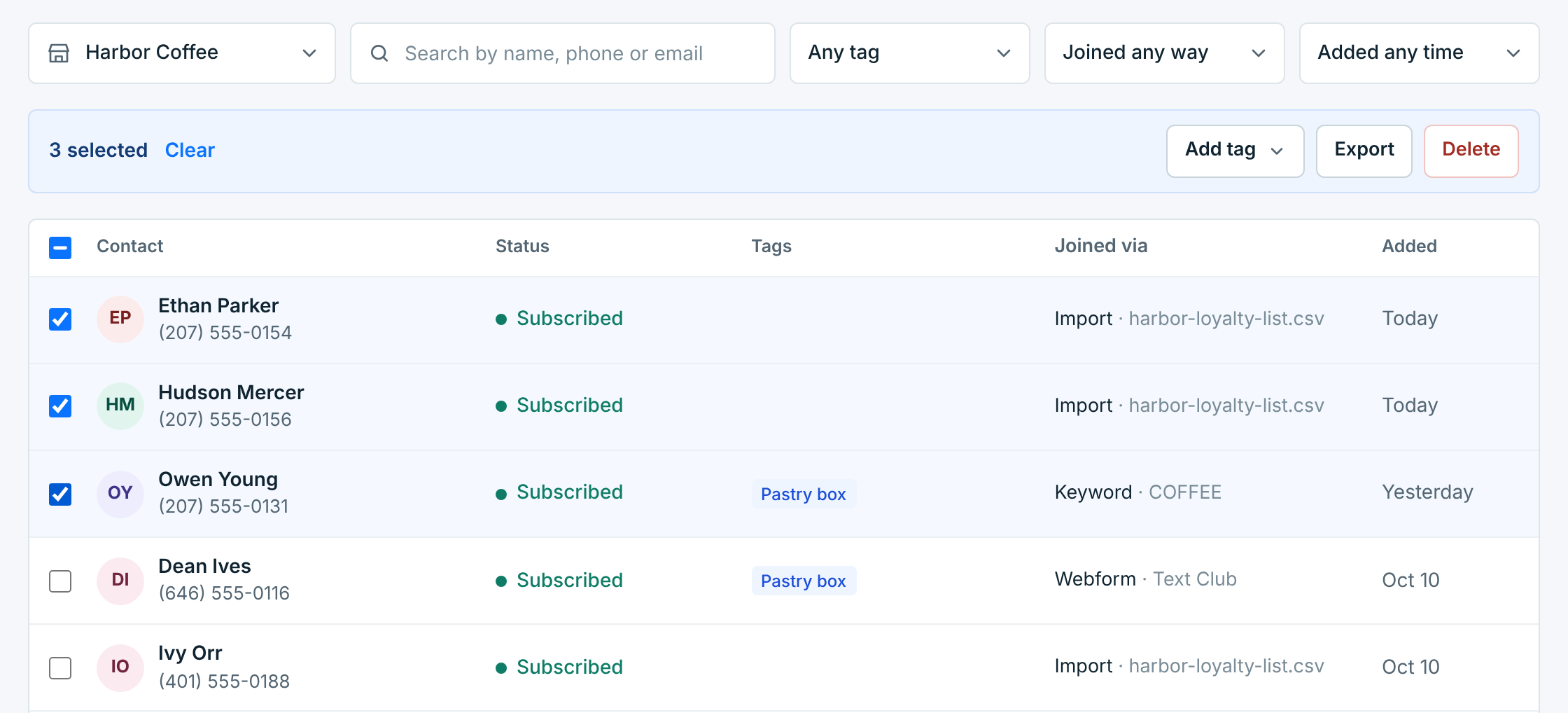
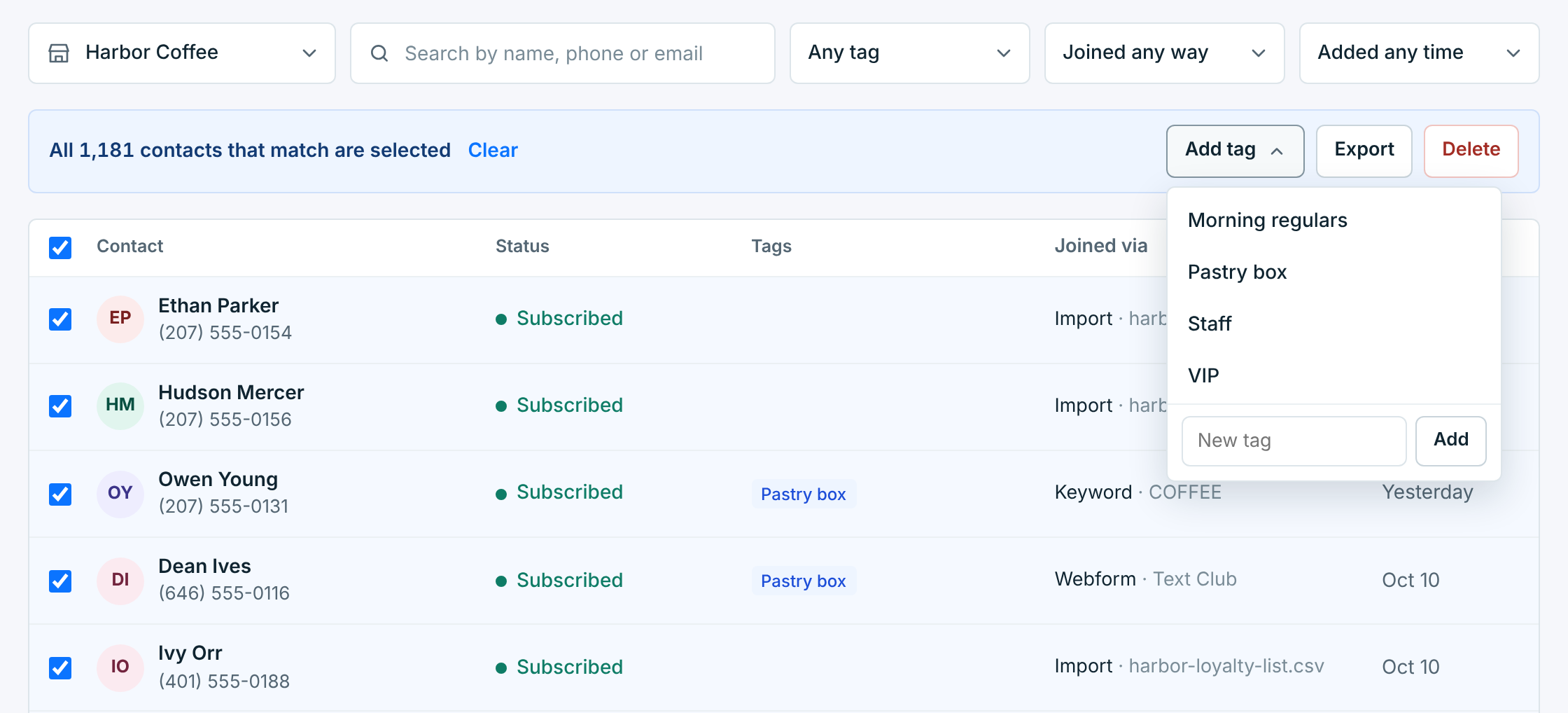
Tick the box in the header to select the whole page. Then Select all … that match takes in every contact that matches your business, search and filters, not just the 25 on screen:
| Action | What it does |
|---|---|
Add tag |
Puts a tag on all of them. Pick one, or type a new tag and click Add. To take a tag off, open the contact, or use Lists / Tags. |
Export |
Downloads a CSV of the ones you selected. |
Delete |
Removes them from your list, after you confirm. Above 100 contacts, you type the number to confirm. |
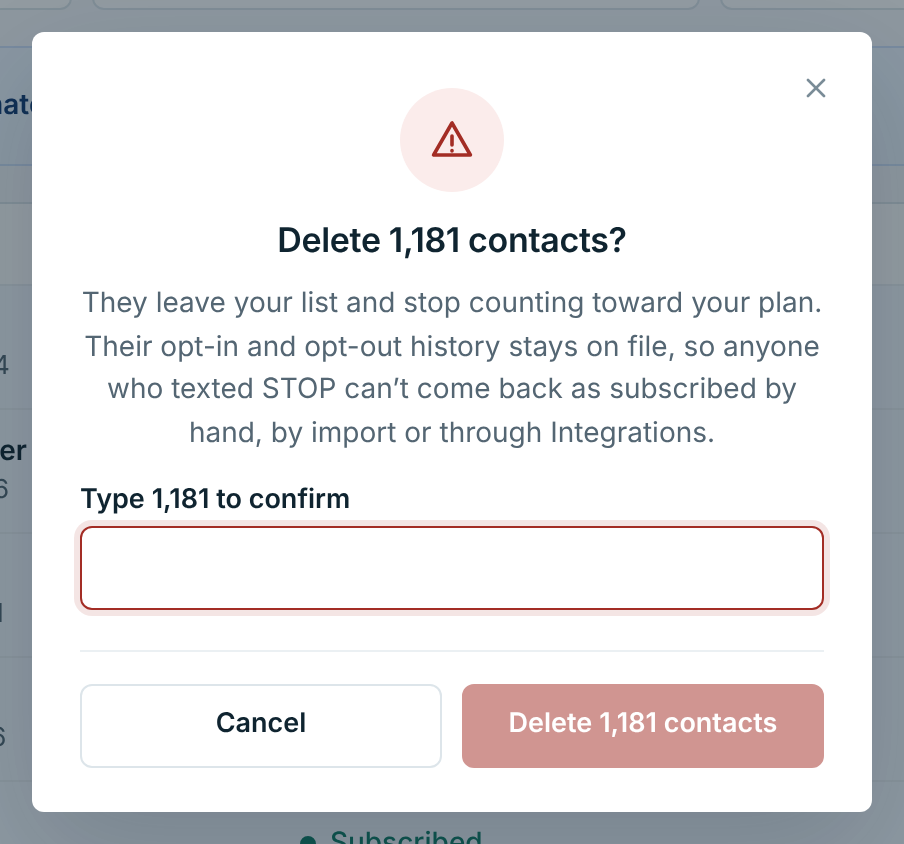
Deleted contacts leave your list and stop counting toward your plan. Their opt-in and opt-out history stays on file, so anyone who texted STOP can’t come back as subscribed by hand, by import or through Integrations.
Exporting#
Click Export at the top. When a business, search or filter narrows the list, you can export just the ones on screen, or everyone:
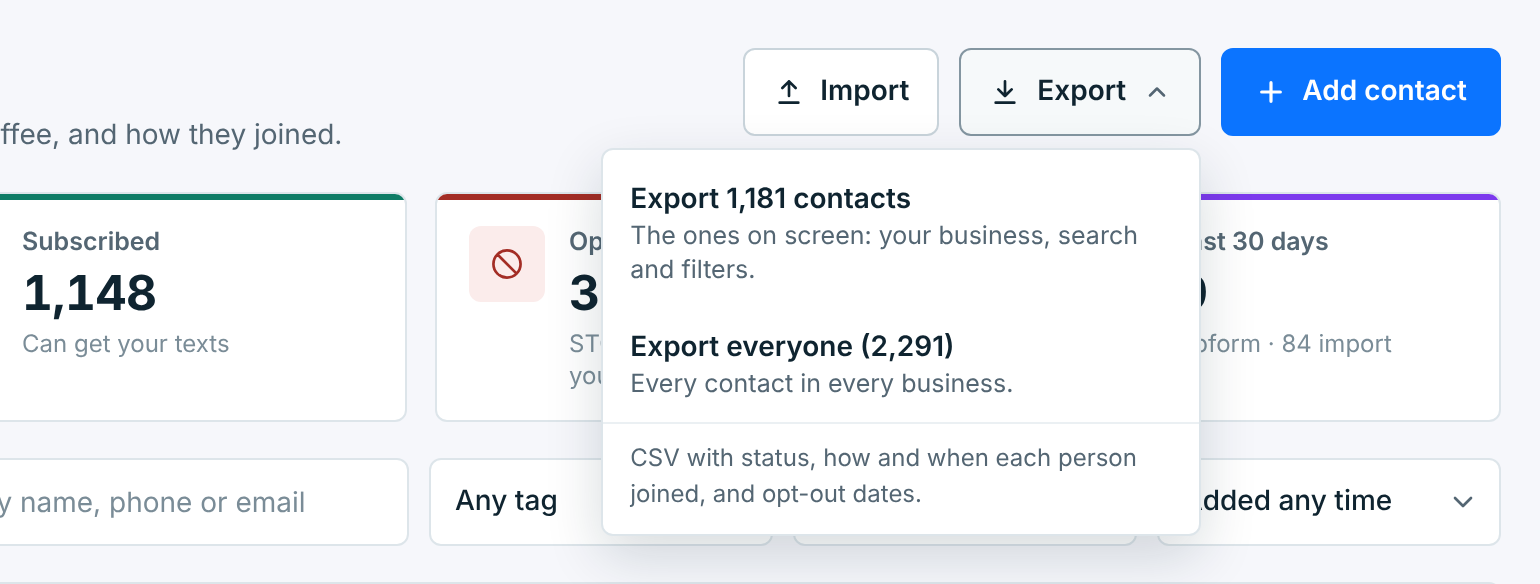
With nothing narrowing the list, there’s one choice: Export everyone. The CSV has these columns:
Phone, First name, Last name, Email, Business, Status, How they opted out, Opted out at, Joined via, Joined detail, Joined at, Consent recorded at, Tags, Contact ID, Birthday
The file opens in Excel, Numbers or Google Sheets. You can import it back too: we recognise our own column names.
A paused business’s contacts#
When you pause a business, its contacts stay on the Contacts screen. The business picker shows it as · paused, the Business column says Paused under its name, and picking it says what that means:
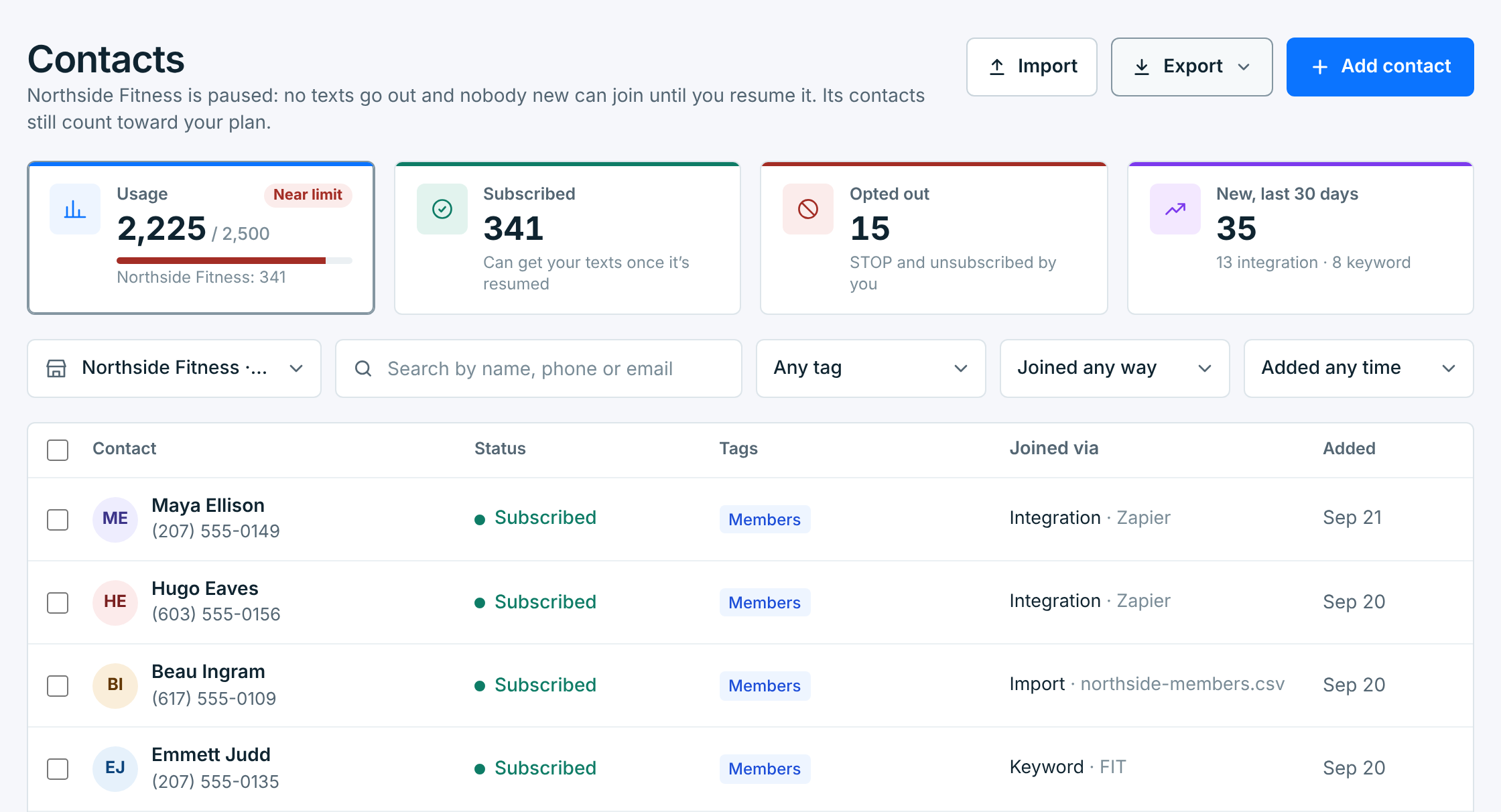
- No texts go out and nobody new can join: its webforms say signups are paused, its keyword stops signing people up, and you can’t add contacts to it. An import only takes people who opted out (see Importing opt-outs into a paused business).
- STOP still works. Anyone who texts STOP while it’s paused is opted out.
- Its subscribed contacts still count toward your plan.
- You can still open, edit, tag, unsubscribe, export and delete its contacts.
Resume the business on Businesses to start texting its contacts again.