Add and import contacts
Add someone by hand or import a CSV file, with their agreement recorded for every contact.
There are two ways to put people on your list yourself: add them one at a time, or import a CSV file of people you already have. Both ask the same question first: did they agree to get texts from this business?
The other ways in are your webforms, a keyword people text, and Integrations. Those record each person’s agreement for you.
Before you add anyone#
Only add numbers that agreed to get marketing texts from this business:
- Agreement doesn’t carry over between businesses. A list collected for one of your businesses can’t be used for another.
- It doesn’t carry over from email. Someone on your newsletter hasn’t agreed to texts.
- A bought or borrowed list is never agreement, whatever the seller says.
Adding and importing both make you tick a box saying they agreed and that you can show proof if asked. We keep that tick with every contact it adds, with the time and who ticked it. Keep your own proof too: the paper sign-up sheet, the form, the email where they said yes. See What counts as opt-in.
Texting people who didn’t agree is against the law (the TCPA in the US) and against carrier rules. Complaints land on your Twilio or Vonage account, and the usual result is your number being blocked.
Add one contact#
Click Add contact at the top of Contacts.
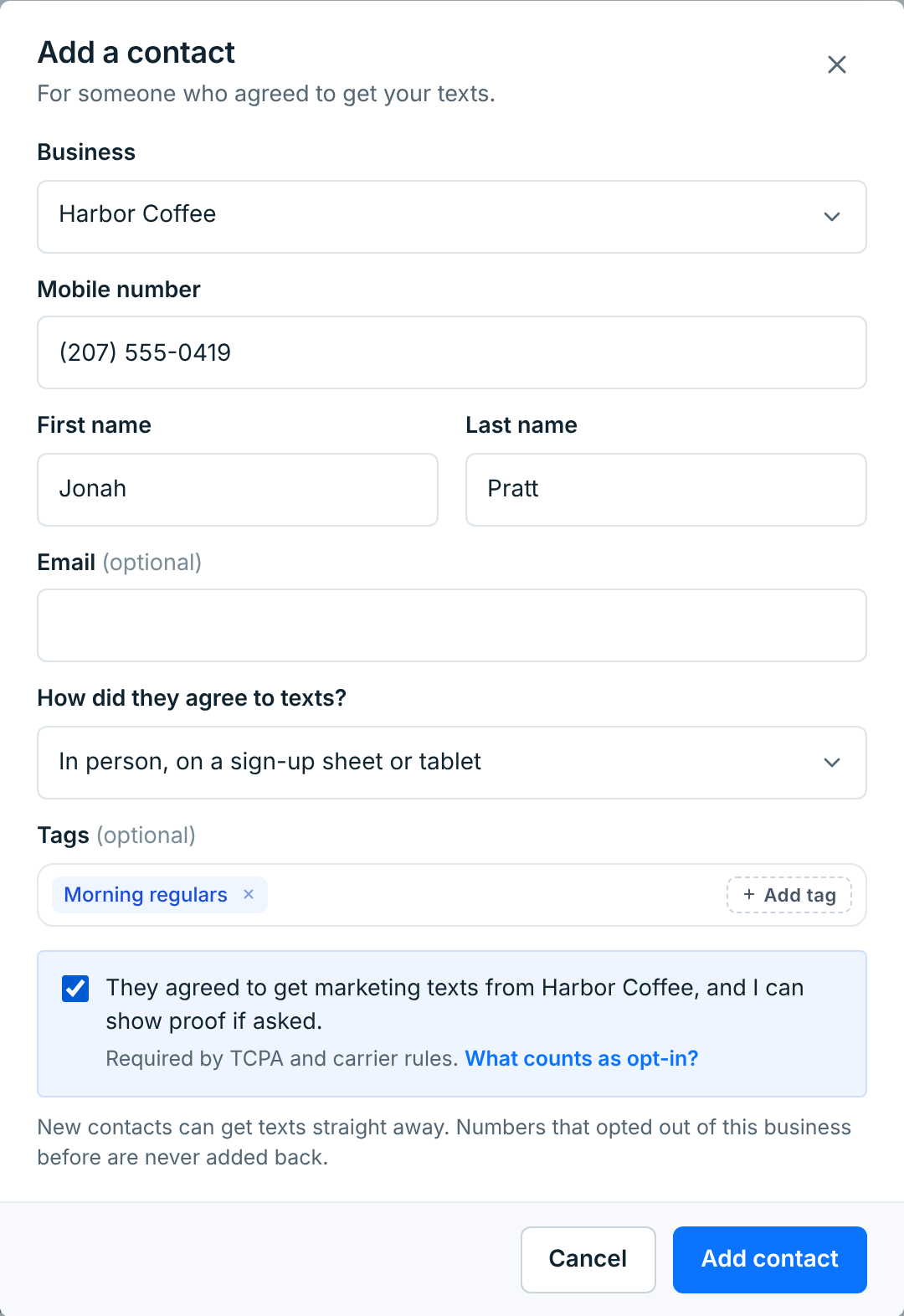
| Field | Description |
|---|---|
BusinessRequired |
The business they agreed to get texts from. A paused business isn’t offered. |
Mobile numberRequired |
With its area code, like (207) 555-0419. Numbers outside the US and Canada need their country code: +44 7700 900123. |
First name, Last nameOptional |
Used when a text says their name. |
EmailOptional |
Kept with the contact. We don’t send email to it. |
How did they agree to texts?Required |
In person, on a sign-up sheet or tablet; A form on your website; A QR code sign-up; or Another way (you’ll keep the proof). It goes on their consent record. |
TagsOptional |
Click Add tag to pick the business’s tags or make a new one. |
They agreed…Required |
Your confirmation that they agreed to marketing texts from this business and you can show proof. |
Click Add contact. They’re subscribed straight away and can get your next text. Adding someone by hand doesn’t send them a welcome text.
The number is checked as you type#
Once the number is complete, the line under the form says what will happen.
A number that opted out of this business can’t be added, and the button stays off:
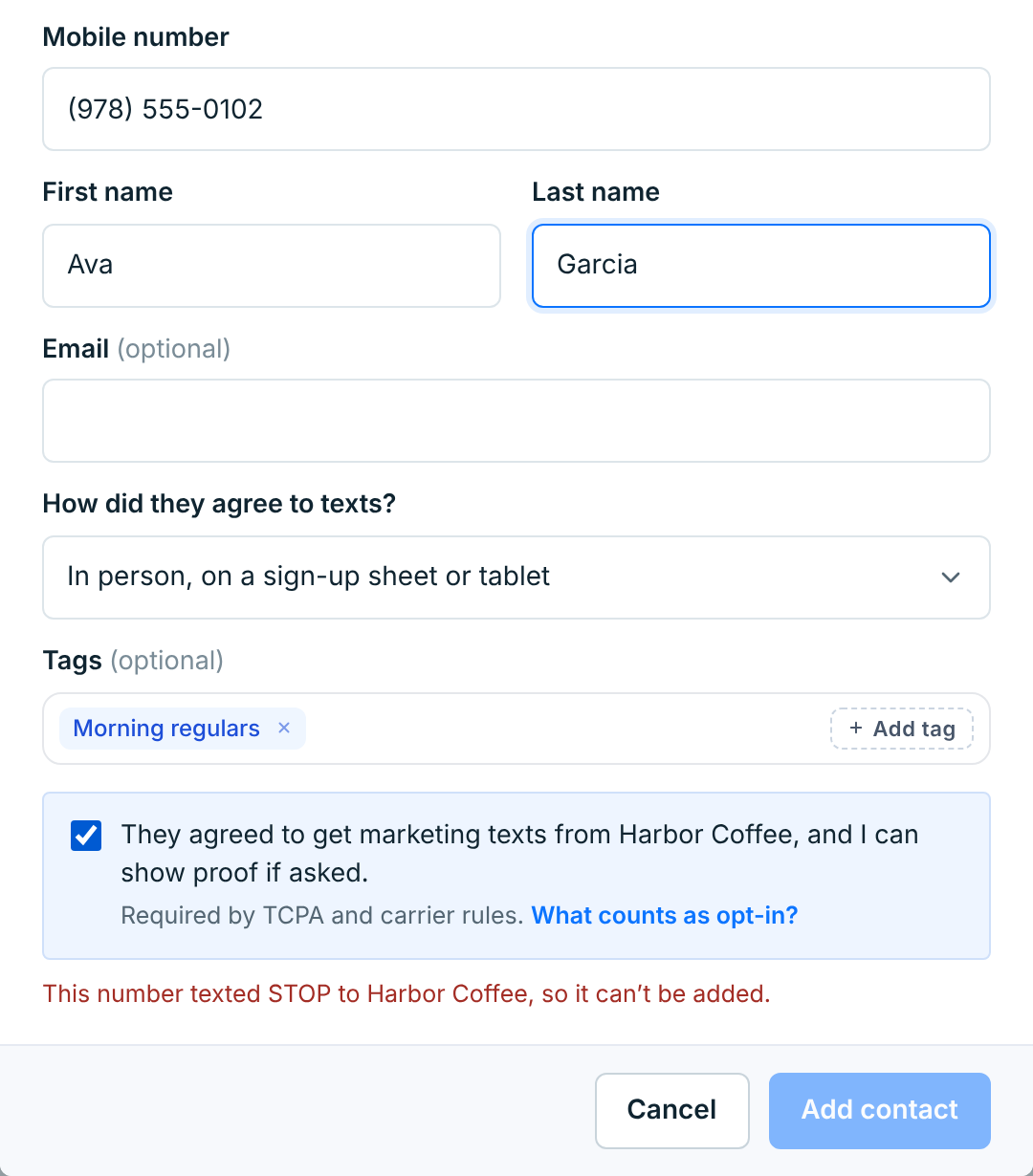
That’s the same for someone who texted STOP and someone you unsubscribed. Only they can rejoin, by texting START.
A number that’s already a contact of this business is updated instead. The button says Update contact:
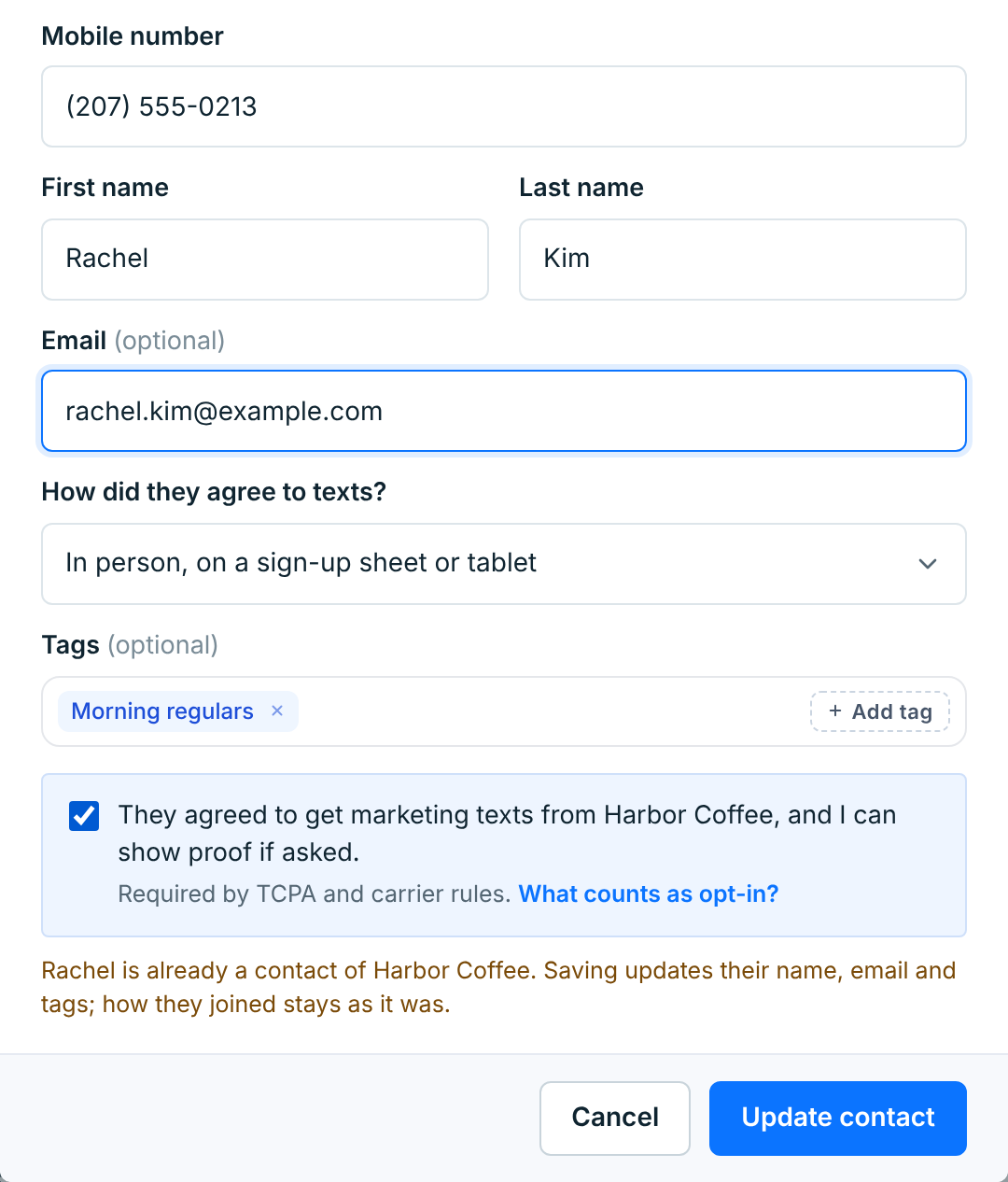
Saving fills in the name and email you typed (a blank field leaves what’s there) and adds the tags. How they joined, and their consent record, stay as they were.
A number you deleted earlier can be added back. The line says so, and they come back with the agreement you’re recording now.
When your plan’s contact limit is full, the form says so and nobody new can be added until you upgrade or remove contacts. Opted-out contacts don’t count toward the limit.
Import a CSV file#
Get the file ready#
Save your spreadsheet as a CSV file, one person per row, with a heading row on top. Only one column is needed: their mobile numbers.
| Column | Description |
|---|---|
Mobile numberRequired |
Any heading works. We recognise Phone, Phone number, Mobile, Mobile number, Cell, Telephone and similar names, and you can pick the column yourself if we don’t. |
First name, Last nameOptional |
Also recognised as First, Given name, Last, Surname. |
EmailOptional |
Also E-mail, Email address. |
TagsOptional |
Several in one cell, separated by commas or semicolons: VIP, Pastry box. Each finds the business’s tag by its name or its name in apps. A tag the business doesn’t have yet is made for you, spelled as in the file, and the summary at the end names it. See How people get a tag. |
StatusOptional |
Only a word like Unsubscribed, Opted out or STOP is used, and it unsubscribes that person. Useful when you’re bringing opt-outs over from another app. A file never subscribes anyone back. |
Numbers can be written any of the usual ways: (207) 555-0142, 2075550142, +12075550142. A 10-digit number is read as US or Canadian. Numbers from anywhere else need their country code. A cell that isn’t a number we can text is skipped and listed at the end, so nothing broken gets on your list.
Not sure where to start? Download a sample CSV in the import window gives you a file with the right headings.
1. Choose the file#
Click Import at the top of Contacts. Drag your file in, or click Choose a CSV file.
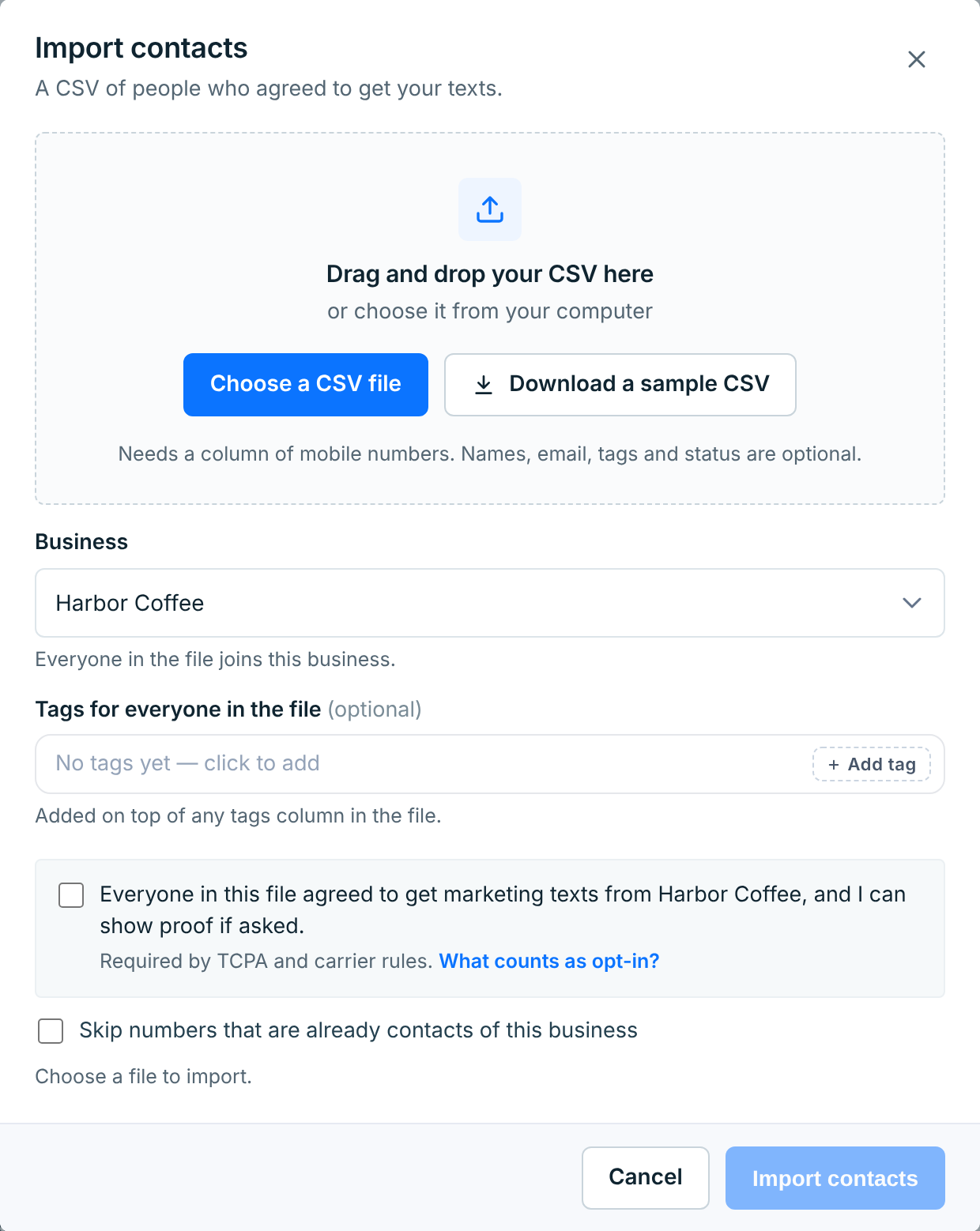
Then fill in the rest:
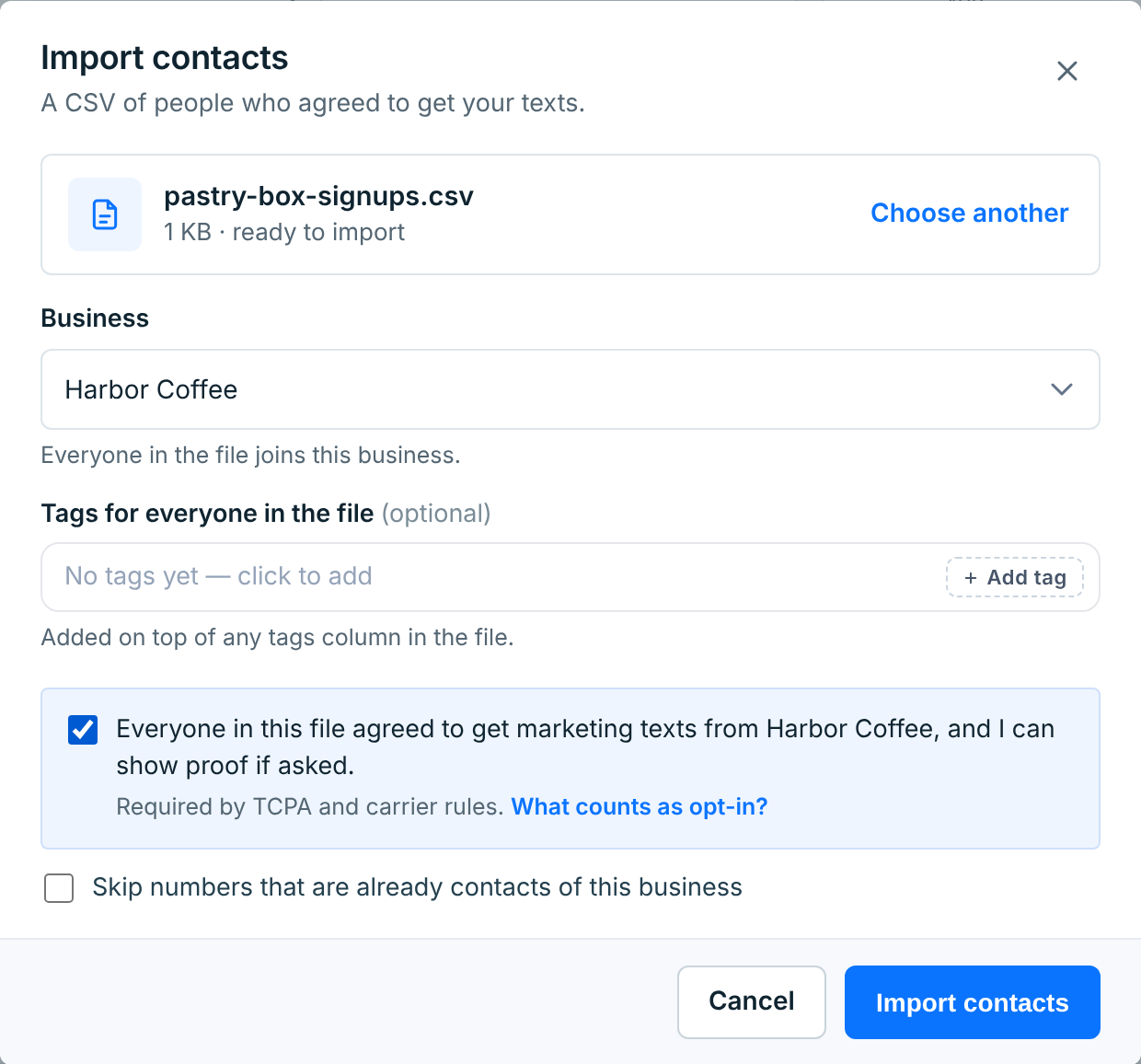
| Field | Description |
|---|---|
BusinessRequired |
Everyone in the file joins this business. One file, one business. A paused business is listed as paused, opt-outs only: see below. |
Tags for everyone in the fileOptional |
Added to every row, on top of any Tags column in the file. |
Everyone in this file agreed…Required |
Your confirmation that everyone in it agreed to marketing texts from this business and you can show proof. The import won’t start without it. |
Skip numbers that are already contactsOptional |
Leaves contacts already in this business exactly as they are. Without it, they get the name and email in the file, and its tags are added to theirs. |
Click Import contacts.
2. Match the columns#
We read your headings and match them to contact fields, with the first rows of each column so you can see what’s in it.
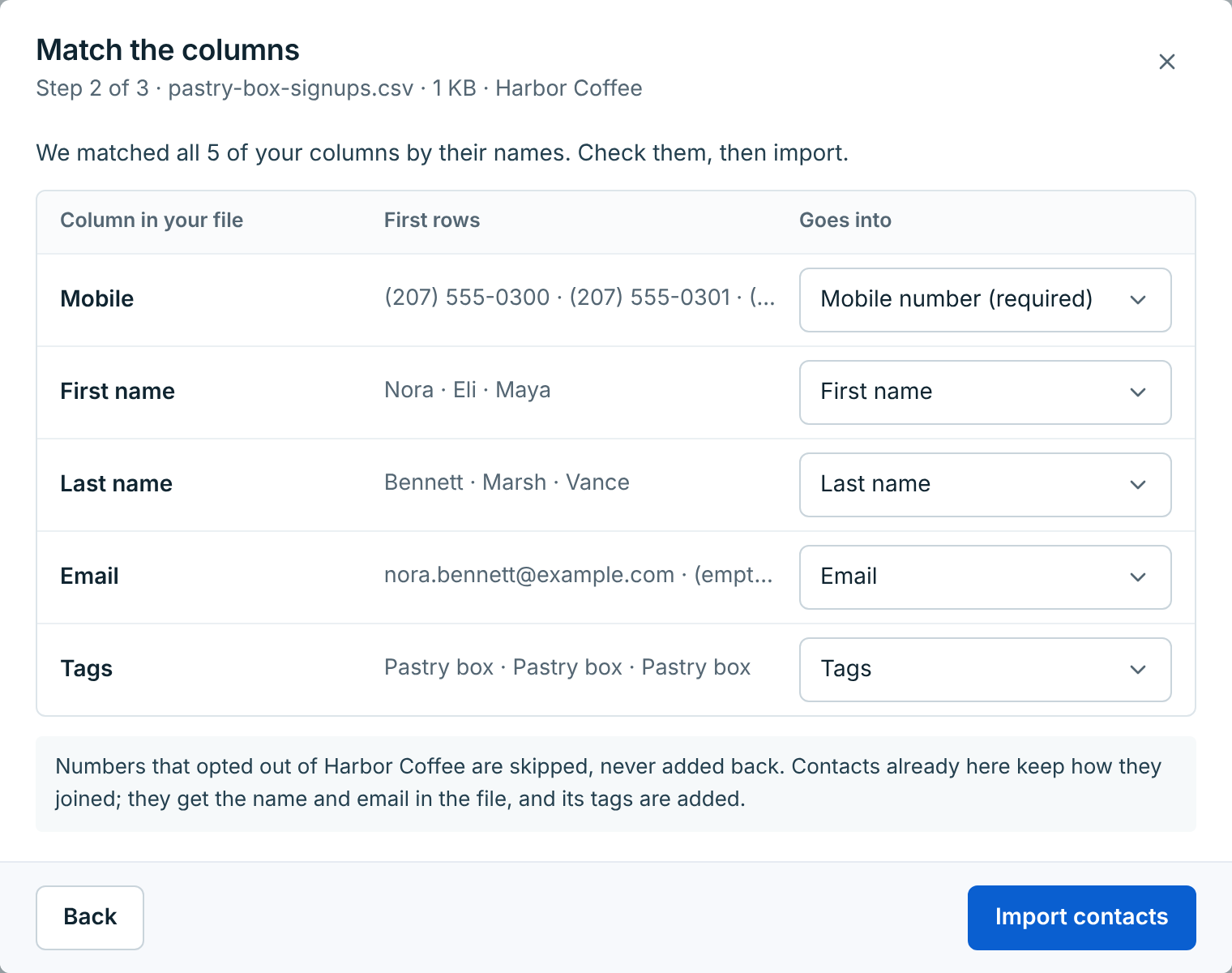
Change anything we got wrong, and set columns you don’t want to Don’t import. One column has to be the mobile number: until one is, the button stays off. Click Import contacts.
3. Importing#
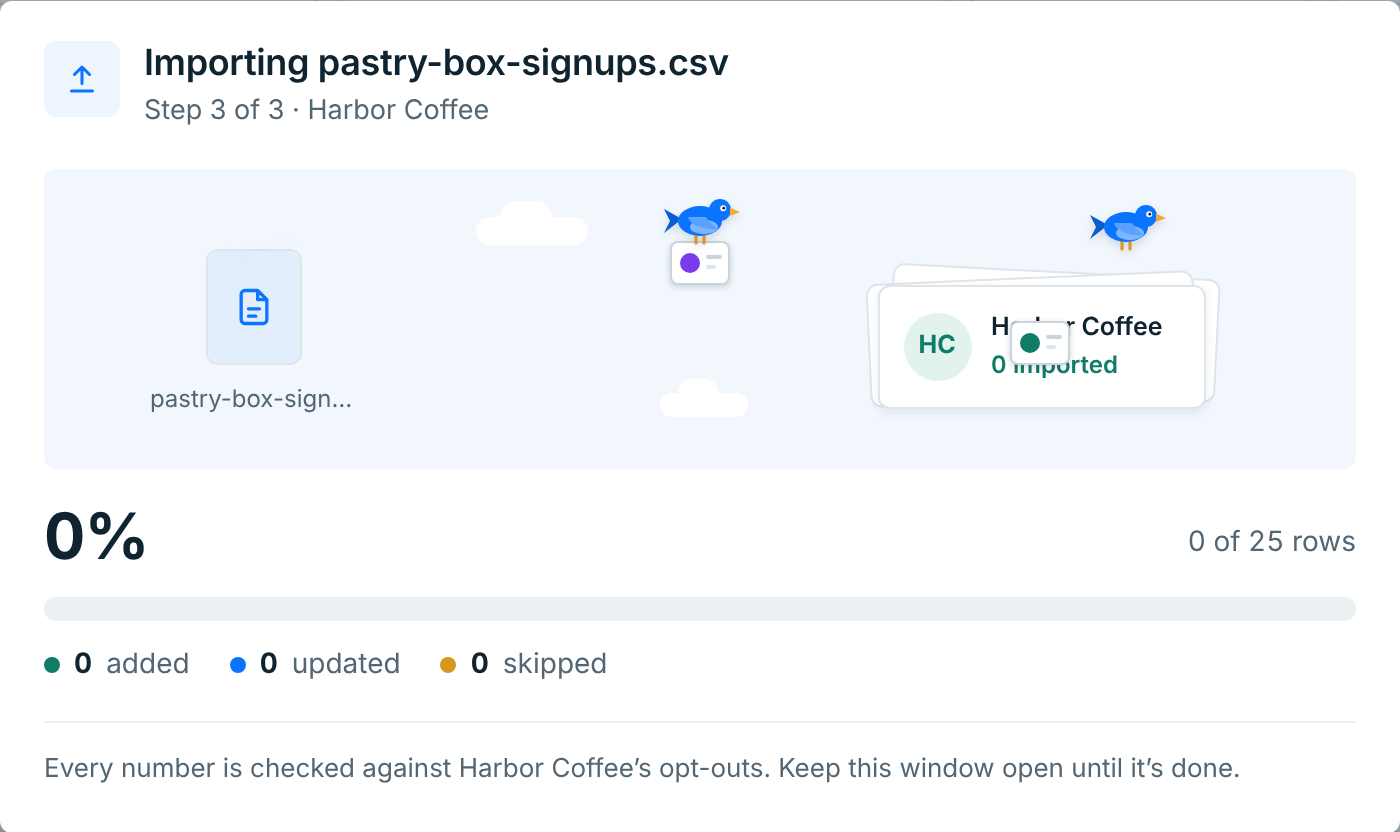
Every number is checked against the business’s opt-outs as it goes in. Keep the window open until it’s done.
4. What happened#
When it’s done, you see how every row in the file was counted:
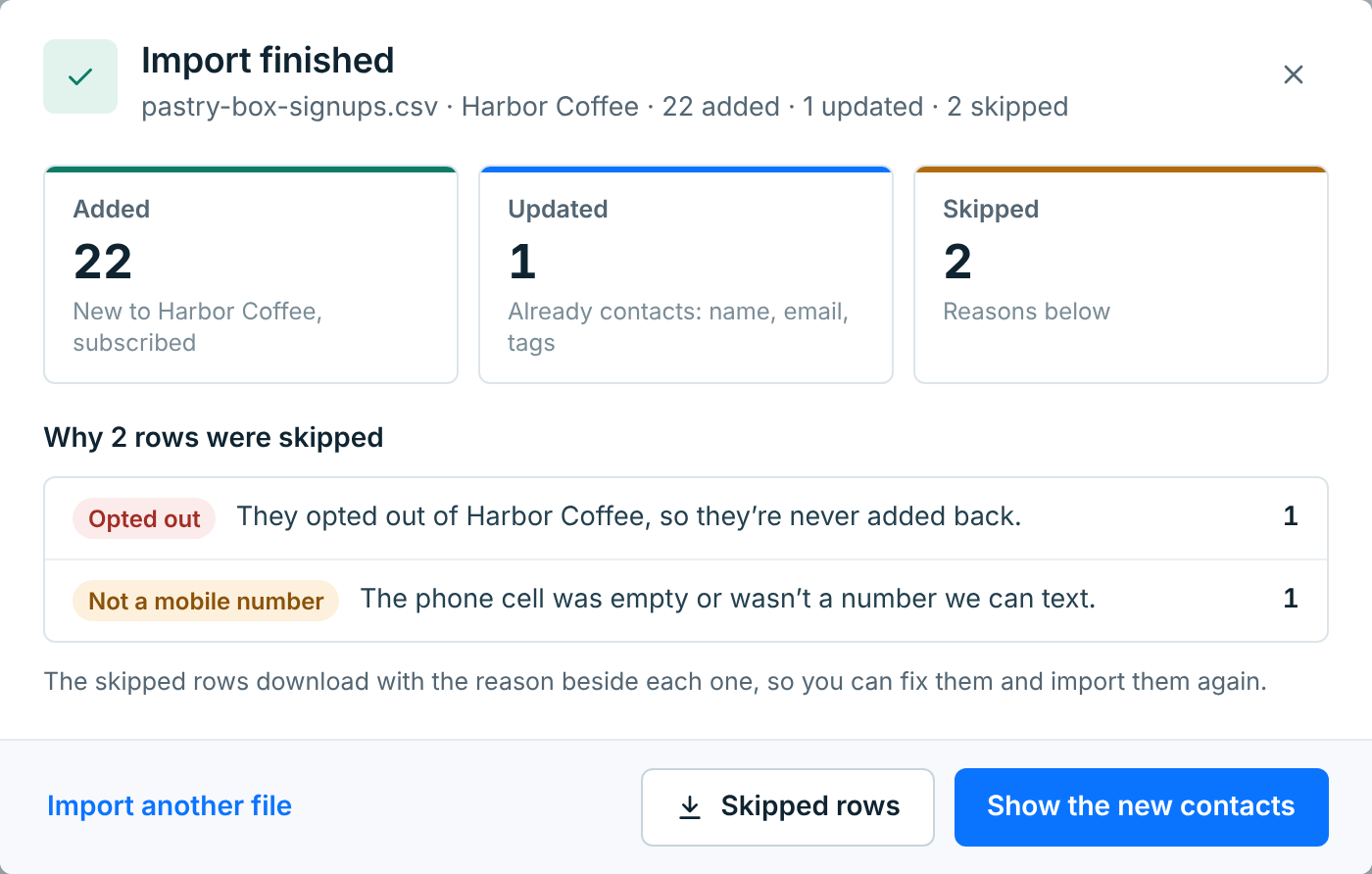
| Count | What it means |
|---|---|
Added |
New to the business, and subscribed. |
Updated |
Already contacts. They got the name and email in the file, and its tags on top of the ones they had. A blank cell leaves what was there, and how they joined stays as it was. |
Skipped |
Not added, with the reasons underneath. |
Over your plan |
Only when your plan’s contact limit filled up during the import: these weren’t added. |
Why a row is skipped:
| Reason | What happened |
|---|---|
Opted out |
They opted out of this business, so they’re never added back. |
Not a mobile number |
The cell was empty, or wasn’t a number we can text: too short, a note, an N/A. |
Already a contact |
You ticked Skip numbers that are already contacts, and this one is. |
Couldn't be saved |
Rare. Import the skipped rows file to try them again. |
Skipped rows downloads those rows as a CSV, with the reason beside each one. Fix them and import that file. Show the new contacts takes you to the list, filtered to the business’s imports from the last 7 days.
Importing doesn’t send anyone a welcome text.
When your plan fills up part way, the rest of the file isn’t added. Upgrade, then import the same file again: anyone already added is recognised, and the rest go in.
Importing the same file again#
If you import a file this business has had before, we say so before anything happens, with when and what happened last time:
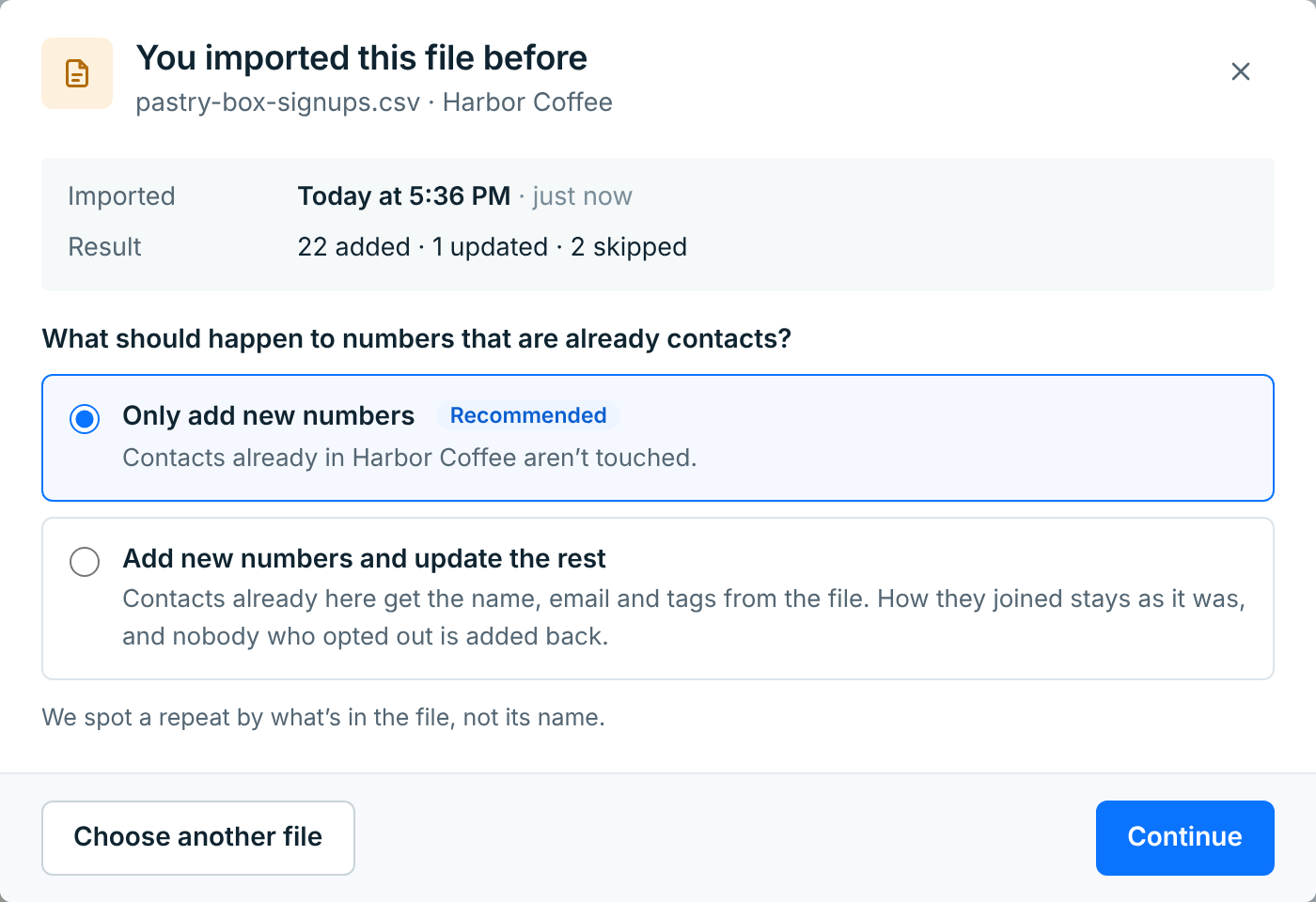
- Only add new numbers leaves everyone already in the business as they are. This is what you usually want.
- Add new numbers and update the rest also gives existing contacts the name and email in the file, and adds its tags.
We spot a repeat by what’s in the file, not its name, so renaming it doesn’t matter. Either way, nobody who opted out is added back, and no one is ever added twice: the same number in the same business is always one contact.
Importing opt-outs into a paused business#
Nobody new can join a paused business, but you can still bring over people who asked not to be texted: from your old texting app, say, before you resume it. Pick the business in the import window. It’s listed as paused, opt-outs only, and the window changes to match:
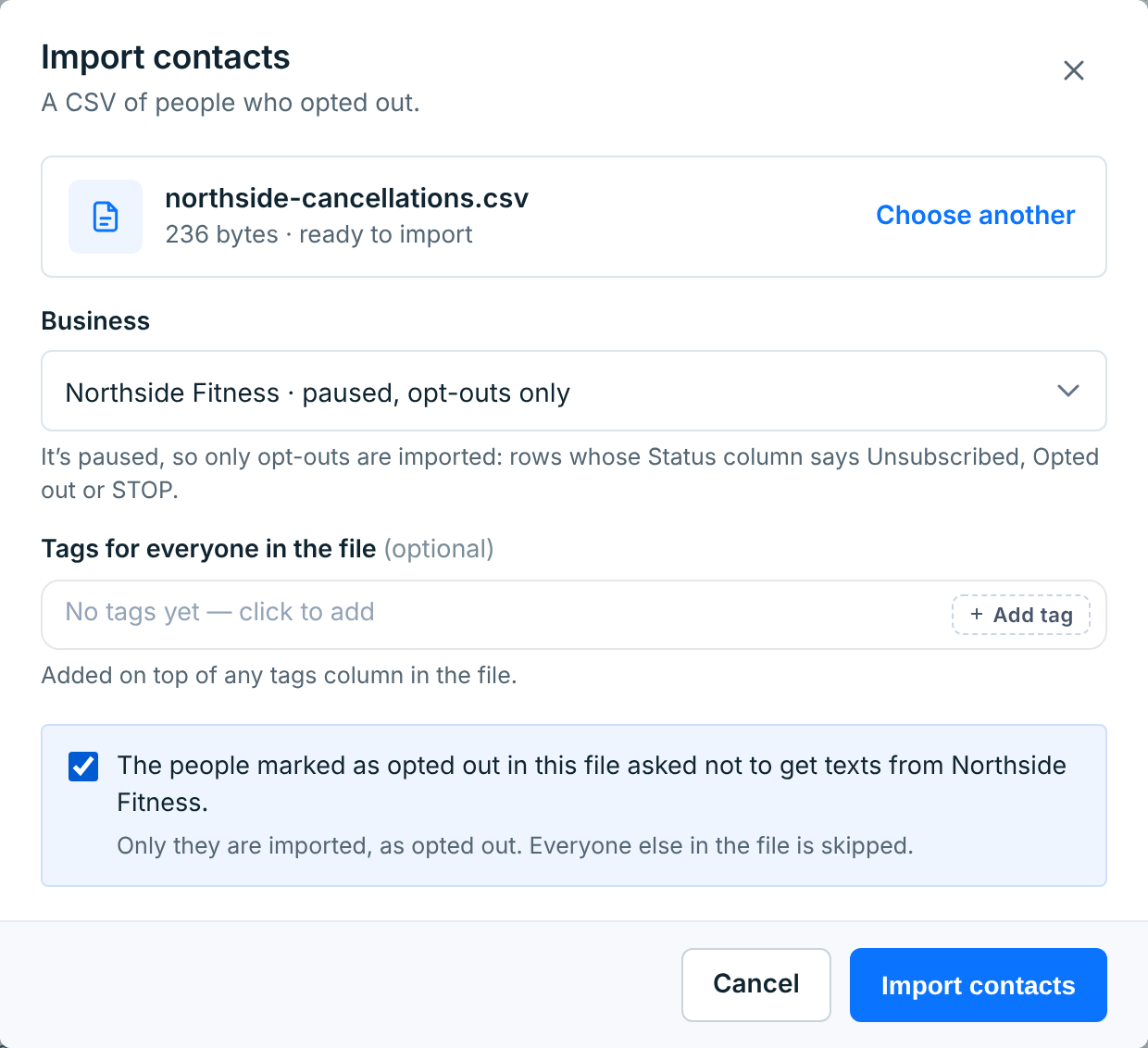
- The file needs a Status column. Only rows where it says
Unsubscribed,Opted outorSTOPare imported. Until a column goes into Status on the next step, Import contacts stays off. - The box you tick says the people marked as opted out asked not to get texts from the business. You’re not confirming that anyone agreed to texts.
- A contact who’s subscribed is unsubscribed (Unsubscribed · by you). A new number is kept as opted out, so it can never be added later; its Consent tab says Added as opted out. A number that had already opted out is left as it is.
- Every other row is skipped as Not an opt-out. To add those people, resume the business, then import the file again.
A business that’s being deleted isn’t listed at all.