Your templates
The Templates screen: your templates and the starter library, categories, Preview as, and a template's page.
A template is a message you keep to start campaigns and welcome texts from. Templates belong to you, not to one business: each one works for any of your businesses, with that business’s name filled in when it’s sent. This guide covers the Templates screen, the starter library, and a template’s page.
To write one, see Make and edit a template. To send one, see Use a template.
The screen#
Open Templates from the sidebar.
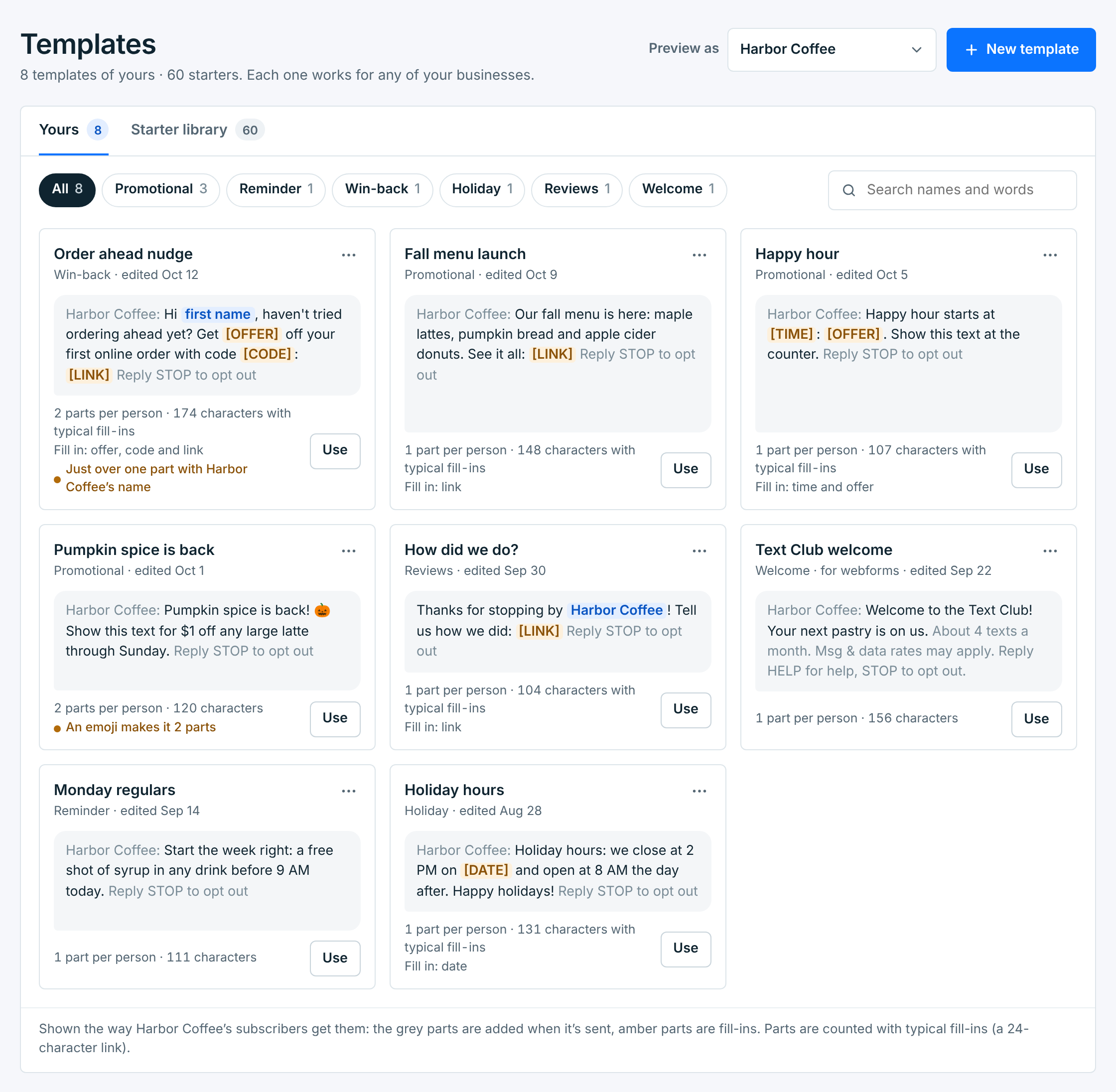
The line under the title counts your own templates and the starters. Two tabs split them:
| Tab | What’s in it |
|---|---|
Yours |
Templates you wrote, saved from a campaign, or copied from the starter library, most recently changed first. Only you see them. |
Starter library |
60 ready-made templates: six for each of ten industries, 50 for campaigns and 10 welcome texts. You can use them as they are, or copy one to yours to change it. |
The buttons above the cards narrow them to one category, with how many are in each. Search finds a template by its name or any word in it.
| Category | For |
|---|---|
Promotional |
Offers, sales and news. |
Reminder |
Something coming up, sent to a tag or on repeat. A campaign doesn’t know anyone’s own appointment, so reminders never say “your appointment”. |
Win-back |
People you haven’t seen in a while. |
Event |
Classes, tastings, open houses. |
Holiday |
Holiday hours and seasonal offers. |
Reviews |
Asking how you did. |
Welcome |
A webform’s welcome text, sent the moment someone joins. Not for campaigns. |
No category |
Anything else. |
Preview as#
Cards show each template the way one business’s subscribers get it. Preview as, at the top, picks the business: its name goes in front, the opt-out line at the end, and its parts and characters are counted. It starts on your first business that can send. With one business, it isn’t shown.
A template’s card#
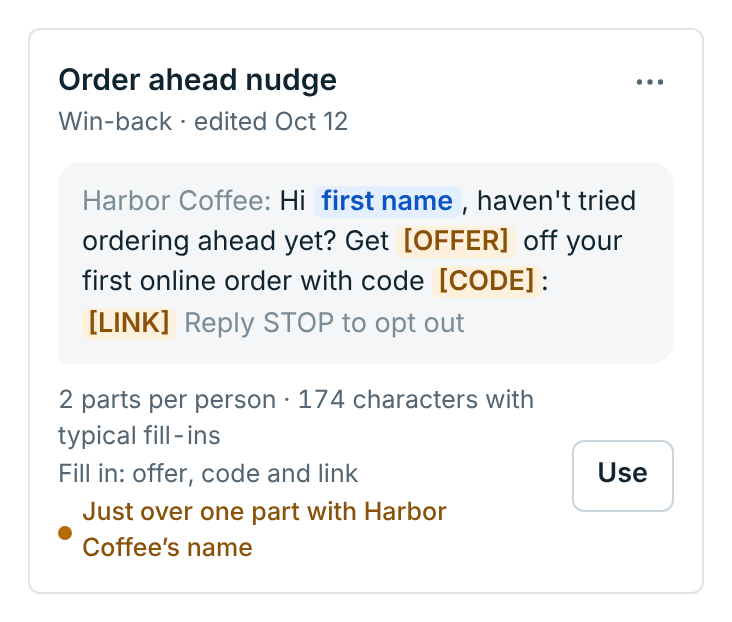
| Part | What it means |
|---|---|
Grey words |
Added for you when it’s sent: the business name in front and Reply STOP to opt out at the end, or for a welcome, how often you text, “Msg & data rates may apply.” and HELP and STOP. |
Blue words |
Filled in for each person or business: first name, or {business name} (shown with the business you preview as). |
Amber words |
Fill-ins like [OFFER] and [LINK]. Whoever uses the template replaces them; nothing goes out until they do. |
Parts and characters |
What one text takes, counting fill-ins at a typical length (a link as 24 characters). The card lists the fill-ins under it. |
Amber dot |
Something that costs more, like an emoji that makes it 2 parts, or a text that’s just over one part with the business name in front. |
Use starts a campaign with it, or for a welcome, puts it on a webform. The … has Edit, Duplicate and Delete for yours, and Open and Copy to yours for a starter. Click a template’s name to open it.
The starter library#
Starter library adds an industry picker beside the search:
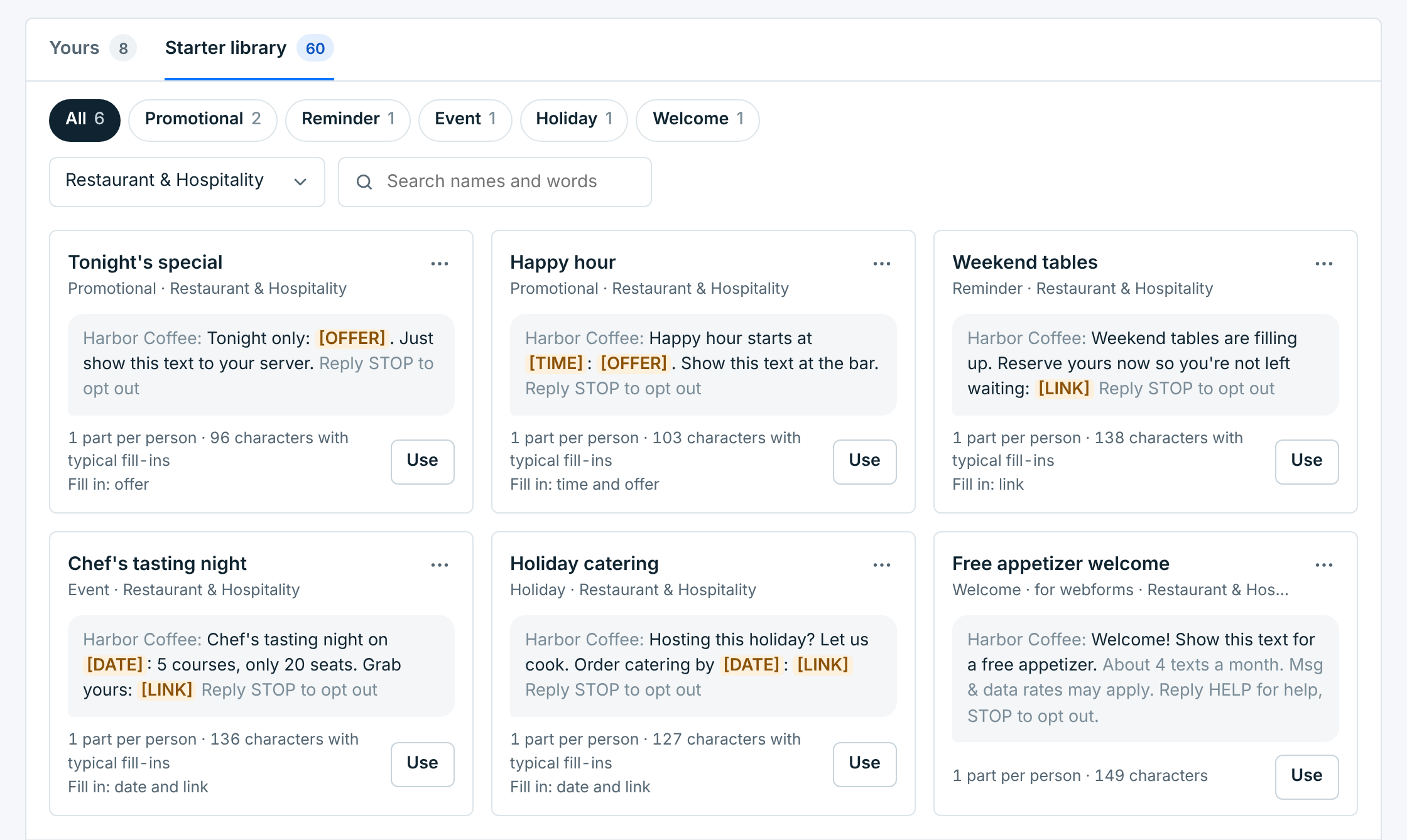
Starters are written for what campaigns do: an offer to show at the counter, a code, a link, a date. They never ask people to reply, since only STOP and HELP are answered.
A template’s page#
Click a starter to see it in full:
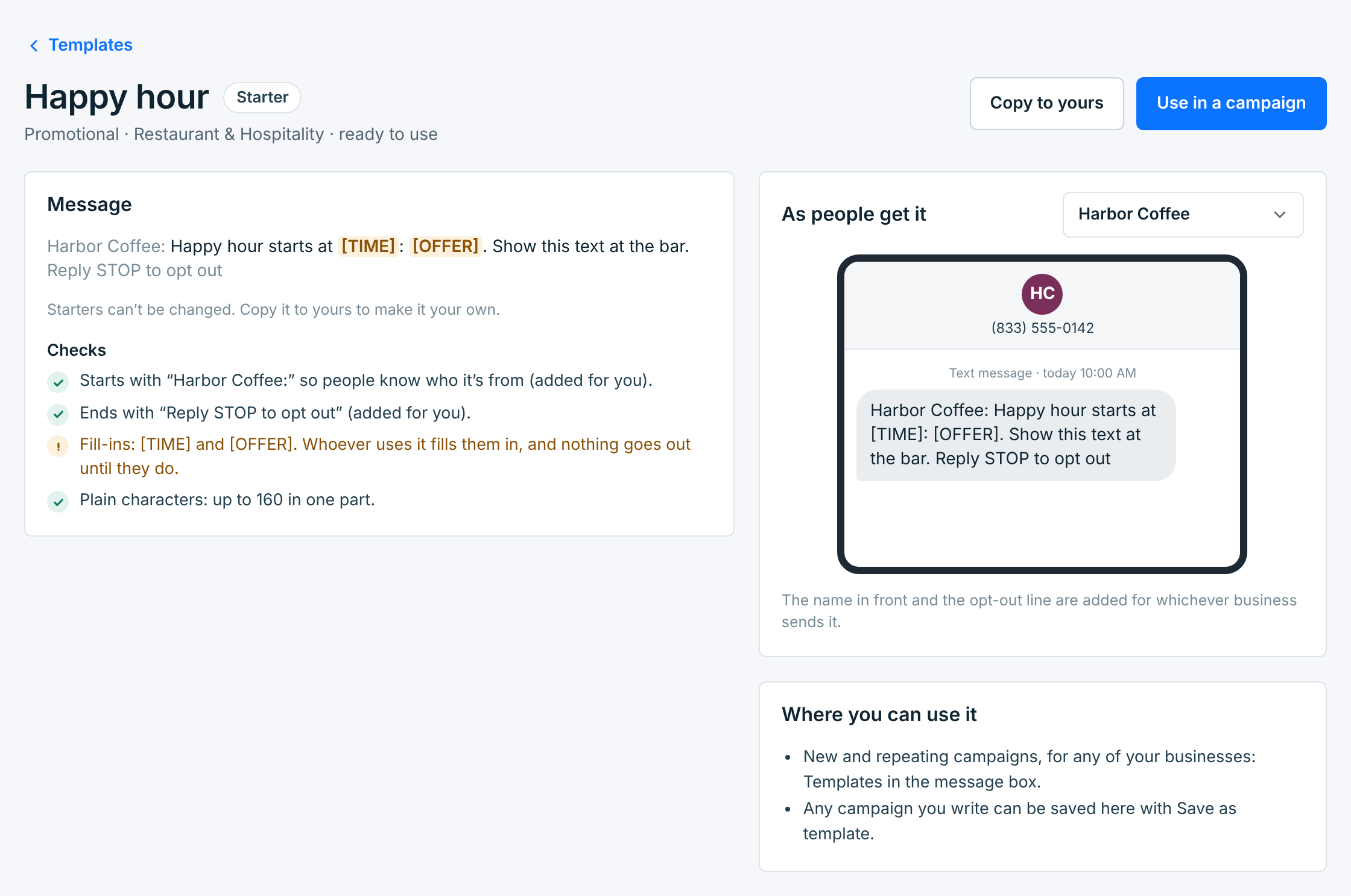
- Message shows the text with what’s added in grey, and the checks under it: what’s added for you, the fill-ins, and how long each part can be.
- As people get it shows it on a phone, from the business picked beside it.
- Where you can use it says where it goes: campaigns, or for a welcome, a webform.
A starter can’t be changed. Copy to yours makes it one of yours, with the same name, and opens it so you can change anything. Use in a campaign starts a campaign with it. See Use a template.
One of yours opens ready to change. See Make and edit a template.
When your trial has ended or your plan has lapsed, you can still look at your templates, but not make or change them.