Welcome text
Text every new contact your apps send, once, in daytime where they live.
A welcome text goes to every new contact your webhook adds: once, a moment after they arrive, in daytime where they live. It’s off until you turn it on, and each business has its own.
This is the welcome for contacts from your apps. People who join through a webform or a keyword get that webform’s own welcome text, set on the webform.
Turn it on#
Open Integrations, pick the business, and click the Welcome text tab. Its label says On or Off.
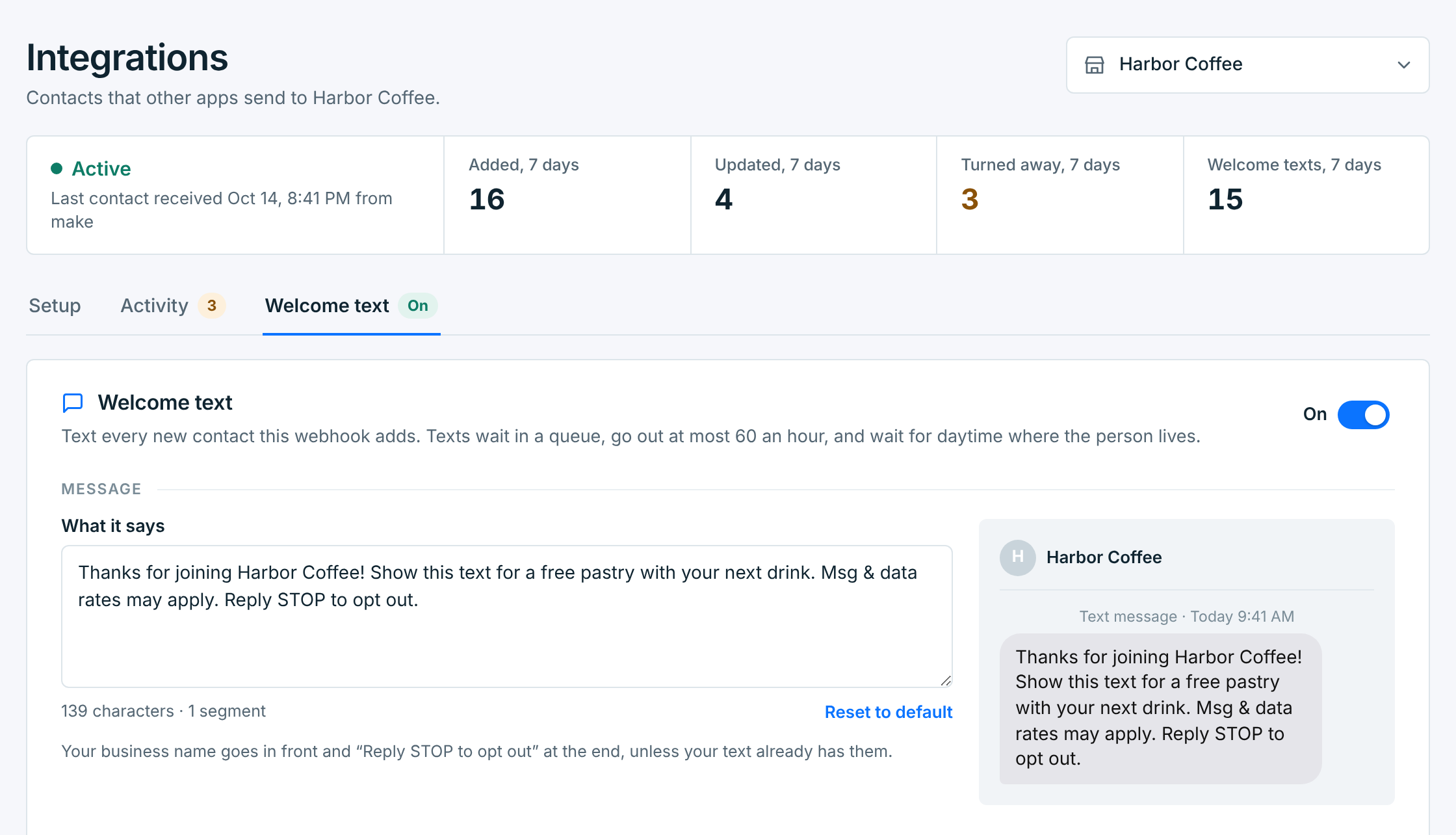
Click the switch at the top right, check the message, then click Save welcome text at the bottom. Nothing changes until you save. The line beside the button says what will happen: New contacts from this webhook get this text. Contacts who were already here never do.
What it says#
It starts with Harbor Coffee: Thanks for joining! About 4 texts a month. Msg & data rates may apply. Reply HELP for help, STOP to opt out. The number is the business’s Texts a month, per person in Messaging Setup. Change it as you like: Reset to default puts the first one back. The counter under the box shows the characters and how many parts (segments) the text takes, and the phone beside it shows how it will look.
- Your business name goes in front, like Harbor Coffee:, unless the text already has it. Type
{business name}to put it somewhere else. - Say how to opt out, like Reply STOP to opt out. Carriers require it. If you take it out, it’s added back when the text goes out.
- No first names or fill-ins like [OFFER]: it can’t be saved with one. Write it so it reads right for everyone.
- Curly quotes, long dashes and other smart punctuation are changed to plain ones, so the text stays at 160 characters a part instead of 70.
When it goes out#
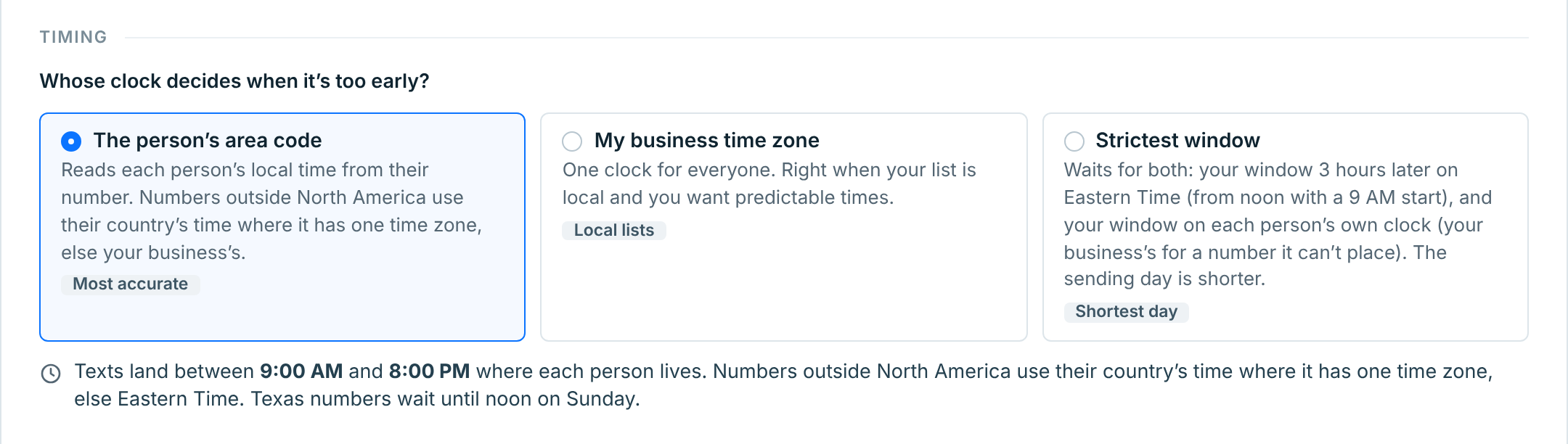
Welcome texts wait in a queue, go out at most 60 an hour, and wait for daytime where the person lives: 9:00 AM to 8:00 PM unless you change it. Someone your app sends at midnight gets theirs in the morning. Whose clock decides when it’s too early? picks how that’s worked out:
| Choice | How it works |
|---|---|
The person's area code |
Reads each person’s local time from their number. A number from another country uses that country’s time where it has one time zone, else your business’s. The most accurate, and the best choice for most businesses. |
My business time zone |
One clock for everyone. Right when your list is local and you want predictable times. |
Strictest window |
Waits for both: your window 3 hours later on Eastern Time (from noon with a 9 AM start), and your window on each person’s own clock. The sending day is shorter. |
Whichever you pick, while Hold texts outside the window is on, Texas numbers wait until 9 AM, and until noon on Sunday.
The line under the choices says the window in plain words. Read it after changing anything: it’s the quickest check that you picked what you meant.
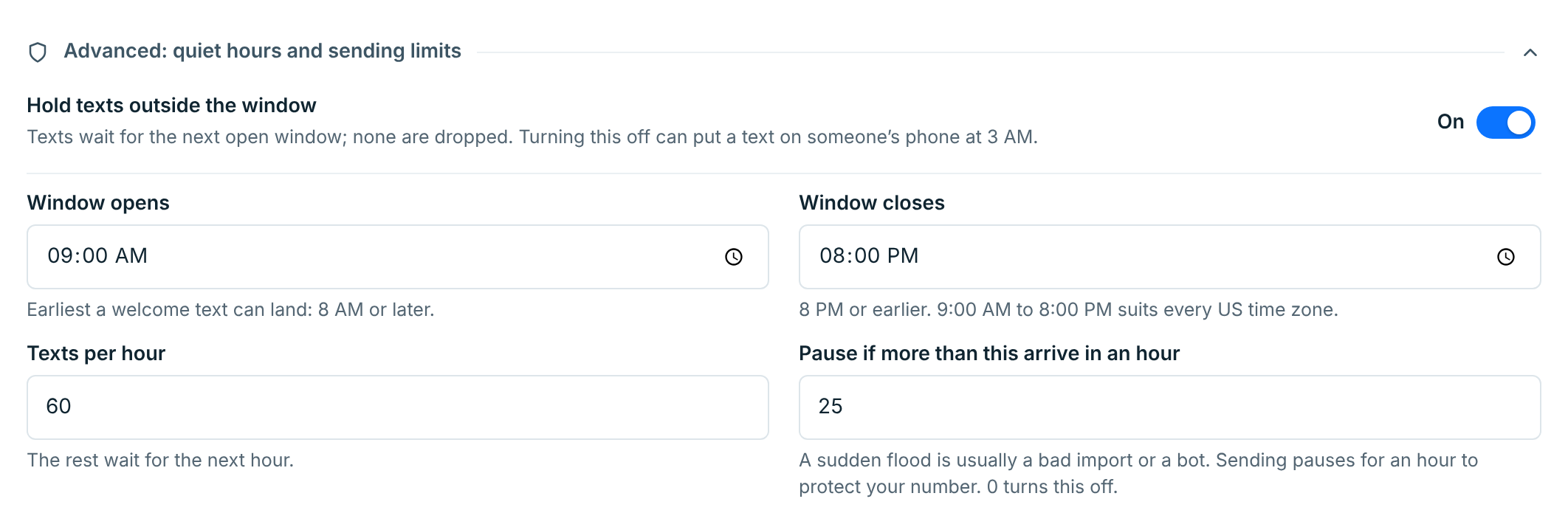
Advanced: quiet hours and sending limits#
| Setting | What it does |
|---|---|
Hold texts outside the window |
On: texts wait for the window. Off: they go whenever the queue sends them, even at 3 AM. Leave it on. |
Window opens, Window closes |
The earliest and latest a welcome can land, between 8 AM and 8 PM. It starts at 9:00 AM to 8:00 PM. |
Texts per hour |
60 to start with. The rest wait for the next hour. |
Pause if more than this arrive in an hour |
25 to start with. A sudden flood is usually a bad import or a re-sync, not new sign-ups. Past the limit, sending pauses for an hour, the waiting welcomes are skipped, and you get a notice. 0 turns it off. |
Bringing in a big list through an app? Turn the welcome text off first, or import the list as a CSV. Imported contacts don’t get a welcome.
Watch it work#
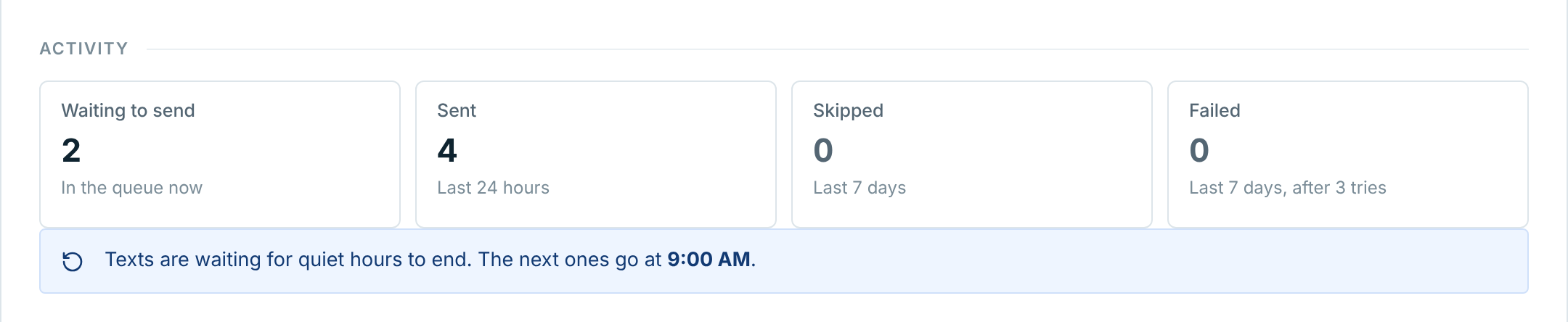
Activity, at the bottom of the tab, counts the welcome texts:
| Box | What it counts |
|---|---|
Waiting to send |
In the queue now, usually waiting for daytime. A blue line under the boxes says when the next ones go. |
Sent |
In the last 24 hours. |
Skipped |
In the last 7 days, with why: Already sent, Opted out, Turned off, Paused (too many at once), Business paused, Can’t send or Too long (once the business name is in front). |
Failed |
In the last 7 days, after 3 tries. |
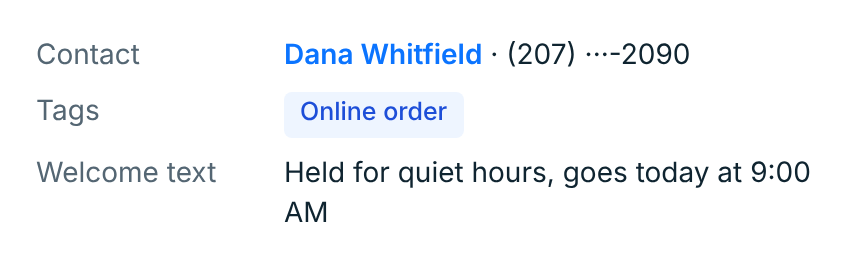
Each contact’s own welcome shows on their request in Activity, under Welcome text: sent and when, waiting for daytime and until when, or why not.
Welcome texts are sent through your carrier like any other text, so they’re on your carrier bill and in your reports.
Who gets one#
- Only new contacts from this webhook. A number that was already a contact is updated, not welcomed again. A contact you’d deleted that the webhook sends again counts as new, and gets a welcome if they never had one. Contacts you add by hand or import never get one.
- Once. Someone who joined through a webform and later comes through your app isn’t welcomed twice.
- Not your list so far. Turning it on doesn’t text anyone already in Contacts. To reach them, send a campaign.
- Not someone who opts out first. If they text STOP before theirs goes, it’s skipped.
When it can’t go out#
When the business can’t send texts, the tab says why, with Open Messaging Setup:
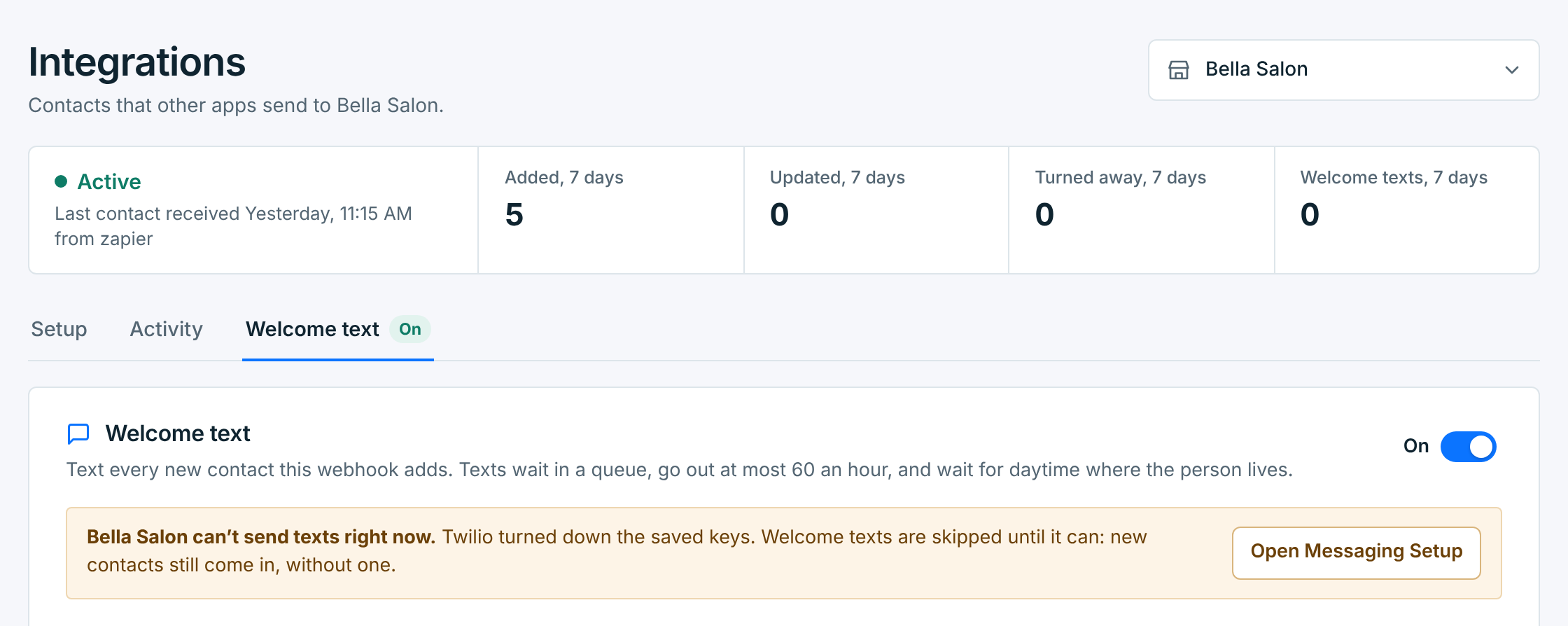
New contacts still come in, but their welcome is skipped, not tried: Can’t send under Skipped, and on All businesses the Welcome text column says Can’t send. That happens when the carrier turned down the saved keys, the number’s registration is still with the carrier or was rejected, or there’s no number yet. See Messaging Setup.
A paused business’s welcomes are skipped too, and its webhook turns contacts away until you resume it. Skipped welcomes aren’t sent later: a welcome days after someone signed up reads as a mistake.
A welcome that fails 3 times shows under Failed, and on the contact’s request with the carrier’s answer, like Didn’t go out after 3 tries. Twilio answered: “Authenticate”. Check Messaging Setup.