Client reports
Print a one-page report of one business's texts for the client, or save it as a PDF.
A client report is a one-page summary of one business’s texts, made to hand to the client: what went out, how much was delivered, who joined and who clicked. It has no costs on it, and it covers one business only, so no client ever sees another.
Make one#
In Reports, pick the dates the report should cover, then click Print client report.
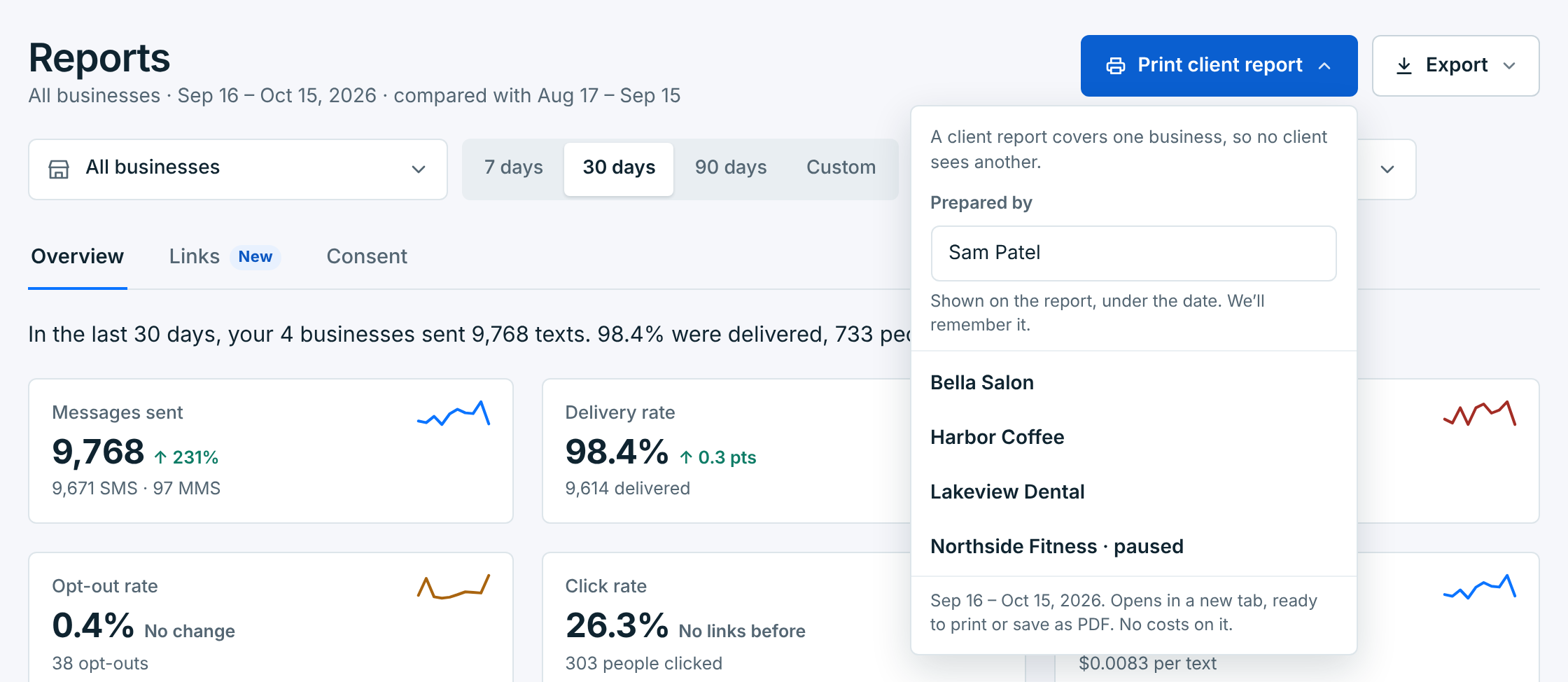
- Check Prepared by. It’s printed on the report, under the date, and remembered for next time. Put your agency’s name, or your own.
- With one business picked, click Print and its name. With All businesses, click the business to print.
The report opens in a new tab and your browser’s print window opens over it. Print it, or pick Save as PDF as the printer to email it. Print or save as PDF at the top of the tab opens the print window again.
What’s on it#
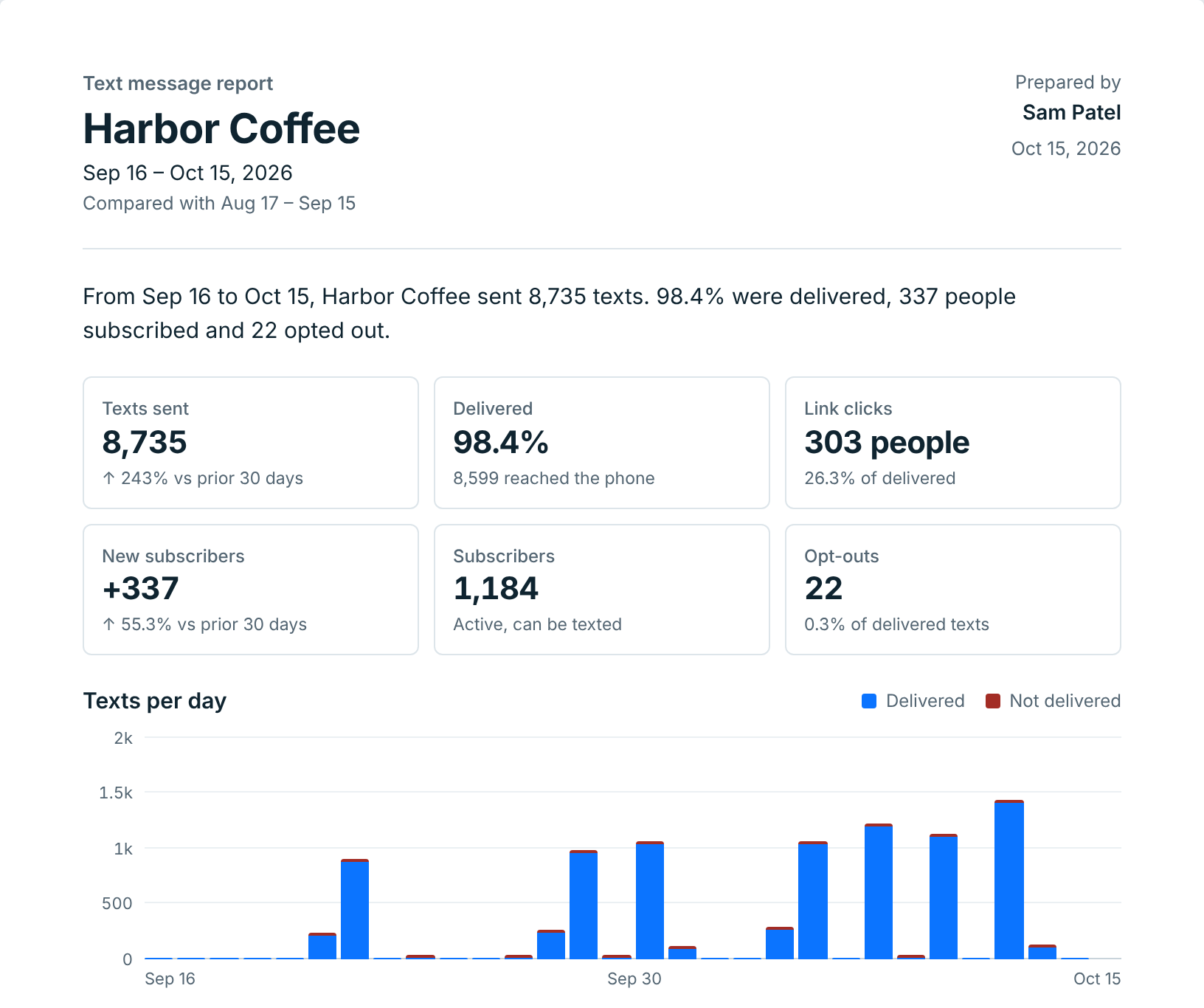
At the top: the business, the dates and the days they’re compared with, who prepared it, and a sentence that sums it up. Then the numbers:
| Tile | What it says |
|---|---|
Texts sent |
Every text that went out, against the days before. |
Delivered |
The share that reached the phone, and how many. |
Link clicks |
Only when a campaign had a tracked link: people who clicked, and their share of the texts delivered. |
New subscribers |
Everyone who joined in these dates, against the days before. |
Subscribers |
Active subscribers, who can be texted. For dates that end today, today’s count; for past dates, the count on the last day. |
Opt-outs |
People who opted out, and their share of the texts delivered. |
Under the tiles, the texts per day (per week for longer reports), delivered and not delivered.
Texts this period#
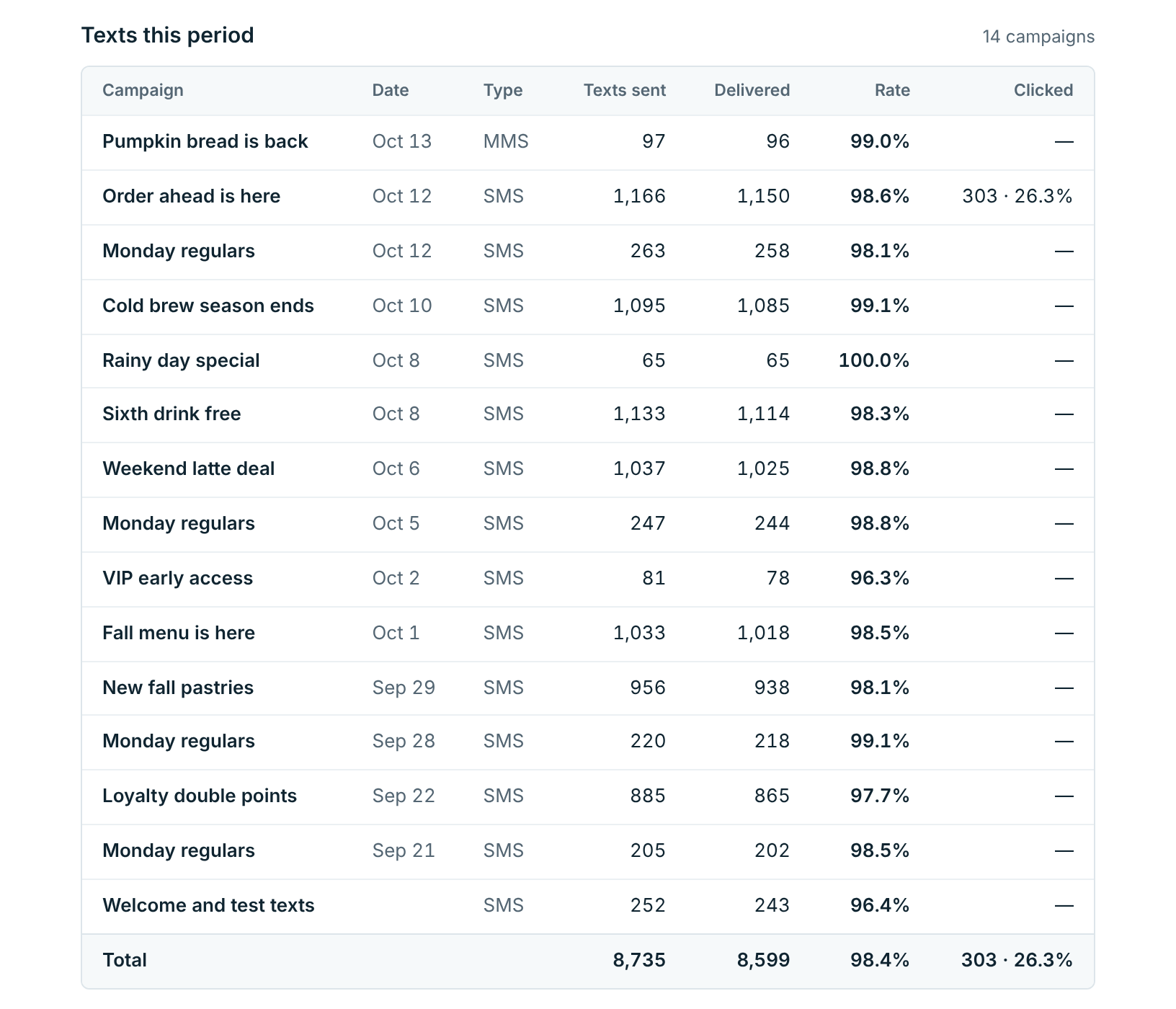
A row for each campaign that went out, newest first: its date, SMS or MMS, how many were sent and delivered, the delivery rate, and clicks if it had a link. Texts that weren’t a campaign, like welcome texts to new subscribers and test texts, are one row of their own. The Total row matches the tiles at the top.
When a campaign had a tracked link, Best link shows the one the most people opened.
Subscribers#
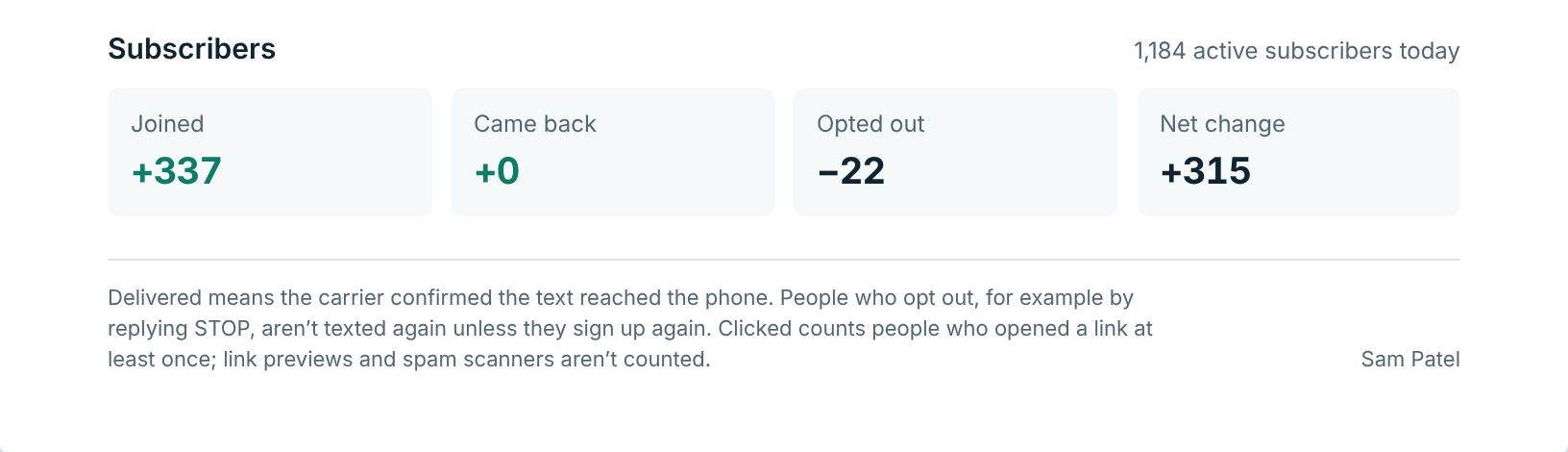
How the list changed: who joined, who came back after opting out, who opted out, and the net change. The line beside the title gives the active subscribers on the last day.
The note at the bottom tells the client what Delivered and opting out mean, so the report reads on its own.
The report has no costs and nothing about who clicked or who opted out, only how many. For the numbers behind it, with costs, use Exports.