Your tags
The Tags screen, a tag's own page, and sending a campaign to a tag.
Tags group your subscribers. Send a campaign to a tag and only the people who have it get it. This guide covers the Lists / Tags screen, a tag’s own page, and sending to a tag.
For the ways people get a tag, see How people get a tag. To make, rename, merge or delete one, see Make, rename, merge and delete tags.
Lists and tags are the same thing#
If you’ve used another texting app, a tag is what it called a list, a group or a segment. A contact can have as many tags as you like, and a tag can be on as many contacts as you like. Every plan, trial included, can make as many tags as it wants.
A tag belongs to one business, like that business’s contacts. If two of your businesses each want a VIP group, each one gets its own VIP tag. A campaign only sees the tags of the business it’s from.
Your subscribers never see your tags. Name them so your team knows what they mean.
The screen#
Open Lists / Tags from the sidebar. If you have more than one business, the picker at the top shows one business, or All businesses. With all of them showing, each tag has its business’s name under it, and a paused business’s tags say · paused.
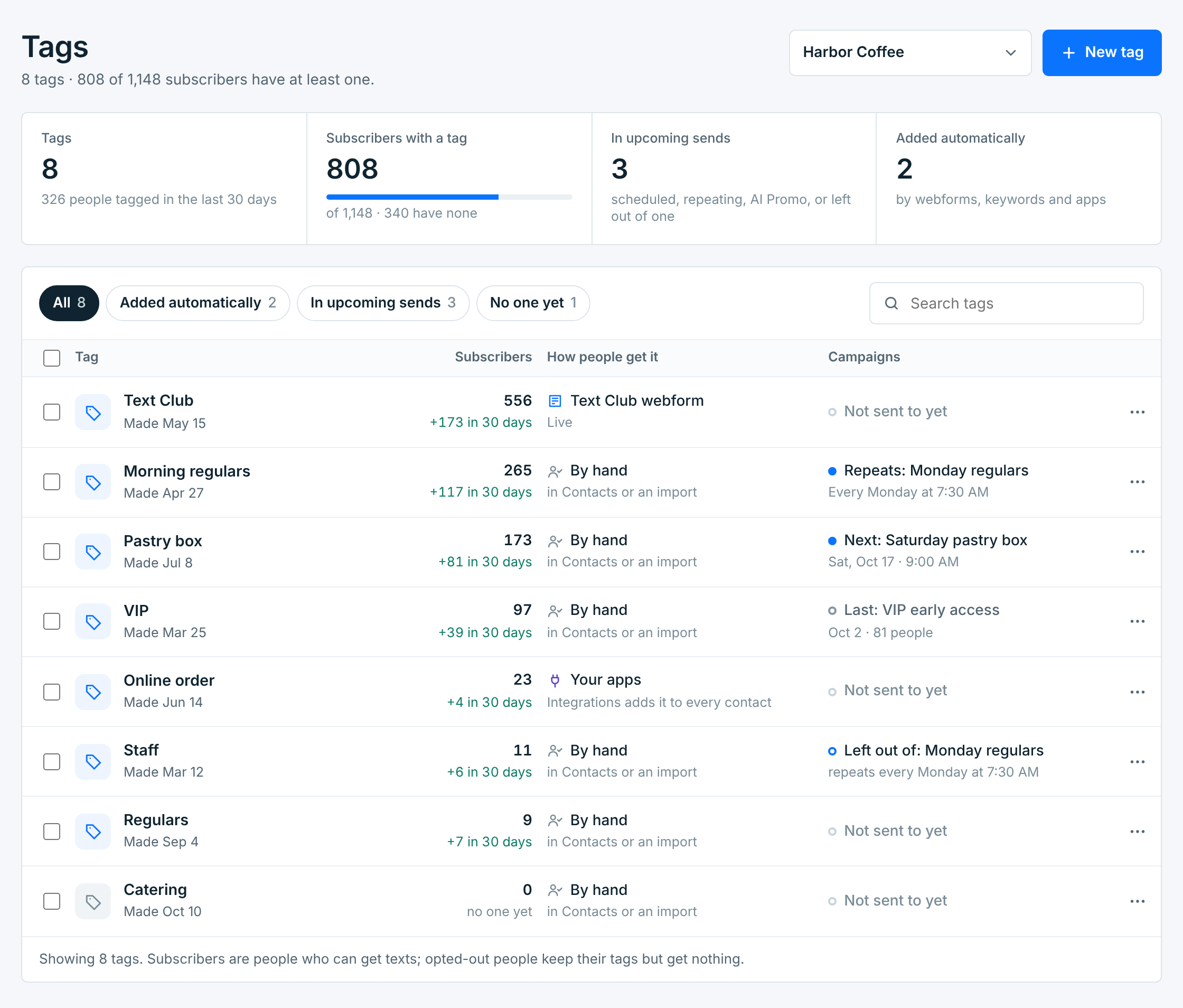
The four cards count the business you picked:
| Card | What it counts |
|---|---|
Tags |
How many tags there are, and how many people got one in the last 30 days. |
Subscribers with a tag |
Subscribers with at least one tag, out of all your subscribers, and how many have none. Click it to open Contacts. |
In upcoming sends |
Tags that something coming up sends to or leaves out: a scheduled campaign, a repeat or an AI Promo plan. |
Added automatically |
Tags that a webform or your apps add as people join. |
Click In upcoming sends or Added automatically to show only those tags. Click Tags to show them all again.
The list#
| Column | What it shows |
|---|---|
Tag |
Its name, and when it was made. With All businesses, its business instead. |
Subscribers |
People with the tag who can get your texts, and how many got it in the last 30 days. |
How people get it |
The webform that adds it (Live when the form takes signups), Your apps when Integrations adds it, or By hand. |
Campaigns |
What goes to it next (Next: or Repeats:), the last campaign it got (Last:), something that leaves it out (Left out of:), or Not sent to yet. |
People who opted out keep their tags, but they never get a campaign and aren’t counted under Subscribers.
The buttons above the list narrow it: All, Added automatically, In upcoming sends and No one yet. The search box finds a tag by its name or its name in apps. Here is Harbor Coffee with Added automatically on:
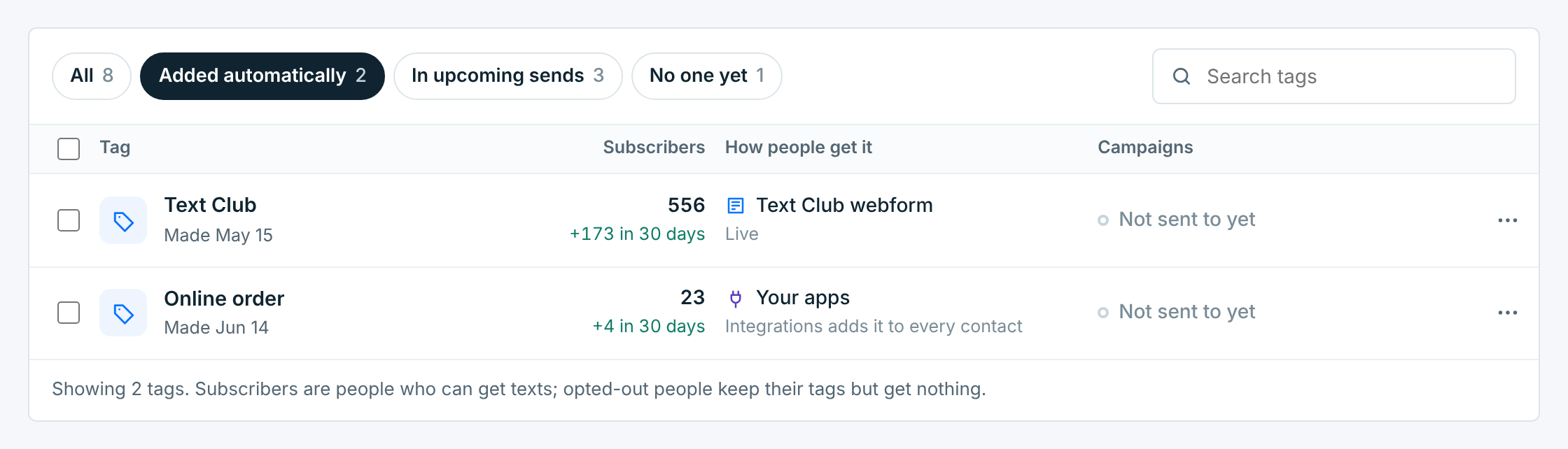
The … at the end of a row has Open, Send a campaign, See in Contacts, Rename, Merge into another tag, Download subscribers and Delete. The last four are covered in Make, rename, merge and delete tags.
A tag’s page#
Click a tag to open its page.
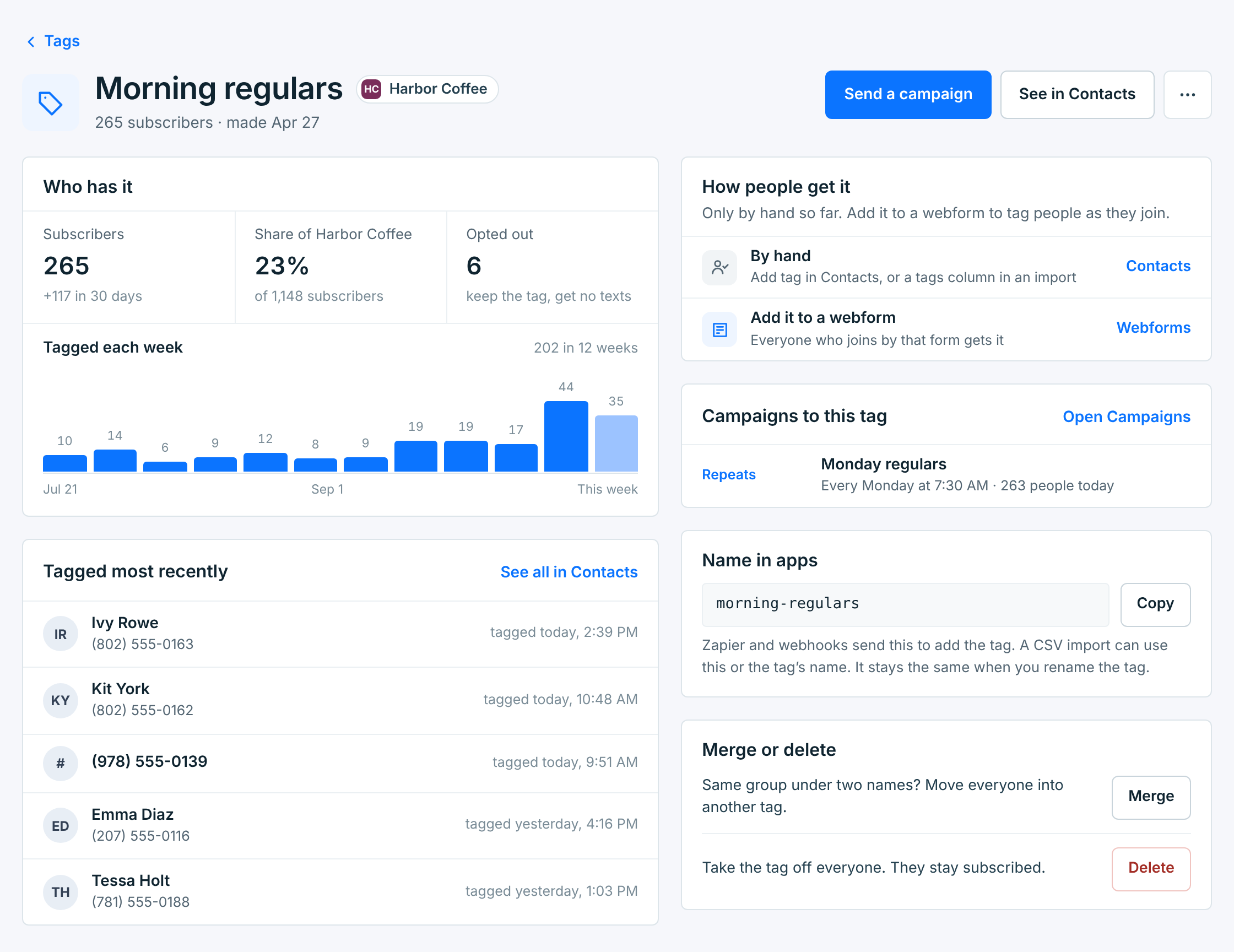
| Section | What it shows |
|---|---|
Who has it |
Subscribers with the tag and how many got it in the last 30 days, their share of the business’s subscribers, and how many opted out. Tagged each week charts the last 12 weeks. The last bar is this week so far. |
Tagged most recently |
The last five people who got the tag, and when. See all in Contacts lists everyone with it. |
How people get it |
Each webform that adds it, your apps, and by hand. Open takes you there. |
Campaigns to this tag |
What’s scheduled or repeating to it, anything that leaves it out, and the last three campaigns sent to it, with how many people got each one and how many were delivered. |
Name in apps |
The name Zapier, webhooks and imports use for the tag. See Your apps. |
Merge or delete |
See Make, rename, merge and delete tags. |
At the top, Send a campaign starts a campaign to this tag, See in Contacts lists everyone with it, and … has Rename, Merge, Download and Delete.
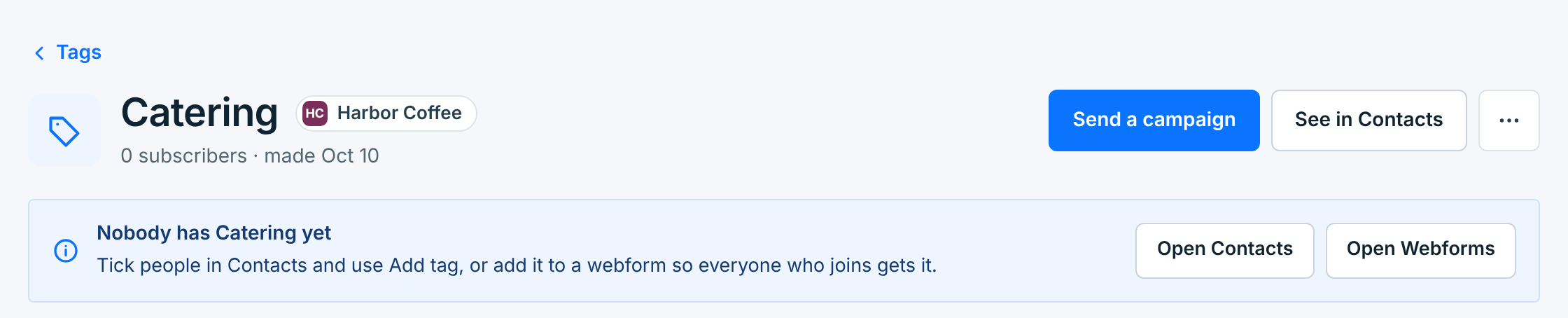
A tag that nobody has yet says so, with shortcuts to the two places you’d add it:
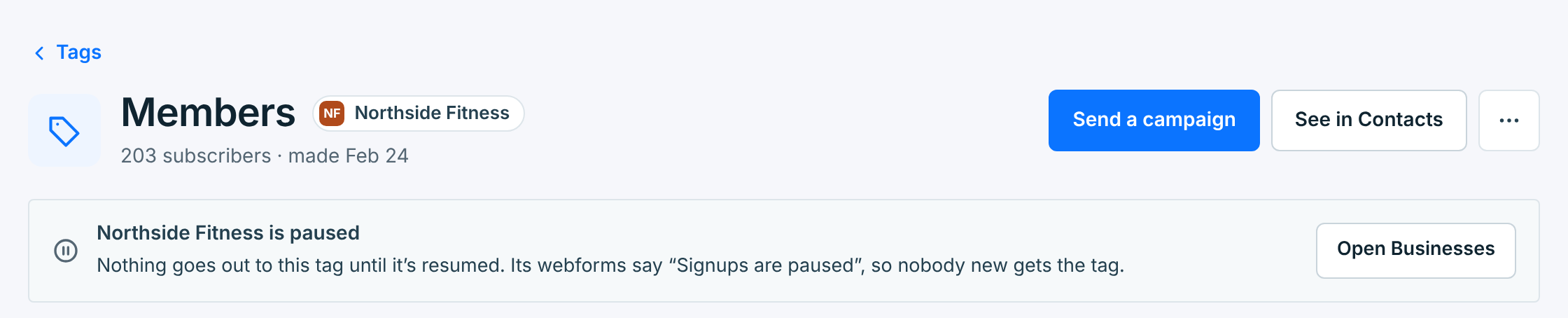
A paused business’s tags keep everyone who has them, but nothing goes out to them, and nobody new joins its webforms. Resume the business on Businesses to send again.
Sending to a tag#
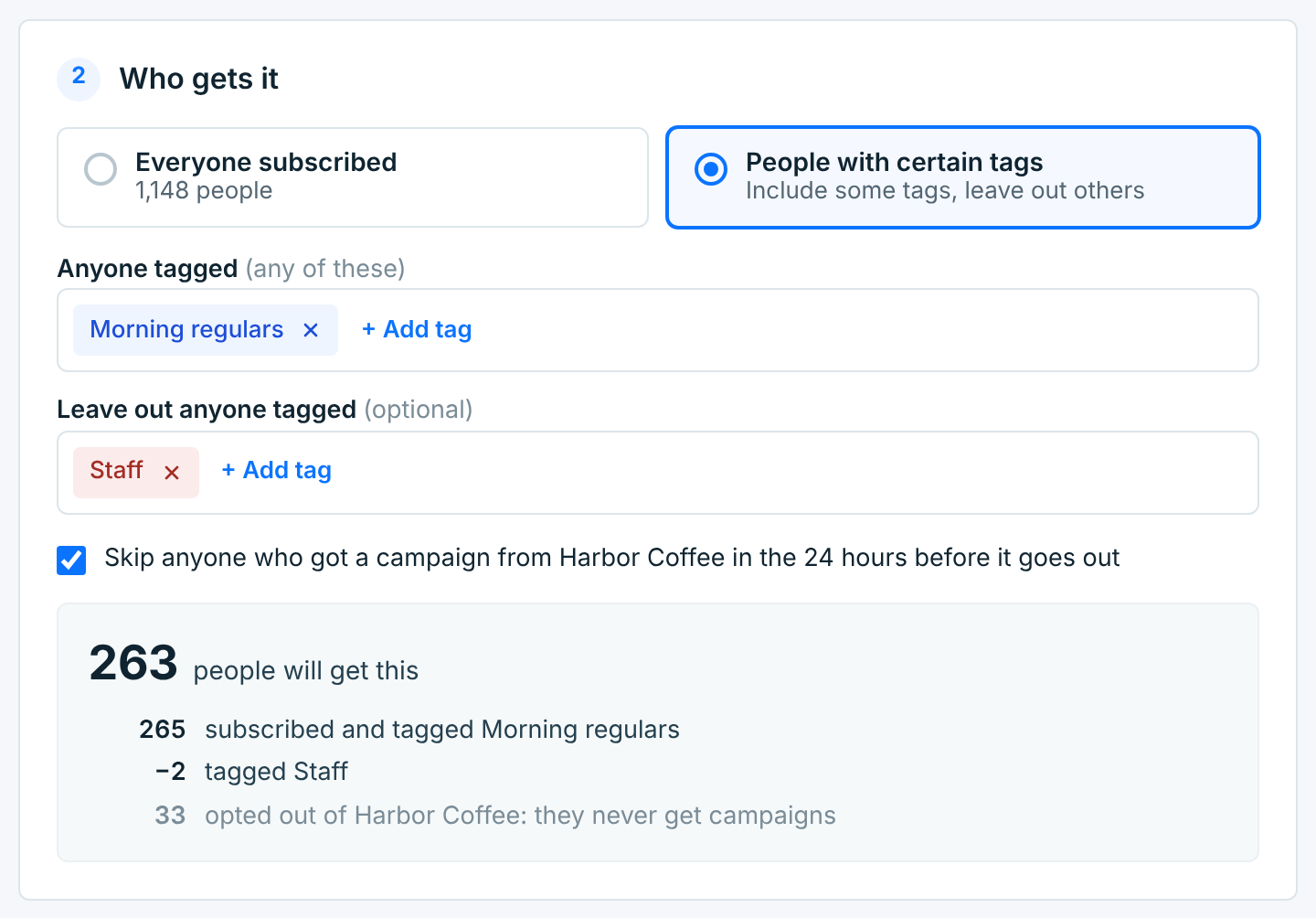
Click Send a campaign on a tag’s page, or in its … menu. A new campaign opens with that tag already picked. In Campaigns, you get the same thing by choosing People with certain tags under Who gets it.
| Field | What it does |
|---|---|
Anyone tagged (any of these) |
Everyone with at least one of these tags. Picking VIP and Pastry box reaches people with either one, not just the people who have both. |
Leave out anyone taggedOptional |
Anyone with one of these tags is left out, even if they also have a tag from the field above. Here, two staff members who are also morning regulars are left out. |
The count under the fields shows how many people will get it, and who was left out along the way. Who gets it is worked out again when the campaign goes out, so anyone tagged before then gets it too, and anyone who opted out in between doesn’t.
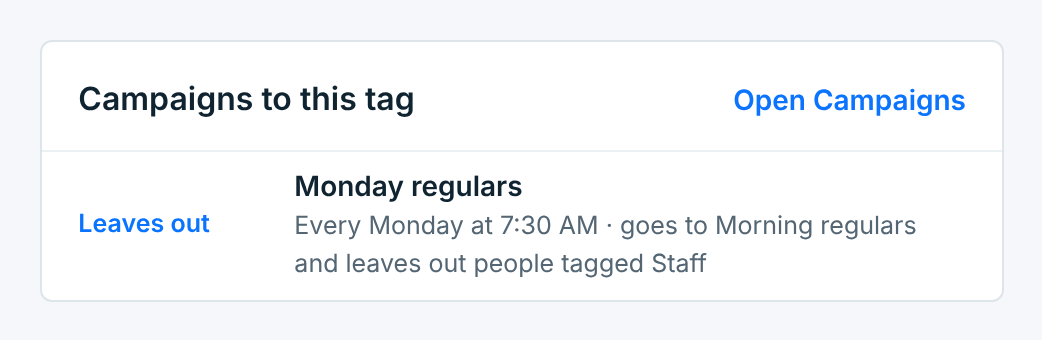
A tag that something leaves out says so on its page. Here is Staff, left out of a repeat to Morning regulars:
To schedule, repeat and send, see Send a campaign and Recurring campaigns.