Your reports
The Reports screen: picking the business and dates, the numbers, Sending health, each business, recent campaigns and your audience.
Reports shows how your texts did: how many went out and were delivered, why some weren’t, what they cost, who clicked, and who joined and left. This guide covers the screen and its Overview. The other guides in this section cover delivery, failures and costs, link clicks, your consent record, client reports and exports.
The screen#
Open Reports from the sidebar.
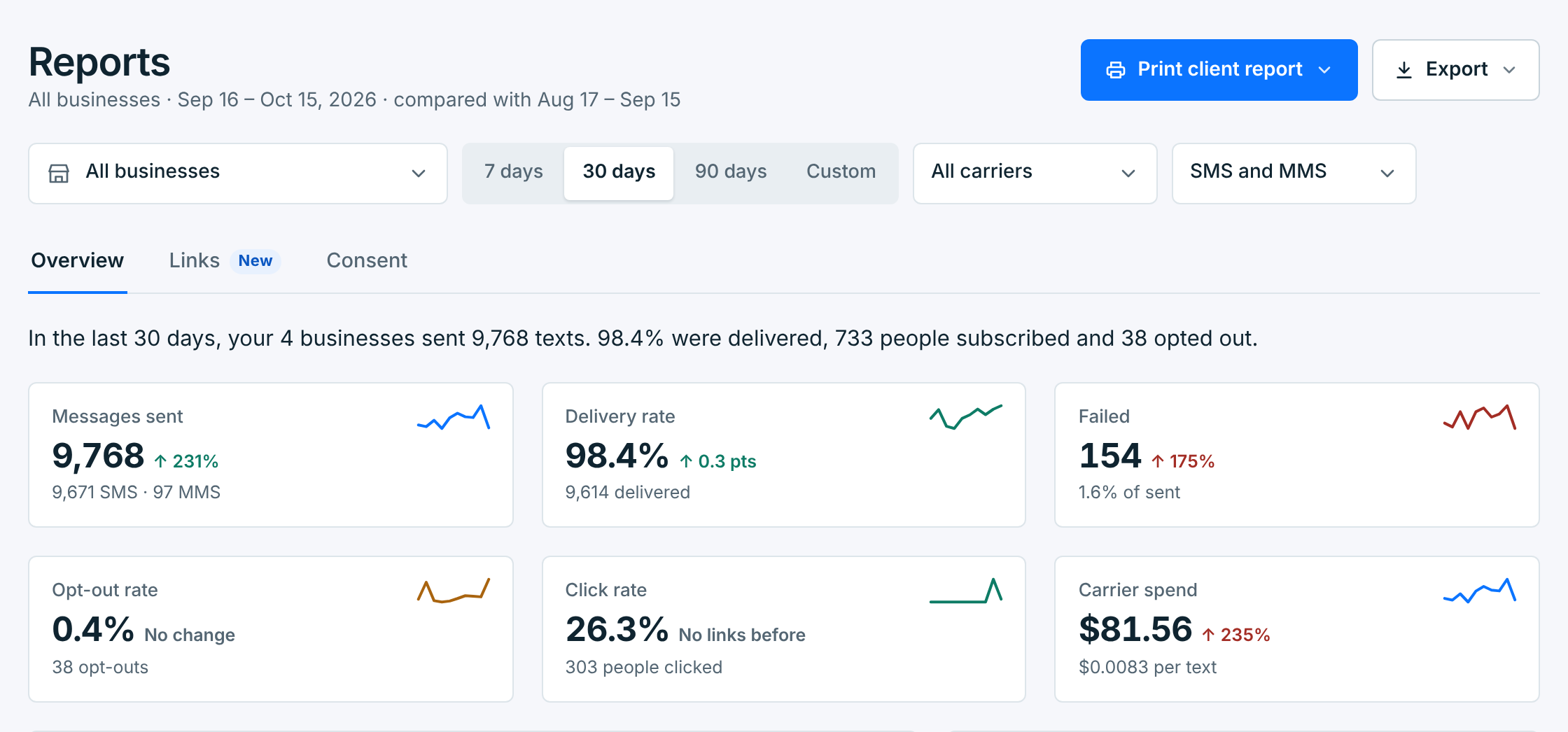
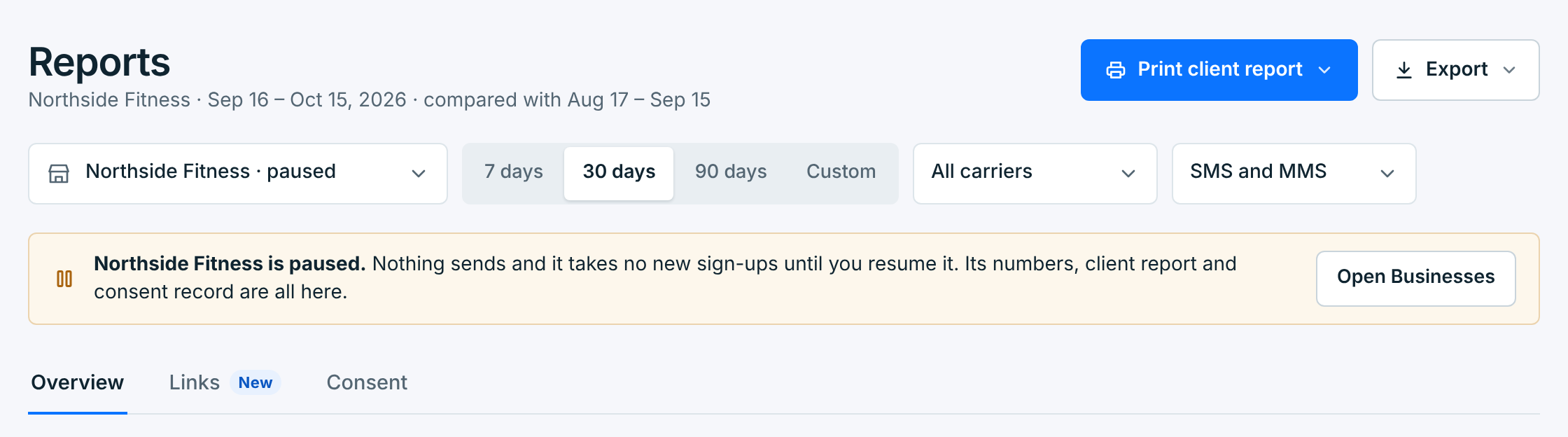
The line under the title says what you’re looking at: the business, the dates, and the dates it’s compared with, the same number of days just before. Every up or down arrow on the page is against those days.
Under that line, a small clock says whose days these are. With All businesses, each day runs midnight to midnight in your time: Days in your time: Eastern (ET). With one business picked, the days are the business’s: Days in Pacific Time (PT), with how far that is from your time when it’s different. Your time zone is set in Account › Preferences; see Your time zone.
| Control | What it does |
|---|---|
Business |
All businesses adds them up, or pick one. A paused business is there too, marked paused. |
7 days, 30 days, 90 days |
The last 7, 30 or 90 days, today included. |
Custom |
Any dates up to a year long, up to today. Pick them and press Apply. |
All carriers |
Or only the texts that went out through Twilio, or through Vonage. |
SMS and MMS |
Or only text messages (SMS), or only picture messages (MMS). |
Three tabs sit under the controls: Overview (below), Links once you’ve sent a tracked link (see Link clicks), and Consent (see Your consent record). Print client report and Export are at the top right.
The numbers#
A sentence sums up the dates in words. Under it, a tile for each number, with its change and a small line of how it went day by day:
| Tile | What it counts |
|---|---|
Messages sent |
Every text that went out: campaigns, welcome texts and tests. How many were SMS and MMS is under it. |
Delivery rate |
Of the texts the carriers reported on, the share that reached the phone. |
Failed |
Texts a carrier couldn’t deliver, and their share of what was sent. |
Opt-out rate |
People who opted out, as a share of the texts delivered. |
Click rate |
Only once you’ve sent a tracked link: people who clicked, as a share of the texts delivered with a link. |
Carrier spend |
What your carrier charged for these texts, and the average per text. |
How these are counted, and what to do when they’re off, is in Delivery, failures and costs.
With a carrier or a type picked#
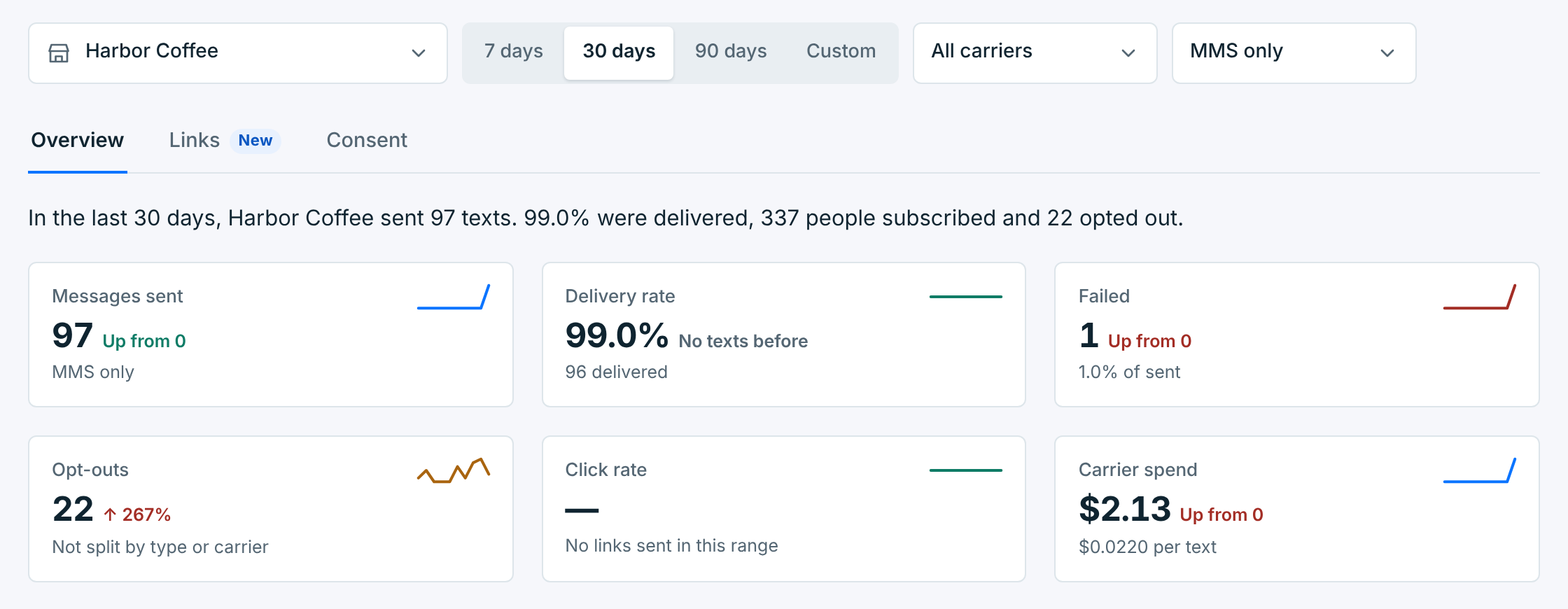
Picking Twilio, Vonage, SMS only or MMS only narrows the texts. Opt-outs can’t be narrowed that way: someone who replies STOP leaves the business, not one kind of text. So the Opt-out rate tile becomes Opt-outs, the count for the business, with no rate.
Over time and Sending health#
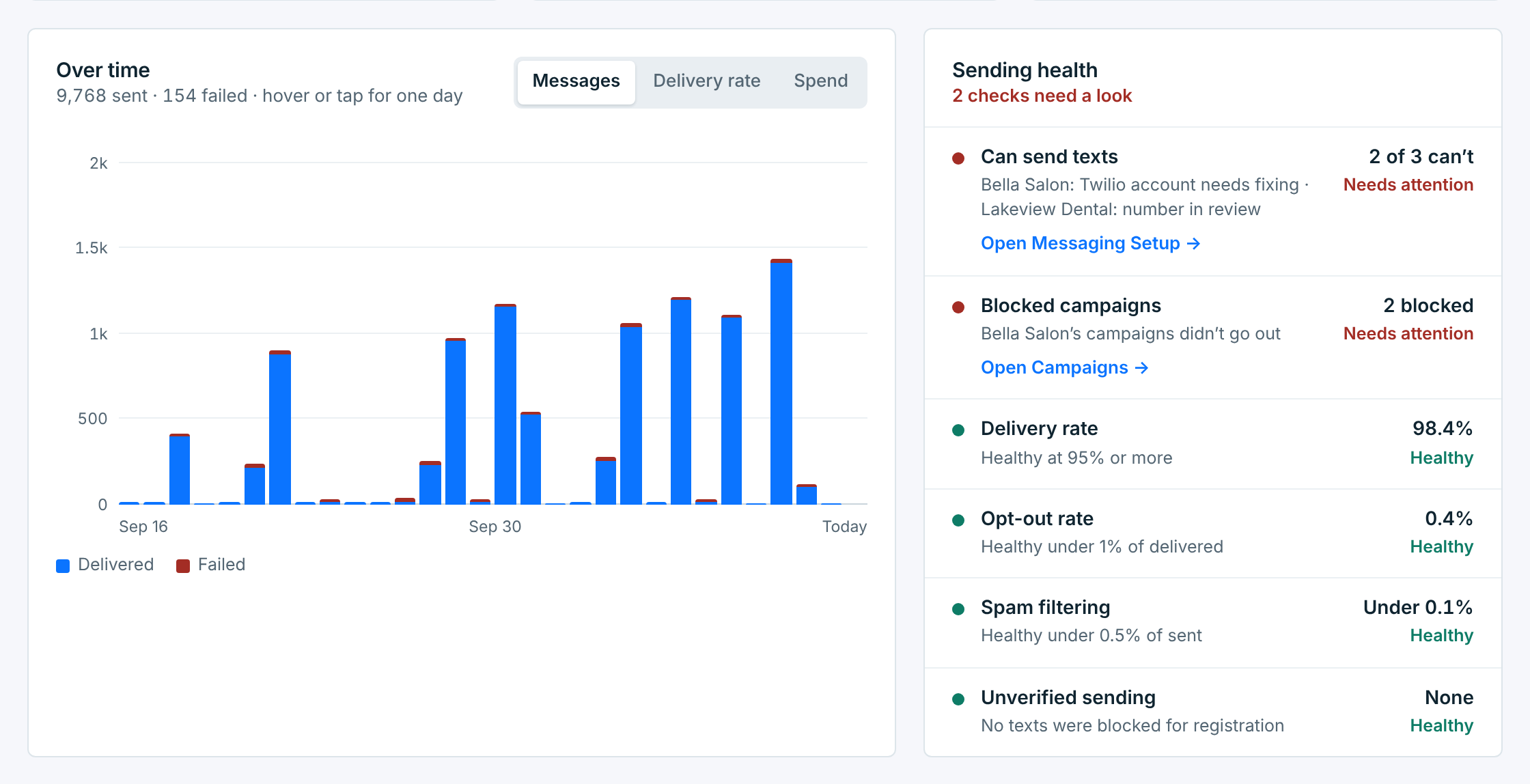
Over time charts the dates day by day, or week by week for longer ranges. Switch it between Messages (delivered and failed), Delivery rate and Spend. Hover over a day, or tap it, for its numbers. Beside the key, Each day runs midnight to midnight names the same clock.
Texts are counted by the hour. So in a time zone that’s half an hour or a quarter hour off, like India or Nepal, a day’s last texts count on the next day, and a line under the chart says from when: after 11:30 PM in India, after 11:45 PM in Nepal. Contacts and clicks use exact days.
Sending health checks what keeps texts getting through. The line under its title says All checks healthy, or how many need a look.
| Check | Healthy when |
|---|---|
Can send texts |
The business’s number and carrier are ready. When one can’t send, it says why, with Open Messaging Setup. With all businesses, it names each one that can’t and why. While your account is locked, it says No, with the button to choose a plan or update your card. |
Blocked campaigns |
Only when campaigns in these dates didn’t go out: how many, with Open Campaigns. See When a campaign doesn’t go out. |
Delivery rate |
95% or more. Between 90% and 95% is worth watching. |
Opt-out rate |
Under 1% of the texts delivered. From 2% it needs attention. Under 100 texts delivered, there are too few to judge, so it shows the rate with no verdict. |
Spam filtering |
Under 0.5% of the texts sent were blocked as spam. |
Unverified sending |
No texts were blocked because the number isn’t registered or verified yet. |
By business#
With All businesses, a row for each business: texts sent, delivery rate, who joined, opt-outs, spend and its health. Click one to see its own numbers.
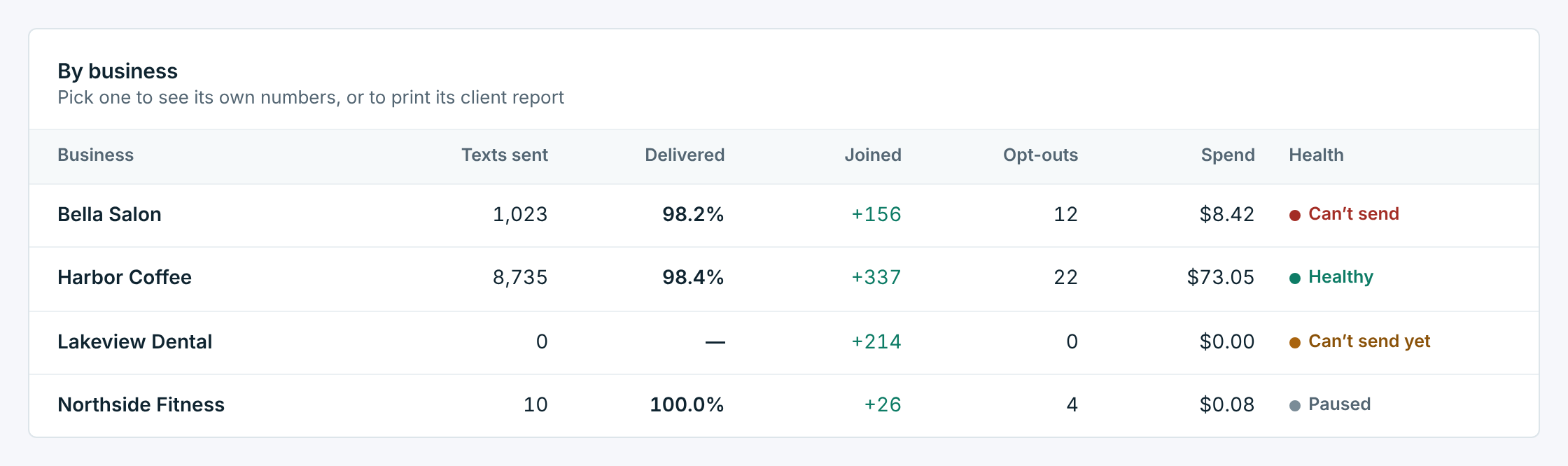
| Health | Means |
|---|---|
Healthy |
Delivery, opt-outs and spam filtering are all fine. |
Watch or Needs attention |
One of them is off. Pick the business to see which. |
Can't send |
Its carrier or number has a problem. Fix it in Messaging Setup. |
Can't send yet |
It’s waiting on something, like its number’s approval. Nothing to do but wait. |
Number not verified |
Texts were blocked because its number isn’t registered or verified. |
Paused |
You paused it. Its numbers from before are still here. |
No texts |
It sent nothing in these dates. |
Recent campaigns, Top links and Audience#
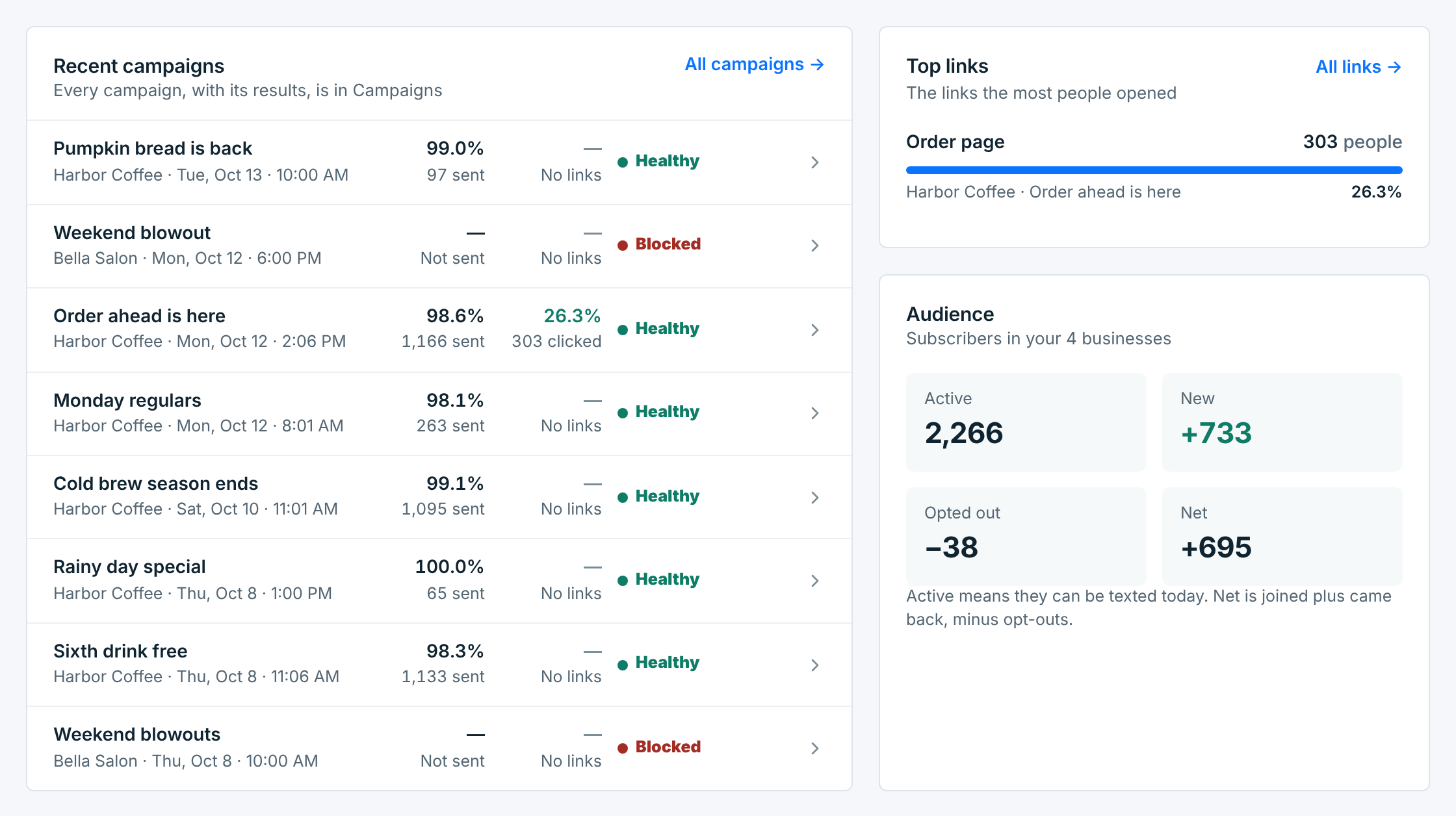
Recent campaigns lists the latest campaigns in these dates: each one’s delivery rate, how many it was sent to, clicks if it had a link, and its state. A campaign that was blocked is there too, marked Blocked. Click one to open it in Campaigns; All campaigns opens the list.
Top links shows the links the most people opened, once you’ve sent a tracked link. All links opens the Links tab.
Audience counts the people:
| Number | What it counts |
|---|---|
Active |
Subscribers who can be texted today. |
New |
Everyone who joined in these dates, including anyone who has opted out since. Contacts added already opted out, from an opt-outs import say, never joined, so they aren’t counted. |
Opted out |
People who opted out in these dates. |
Net |
New, plus people who came back, minus opt-outs. |
A paused business#
A paused business keeps its reports. Pick it to see its numbers, print its client report or open its consent record. A note says it’s paused: nothing sends and it takes no new sign-ups until you resume it in Businesses. Sending health says so too.
Numbers about texts can lag by about a minute after they go out. The reasons texts failed come from the message log, which keeps 180 days; everything else is kept for good.