Make and edit a template
Write a template with fill-ins and first names, make a welcome template, and change, copy or delete one.
Write a template once and use it for any of your businesses. This guide covers New template, fill-ins, welcome templates, saving, and copying and deleting templates.
The quickest way to make one is often from a campaign you’ve written: Save as template in the composer. See Use a template.
New template#
Click New template at the top of Templates.
| Field | What it does |
|---|---|
NameRequired |
Only you see it. Up to 120 characters, and each of your templates needs its own name. |
Category |
Helps you find it later. Welcome makes it a webform’s welcome text (below). See Your templates for the list. |
MessageRequired |
What you want to say. The business name in front and Reply STOP to opt out at the end are added for whichever business sends it, so leave them out. |
The buttons under the message put things in where your cursor is:
| Button | What it puts in |
|---|---|
+ First name |
{first name}: each person’s first name, filled in when it’s sent. Whoever sends it picks the word to use when there’s no name on file. |
+ Business name |
{business name}: the name of the business that sends it, so the same template works for all of them. |
+ Fill-in |
A word in brackets for whoever uses it to replace (below). |
Emoji |
An emoji. One emoji makes each part hold 70 characters instead of 160, and the checks say so. |
Fill-ins#
A fill-in marks the part that changes each time, like the offer or the date:
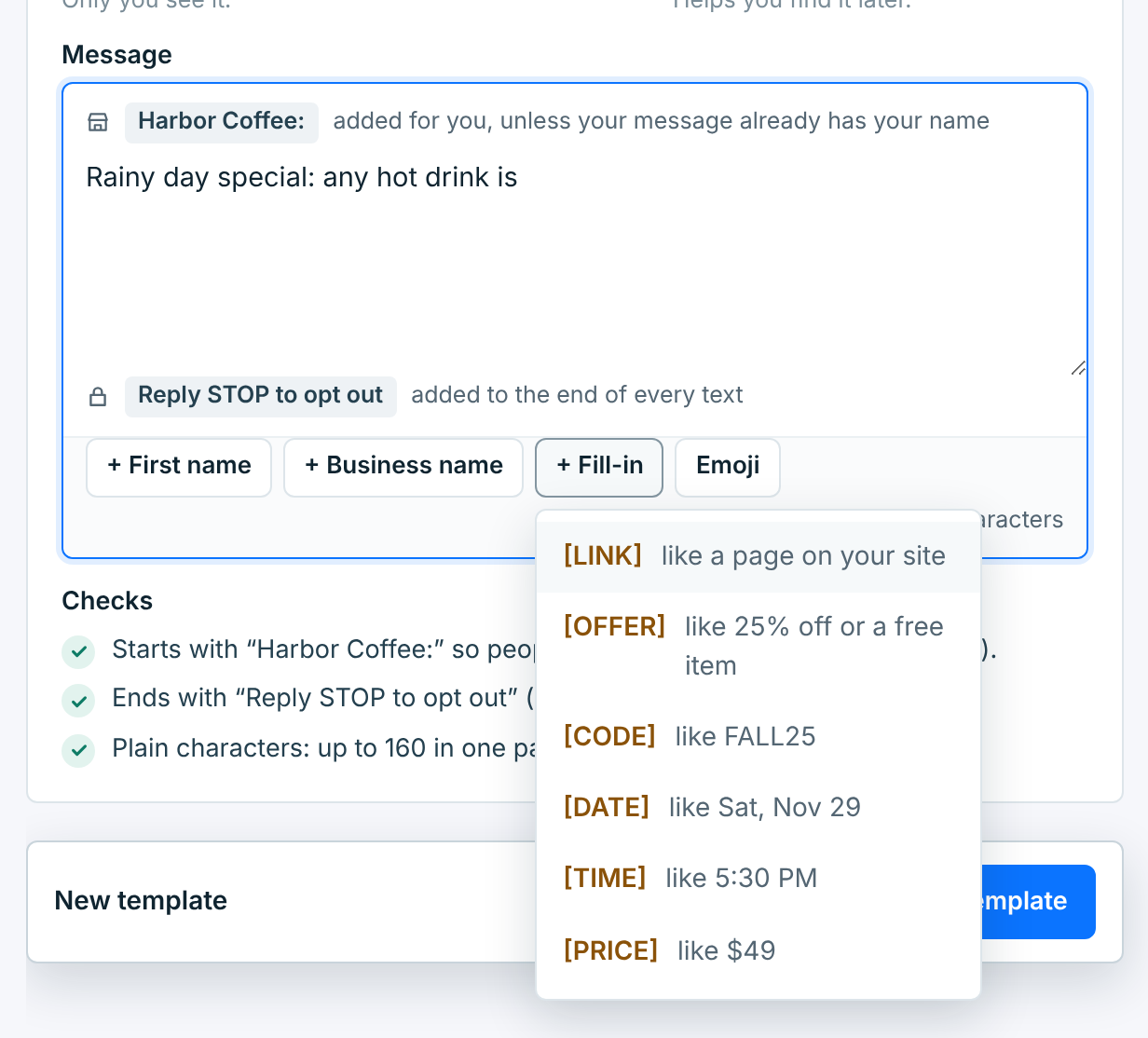
| Fill-in | Replace it with |
|---|---|
[LINK] |
A page on your site. It’s shortened and tracked when the campaign goes out; see Links in your texts. |
[OFFER] |
The deal, like 25% off or a free item. |
[CODE] |
A discount code, like FALL25. |
[DATE] |
A day, like Sat, Nov 29. |
[TIME] |
A time, like 5:30 PM. |
[PRICE] |
A price, like $49. |
Some starters have others, like [CLASS], [HOME] and [DEADLINE]. A campaign or a live webform can’t go out with a fill-in left in it: whoever uses the template replaces each one first. Parts and characters are counted with a typical value for each, so the count doesn’t jump when they’re filled in.
The checks and the preview#
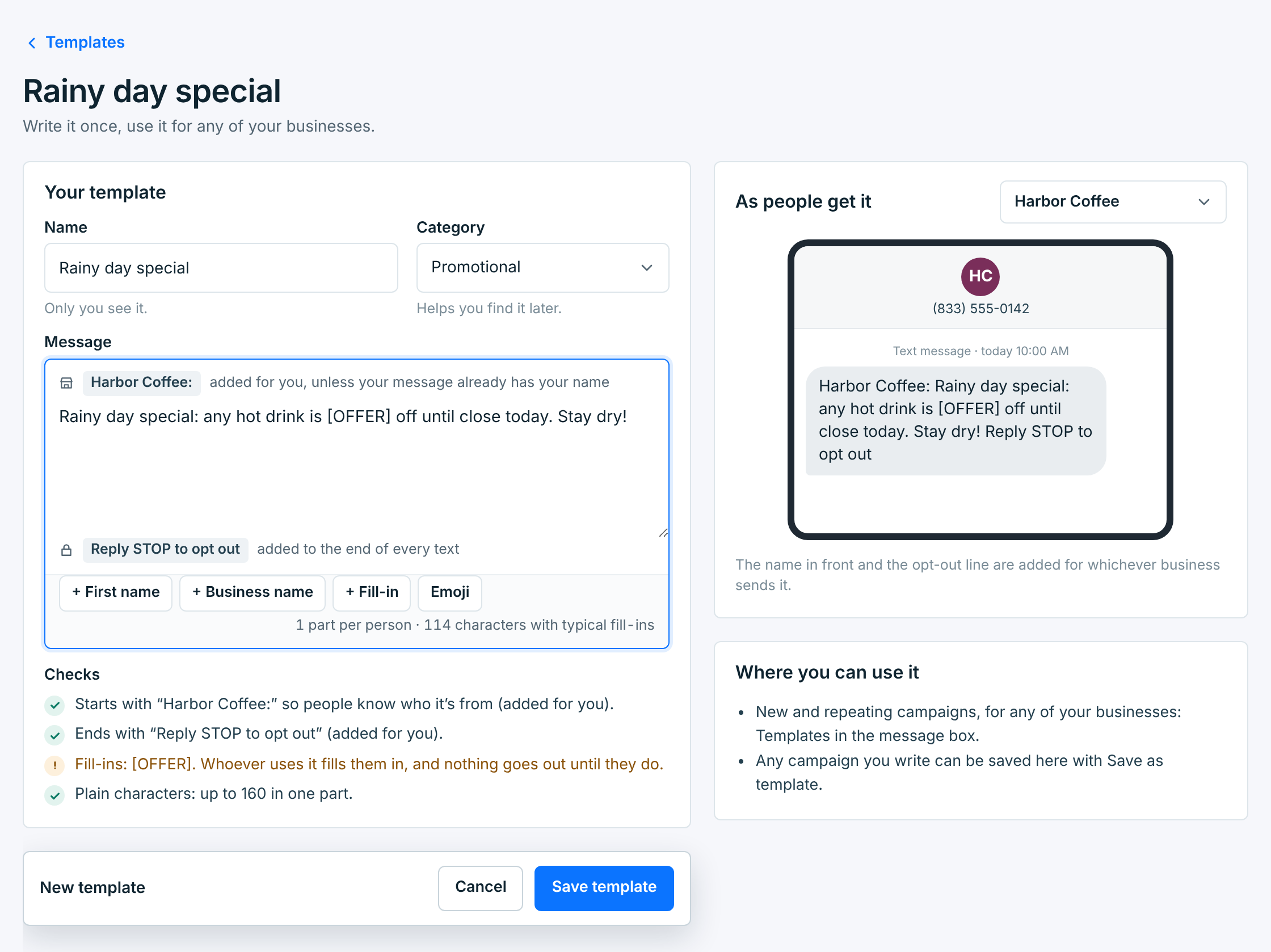
The checks under the message update as you type: what’s added for you, the fill-ins it has, how many characters fit in a part, and anything that makes it cost more. The counter shows parts and characters for the business you preview as. As people get it shows it on a phone; pick another business beside it to see it with that name.
A template can be up to 1,600 characters once the business name, the opt-out line and first names are in, counted for the longest of your business names.
Click Save template, or press Ctrl+S (⌘+S on a Mac). It’s added to Yours, and its page opens.
A welcome template#
Pick Welcome as the category, and the template becomes a webform’s welcome text, the one sent the moment someone joins:
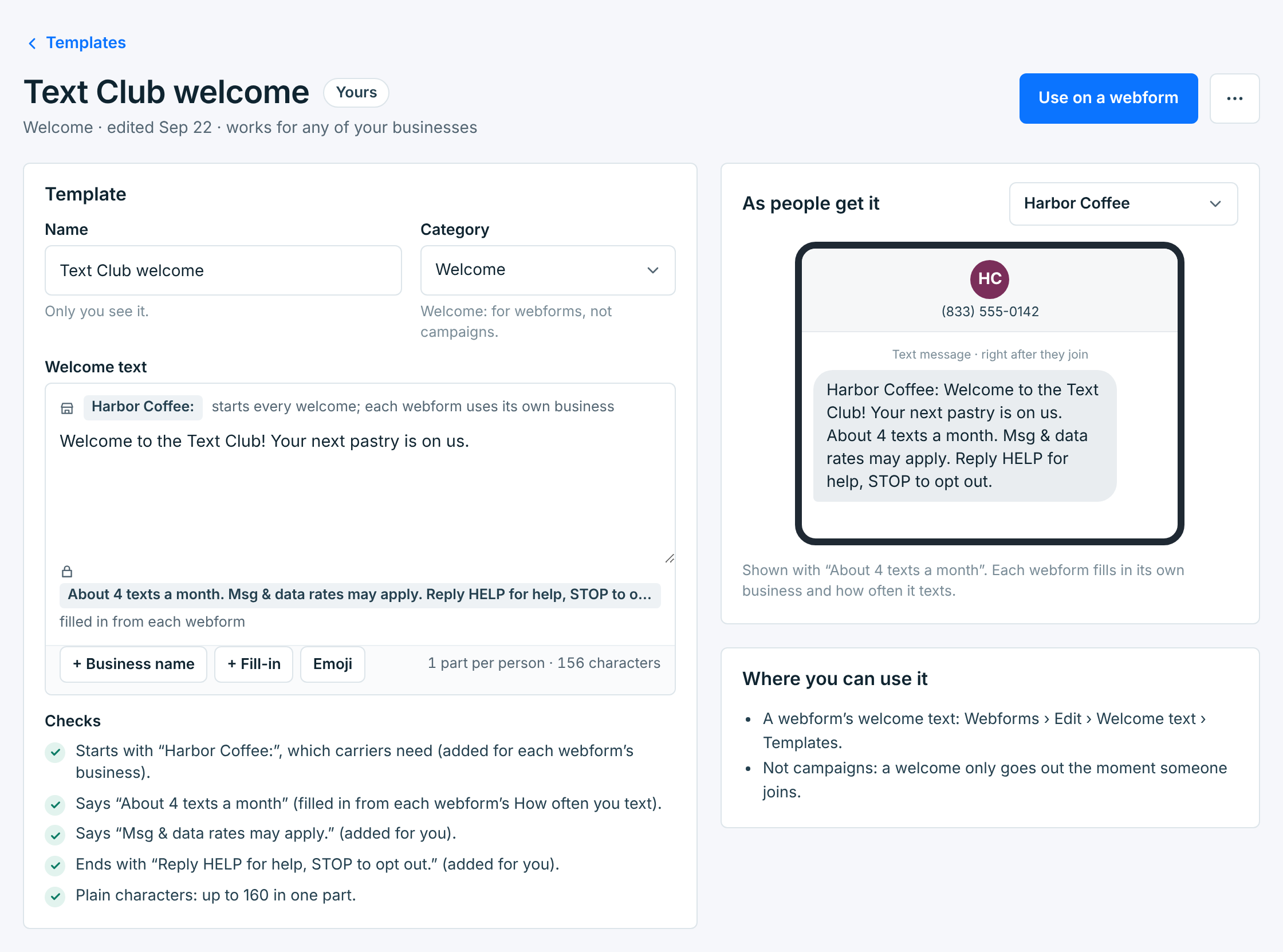
- The business name is put in front, and About 4 texts a month. Msg & data rates may apply. Reply HELP for help, STOP to opt out. at the end, leaving out any part it already has. Each webform fills in its own business and how often it texts.
- First names aren’t filled in on welcome texts, so there’s no + First name.
- It can be up to 480 characters with those parts in.
- A fill-in can stay in a draft webform’s welcome, but a webform can’t go live until it’s replaced.
Welcome templates aren’t offered in campaigns, and campaign templates aren’t offered on webforms. To put one on a webform, see Use a template.
Changing a template#
Open one of yours and change anything. A bar under it says there are unsaved changes:
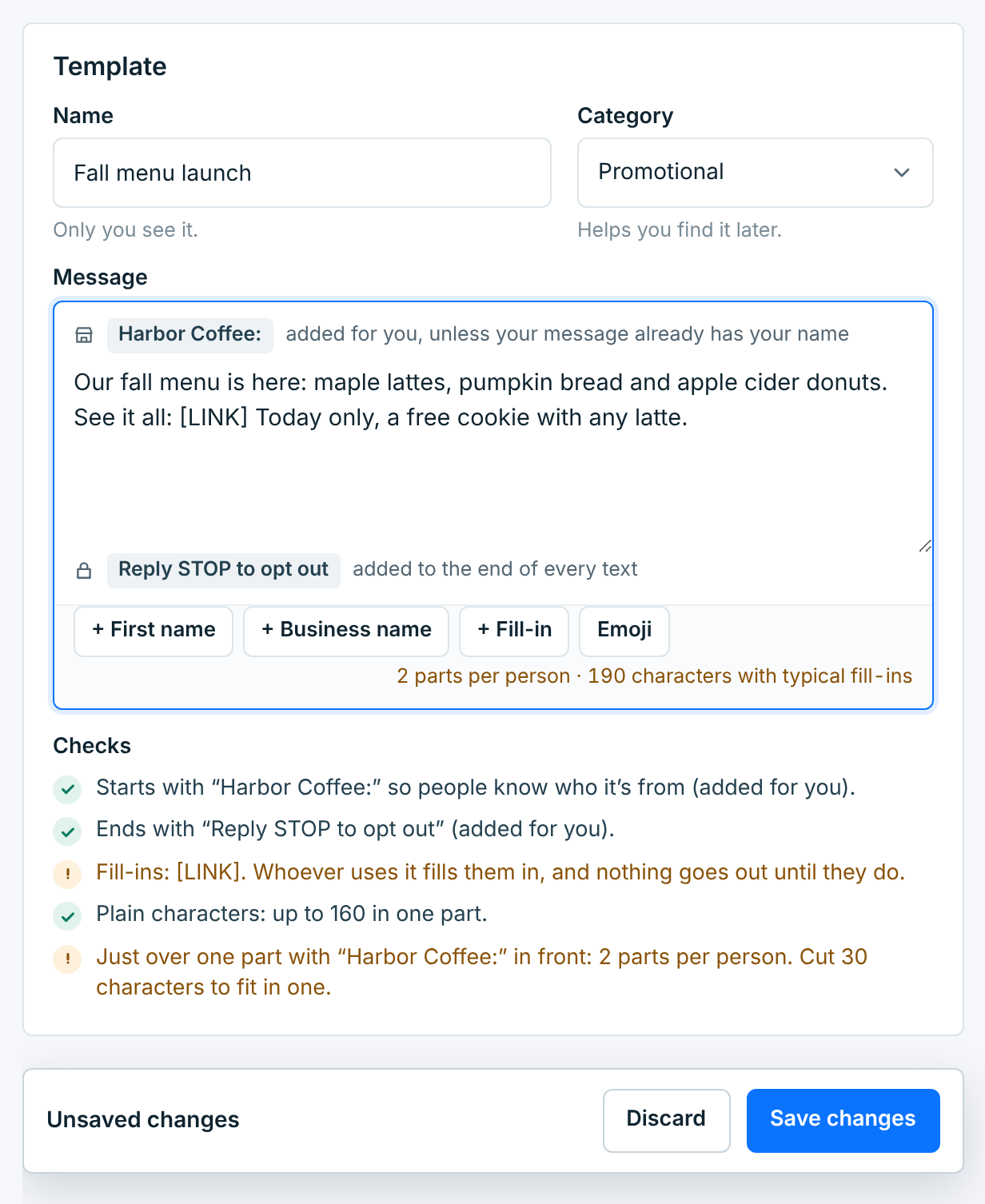
Save changes keeps them; Discard puts it back. Until you do one or the other, Use and Duplicate wait. Leaving the page asks first:
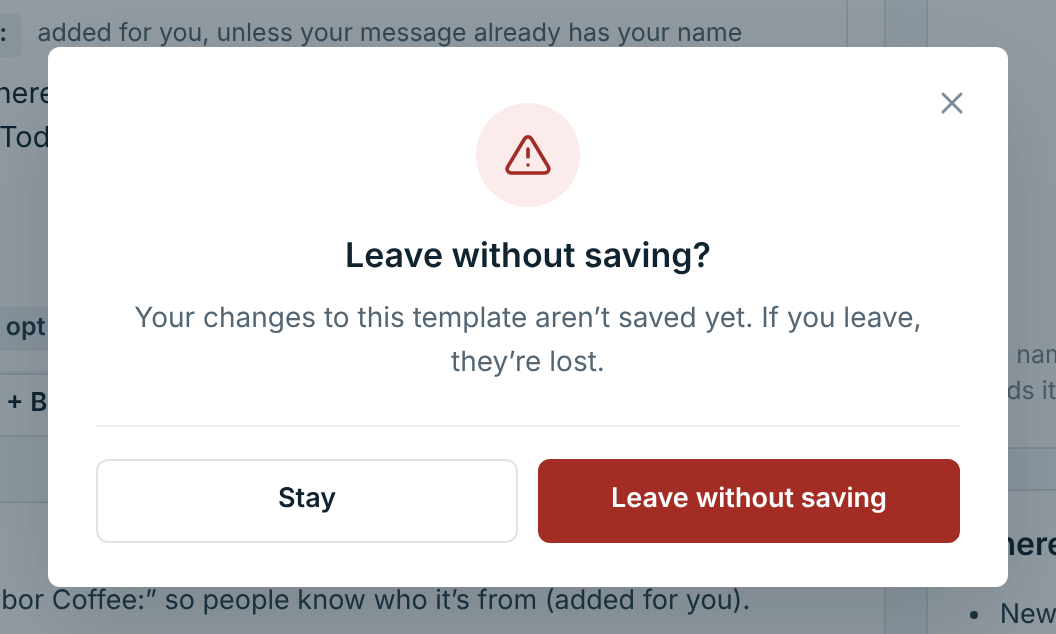
Changing a template doesn’t change campaigns you’ve already made with it: each campaign keeps its own copy of the text.
If the template was changed in another tab or window since you opened it, saving says so. Your changes stay on the page: copy them, then reload to see the other version.
Copying and deleting#
The … beside Use has the rest:

| Option | What it does |
|---|---|
Duplicate |
Makes a copy in Yours, named “(copy)”, to change without touching the first. |
Delete |
Takes it off Yours. Undo in the message at the top puts it back. Campaigns made with it keep their text. |
The same options are in the … on each card. A starter has Copy to yours instead: the copy keeps the starter’s name, and only gets “(copy)” when you already have one called that.