How people get a tag
Tag people as they join a webform, from your other apps, by hand, or in an import.
A tag does nothing until people have it. There are four ways to add one: as people join a webform, from your other apps, by hand in Contacts, or in an import. The first two run on their own, so the tag stays up to date without you.
| Where | Who gets the tag | Can make a new tag |
|---|---|---|
A webform's Tags to add |
Everyone who joins by that form from now on, by its page, QR code or keyword | Yes |
Integrations: Tag them with |
Every contact your apps send from now on | No |
Tags in an app's request |
The contact it sends | No |
Contacts: Add tag |
The contacts you tick | Yes |
Add contact, Edit details |
That one contact | Yes |
Import |
Everyone in the file, or the rows that name the tag | Yes |
Adding a tag never takes another one off, and a tag can only be added to contacts of its own business.
As people join a webform#
Open Webforms, open the form, and go to Edit. Under After they join, Tags to add lists the tags the form gives everyone who joins.

Type a tag’s name and click Add. The box suggests the business’s tags as you type. A name it doesn’t have yet becomes a new tag when you save the form. A form can add up to 20 tags. Click the × on a tag to stop adding it. Changes count once you save the form.
Everyone who joins by the form gets its tags: on its page, by its QR code, or by texting one of its keywords. Someone who’s already on your list and signs up again gets them too. People who joined before you added a tag don’t get it.
The tag’s page then shows the form, and whether it’s taking signups:
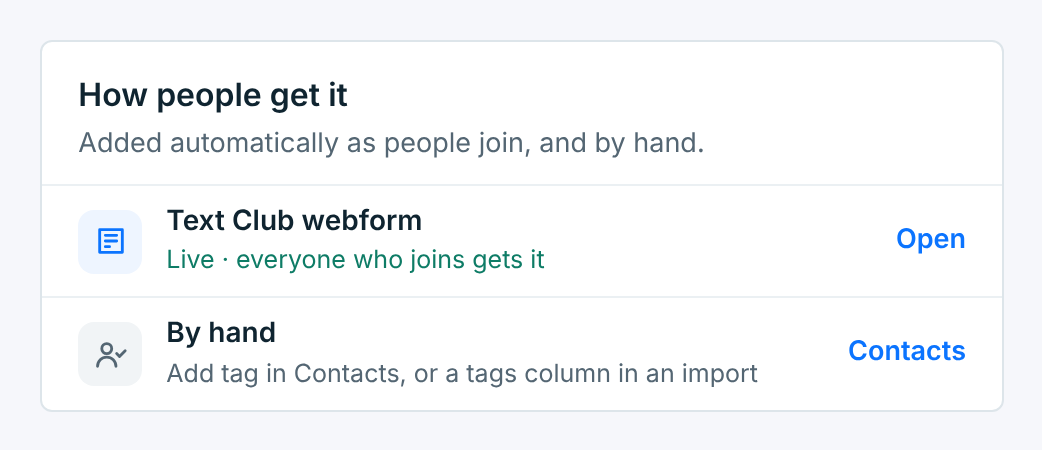
One form per interest keeps your groups apart without any work. For example, a Pastry box form on a counter card, a Catering form on your website, and the Text Club form at the register each tag people differently.
From your apps#
Contacts that Zapier, Make, your website or a form tool send in through Integrations can get tags in two ways.
Every contact your apps send#
In Integrations, under Contacts that come in, click Add tags, tick the tags, click Apply, then Save tags. Every contact your apps send from then on gets them, on top of any tags the request names. Contacts already added keep the tags they got.
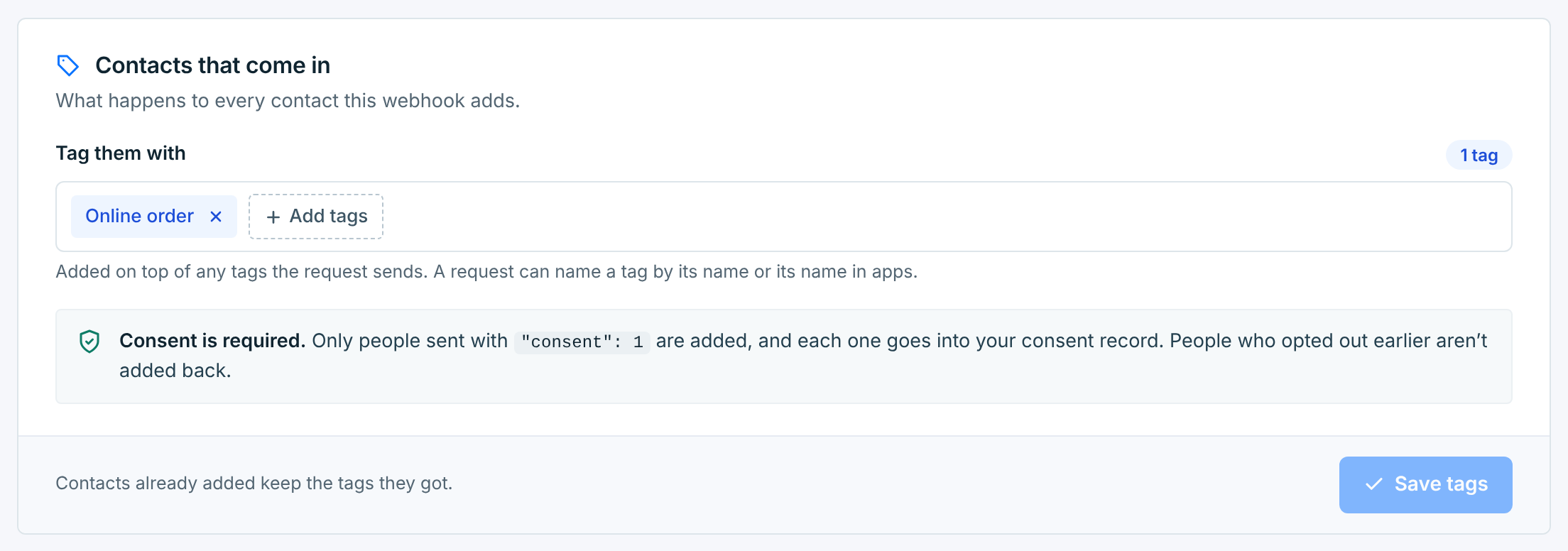
Only tags the business already has are listed. To use a new one, make it on the Tags screen first.
Tags named in the request#
An app can send tags along with each contact, as "tags": ["Pastry box", "VIP"] or as one string separated by commas. Each one can be the tag’s name, in any capitals, or its Name in apps from its page:
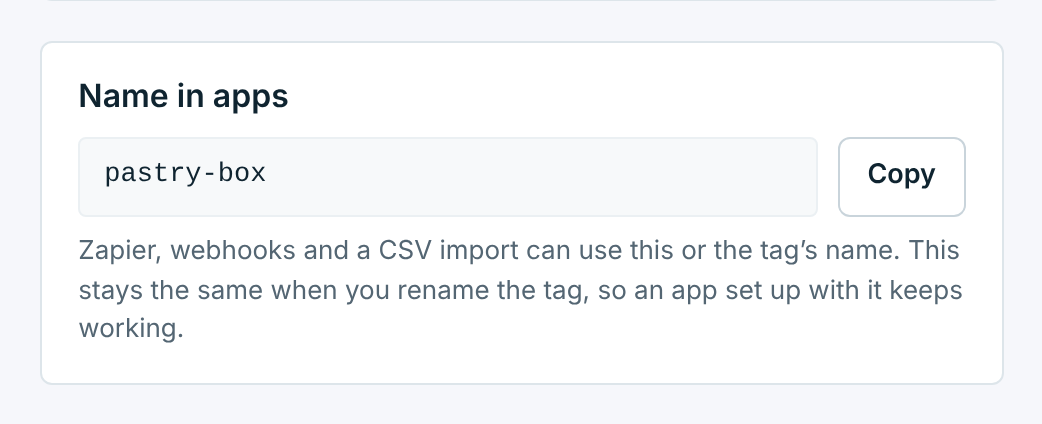
A tag’s name in apps comes from the name it was made with, in small letters with hyphens for spaces, and it doesn’t change when you rename the tag. So an app you set up months ago keeps working, and the tag’s new name works too.
A name that isn’t one of the business’s tags is skipped. No tag is made, and the contact is still added without it. The app’s answer ends with Tag not found: and the name, and the request’s page in Integrations says which one.
Once an app has sent a tag by name, the tag’s page shows An app sends it by name under How people get it, with the last date it did.
By hand#
In Contacts, tick the people you want, or tick the box in the header and use Select all … that match. Click Add tag and pick a tag. To make a new one, type its name in New tag at the bottom and click Add.
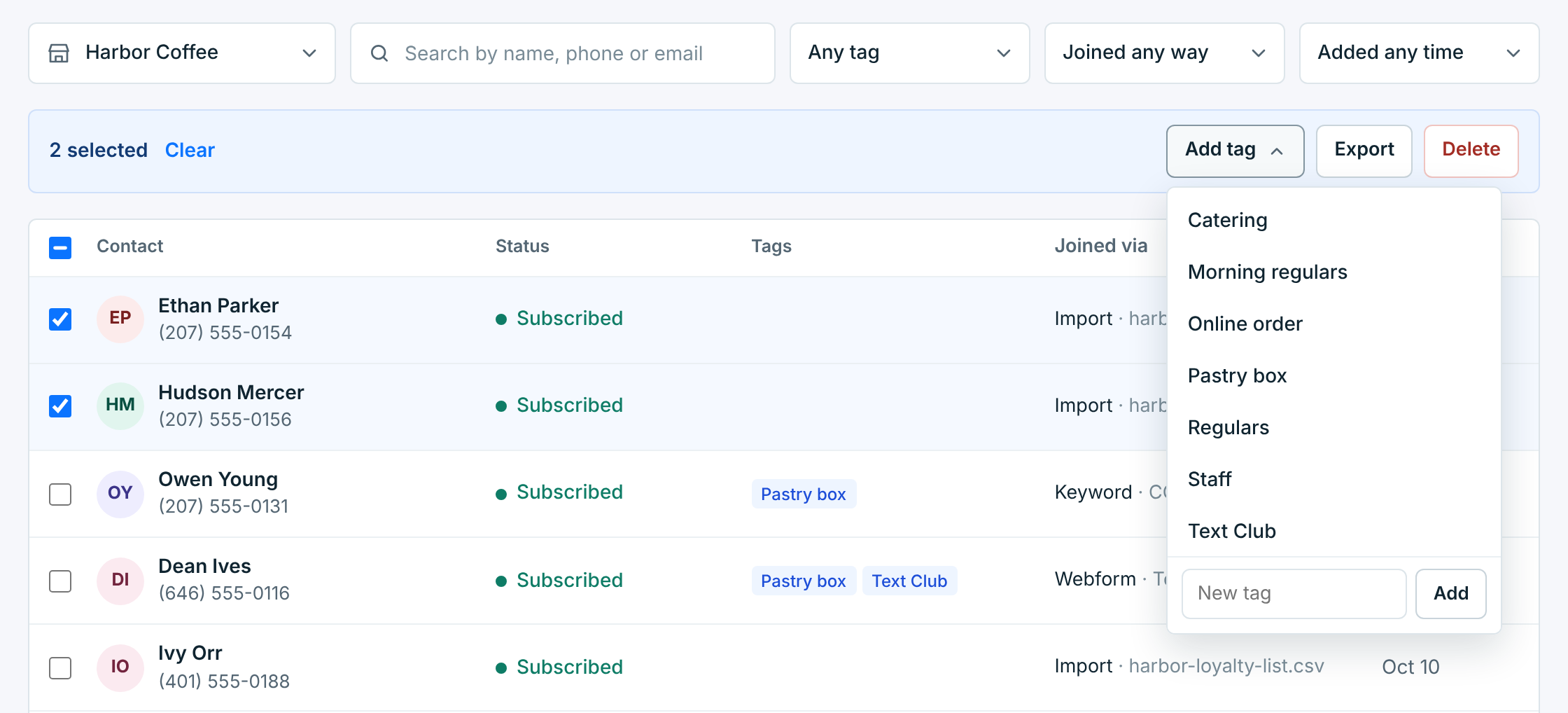
For one person, use the Tags field when you add them, or Edit details on their page. Edit details is also where you take a tag off one person. To take a tag off everyone, delete the tag.
In an import#
An import can tag people two ways. Tags for everyone in the file gives every row the tags you pick there:
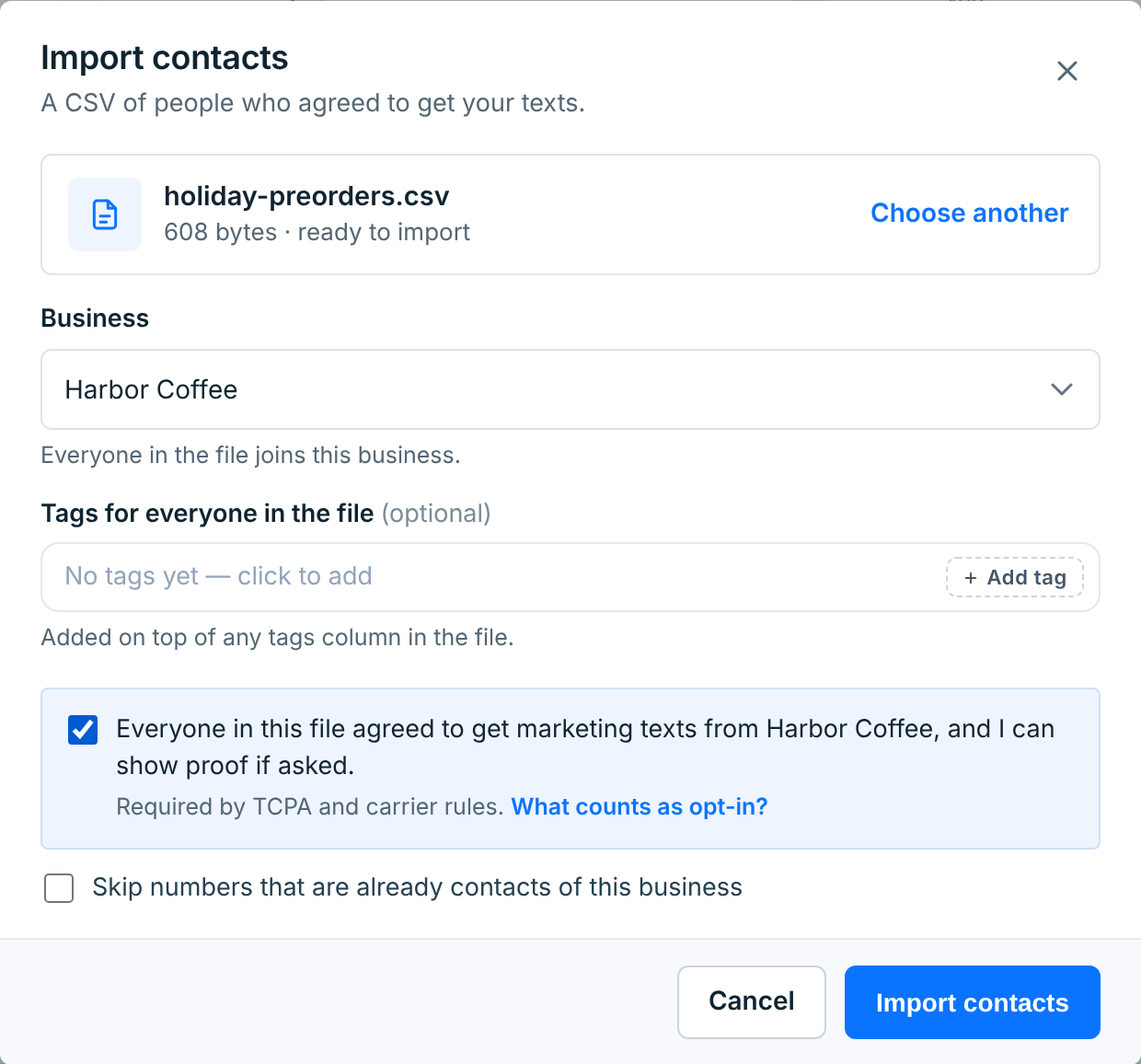
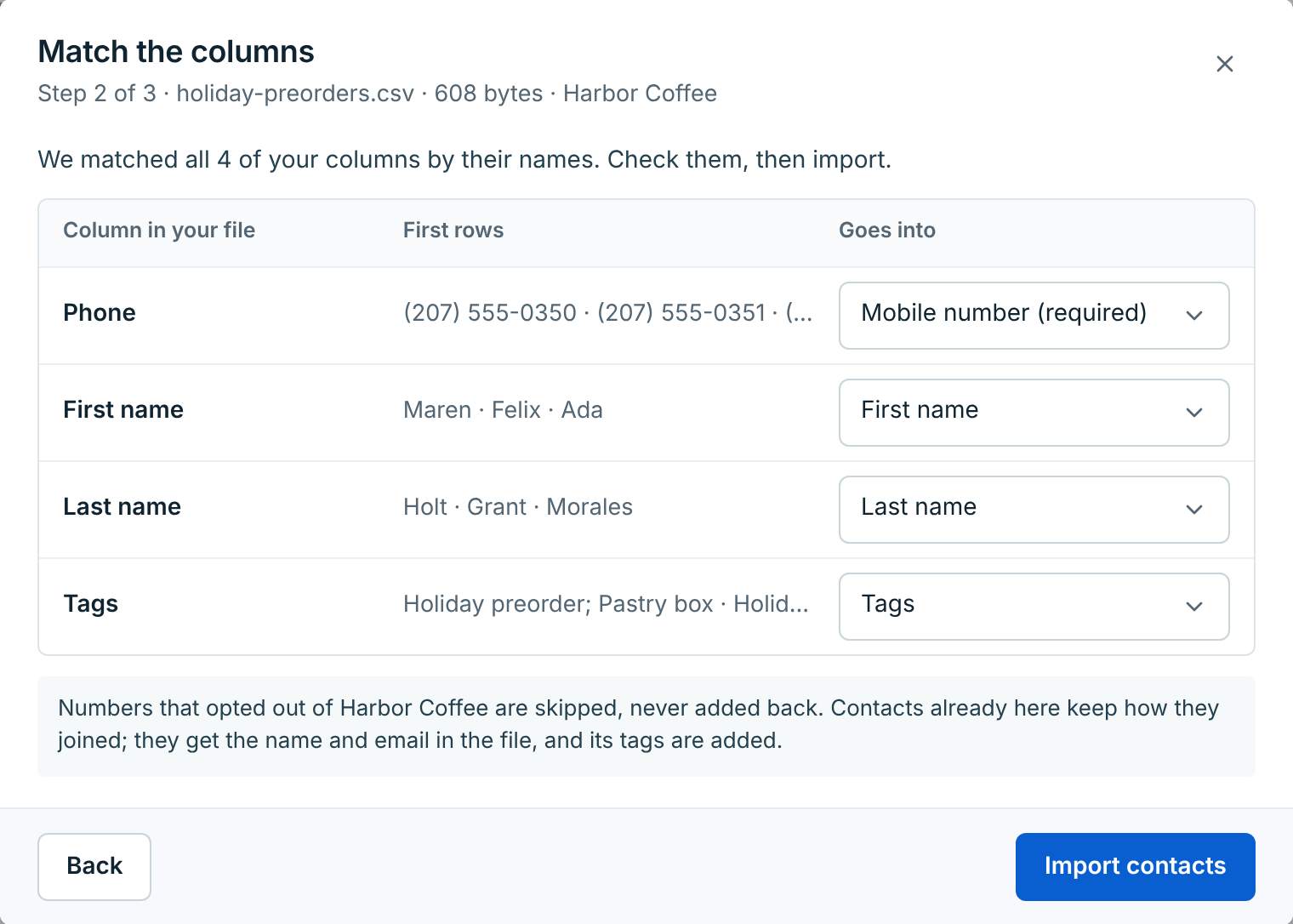
A Tags column gives each row its own. Put several in one cell, separated by commas, semicolons or |, like Holiday preorder; Pastry box. Each one finds the business’s tag with that name or that name in apps, whatever the capitals. A name the business doesn’t have yet becomes a new tag, spelled the way the file spells it. Our own Contacts export writes the column the same way, so an export imports straight back.
When the import finishes, it names any tags it made:
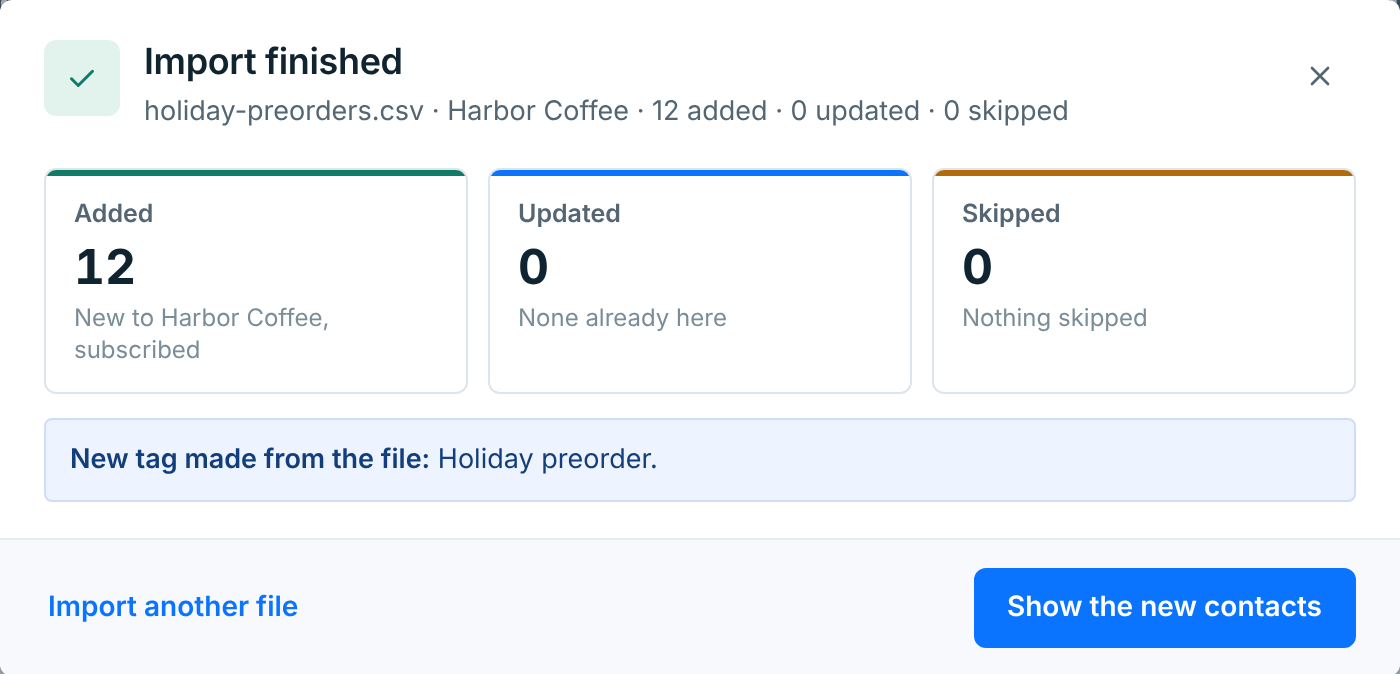
An import only adds tags. Someone who’s already a contact keeps the tags they have and gets the file’s too. For the rest of the import, see Add and import contacts.