Connect Vonage
Paste your signature secret, API key and secret, choose the sending number, and fix rejected replies.
TextScaleHQ sends through your own Vonage account. You paste your keys once per business, and we read your numbers, point their replies at us so STOP and HELP work, and file your toll-free registration. Vonage asks for one thing Twilio doesn’t, a signature secret, and that is the part worth slowing down for. This takes about five minutes.
Before you start#
- A Vonage account with a payment method. No account yet? See Get a Twilio or Vonage account.
- Your API key and API secret, at the top of the Vonage Dashboard.
- Your Signature secret, in the Vonage Dashboard under Settings → SMS API Settings. It can only be read there; Vonage’s API can’t fetch it for us.
Paste your keys#
Open Messaging Setup and pick the business in the selector at the top right. Keys are saved per business, so an agency connects each client separately. On Connection, pick Vonage and paste your keys.
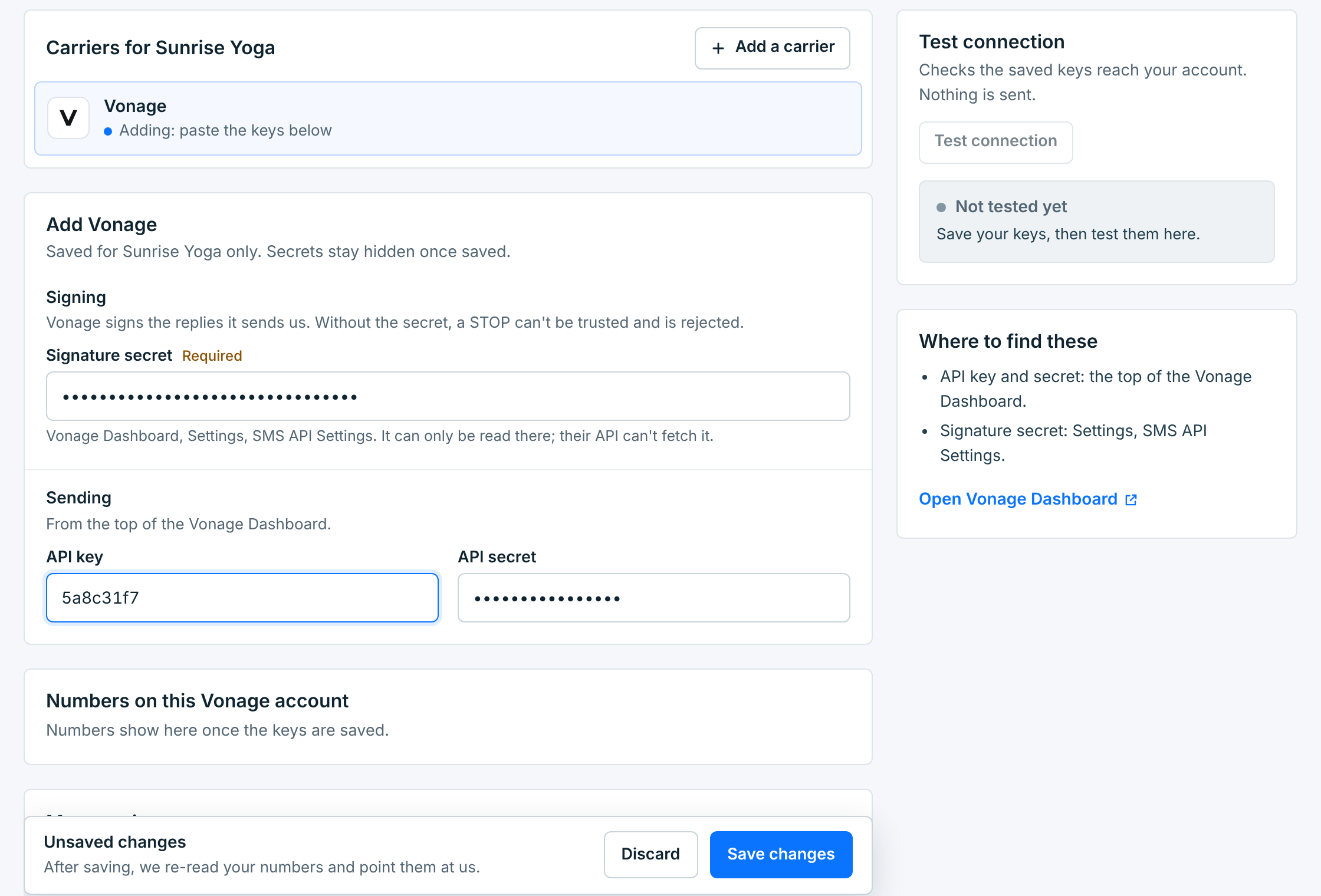
| Field | Description |
|---|---|
Signature secretRequired |
Vonage signs the replies it sends us, and this is how we check them. Without it, a STOP can’t be trusted and is rejected. It is a different value from your API secret. |
API keyRequired |
Top of the Vonage Dashboard. |
API secretRequired |
Next to the API key. |
An Unsaved changes bar appears. Click Save changes.
What happens when you save#
Your keys are saved for this business only, encrypted. The secrets stay hidden from then on: leave a secret field blank to keep the saved one.
Then we read the numbers on your Vonage account and point each one’s replies at us, so replies, STOP and HELP reach this business. Connection shows the key, the result of a connection test, and every number with its registration:
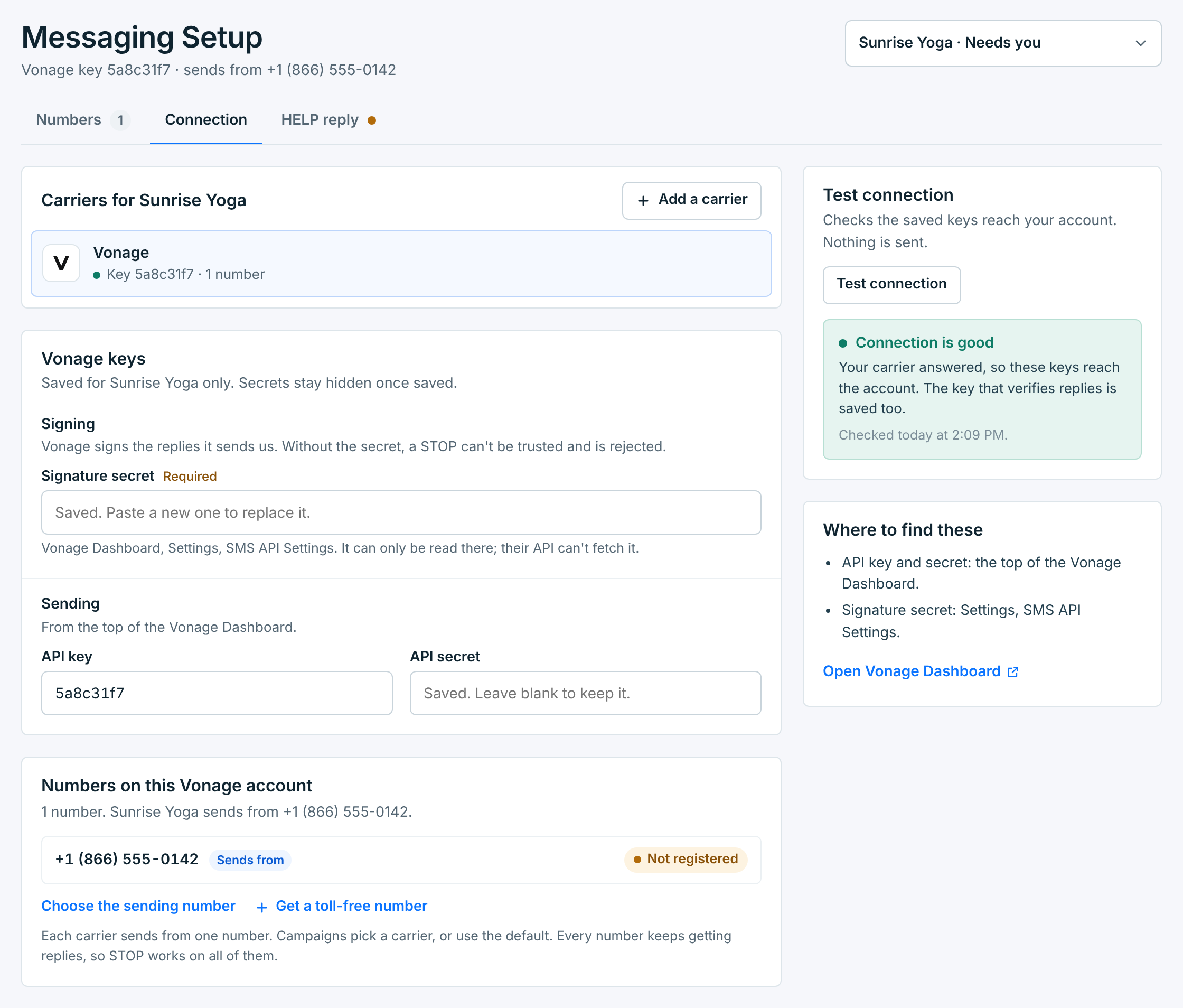
Test connection checks the saved keys still reach your account, any time. Nothing is sent.
Each carrier sends from one number per business. With more than one number on the account, click Choose the sending number to pick it. Every number keeps getting replies, so STOP works on all of them. A toll-free number can’t send until it’s registered; see How toll-free approval works.
Delivery receipts need nothing from you. Every text we send asks Vonage to report back to this business, so each one moves from sent to delivered or failed. Your Delivery receipts URL in the Vonage Dashboard isn’t touched.
More settings#
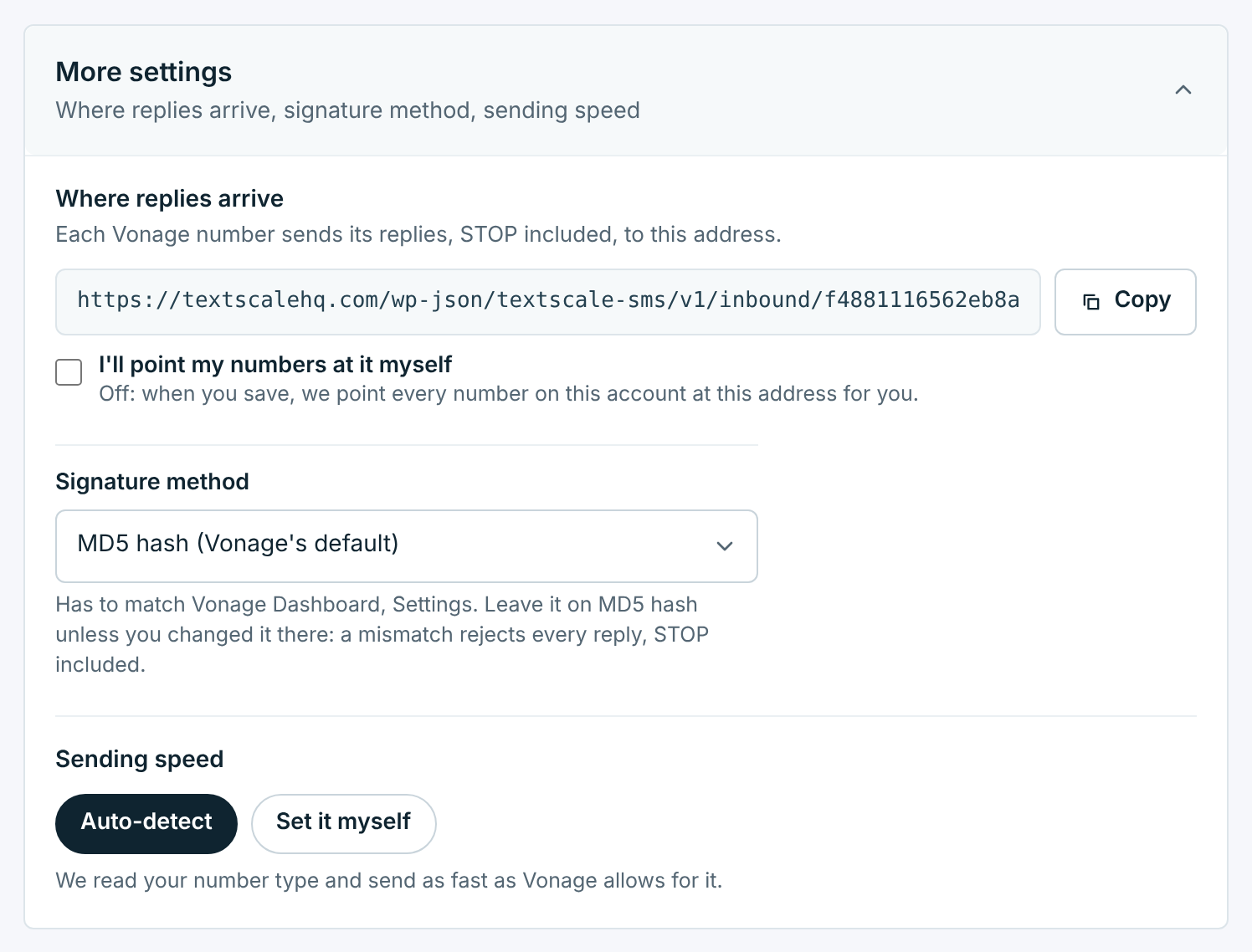
| Setting | Description |
|---|---|
Where replies arrive |
This business’s own address for replies. We point your numbers at it when you save. Tick I’ll point my numbers at it myself if you manage your Vonage webhooks yourself. |
Signature method |
Has to match the one set in the Vonage Dashboard, under Settings. Leave it on MD5 hash (Vonage’s default) unless you changed it there: a mismatch rejects every reply, STOP included. |
Sending speed |
Auto-detect reads your number type and sends as fast as Vonage allows for it. Use Set it myself only if Vonage raised your limit: set it too high and Vonage queues or drops texts. |
If replies are rejected#
Messaging Setup tells you when replies from Vonage fail the check, and why:
- Vonage replies are failing the signature check. Usually the signature secret was changed in Vonage, or the signature method differs from the one set there. Paste the current secret, check the method, and save.
- Vonage isn’t signing replies yet, so they’re rejected. Your secret is saved, but replies arrive unsigned. Some Vonage accounts need signed webhooks switched on by Vonage support first, so ask them. The warning clears by itself once a signed reply comes through.
- We can’t confirm opt-outs on Vonage. No signature secret is saved. Click Add signature secret, paste it and save.
While replies are rejected, a STOP is rejected too, and that person stays subscribed. Fix it straight away.
If Vonage turns down the API key or secret, the business shows Can’t send and Messaging Setup says Vonage turned down the saved keys, with what Vonage answered. Paste the current key and secret from the Vonage Dashboard, save, and click Test connection.