Make, rename, merge and delete tags
Make a tag, rename it, merge two that mean the same, download who has one, and delete it.
This guide covers making a tag, renaming it, merging two tags that mean the same thing, downloading who has a tag, and deleting one. Everything here starts on the Lists / Tags screen. For the screen itself, see Your tags.
Make a tag#
Click New tag at the top of the Tags screen.
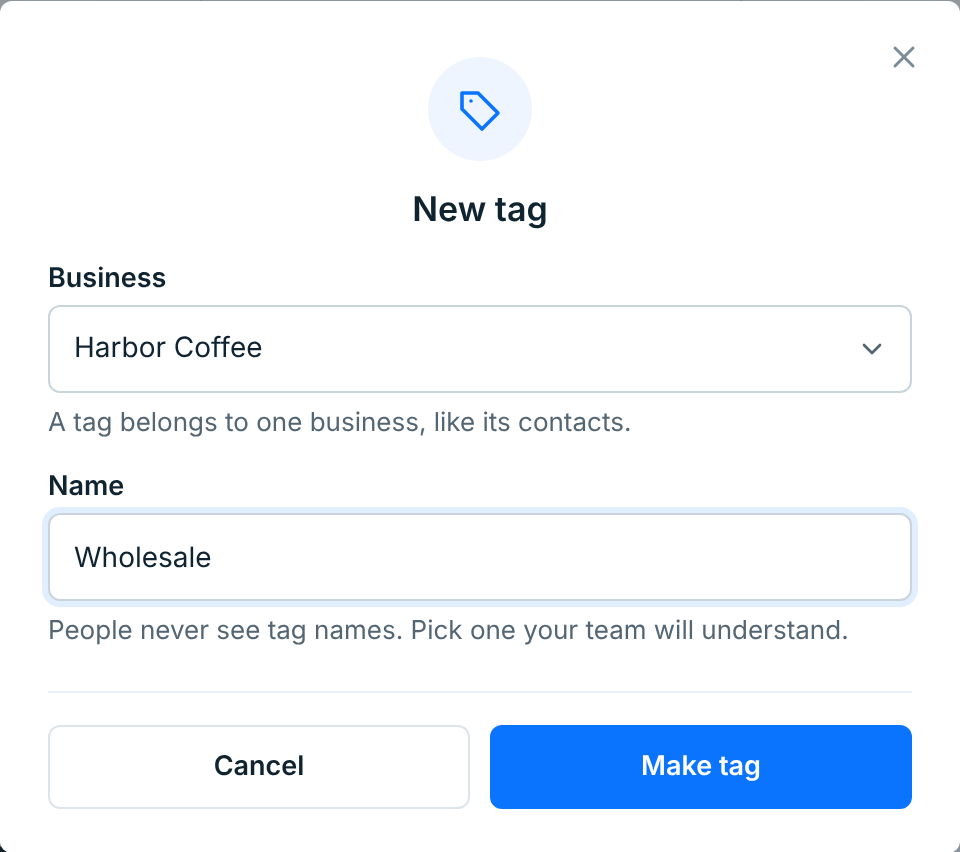
| Field | What it does |
|---|---|
BusinessRequired |
Which business the tag belongs to. Only shows when you have more than one. It can’t be changed later. |
NameRequired |
Up to 60 characters. Subscribers never see it. |
A business can’t have two tags with the same name, whatever the capitals. If you type one it already has, the dialog says so. Make tag opens the new tag’s page, ready for you to add people.
You can also make a tag while you’re tagging people: in Contacts’ Add tag, in a webform’s Tags to add, or in an import.
Rename a tag#
Every tag has a … menu at the end of its row, and another at the top of its page.
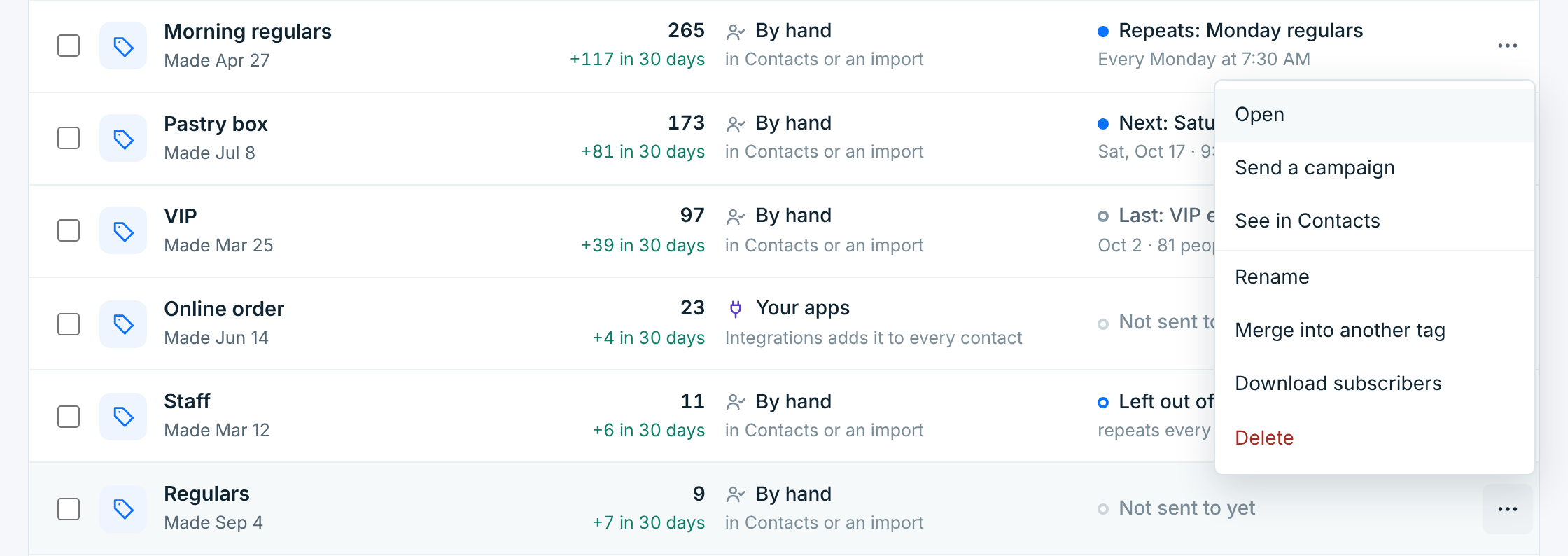
Choose Rename and type the new name.
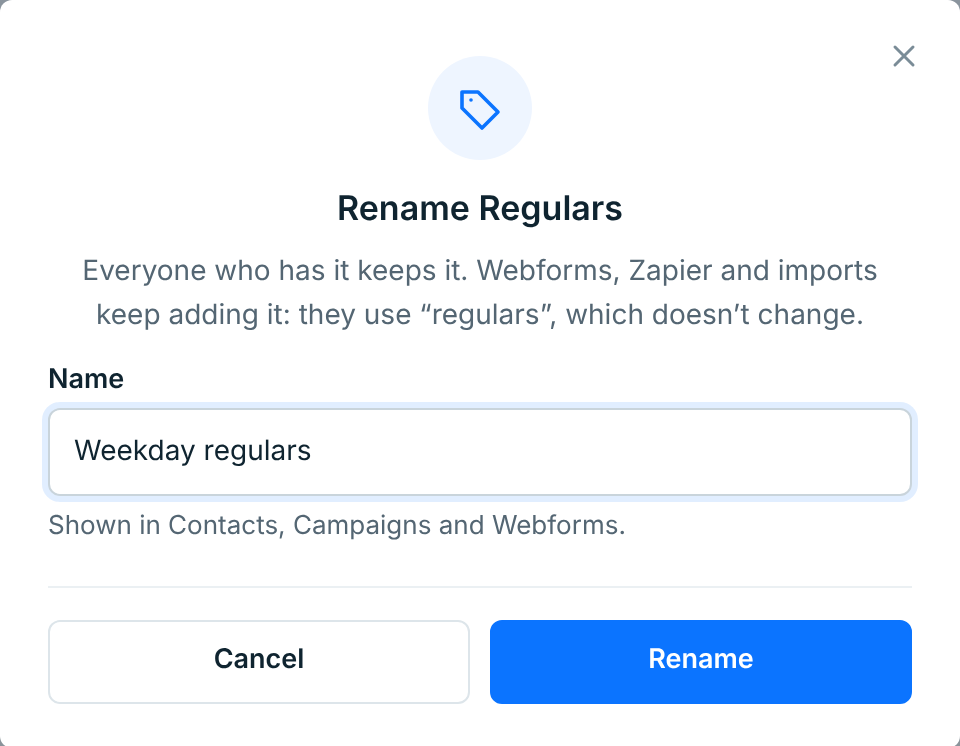
Everyone who has the tag keeps it, and the new name shows everywhere straight away. Webforms, your apps and imports keep adding it, because they use its name in apps, which doesn’t change.
If the business already has a tag with the name you want, you’ll want to merge the two instead.
Merge two tags#
Two tags that mean the same thing, like Regulars and Morning regulars, split your group in two. Merging moves everyone into one tag and deletes the other.
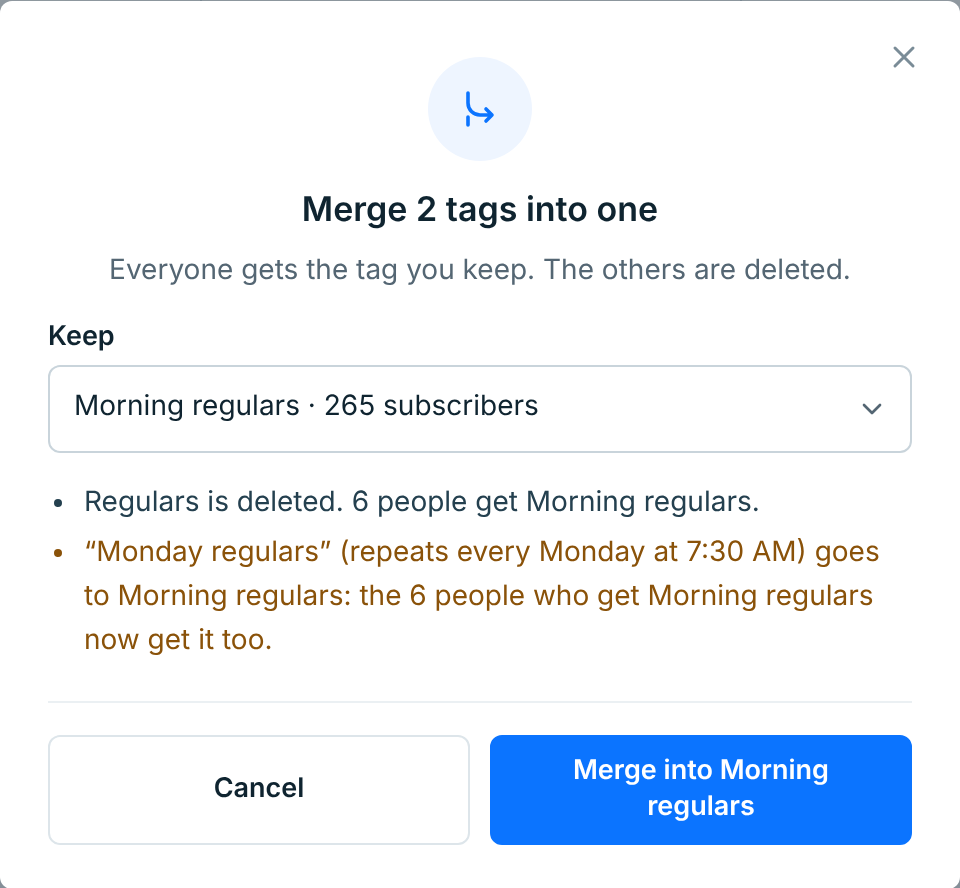
Choose Merge into another tag in the tag’s … menu, or click Merge on its page. Then pick the tag to move everyone into. Before you confirm, the dialog shows what will happen:
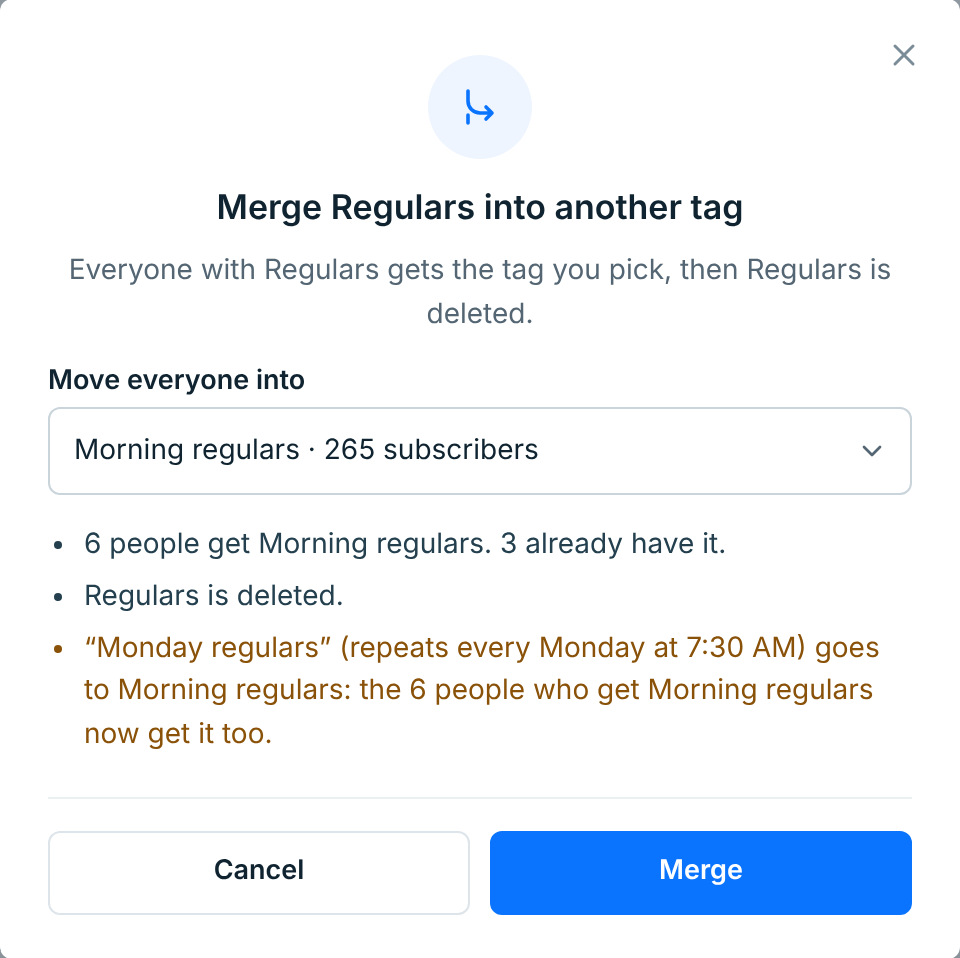
- How many people get the kept tag, and how many already had it.
- Webforms and your apps that added the merged tag add the kept one instead, and drafts that used it use the kept one.
- Anything that goes to the kept tag reaches the people who just got it. Here, the Monday regulars repeat gets 6 more people.
The merged tag is deleted. Campaigns already sent to it keep their results. Both tags have to belong to the same business.
Several at once#
Tick the tags you want to combine. The search box helps find tags that are spelled alike. Then click Merge into one in the bar above the list.
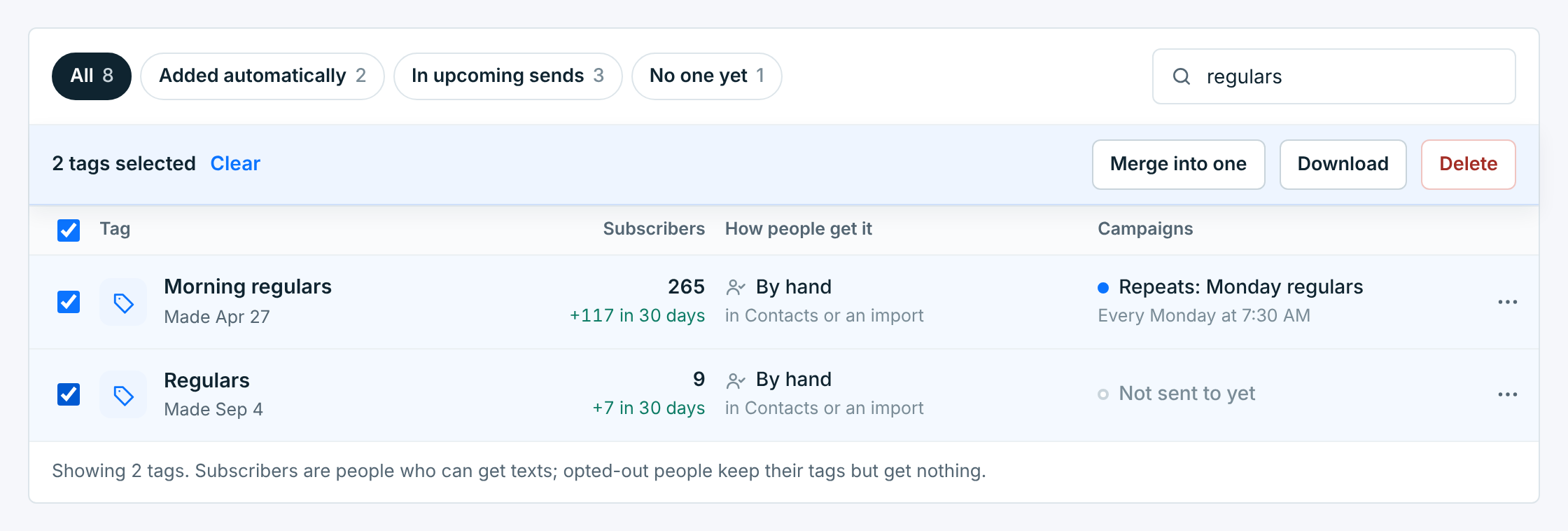
Pick which tag to keep. The one with the most subscribers is picked for you. The others are merged into it.
Download who has a tag#
Choose Download subscribers in a tag’s … menu. You get a CSV of everyone with the tag who can get your texts, with the same columns as an Export from Contacts.
To get several tags in one file, tick them and click Download. The file has everyone with any of the tags, and each person’s Tags column says which ones they have. The tags have to be from one business.
Delete a tag#
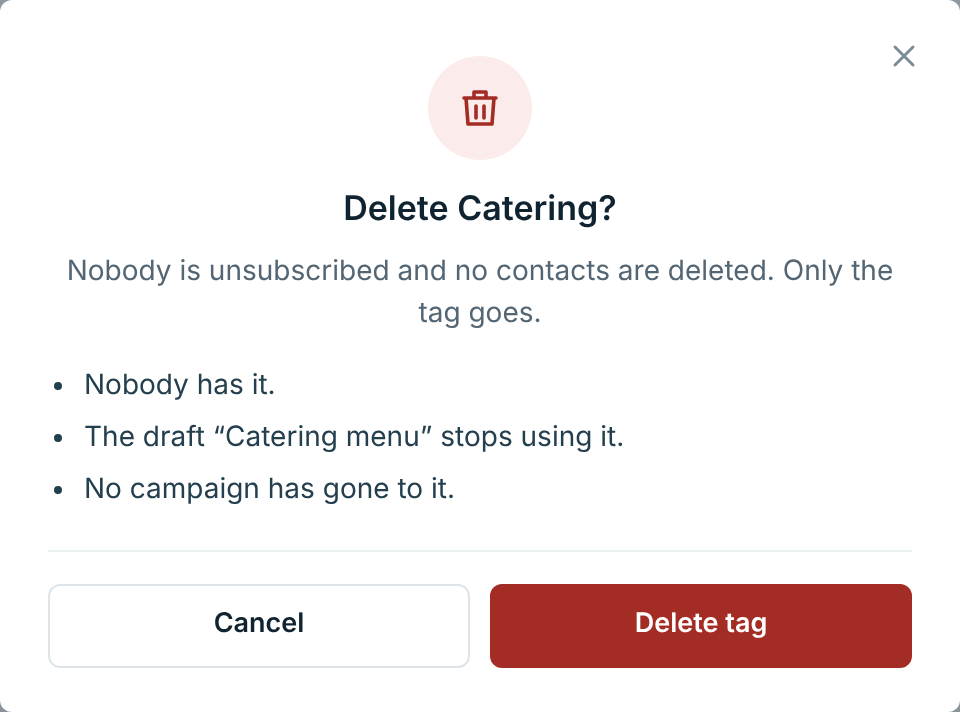
Choose Delete in the tag’s … menu, or click Delete on its page. Nobody is unsubscribed and no contacts are deleted. Only the tag goes. The dialog lists what changes:
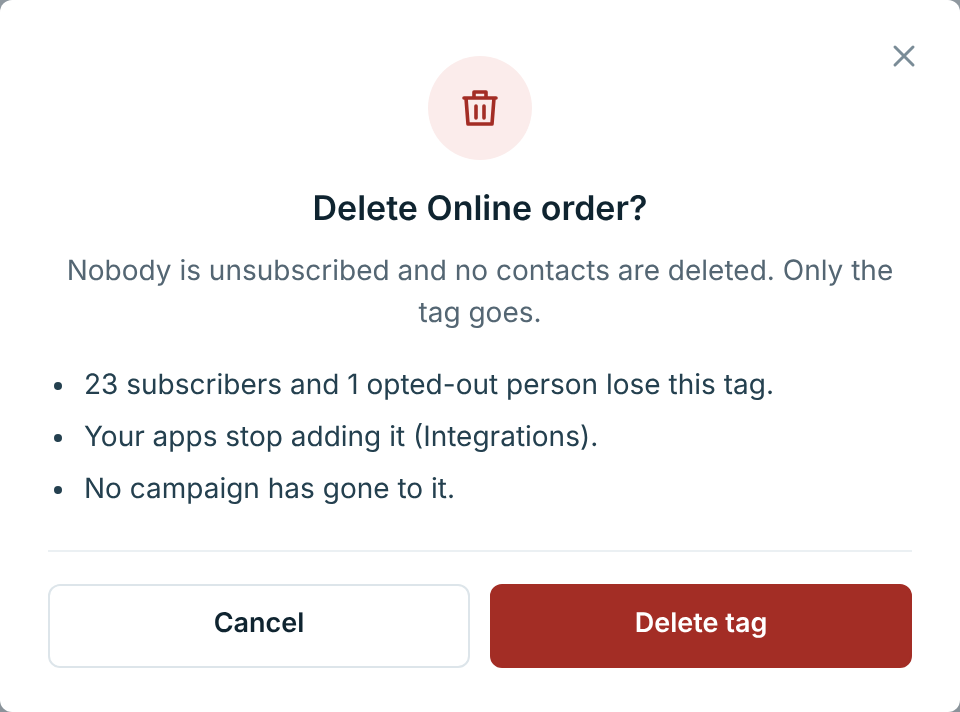
- Everyone loses the tag, opted-out people too.
- Webforms and your apps that added it stop adding it.
- Drafts that used it stop using it.
- Campaigns already sent to it keep their results.
There’s no undo. A new tag with the same name starts with nobody. And if an app sends the deleted tag’s name in apps, the people it sends get no tag. Change it in your Zap or app.
To delete several, tick them and click Delete in the bar above the list.
While something is going out to it#
You can’t delete a tag, or merge it away, while something coming up sends to it or leaves it out: a scheduled or sending campaign, a repeat (running or paused) or a running AI Promo plan. Deleting it would change who gets something you’ve already set up. A campaign to the tag would reach nobody, and one that leaves it out would reach the people it was meant to skip. The dialog says which send is in the way:
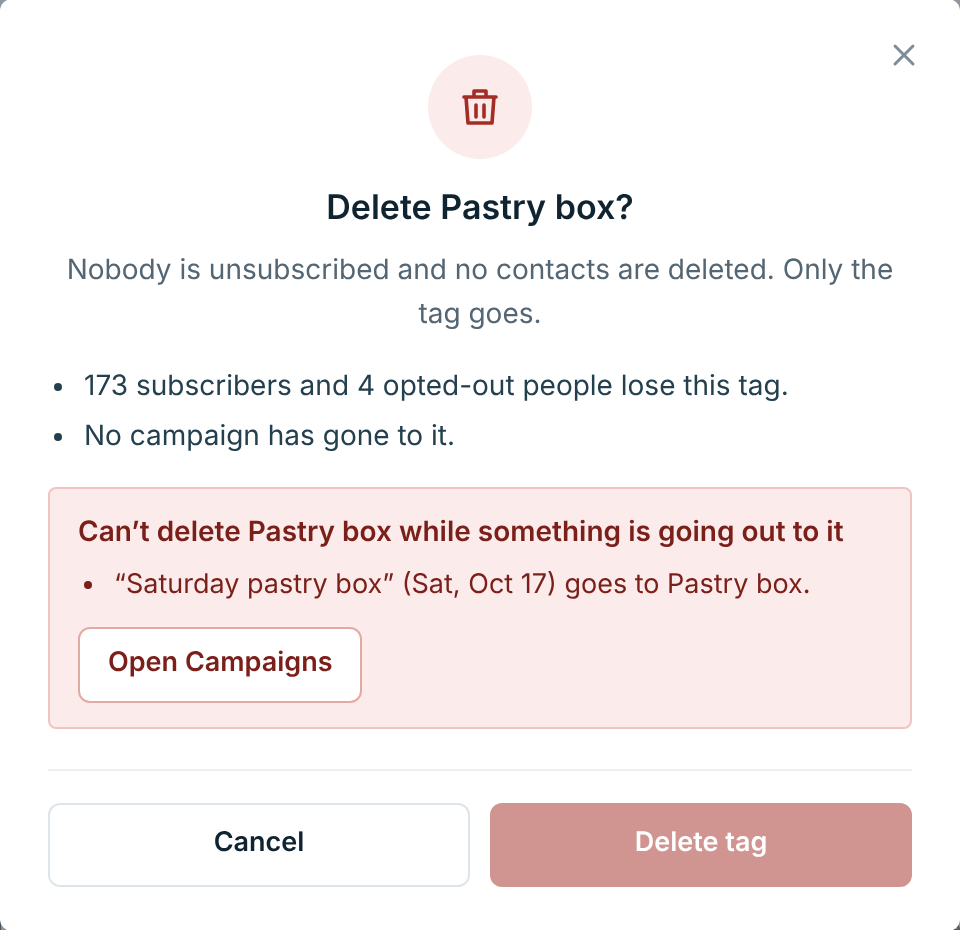
Open the campaign and change who gets it, or wait until it has gone out. Then delete the tag.
Drafts#
Drafts don’t stop you. The dialog lists any that use the tag:
A draft can end up with no tag left to send to, or sending to and leaving out the same tag. If that happens, the Tags screen says so afterwards, with a button to open the draft and pick who gets it:

When a trial ends without a plan, you can still see your tags, but you can’t make or change them until you subscribe.