Review and schedule a plan
Read, change or rewrite a plan's messages, schedule them, see how they did, and fix one that didn't go out.
A plan’s messages wait for you: nothing goes out until you schedule it. This guide covers reading them, changing them, rewriting them with AI, and scheduling them, one at a time or all at once. It follows Harbor Coffee’s fall plan, three weeks in.
The Plan tab#
Open AI Promos, pick the business, and stay on Plan:
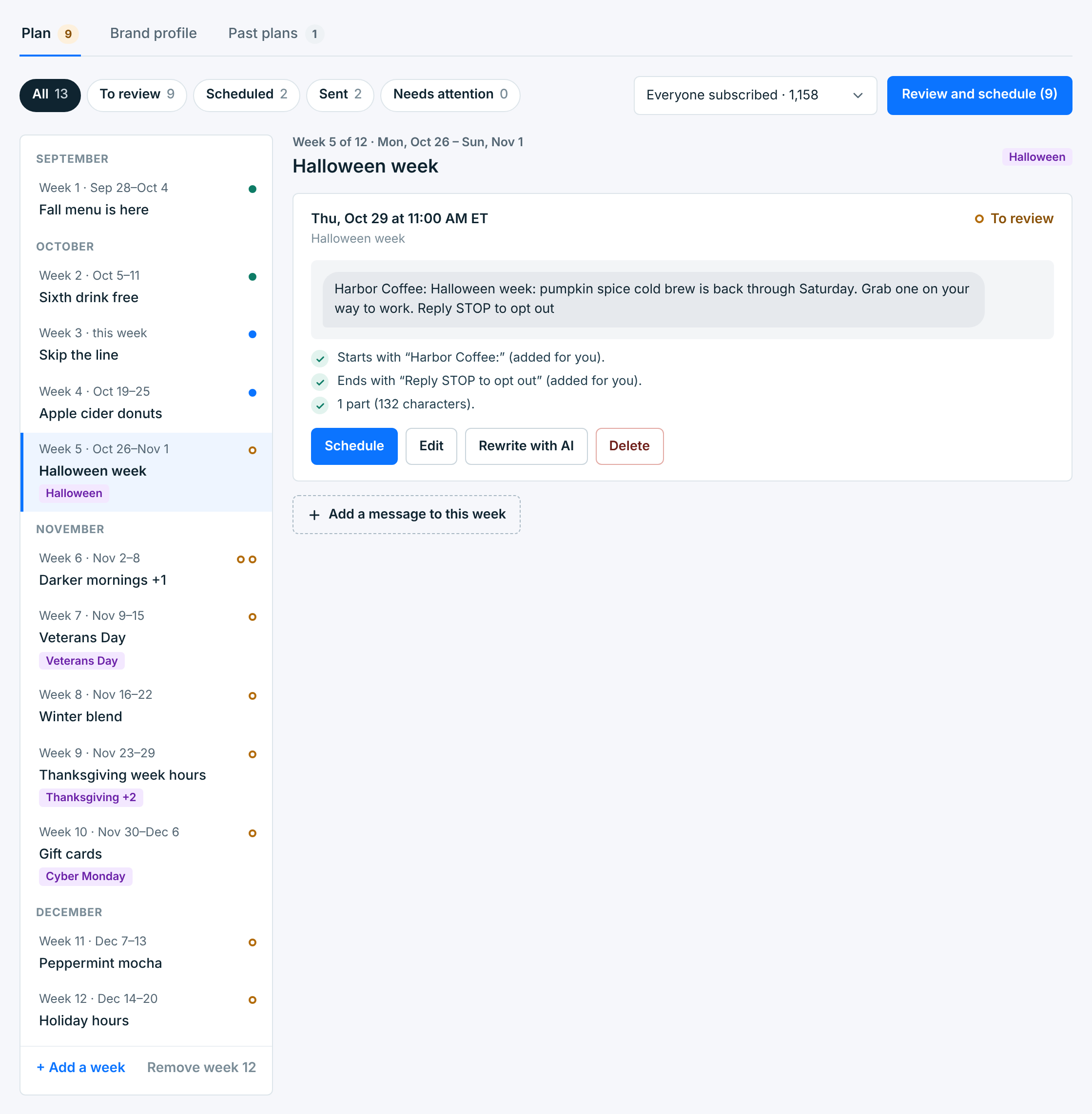
- The buttons at the top show the messages To review, Scheduled, Sent or that Need attention, with how many of each.
- The weeks run down the left, by month, with each week’s message and a dot for its status. A week with a holiday shows it as a label. this week marks the week you’re in.
- The selected week’s messages are on the right. The page opens on the first week with something waiting for you. The arrows beside a week’s title go to the week before or after.
Who gets the messages#
The picker beside Review and schedule sets who the plan’s messages go to: Everyone subscribed to the business, or the people with one tag, with how many there are today. A change applies to every message you haven’t scheduled yet. Scheduled ones keep the audience they had.
Like every campaign, an AI message skips anyone who got another campaign from the business in the 24 hours before it goes out.
A message#
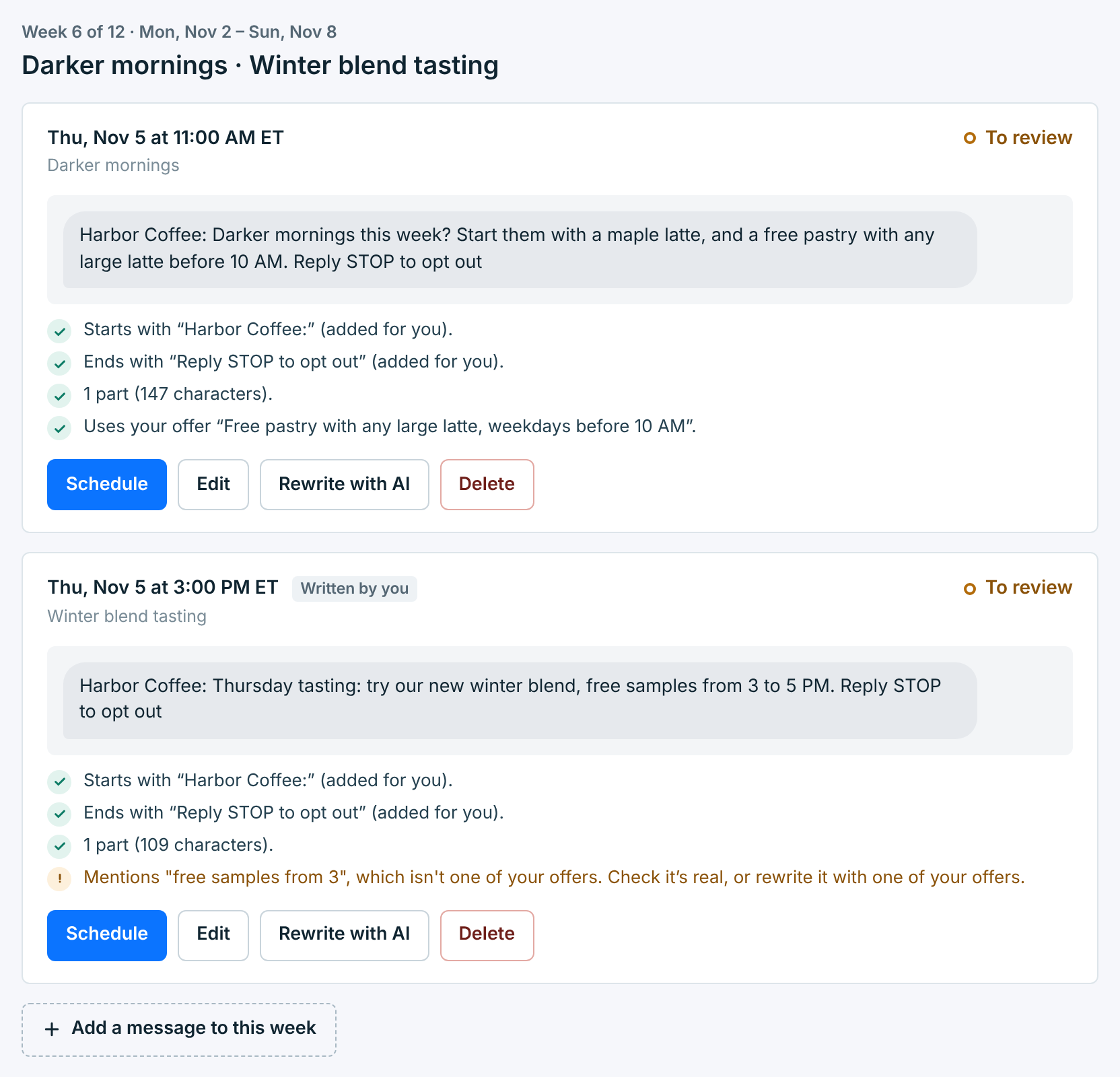
Each message shows its day and time, its status, its name, and the text exactly as people get it: the business name in front and Reply STOP to opt out at the end, added for you unless it already has them. Under it, the checks:
| Check | What it means |
|---|---|
1 part (147 characters) |
What one text takes, with the name and STOP line, a link counted as its short link. More than one part says how many times the cost it is, and suggests Make it shorter. Over 1,600 characters, it can’t be scheduled until it’s shorter. |
Uses your offer |
The offer from your brand profile it mentions. |
Mentions … which isn't one of your offers |
It promises something that’s not on your list, like the free samples above. Check it’s real, or rewrite it with one of your offers. |
Uses words you asked to avoid |
Words from your brand profile’s Words to avoid. |
Asks people to reply |
It asks for a reply other than STOP or HELP. Only STOP and HELP replies are handled, so nobody would see the answer. |
Replying CANCEL opts them out |
It asks people to reply CANCEL, END or QUIT for something else. Those words opt people out of your texts. |
Written by you marks a message you added yourself.
Change a message#
Edit opens it in place:
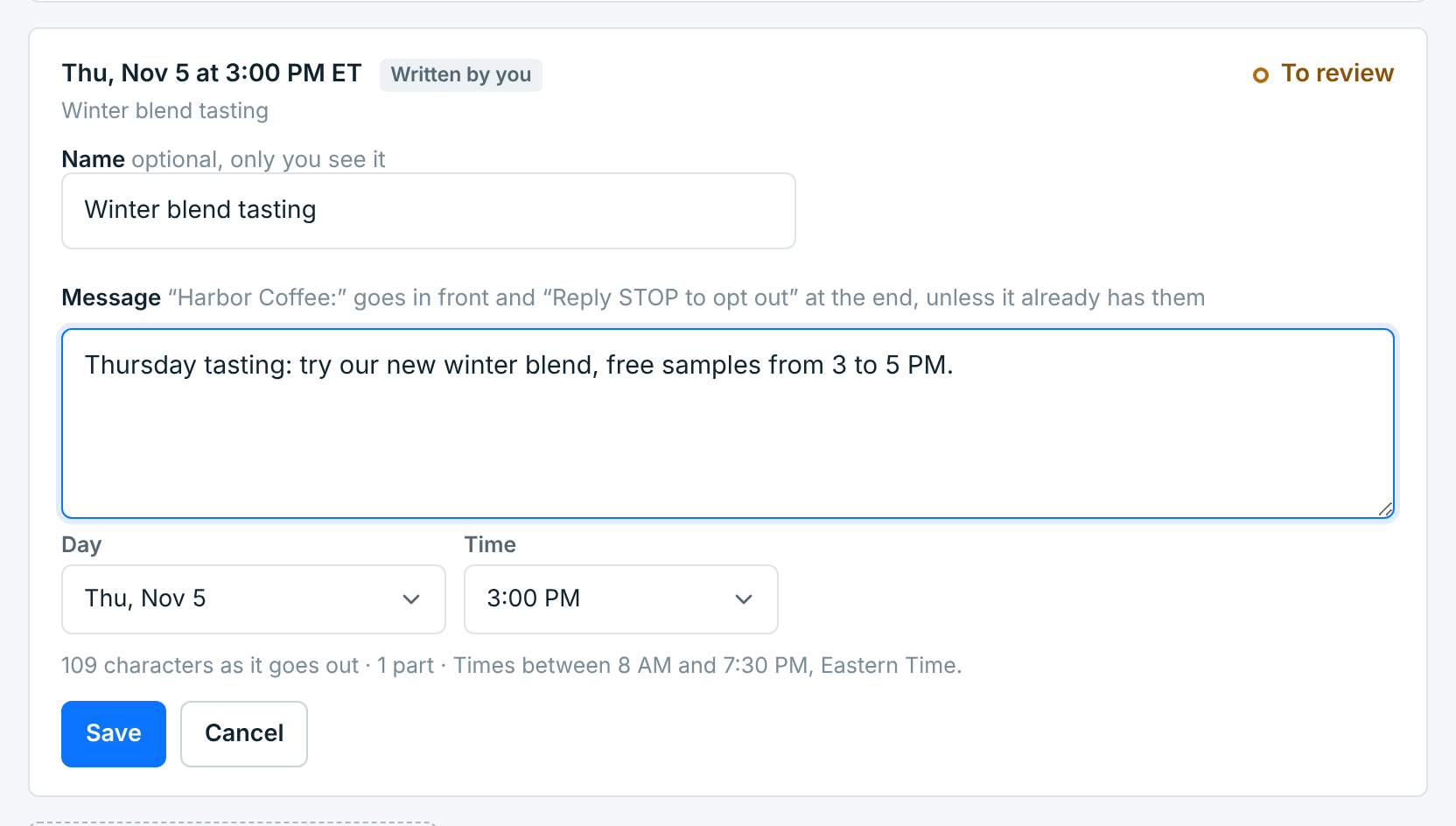
- Name is only for you: it names the message in the weeks list and in Campaigns. With no name, a message is called by its first words.
- Message is the text, without the business name or the STOP line: those are added for you. The line under it counts the characters and parts as it goes out.
- Day and Time move it within its week, between 8 AM and 7:30 PM in the business’s time zone.
Save keeps it waiting for your review. Cancel puts it back as it was. Leaving the page with changes not saved asks first.
Delete takes a message out of the plan. It asks first, and can’t be undone.
Rewrite with AI#
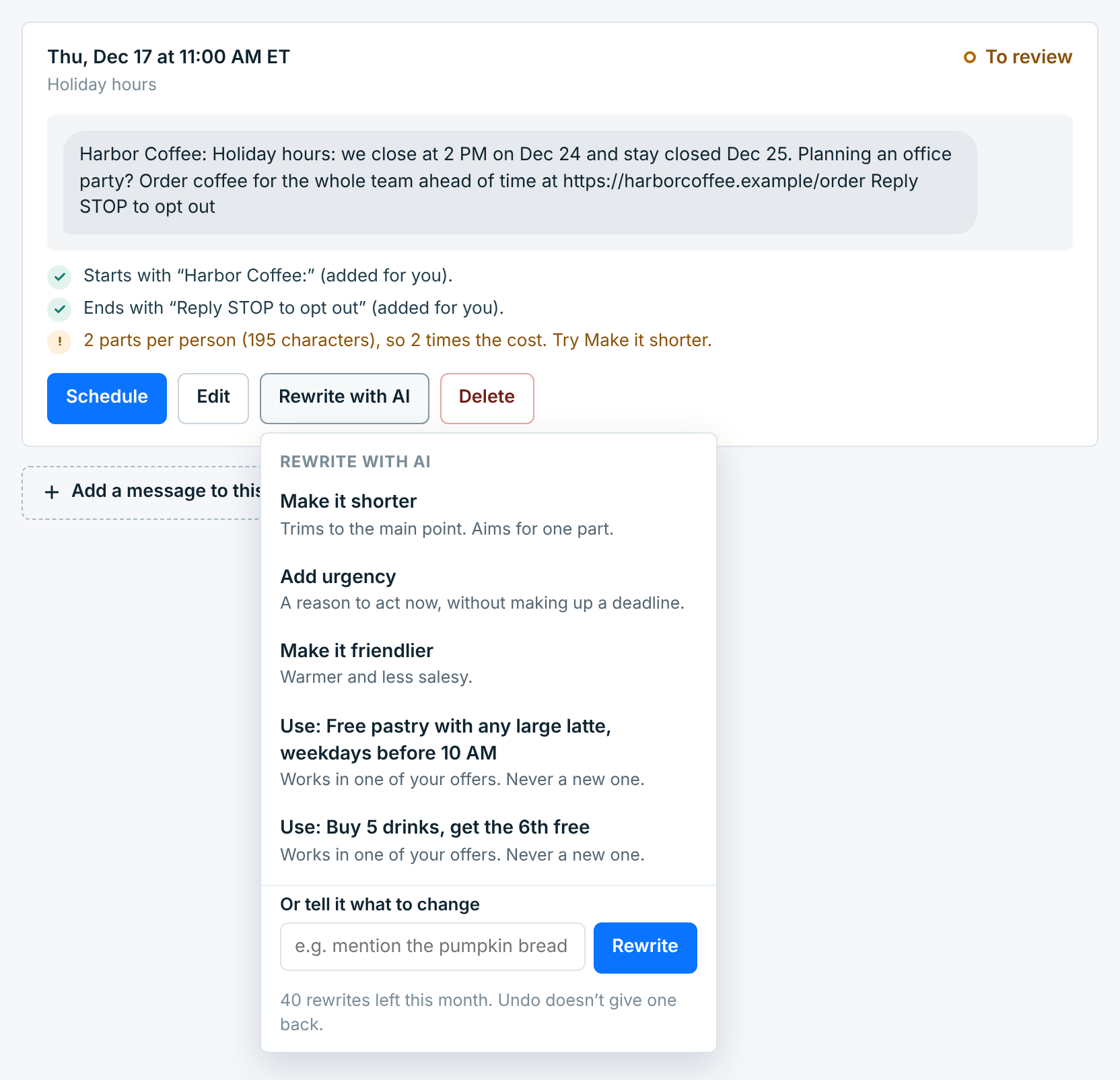
Rewrite with AI asks the AI for a new version of one message:
| Choice | What it asks for |
|---|---|
Make it shorter |
The main point, aiming for one part. |
Add urgency |
A reason to act now, without making up a deadline. |
Make it friendlier |
Warmer and less salesy. |
Use: (an offer) |
Works in one of your offers, with its terms as written. There’s one choice for each offer on your brand profile. |
Or tell it what to change |
Your own instruction, like “mention the pumpkin bread”. |
The new text replaces the old one straight away:
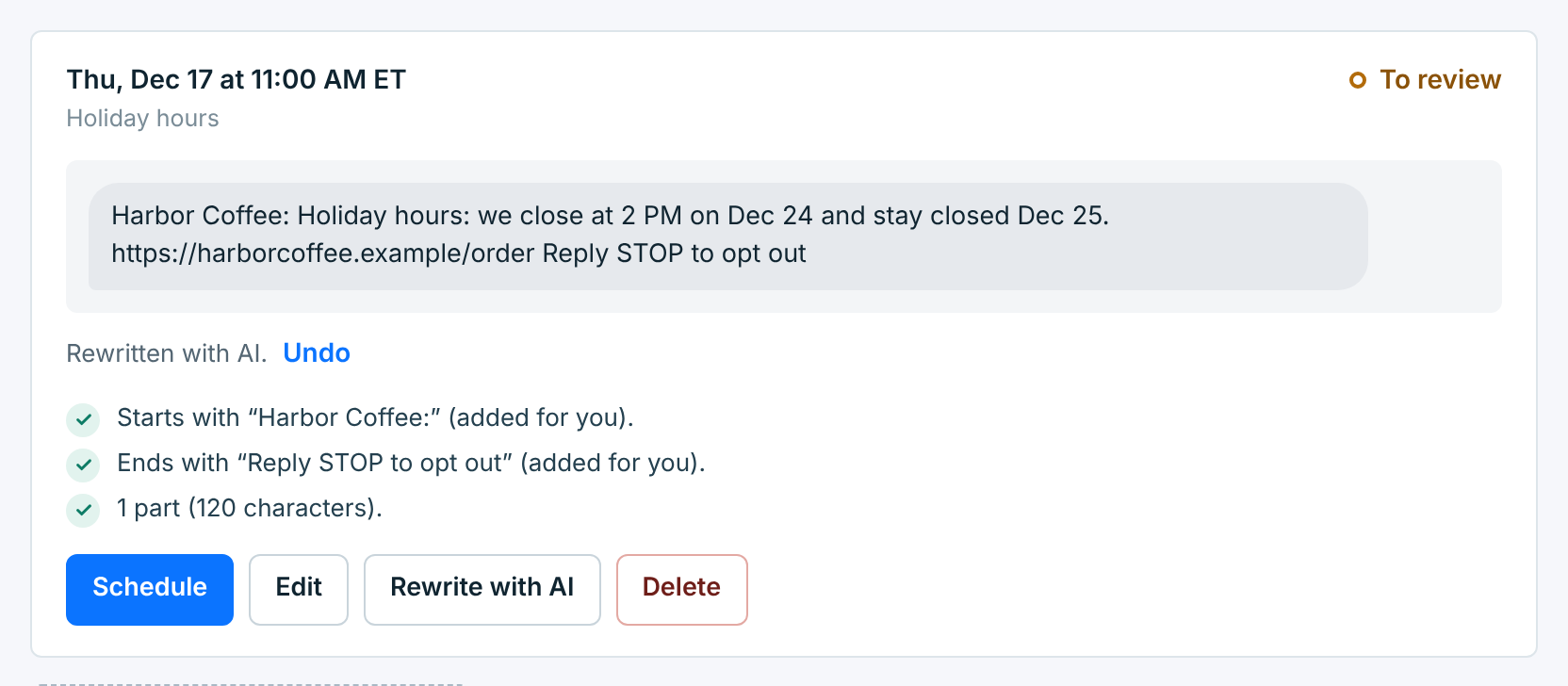
Undo puts the earlier text back. Each rewrite uses one of the month’s rewrites, and the menu says how many are left. Undo doesn’t give one back.
Schedule#
Schedule on a message schedules that one at its day and time. To go through everything at once, Review and schedule at the top lists every message waiting for review:
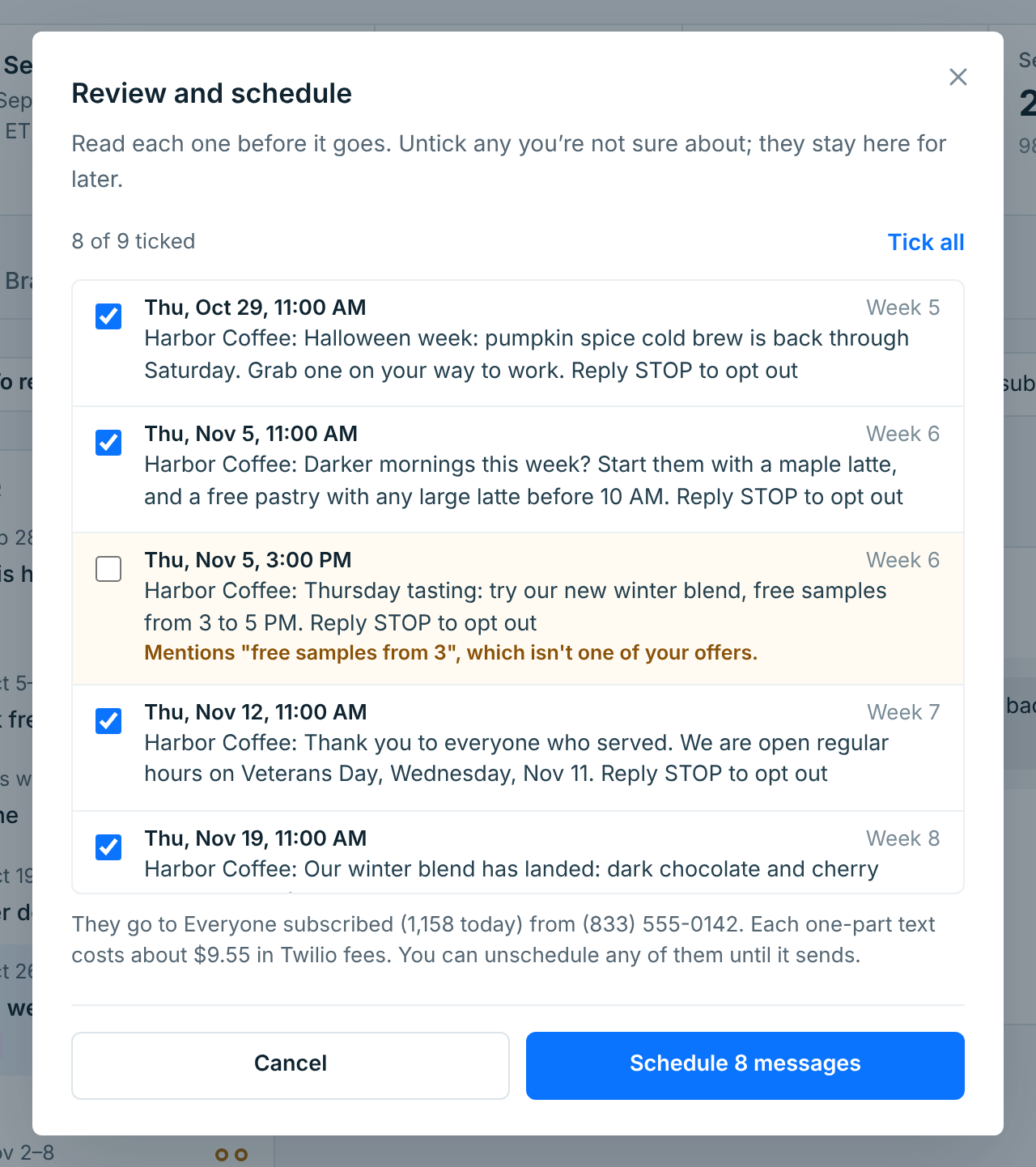
- Untick any you’re not sure about: they stay waiting for later. A message with a warning starts unticked, with the warning under it.
- A message that can’t go yet, because it’s empty, too long, or its time has passed, can’t be ticked.
- The line at the bottom says who they go to, the number they’re sent from, and roughly what each one-part message costs in carrier fees, sent to all of them.
Schedule schedules the ticked ones. Each becomes a campaign in Campaigns, with an AI Promo tag. With link tracking on, a message with a link that can’t be sent, to a site that’s been turned off, isn’t scheduled: it says which link to fix.
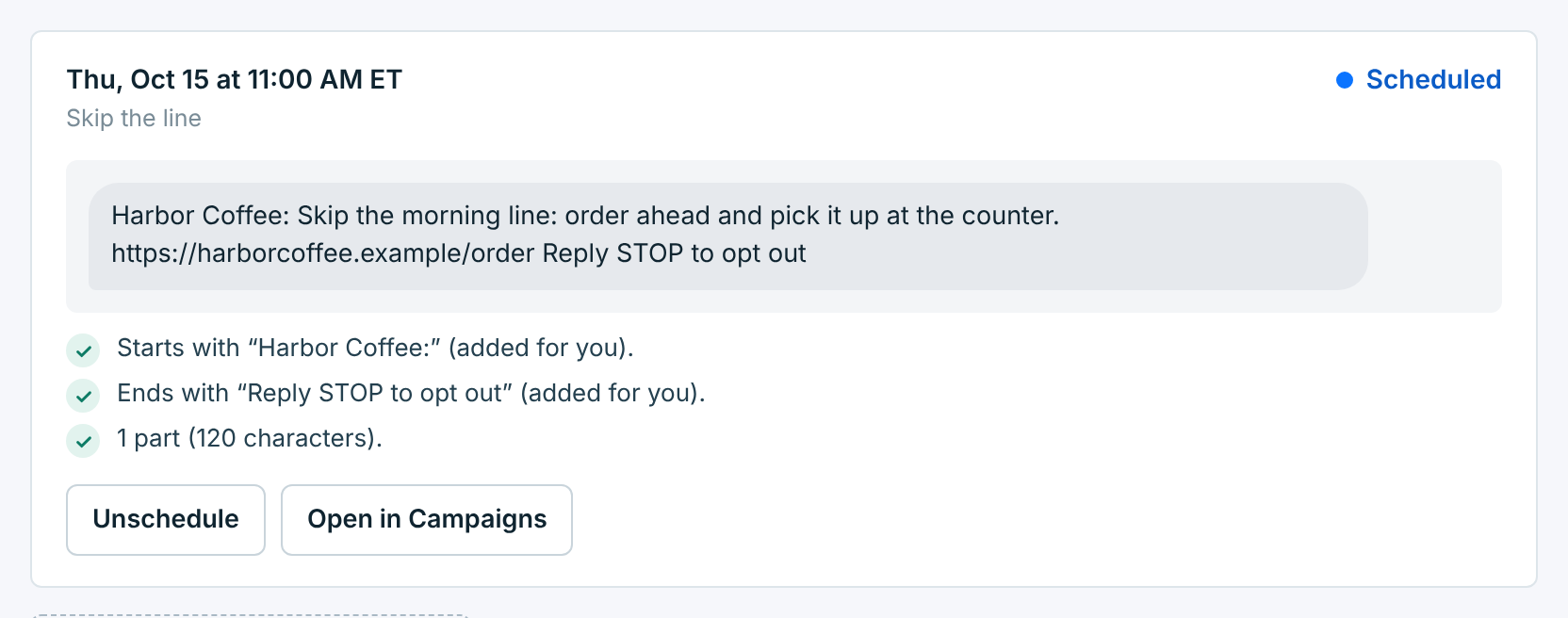
A scheduled message can’t be edited. Unschedule takes it back to review, as long as it hasn’t started sending. Open in Campaigns opens its campaign, which says AI Promo made it:
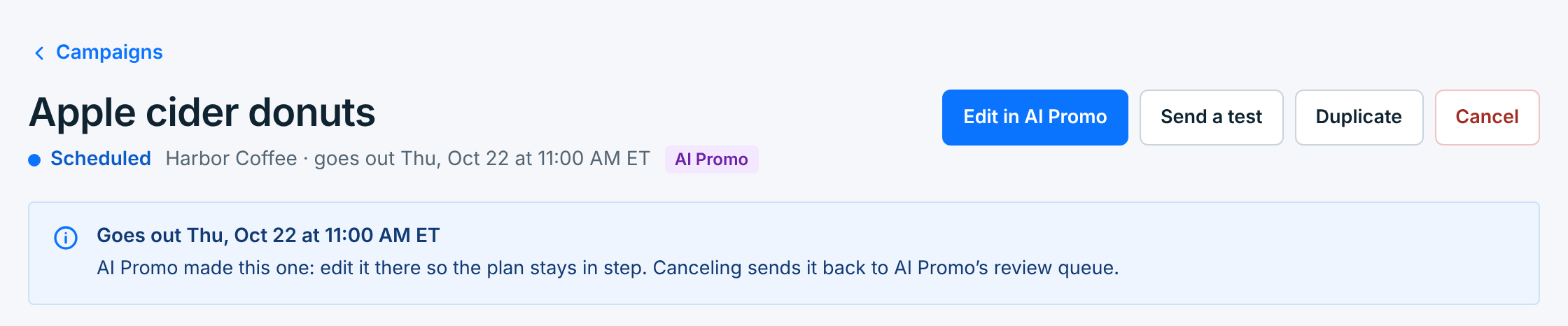
To change it, use Edit in AI Promo, so the plan stays in step. Canceling it in Campaigns sends it back to AI Promos to review.
After it sends#
A sent message shows how many people it went to, the share delivered, and how many opted out after it:
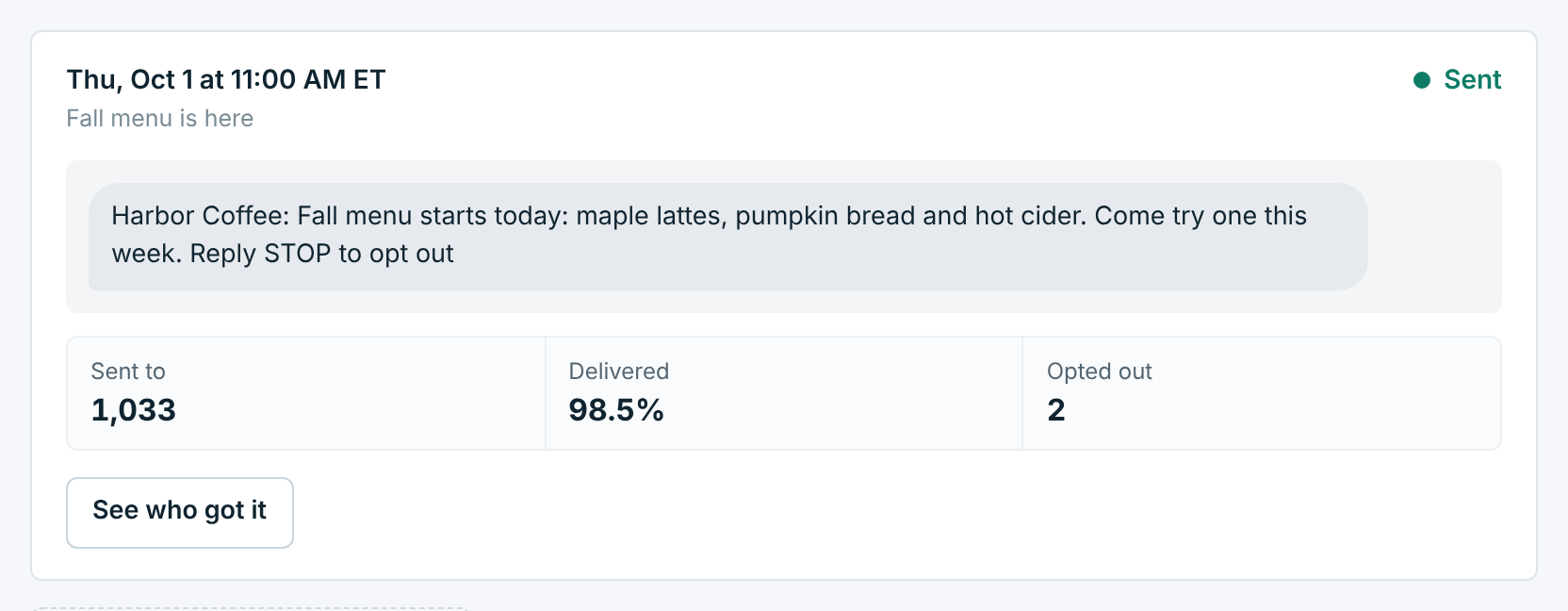
See who got it opens its campaign, with each person and what happened. See A campaign’s results.
When a message doesn’t go out#
A message that was due but didn’t go out says Needs attention, and why. All businesses shows a red note about it, and the business’s page says what’s wrong:
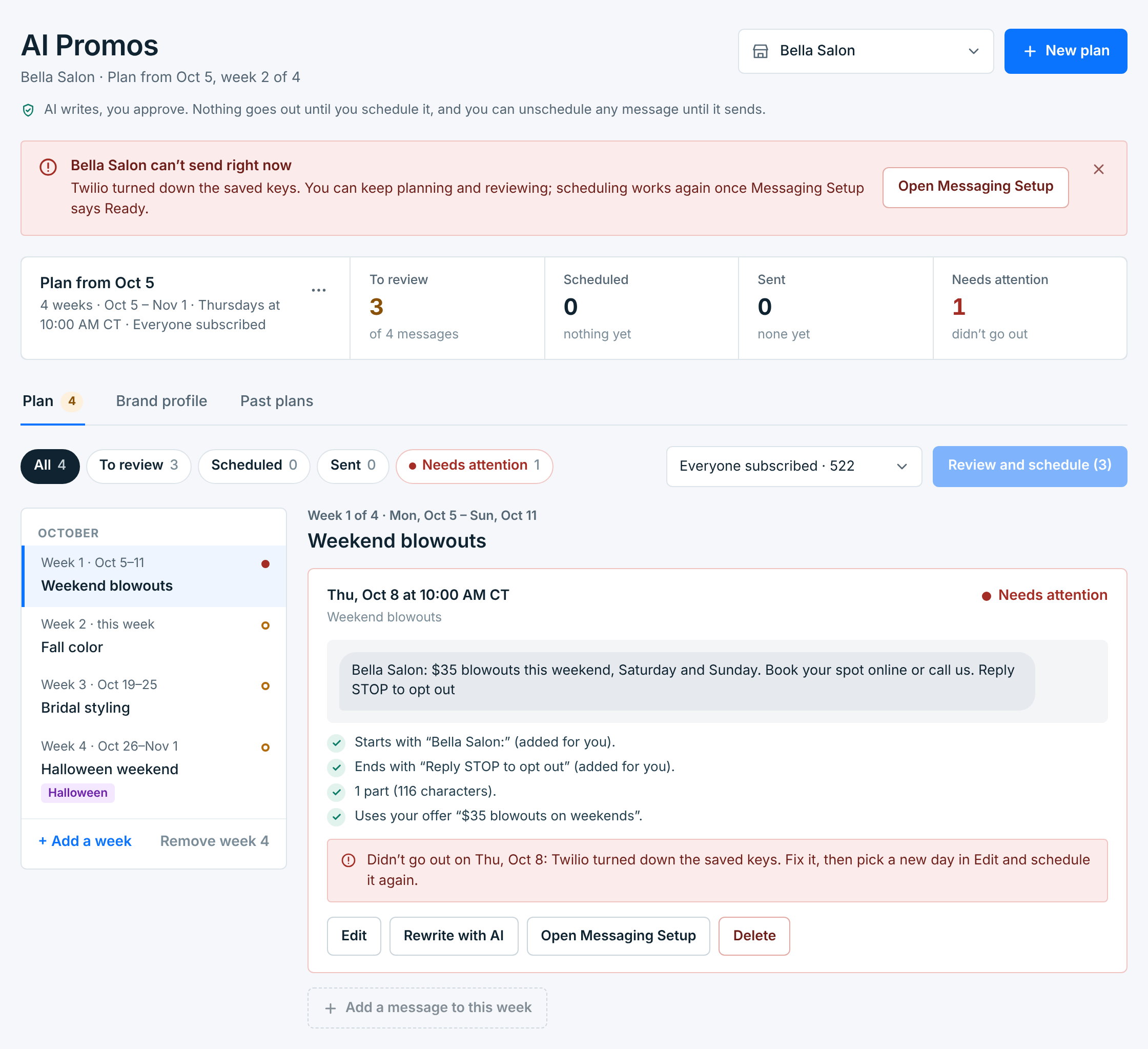
Here, Twilio turned down Bella Salon’s saved keys, so nothing was sent. Fix the cause first: Open Messaging Setup. Then give the message a new day. Once its week is over, Edit offers days from today on, and saving moves it to that week of the plan:
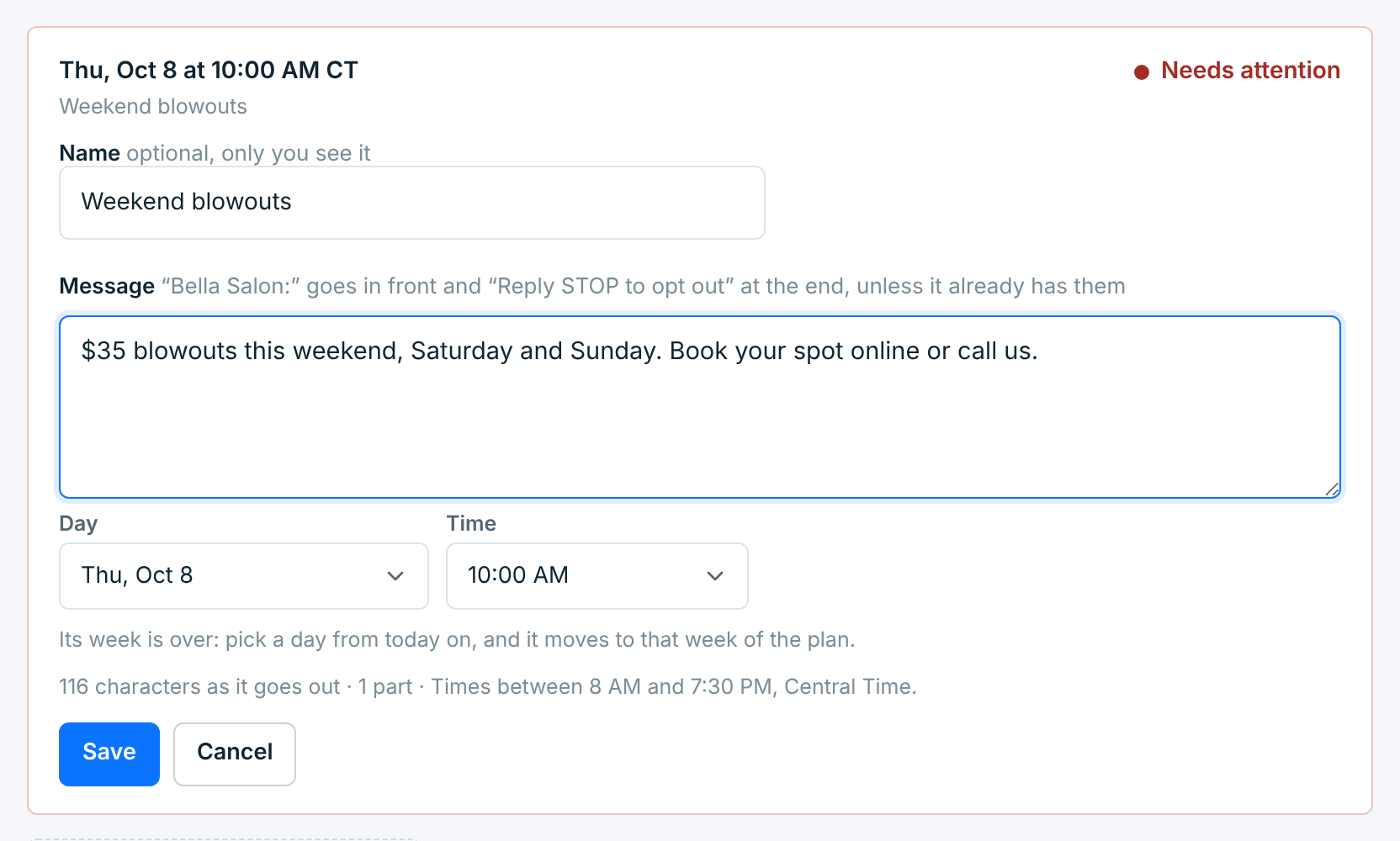
Then schedule it again. A message can’t be scheduled once its time has passed, and a week that’s over can’t take new messages.
A message that reached some people before it stopped can’t go again. The people it reached keep it, and its campaign has the details.