Your dashboard
The home screen once you're sending: the four numbers, Needs attention, the Messages chart, and the Campaigns, Contacts and Sending cards.
Once your first campaign has gone out, Dashboard shows how your texting is going and what needs you. Until then it’s the setup checklist, which the Quick start walks through.
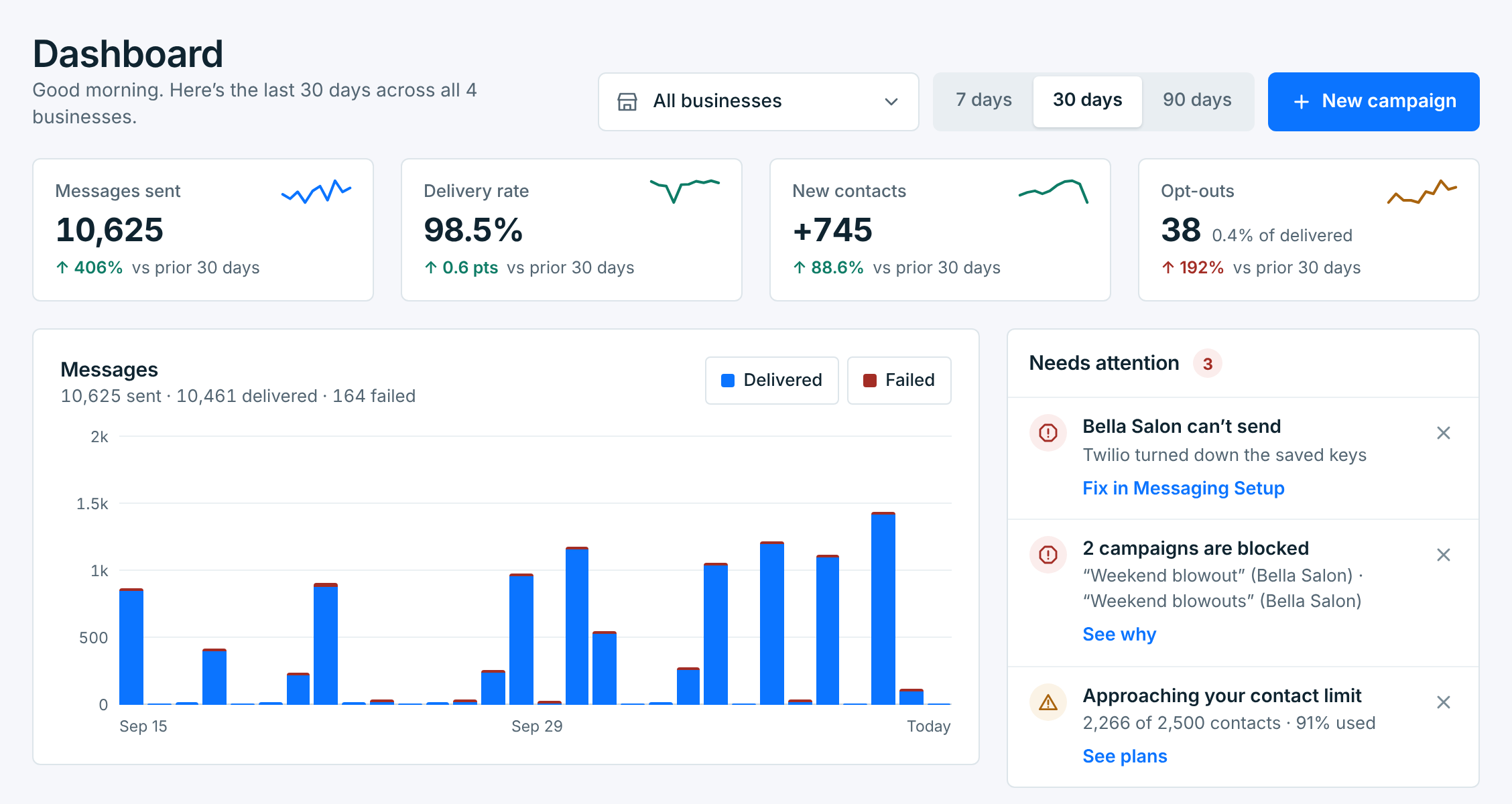
Pick a business and the dates#
Two controls at the top decide what the whole page shows:
| Control | What it does |
|---|---|
Business |
All businesses adds them up, or pick one. It’s there when you have more than one. A paused business is in the list too, marked paused, and its texts and contacts are counted. |
7 days, 30 days, 90 days |
The last 7, 30 or 90 days, today included. Every change on the page is against the same number of days just before. |
The line under the title says what you’re looking at, for example Here’s the last 30 days across all 4 businesses. New campaign opens a new campaign.
Under that line, a small clock says whose days these are, for the four numbers and the charts. With All businesses, each day runs midnight to midnight in your time: Days in your time: Eastern (ET). With one business picked, or when you have only one, the days are the business’s: Days in Pacific Time (PT), with how far that is from your time when it’s different, like 3 hours behind your time. Your time zone is set in Account › Preferences; see Your time zone.
The numbers are Reports’ numbers, for the same business and days. For more detail, and to pick your own dates, see Your reports.
The four numbers#

Each card has a small line of how it went over the dates, and its change against the days before: green when it’s going the right way, red when it isn’t.
| Card | What it counts |
|---|---|
Messages sent |
Every text that went out: campaigns, welcome texts and tests. |
Delivery rate |
Of the texts the carriers reported on, the share that reached the phone. Its change is in points: from 97.9% to 98.5% is ↑ 0.6 pts. |
New contacts |
Everyone who joined in these dates, every way: imports, Add contact, webforms, keywords and apps. Contacts added already opted out never joined, so they aren’t counted. |
Opt-outs |
People who texted STOP, and people you opted out. Beside it, their share of the texts delivered. Fewer is better, so a drop is green. |
With nothing to compare with, the change says so: Up from 0, or None sent in the prior 30 days. With nothing delivered yet, Delivery rate shows a dash.
Needs attention#
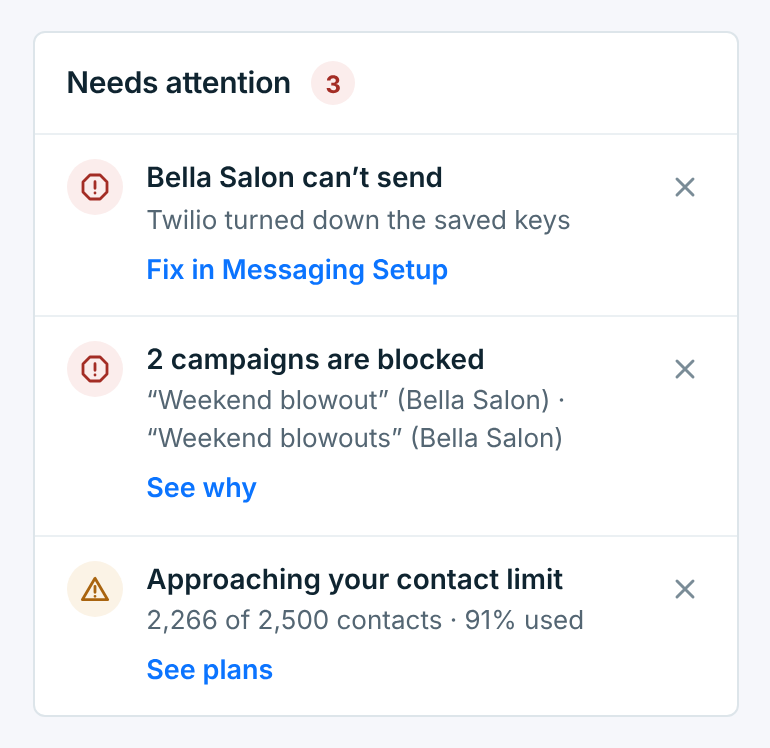
What needs you, worst first: red, then amber, then blue. Each one says what’s wrong and has a link to where you fix it. It always covers your whole account, so with one business picked it says Covers all businesses. When nothing needs you, the card isn’t there.
| Alert | What it means |
|---|---|
Bella Salon can't send |
Red. A business’s carrier or number has a problem, with the reason: the keys were turned down, a Twilio trial account, no number, or a number that isn’t registered or was rejected. Fix in Messaging Setup. With several, 2 businesses can’t send names them. |
2 campaigns are blocked |
Red. Campaigns that didn’t go out. See why opens them in Campaigns. See When a campaign doesn’t go out. |
Delivery rate is below 95% this week |
Red. Over the last 7 days, with at least 20 texts reported on. View reports shows why texts failed. |
Delivery failures spiked on Twilio |
Red. At least 10 texts failed in the last 2 hours, well above the week before. Also for Vonage. |
Welcome text is on but has no message |
Red. The welcome text in Integrations is on with nothing to send, so new contacts from your apps get nothing. Set welcome text. |
Approaching your contact limit |
Amber at 90% of your plan’s contacts; red when it’s full (Contact limit reached). See plans. |
A business is missing messaging setup |
Amber. A business has no Twilio or Vonage connected yet. Open setup. |
A business has been inactive for 14+ days |
Amber. A business that was texting hasn’t sent anything in two weeks, and has nothing scheduled or repeating. |
3 welcome texts failed to send |
Amber. Welcome texts that still failed after every retry in the last 7 days, usually a carrier problem. Check messaging setup. |
Webform "Text Club" has 0 new signups in 30 days |
Blue. Nobody joined through a webform that has been live for at least 30 days. Open webform. With four or more, one alert lists them. |
Hiding an alert#
The × hides an alert, for you only. A red one comes back the next day, amber and blue ones after 7 days. It comes back straight away if something new joins it, such as another blocked campaign or another business that can’t send, or if it gets worse. Undo appears for a few seconds after you hide one, and 1 hidden · Show lists what you hid, each with Show again.
Hiding fixes nothing. A blocked campaign stays blocked until you retry it, and a business that can’t send still can’t.
Messages#
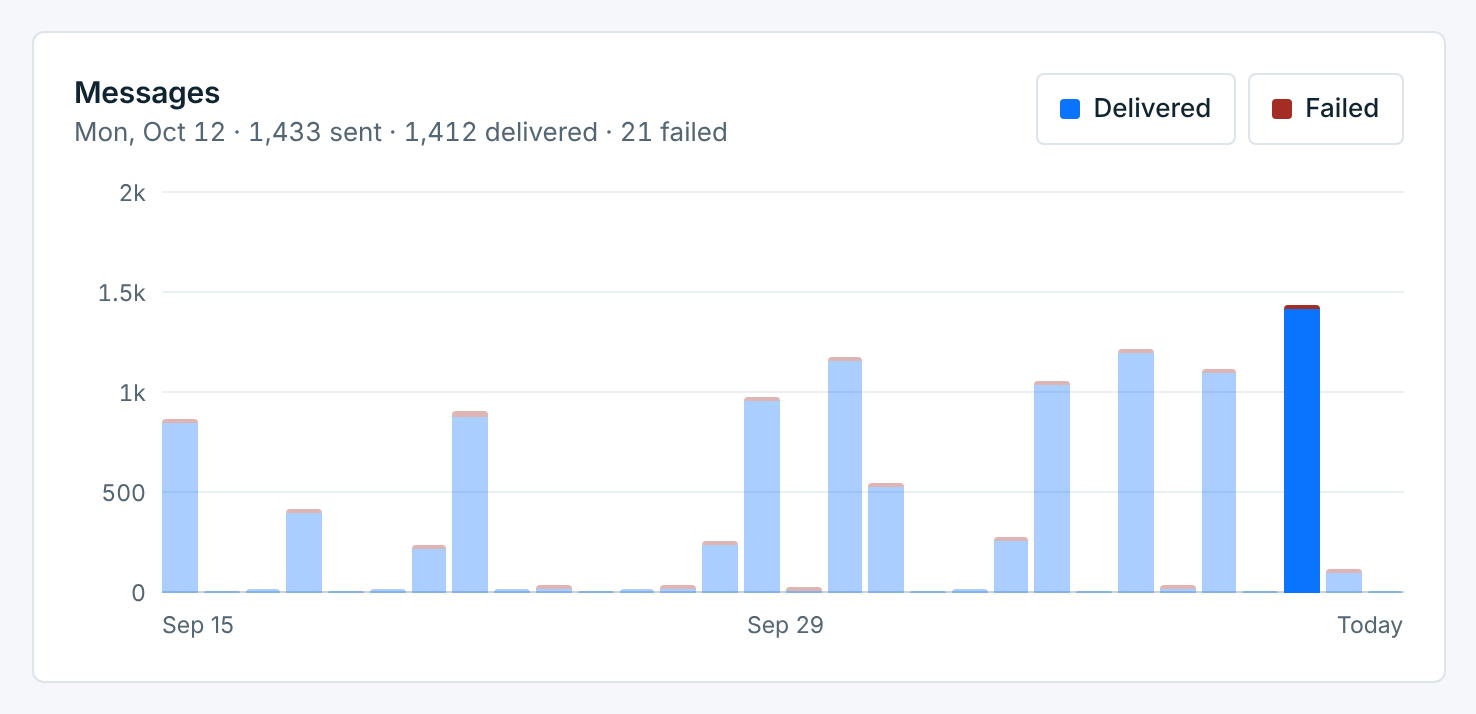
Texts per day for the dates you picked: delivered in blue, failed in red. Hover over a day or tap it for its numbers; with the chart selected, the arrow keys go day by day. Click Delivered or Failed to hide that part of the bars. The line under the title adds the dates up.
Texts are counted by the hour. So in a time zone that’s half an hour or a quarter hour off, like India or Nepal, a day’s last texts count on the next day, and a line under the chart says from when: after 11:30 PM in India, after 11:45 PM in Nepal. Contacts and clicks use exact days.
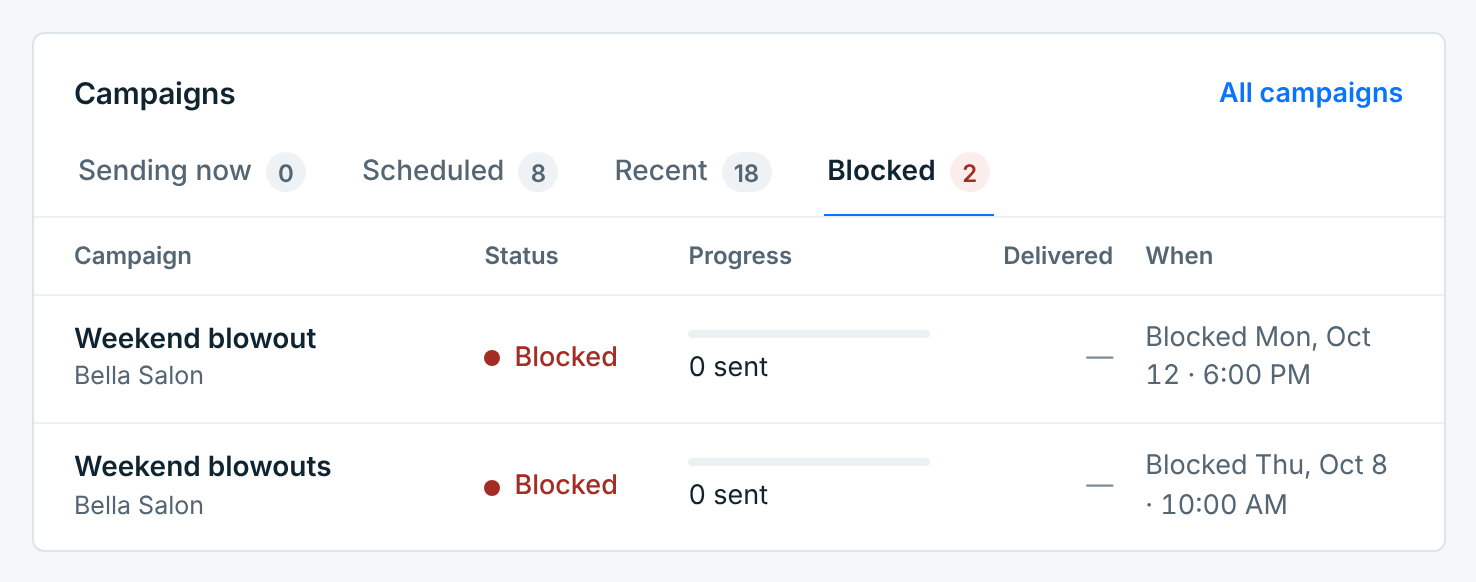
Campaigns#
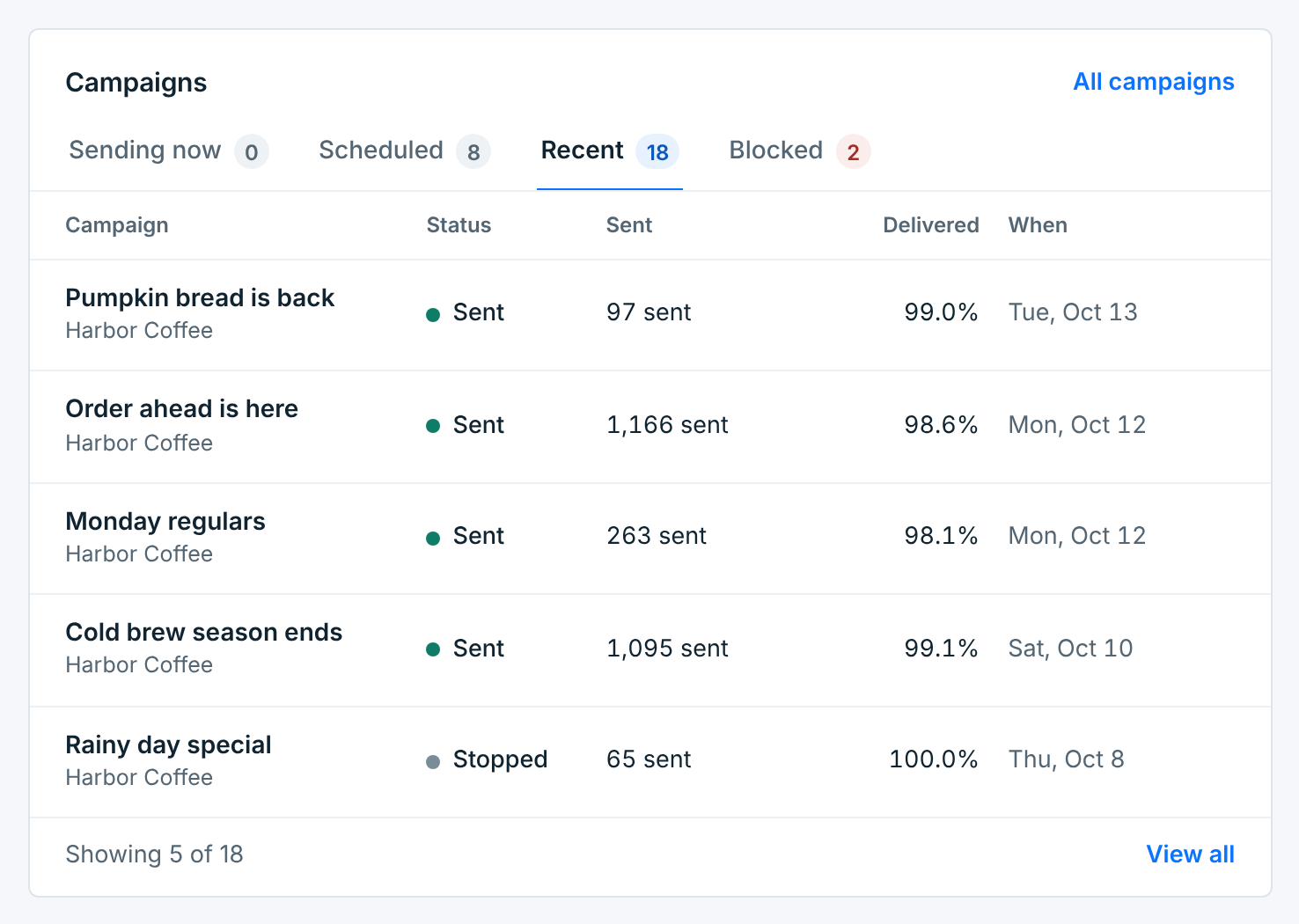
| Tab | What’s in it |
|---|---|
Sending now |
Campaigns going out now, or queued to start, with how far along they are. While one is sending, the card checks again every 30 seconds. |
Scheduled |
The next ones due, and repeating campaigns by their next send, with who each one goes to. |
Recent |
Campaigns that finished in these dates: sent, failed, or stopped part way. How many went out, and the share delivered. |
Blocked |
Only while a campaign couldn’t go out: when it was blocked. Retry or delete it in Campaigns. |
Each tab shows up to five; View all opens the rest in Campaigns. Click a campaign to open it. A campaign of a paused business says (paused) after the business’s name.
Contacts#
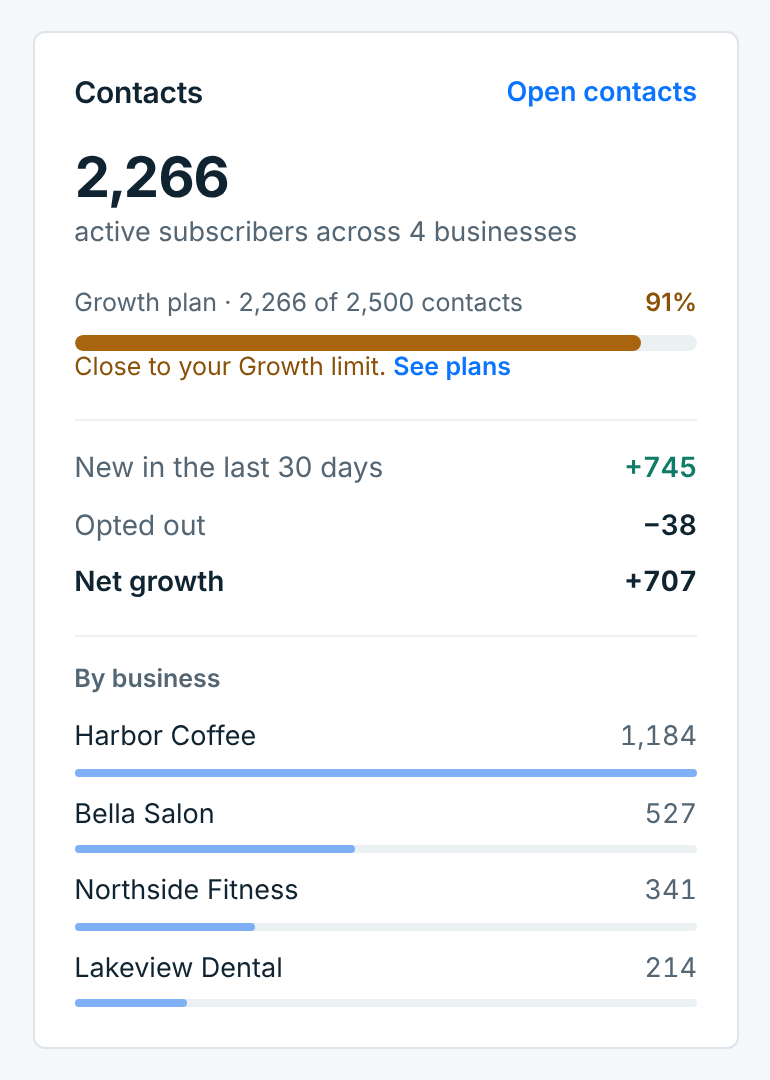
- The big number is your active subscribers: the people who can be texted, for the business you picked or all of them.
- Your plan shows how many contacts it allows and how many you have, across all your businesses (paused ones included). Near the limit it turns amber, and red when it’s full, with See plans. Without a plan it shows the count only, with Choose a plan. See Business slots and plan limits.
- New, Opted out and Net growth are for the dates you picked. Resubscribed shows too when someone texted START.
- By business, with all businesses, lists the five with the most active subscribers.
Sending#
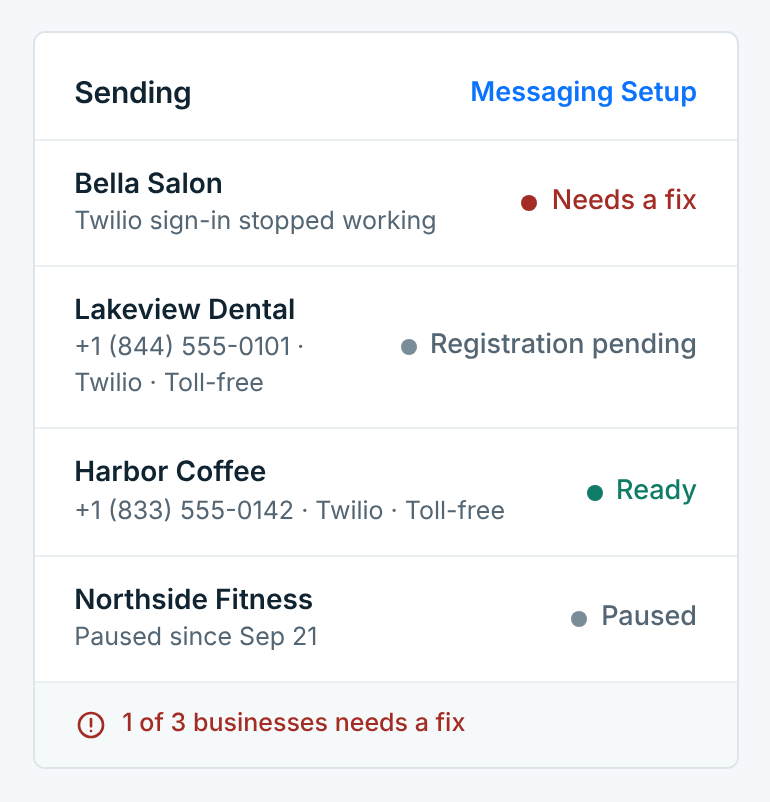
Whether each business can send right now, with its number and carrier. Click a business to open its Messaging Setup.
| State | Means |
|---|---|
Ready |
Its carrier and number are ready to send. |
Registration pending |
Its number’s approval is with the carrier. Nothing to do but wait. See How toll-free approval works. |
Action needed |
Something to do first: upgrade a Twilio trial, add a number, or register it. |
Needs a fix |
Something stopped working, such as the carrier sign-in, or a registration was rejected. The line under the name says what. |
Not connected |
No Twilio or Vonage yet. |
Paused |
You paused the business, and since when. Clicking it opens the business. A business being deleted says Deleting, with the day. |
The line at the bottom sums it up: All set to send, Ready to send · 1 registration pending, or how many need a fix. Paused businesses aren’t counted.
One business picked#

Pick a business and the numbers, the chart, Contacts, Campaigns and Sending are that business only. Needs attention still covers all of them, and says so. Pick All businesses to go back.
When your account is locked#
When your trial or plan ends, or a payment doesn’t go through, a banner at the top of the dashboard says so, with the button to fix it. Your numbers stay. Every business in Sending shows Paused, and the line under them says what’s paused and until when. See Your plan and trial.