What a business is
What a business is, how to read the Businesses screen and a business page, and how to add one.
A business is a brand, a location or a client you text for. Each one has its own carrier connection and sending number, its own contacts and opt-outs, and its own campaigns, webforms and reports. Nothing is shared between businesses: someone who texts STOP to one of them is still subscribed to the others, because to the carrier they are separate senders.
If you run one shop you have one business and rarely need this screen. If you are an agency you add one per client, and Businesses is where you keep an eye on all of them.
The Businesses screen#
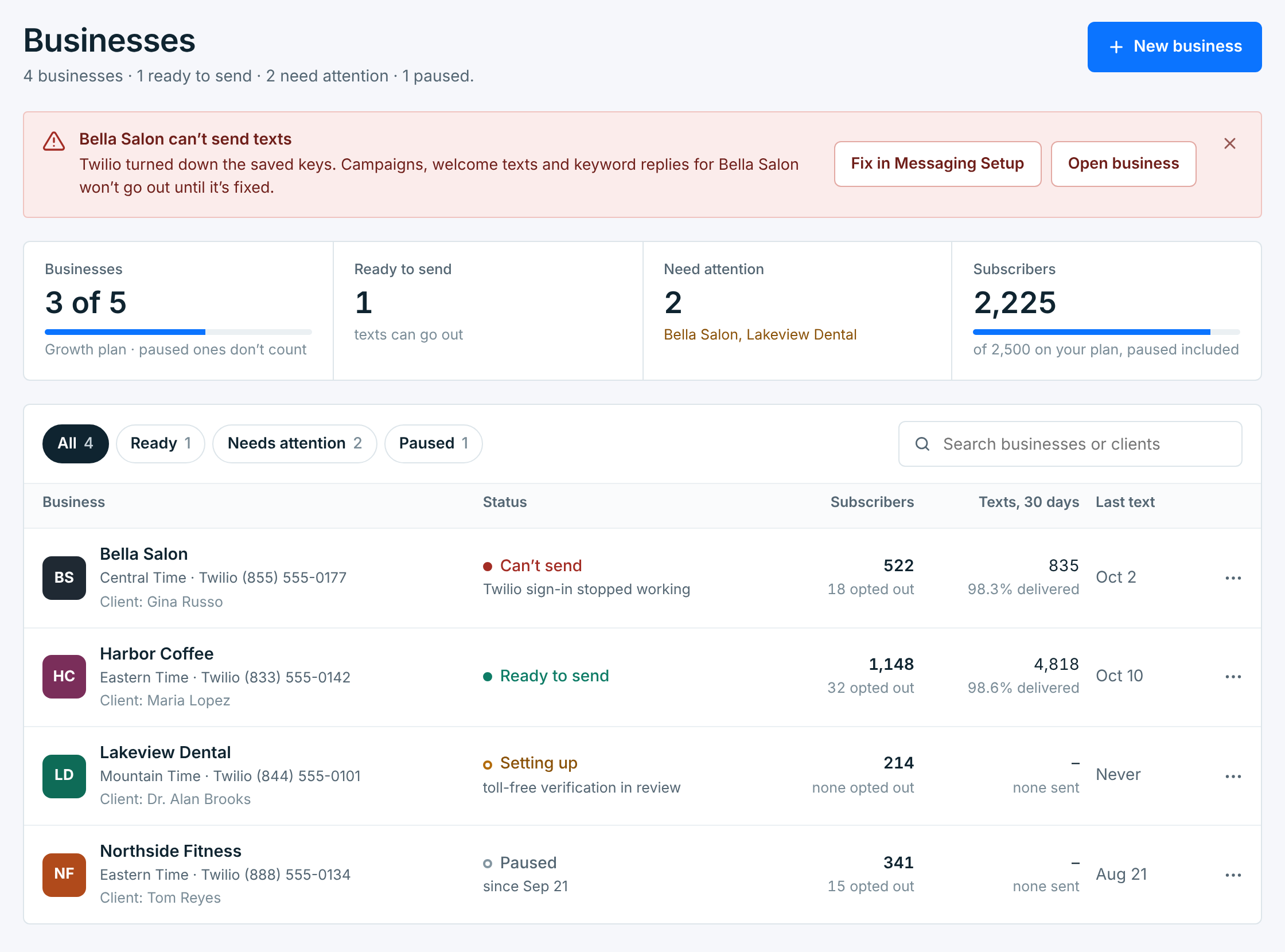
The line under the title sums up the account: how many businesses you have, how many can send, how many need attention and how many are paused.
A red banner appears when a business can’t send texts, with the reason and two buttons: Fix in Messaging Setup takes you straight to the problem, and Open business opens its page. Close it with the × once you have seen it.
The four tiles across the top are also filters. Click one to narrow the list.
| Tile | What it shows |
|---|---|
Businesses |
Business slots used out of your plan’s allowance. Paused businesses don’t count. See Business slots and plan limits. |
Ready to send |
Businesses whose texts can go out right now. |
Need attention |
Businesses that can’t send yet, or can’t send any more, named underneath. |
Subscribers |
Subscribed contacts across all your businesses, against your plan’s contact allowance. Paused businesses are included. |
Under the tiles, the pills (All, Ready, Needs attention, Paused) filter the list, and the search box finds a business by its name or by its client’s name. The list shows 25 businesses a page; the pills, their numbers and the search cover every business, not only the page you’re on, and so do the tiles, the red banner and the line under the title.
Reading a row#
Each row shows the business’s initials and name, its time zone, its carrier and sending number, and the client name if you added one. Then its status, its subscribers and opt-outs, the texts it sent in the last 30 days with the share delivered (of the texts that got a delivery receipt, as in Reports; no receipts yet until one comes back), and when it last sent. The … menu at the end has Open, Messaging Setup, Edit details, Pause and Delete.
The status answers one question: can this business send texts right now?
| Status | What it means |
|---|---|
Ready to send |
Connected, has a number, and the number is approved. Texts go out. |
Can't send |
Something stops its texts, and the line under it says what: the carrier sign-in stopped working, a Twilio trial account, the number isn’t registered or was rejected, or there is no number to send from. Fix it in Messaging Setup. |
Setting up |
Not connected to Twilio or Vonage yet, or its registration is still being reviewed. Nothing is wrong; it isn’t finished. |
Paused |
You paused it. Nothing sends until you resume it. |
Deleting |
It is waiting to be deleted, on the date shown. You can cancel until then. |
The screen keeps itself up to date. If a business stops being able to send, or a delete finishes, the list changes and a short message says so. You don’t need to reload.
A business’s page#
Click a row to open the business.
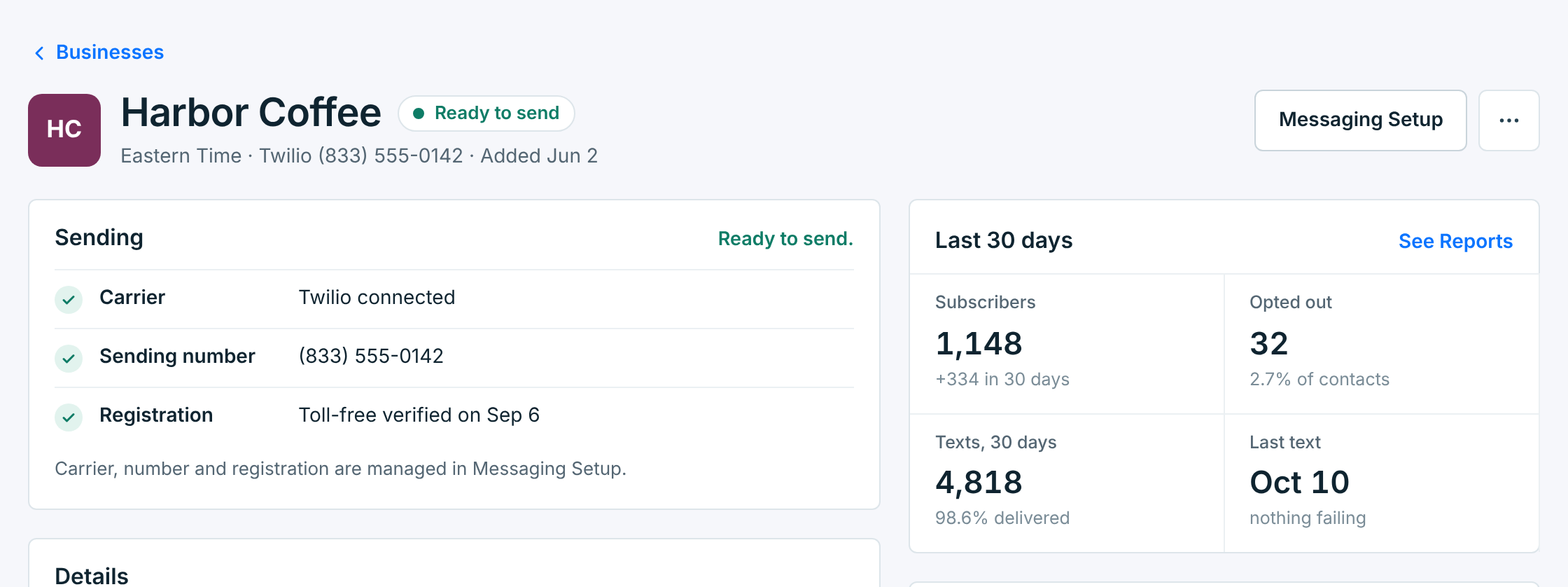
- Sending ticks off the three things a business needs to send: a carrier, a sending number and an approved registration. Anything missing says so, with a link to fix it. They are all managed in Messaging Setup.
- Last 30 days shows subscribers (and how many joined), opt-outs, texts sent with the share delivered (of the texts that got a delivery receipt), and the last text. See Reports opens the full numbers.
- In this business counts its contacts, scheduled campaigns, live webforms and AI Promo plan. Each line opens that section with this business already picked.
- Details, Client contact and Pause or delete are covered in Edit, pause and delete a business.
Adding a business#
Click New business. Your first business can also be created from the setup checklist on your dashboard; see the Quick start.
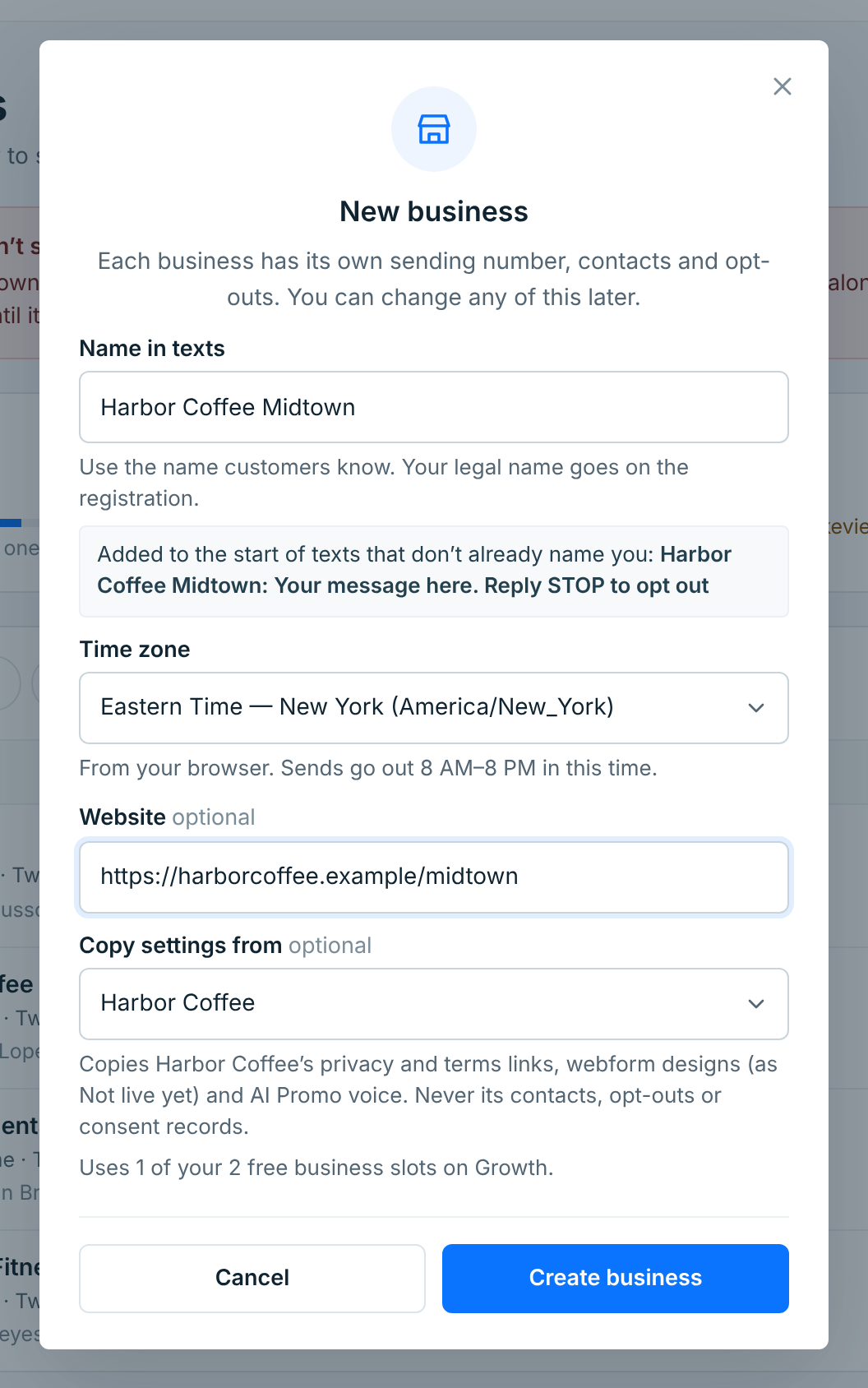
| Field | Description |
|---|---|
Name in textsRequired |
The name your customers know, up to 40 characters. It goes at the start of every text that doesn’t already mention it, and the grey box shows how that reads. Your legal name goes on the registration, not here. |
Time zoneRequired |
Taken from your browser. Texts go out between 8 AM and 8 PM in this time zone, and scheduled times are set in it. An agency with clients in different places sets each one to the client’s own time. |
WebsiteOptional |
The business’s website, starting with https://. Carriers look at it when they review the registration. |
Copy settings fromOptional |
Start empty, or copy from one of your businesses: its privacy and terms links, its webform designs (copied as Not live yet) and its AI Promo voice. Contacts, opt-outs and consent records are never copied. Consent belongs to the business it was given to. |
Under the form you see how many business slots you have left. Click Create business and the new business opens, Setting up until you connect it in Messaging Setup.
Each business needs its own name. Type one you already use, in any capitals, and the form says so and won’t create it:
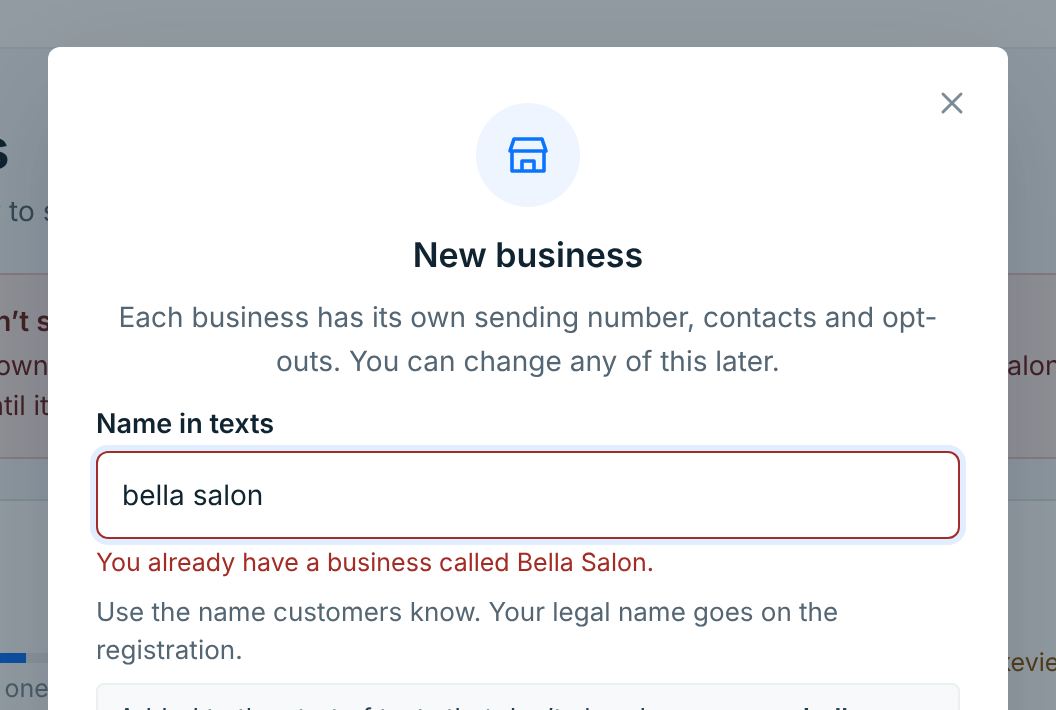
Paused businesses and businesses waiting to be deleted still hold their names. Accents count as different letters, so “Café Rio” and “Cafe Rio” can both exist.