Manage your plans
Add your own messages and weeks, rename or discard a plan, look back at past plans, and write a plan yourself.
A plan isn’t fixed once it’s drafted. You can add your own messages, add or remove weeks, rename it, discard it, and look back at past plans. None of this uses AI, so none of it counts against your monthly AI plans or rewrites.
The plan’s menu#
The … beside the plan’s name opens its menu:
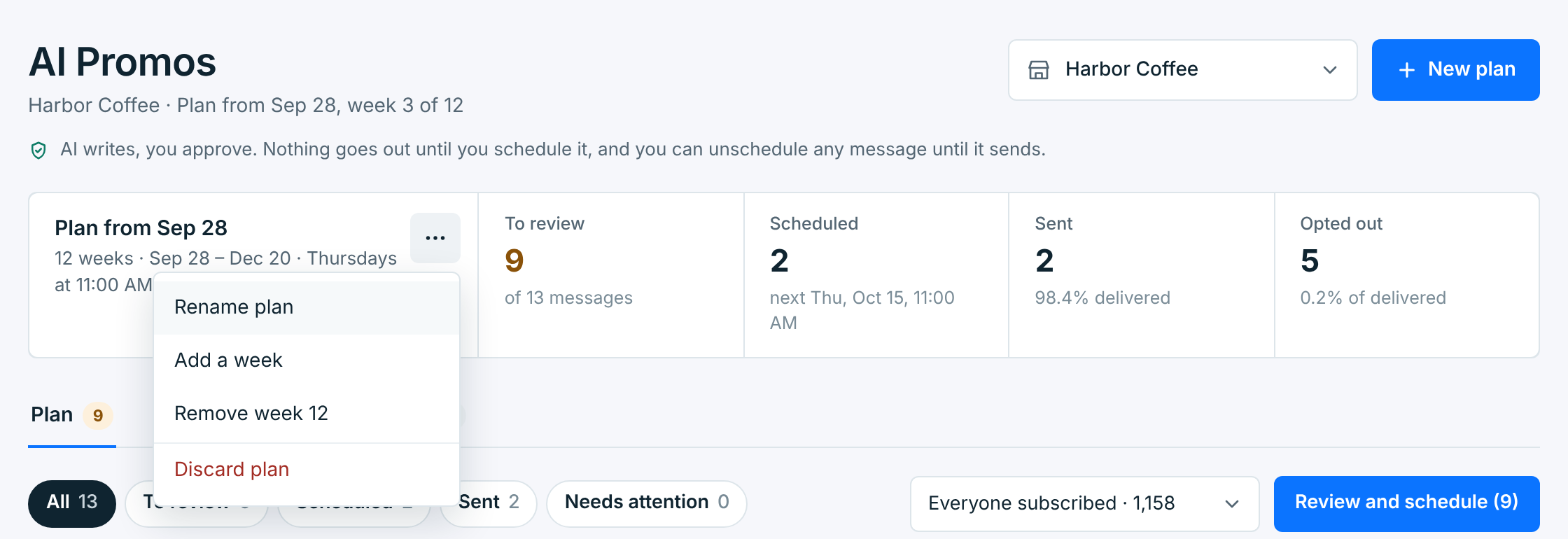
| Choice | What it does |
|---|---|
Rename plan |
Gives the plan a name of your own. Until then, it’s called after its first week, like Plan from Sep 28. |
Add a week |
Adds an empty week at the end. A plan can run up to 52 weeks. |
Remove week 12 |
Removes the last week and its messages. |
Discard plan |
Ends the plan now. See below. |
The name shows on the plan and in Past plans:
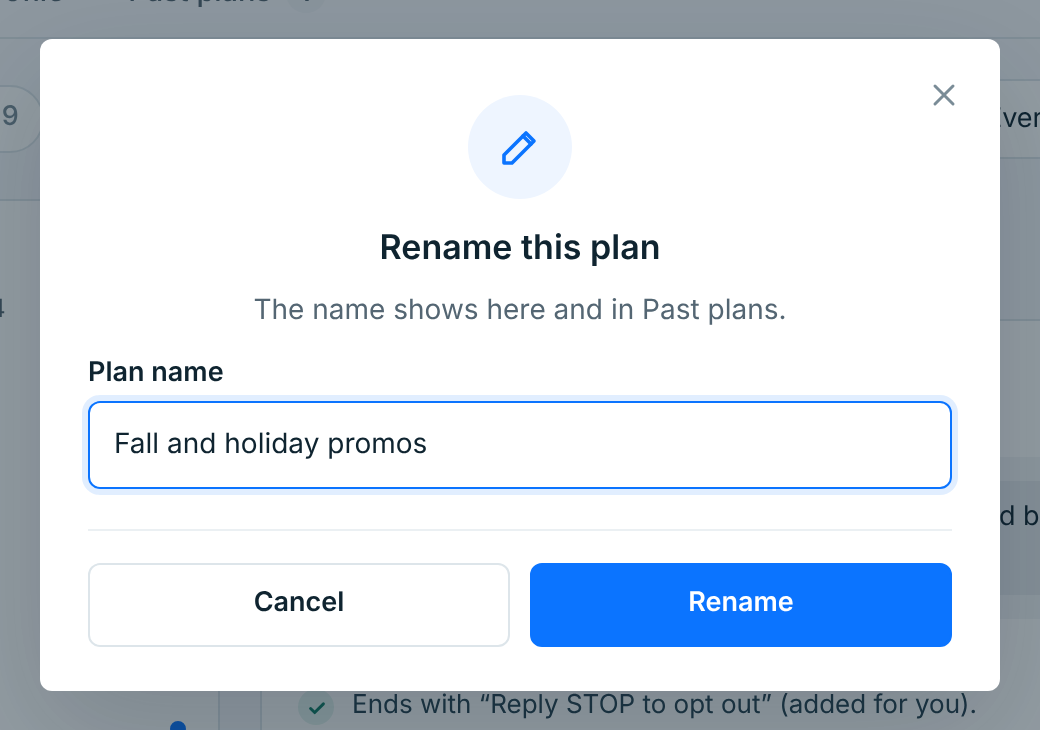
+ Add a week and Remove week are also at the bottom of the weeks list. Removing a week asks first, and says when the plan then ends:
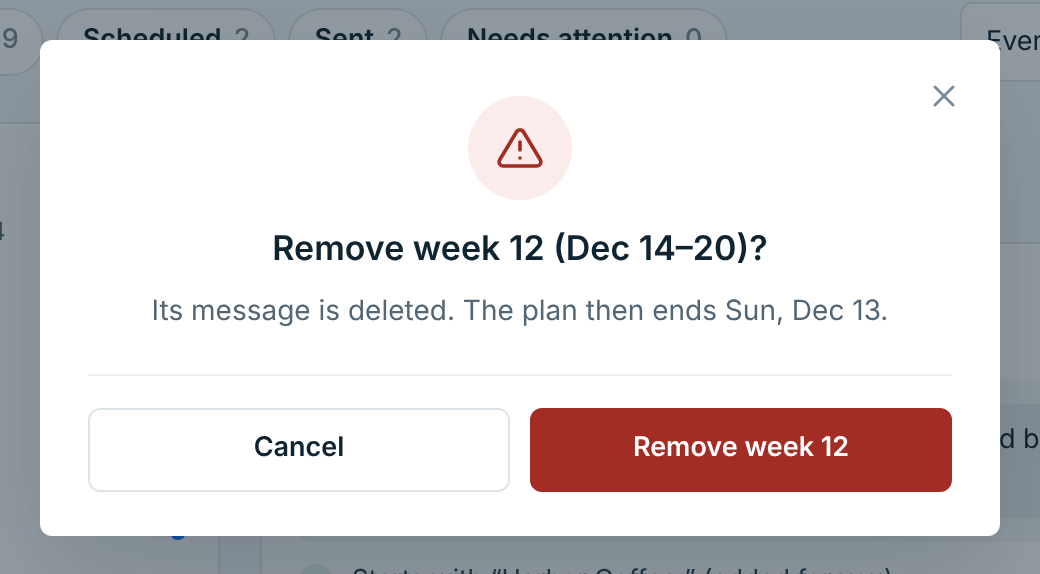
Its messages are deleted, and any of them that were scheduled are canceled. A week that already sent a message, or is sending one, can’t be removed.
Add your own message#
Add a message to this week, under a week’s messages, adds an empty one on a day of its own and opens it to write:
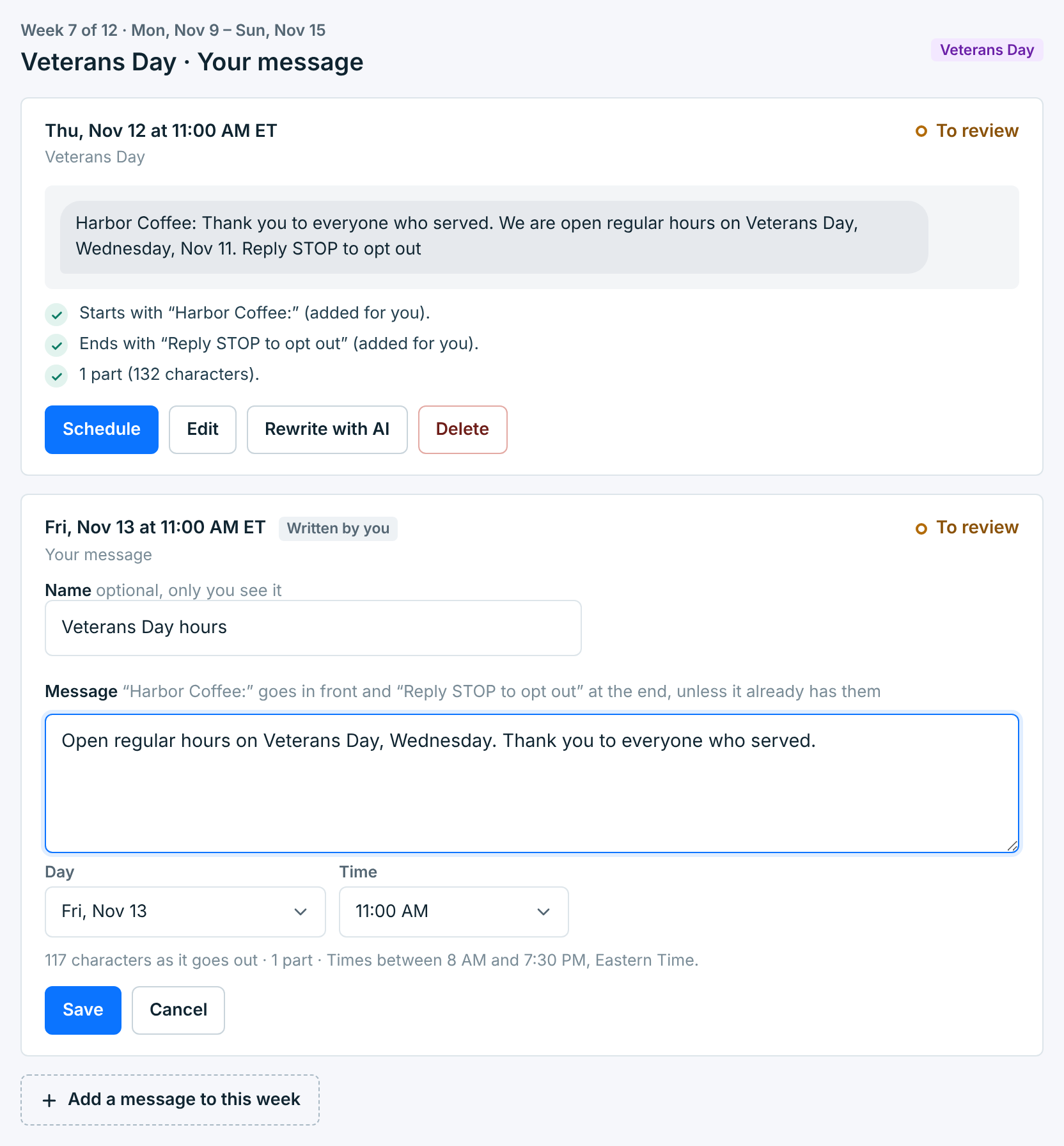
Give it a name if you like, write the text, pick the day and time, and Save. It’s marked Written by you, and you review and schedule it like the others. Cancel on a message you just added and left empty takes it away again.
A week can have up to seven messages. A week that’s over can’t take new ones.
Discard a plan#
Discard plan asks first, and counts what won’t go out:
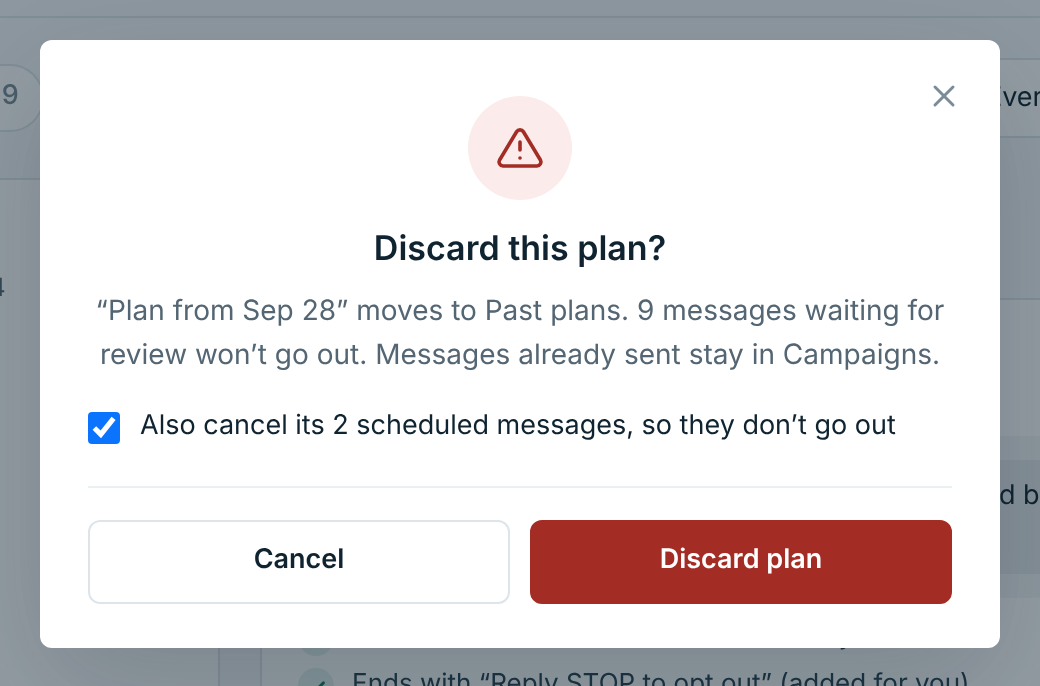
The plan moves to Past plans, and its messages waiting for review won’t go out. The box under it, here Also cancel its 2 scheduled messages, stops the ones you scheduled too. Untick it, and they still go out at their times. Messages already sent stay in Campaigns.
Past plans#
The Past plans tab lists the business’s plans that ended, were discarded, or were replaced by a new one, with their dates, how many messages went out, the share delivered and the opt-outs. View shows a plan’s messages under it, each with its week, day and time, name and words, and whether it went out:
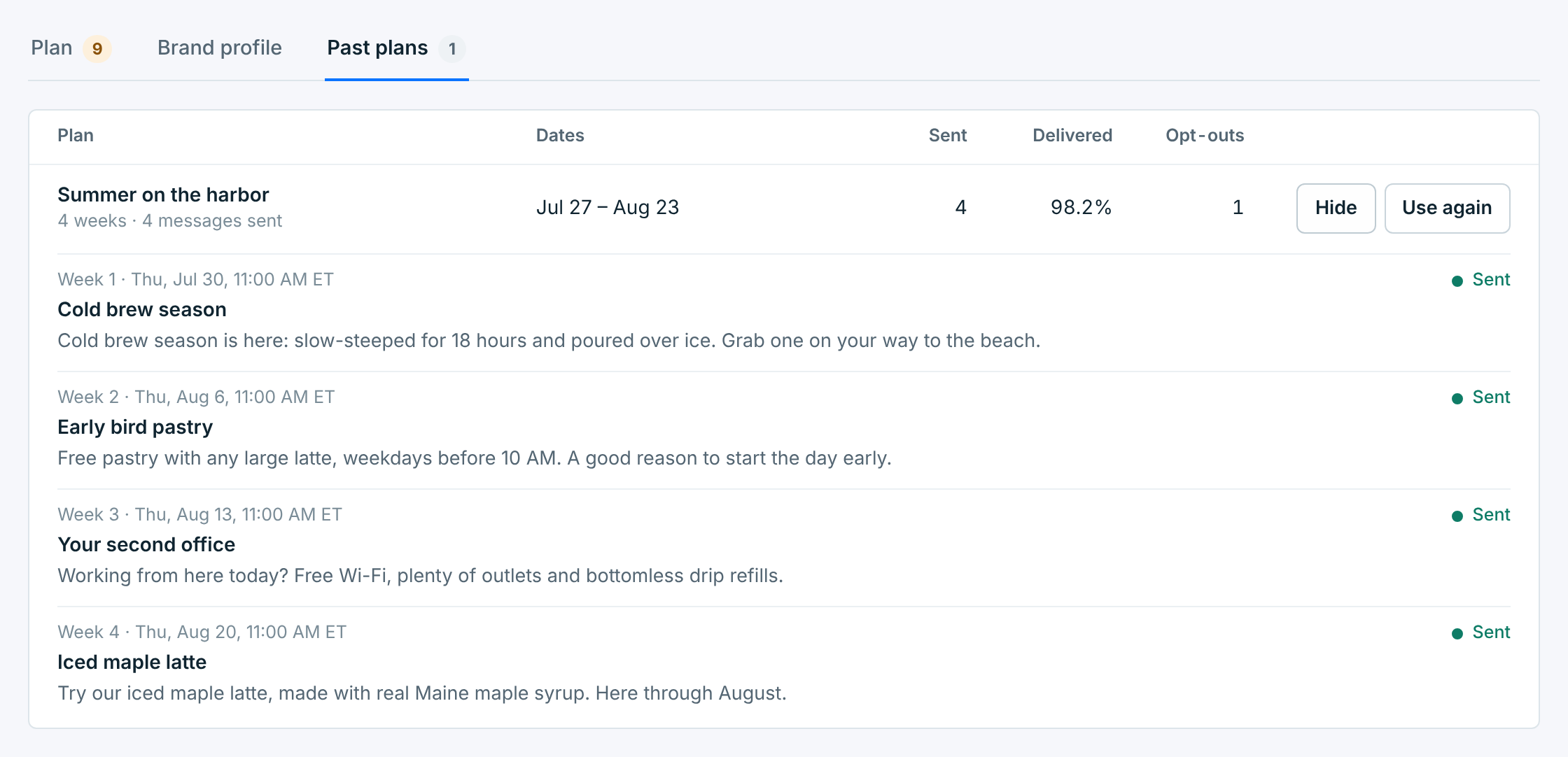
Use again starts a new plan set up like that one. New plan says what it copied: its length, how often it sends and what it featured, as far as your plan includes them.
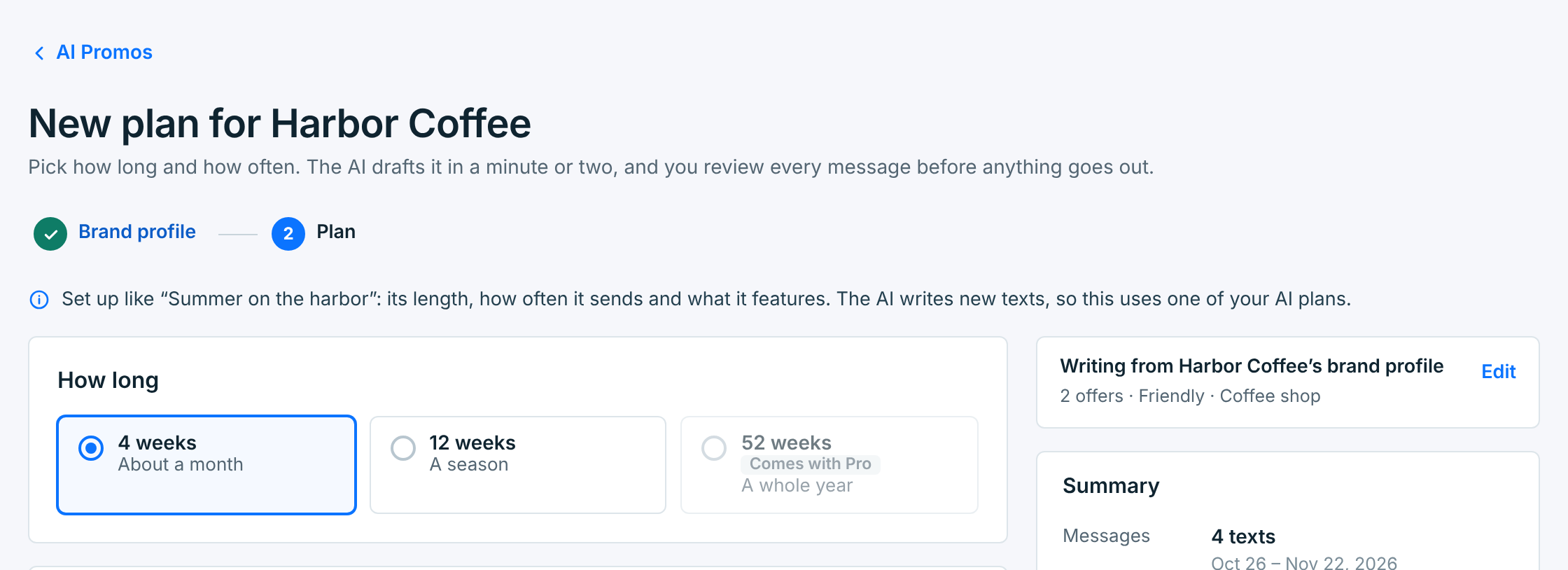
The AI writes new texts, from the brand profile as it is now, so it uses one of your AI plans. The past plan’s messages aren’t copied.
The brand profile#
The Brand profile tab is what the AI knows about the business: the same fields as New plan’s first step, plus the days and time its plans send:
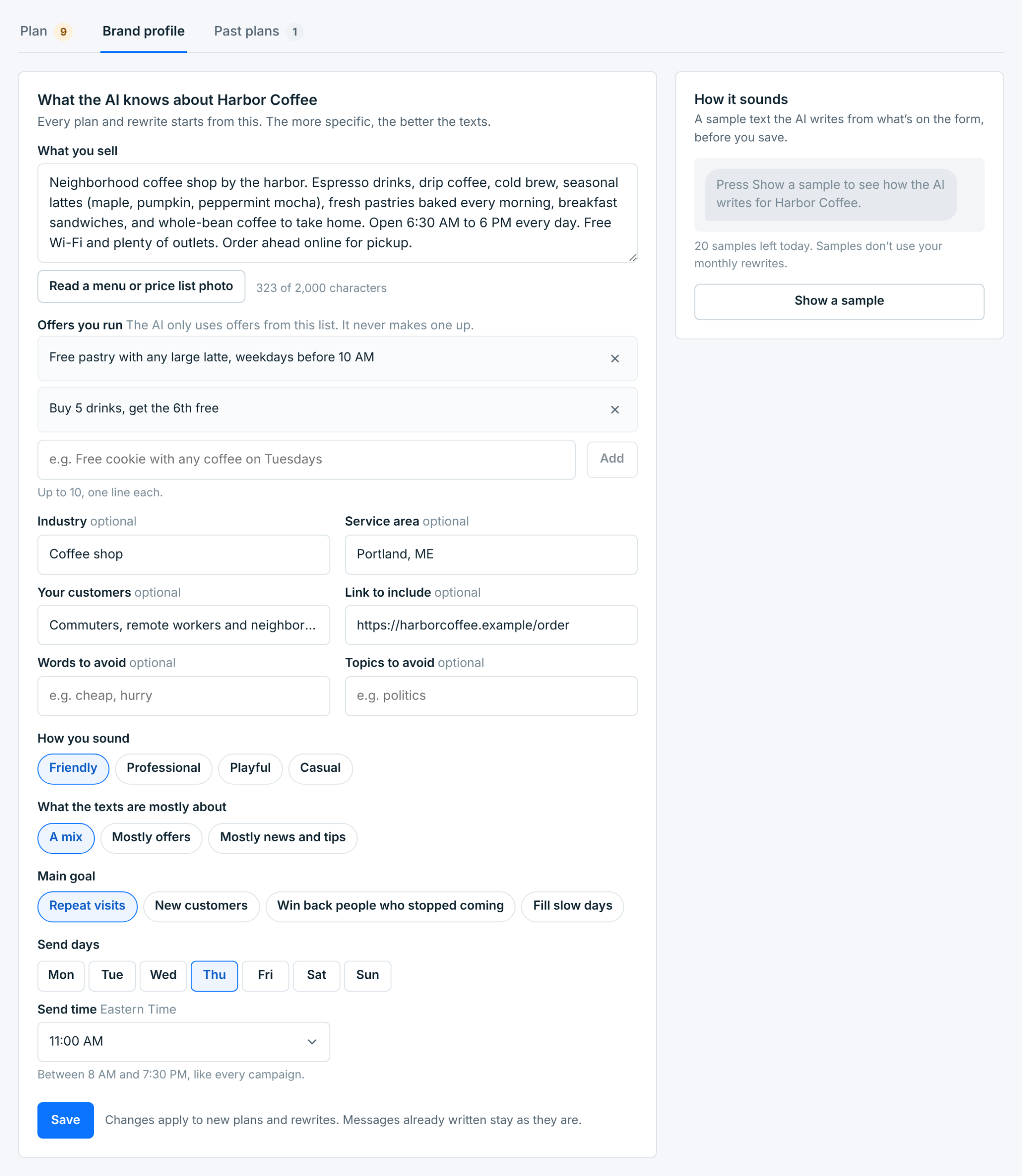
Save applies to new plans and rewrites. Messages already written stay as they are. Show a sample writes a sample text from the form as it is, before you save. See Make a plan with AI for each field.
A plan you write yourself#
With no plan running, or write your own messages makes an empty four-week plan, with no AI:
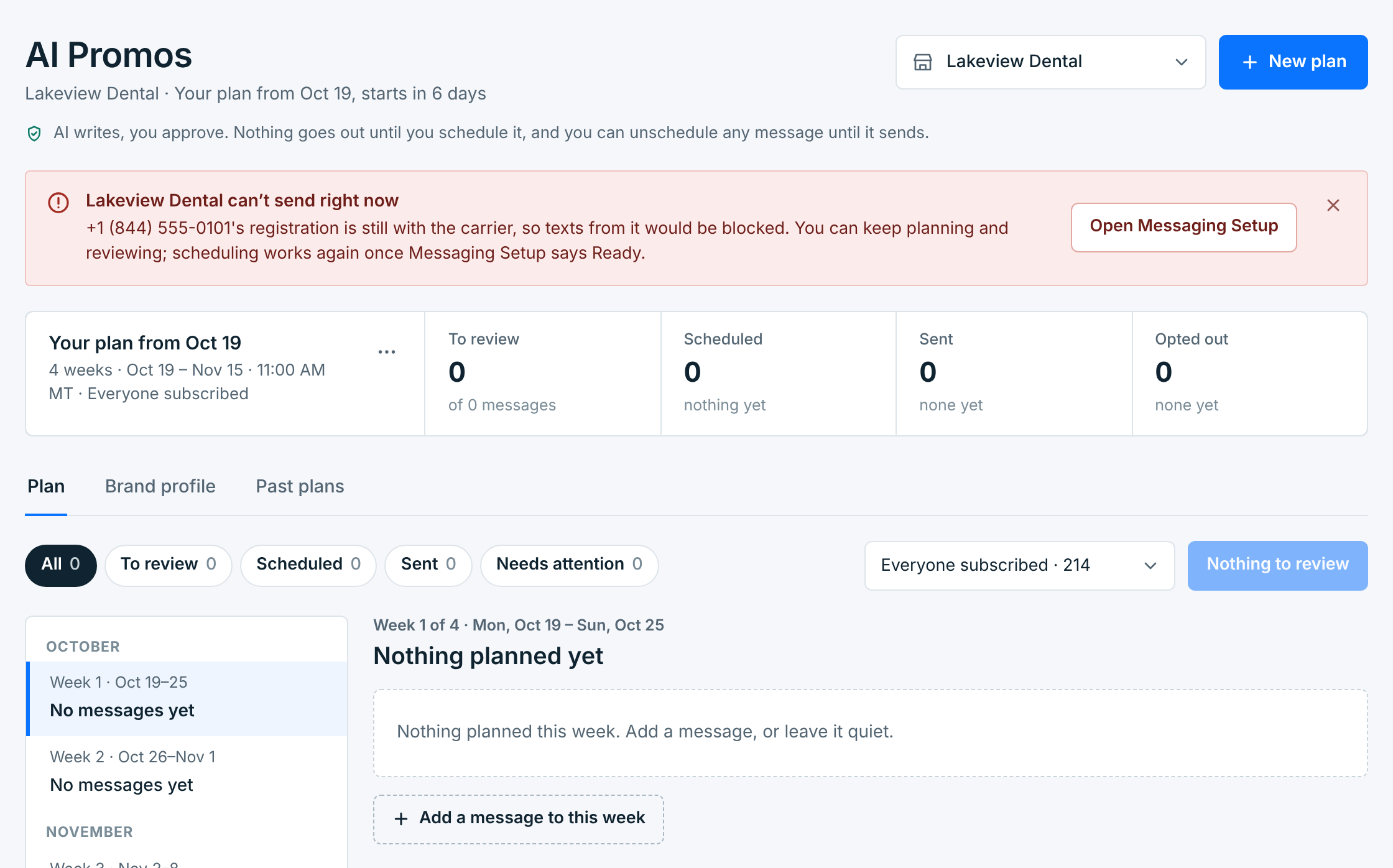
Add a message to each week you want to send in. It works like any other plan: the same checks, scheduling and results, and weeks to add or remove. It’s free, and it’s the way to go when the month’s AI plans are used up.