Connect Zapier
Send contacts from a Google Sheet, or any Zapier app, with a Webhooks by Zapier Custom Request.
Zapier can send contacts to TextScaleHQ from any of its apps: a form, a spreadsheet, an online store, a CRM. There’s nothing to install. Zapier’s own Webhooks by Zapier step posts each contact to your business’s webhook.
This guide uses a Google Sheet, so every new row becomes a contact. The webhook step is the same whatever starts your Zap.
Before you start#
- Have the business’s Webhook URL, Business ID and Secret open in another tab: Integrations › your business › Setup. See Your webhook.
- Webhooks by Zapier is part of Zapier’s paid plans (Professional and up). Zapier says so when you add it.
- Only send people who agreed to get texts from the business. Your sheet or form needs a phone number for each person, and a way to know they agreed.
The Integrations page has the same steps in short: under Connect a tool, click Zapier.
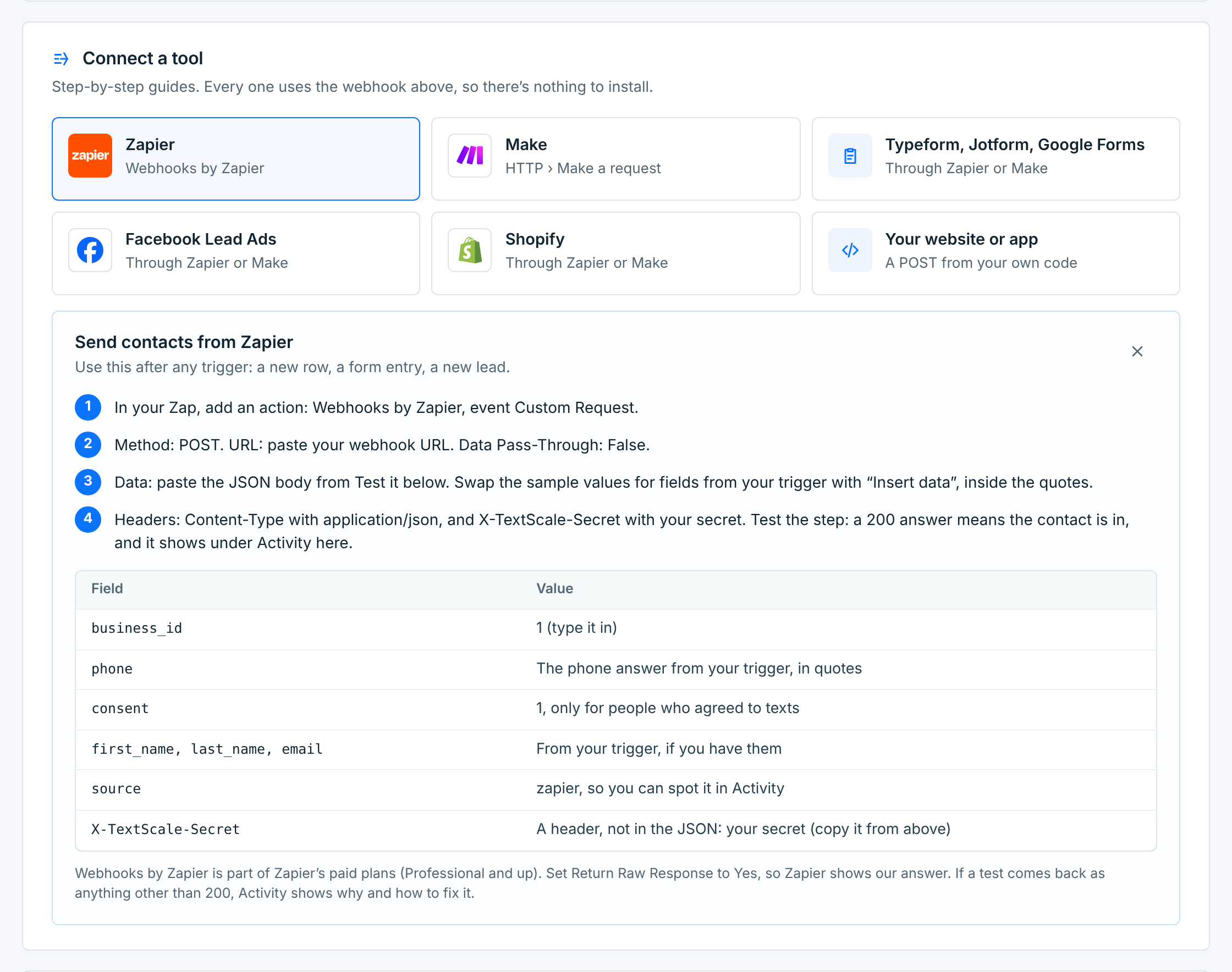
1. Make a Zap#
In Zapier, create a Zap. Skip Copilot and build the two steps yourself: a Trigger and an Action.
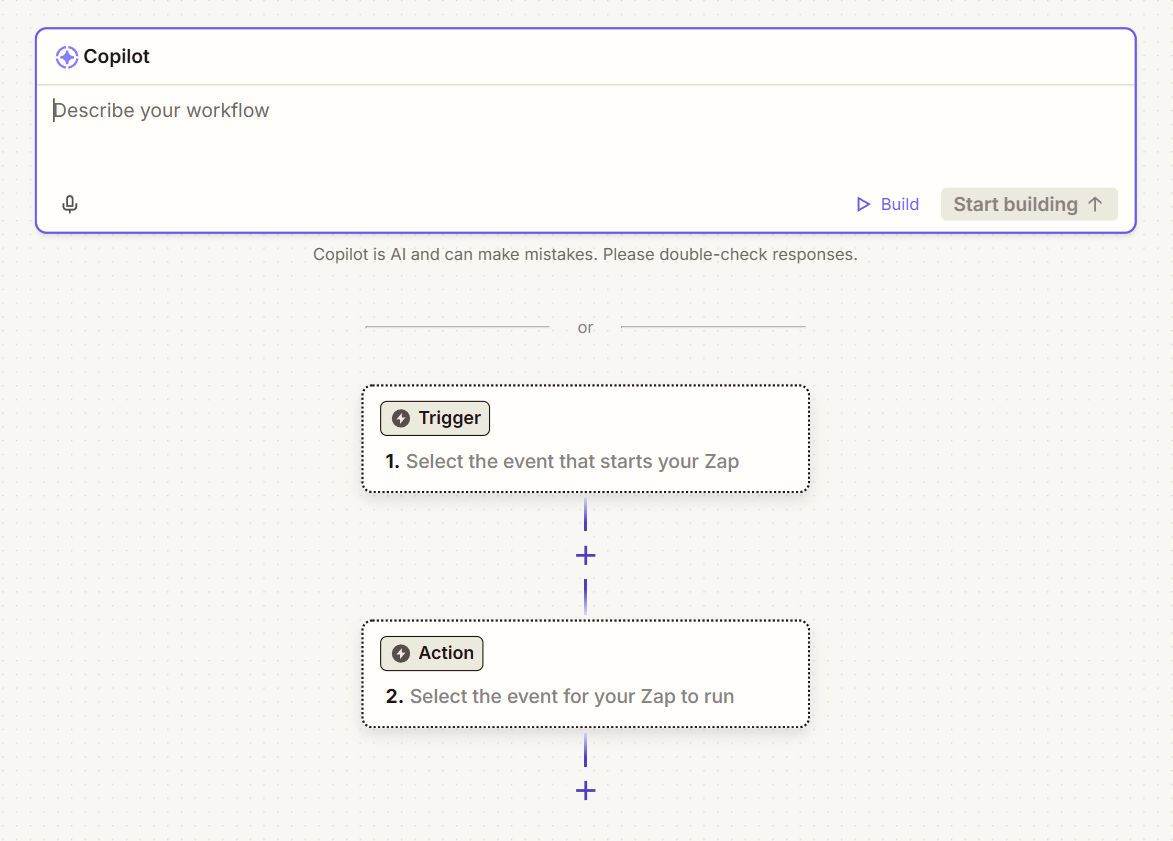
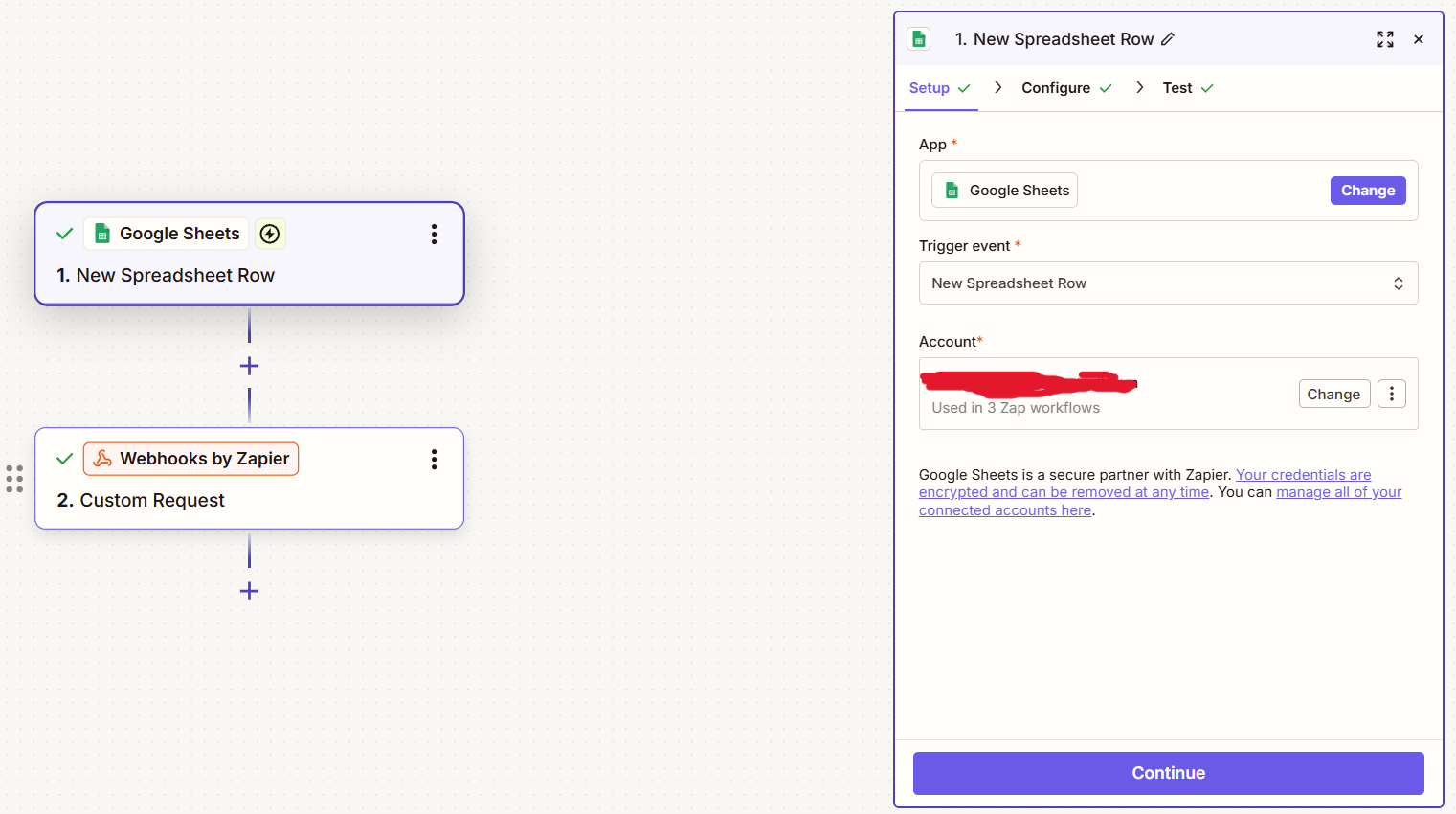
2. The trigger: a new row#
Click Trigger, pick Google Sheets, and for Trigger event pick New Spreadsheet Row. Choose your Google account, then Continue.
On Configure, pick the spreadsheet and the worksheet with your contacts:
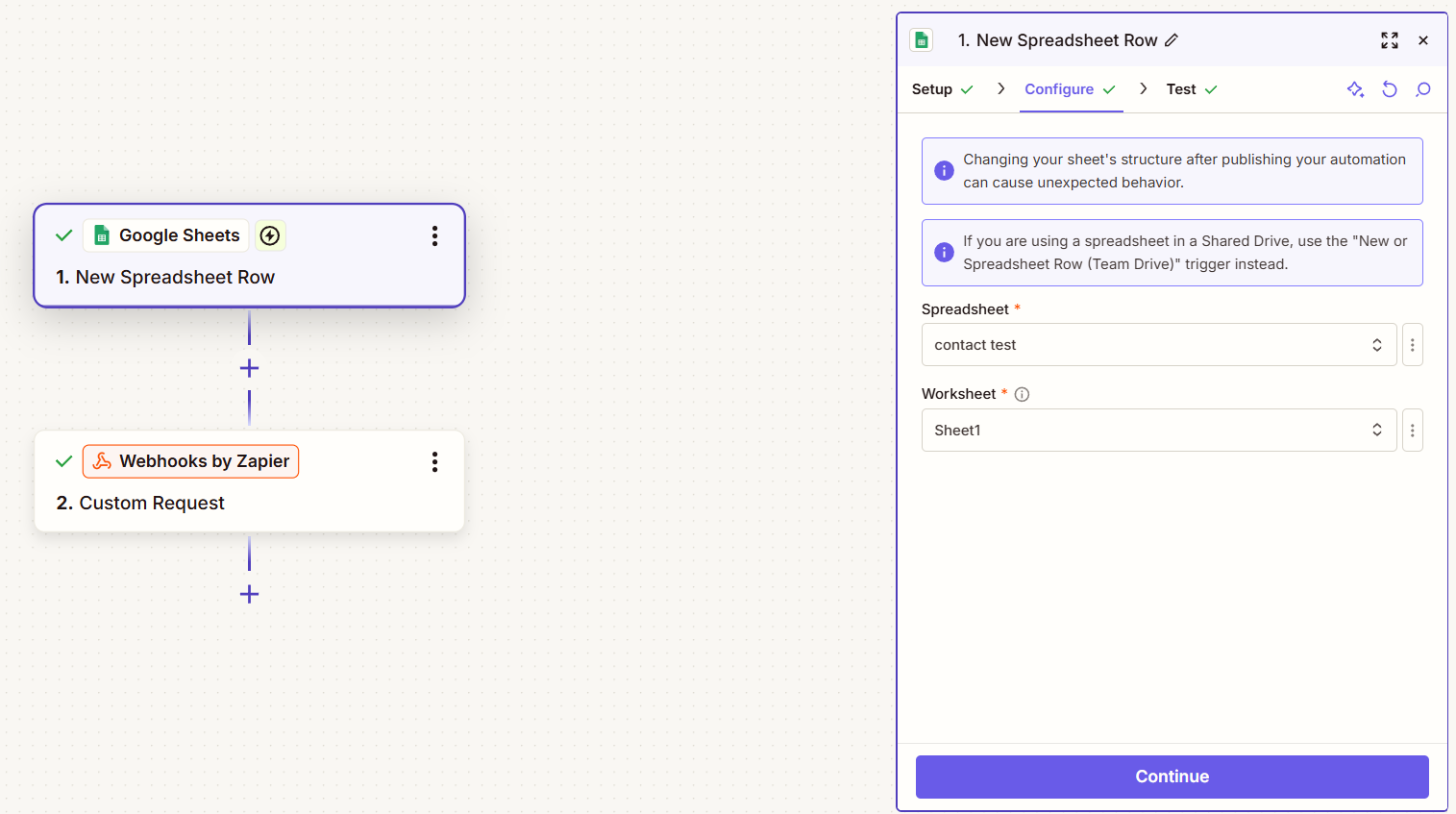
The sheet needs a header row, with a column for each thing you send, like phone, first_name and email. Click Test so Zapier pulls in a real row: you’ll pick its columns in the next step.
New Spreadsheet Row only sends rows added after the Zap is turned on. To bring in the people already in the sheet, import them as a CSV.
3. The action: Custom Request#
Click Action, pick Webhooks by Zapier, and for Action event pick Custom Request. Then, on Configure:
| Field | What to put |
|---|---|
Method |
POST |
URL |
Your Webhook URL, pasted. |
Data Pass-Through? |
False. You send your own JSON. |
Data |
The JSON body, below. |
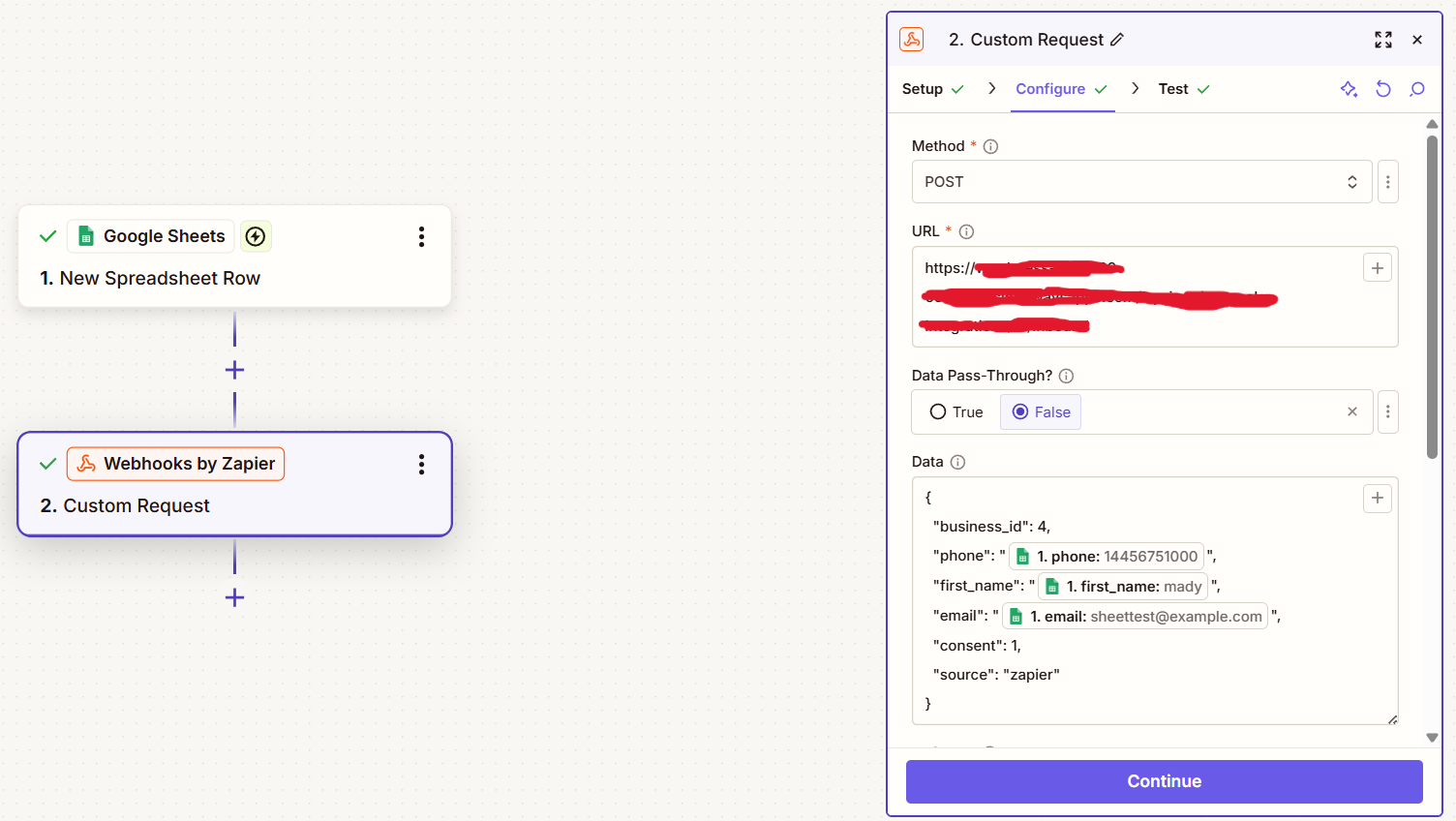
In Data, type the JSON, then put the sheet’s columns where the values go: click inside the quotes and use the + (insert data) button to pick a column from step 1.
{
  "business_id": 1,
  "phone": "{phone}",
  "first_name": "{first_name}",
  "email": "{email}",
  "consent": 1,
  "consent_source": "google sheet",
  "source": "zapier"
}
Use your own Business ID. The {phone}, {first_name} and {email} parts are where the sheet’s columns go:
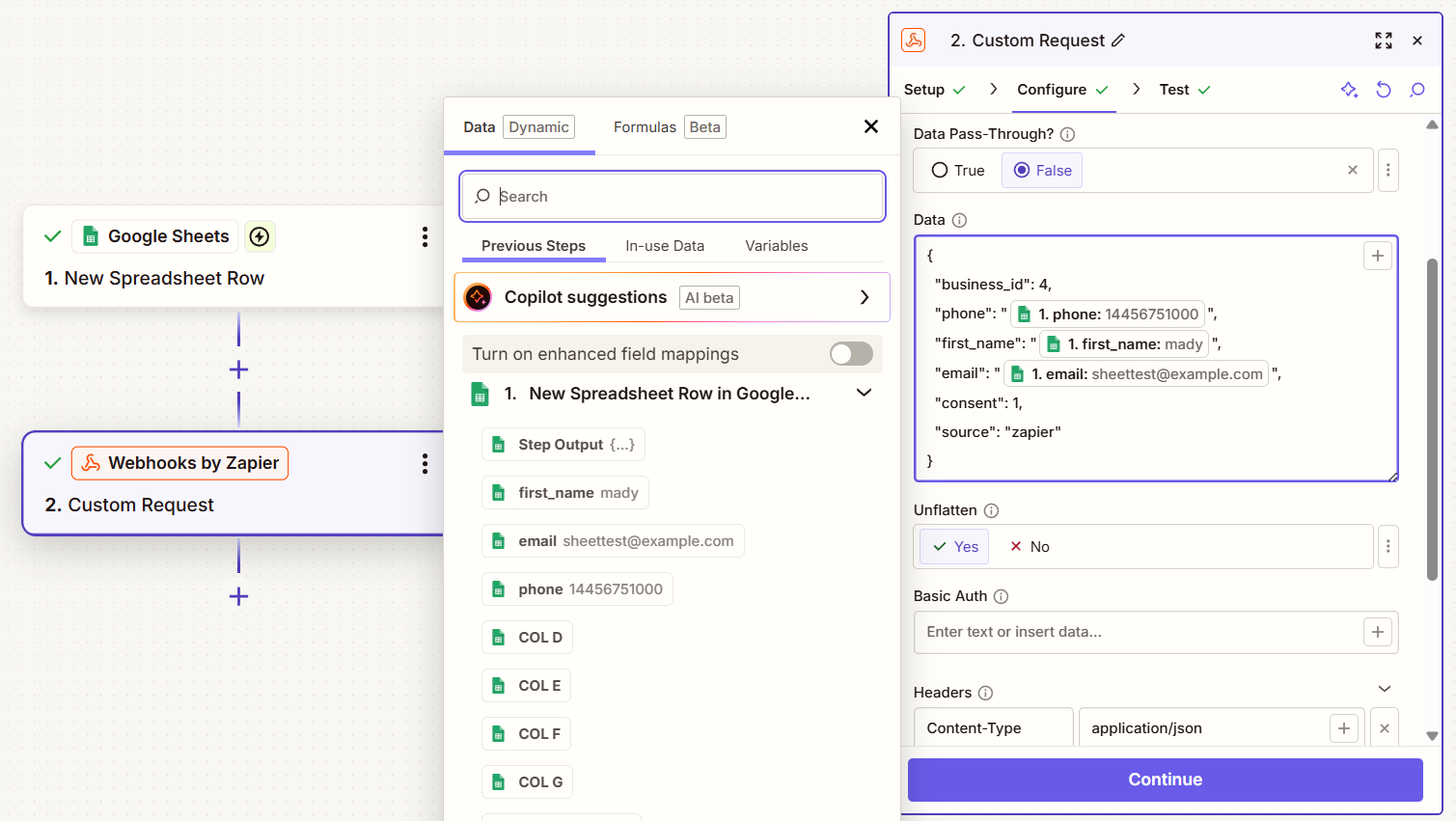
- Keep the quotes around each column you insert. Zapier doesn’t add them, and without them the JSON is broken and the request is refused (400).
- Type
"consent": 1yourself, as long as everyone in the sheet agreed to texts. If the sheet has a consent column, add a Filter step before this one so only people who agreed go on. - Phone numbers: US and Canadian numbers work with or without the +1, so
14456751000or(445) 675-1000are fine. Numbers from other countries need the + and country code, like+447700900123. - To tag these contacts, add
"tags": ["Online order"], or set tags for every contact on the webhook’s Setup tab.
4. The headers#
Further down the same step, under Headers, add two:
| Header | Value |
|---|---|
Content-TypeRequired |
application/json |
X-TextScale-SecretRequired |
Your secret, pasted exactly. |
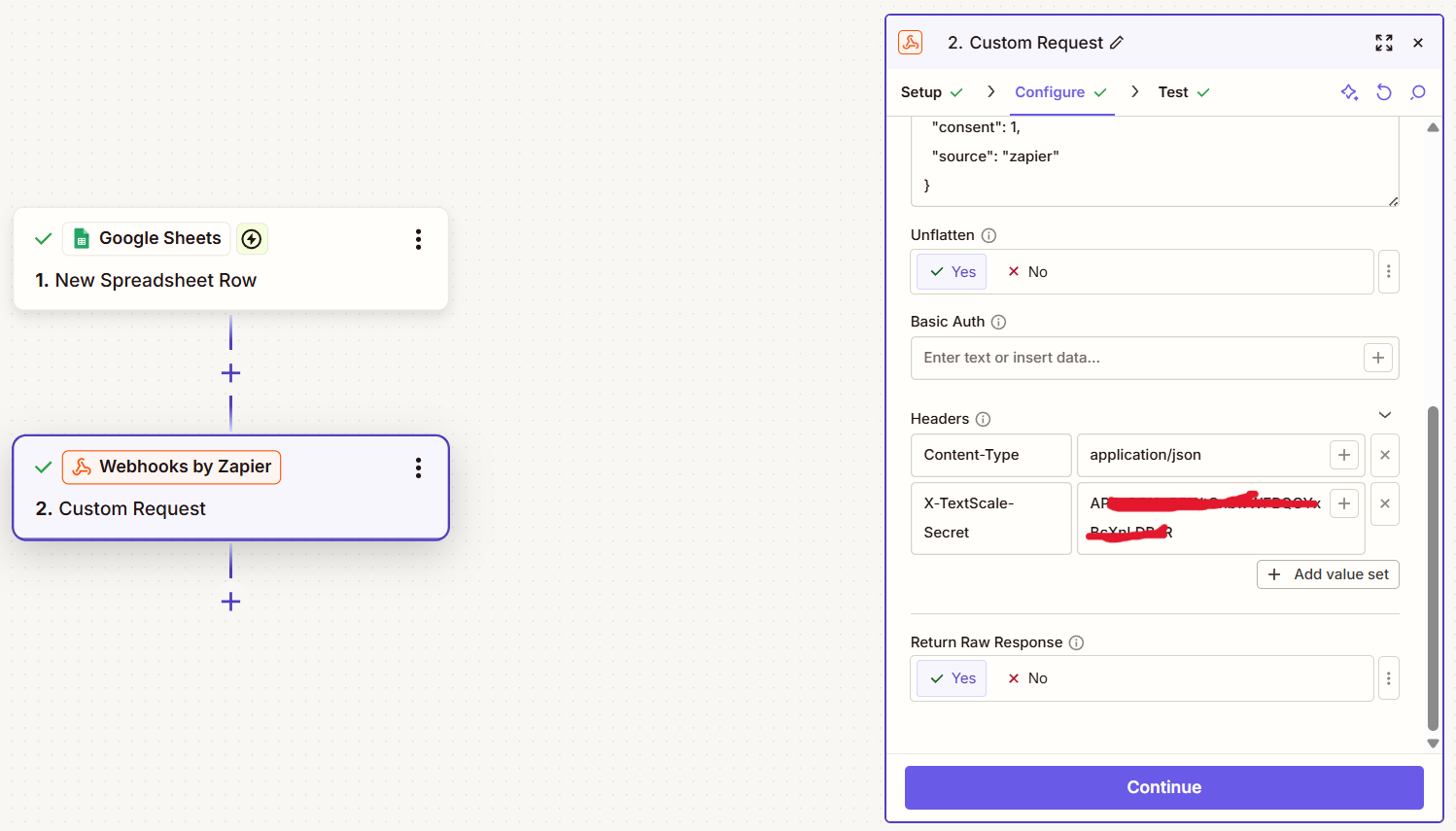
Set Return Raw Response to Yes, so Zapier shows our answer when something is turned away.
5. Test and publish#
Click Continue, then Test step. Zapier sends the row it pulled in. An answer of 200 with "code": "created" means the contact is in: it shows under Integrations › Activity a few seconds later, with zapier as its source.
If the test says something else, the number tells you where to look:
| Answer | What to check |
|---|---|
400 |
The JSON in Data: usually a missing quote around an inserted column. Or the Business ID. |
401 |
The X-TextScale-Secret header: the secret pasted exactly, with no space at the end. |
409 |
The person opted out earlier, or the business is paused or being deleted. Opt-outs still get through. |
422 |
"consent": 1 is missing, or the phone column is empty or not a number. |
Activity has every request with what happened and how to fix it. See Why a contact is turned away. When the test looks right, click Publish.
Want each new contact to get a text straight away? Turn on the webhook’s Welcome text.