Send a campaign
Write a campaign, choose who gets it, check the cost, send a test, then send it and watch it go out.
This guide walks through a campaign from a blank page to the moment it goes out: who gets it, what it says, what it costs, a test to your own phone, and sending it.
The same page schedules a campaign for later or repeats it. Those are covered in Schedule a campaign and Recurring campaigns.
Before you start#
- The business needs to be able to send: a carrier connected and a number that’s approved. Its status on Businesses says Ready to send. See Connect Twilio.
- It needs subscribers. See Import contacts and Your webforms.
- To send to some people only, tag them first. See How people get a tag.
Campaigns go to real phones and your carrier bills you for every text. Send a test to your own phone first (below).
New campaign#
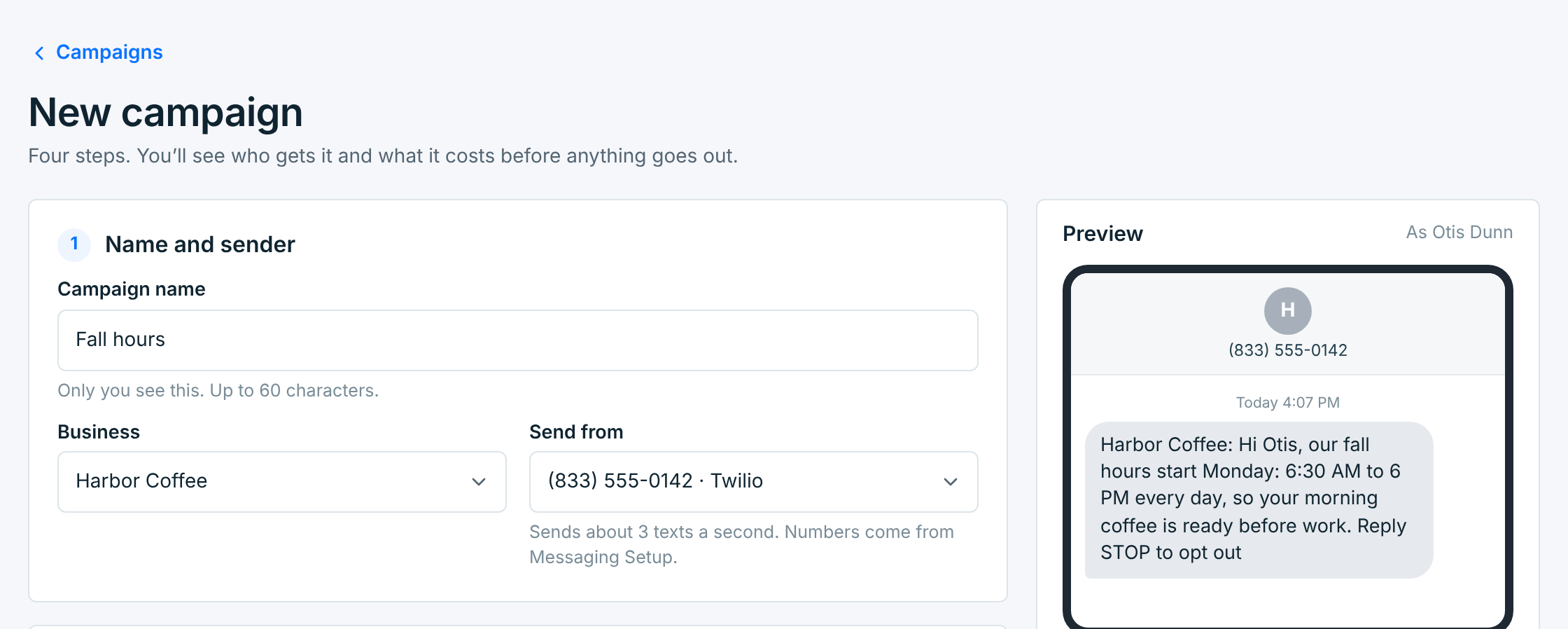
Click New campaign on Campaigns. The page has four steps on the left. On the right, a preview shows the text as people get it, and a summary adds up who gets it, what it costs and when it goes out.
1. Name and sender#
| Field | What it does |
|---|---|
Campaign nameRequired |
Only you see it, on the list and in reports. Up to 60 characters. |
BusinessRequired |
Who it’s from. Picking it sets the subscribers, the number, the price and the time zone. Paused businesses aren’t offered. |
Send fromRequired |
The business’s number, from Messaging Setup. Under it: how fast that number sends, for example about 3 texts a second. |
If the business can’t send, a red box under step 1 says why, with a link to Messaging Setup. You can still write the campaign and save it as a draft.
2. Who gets it#
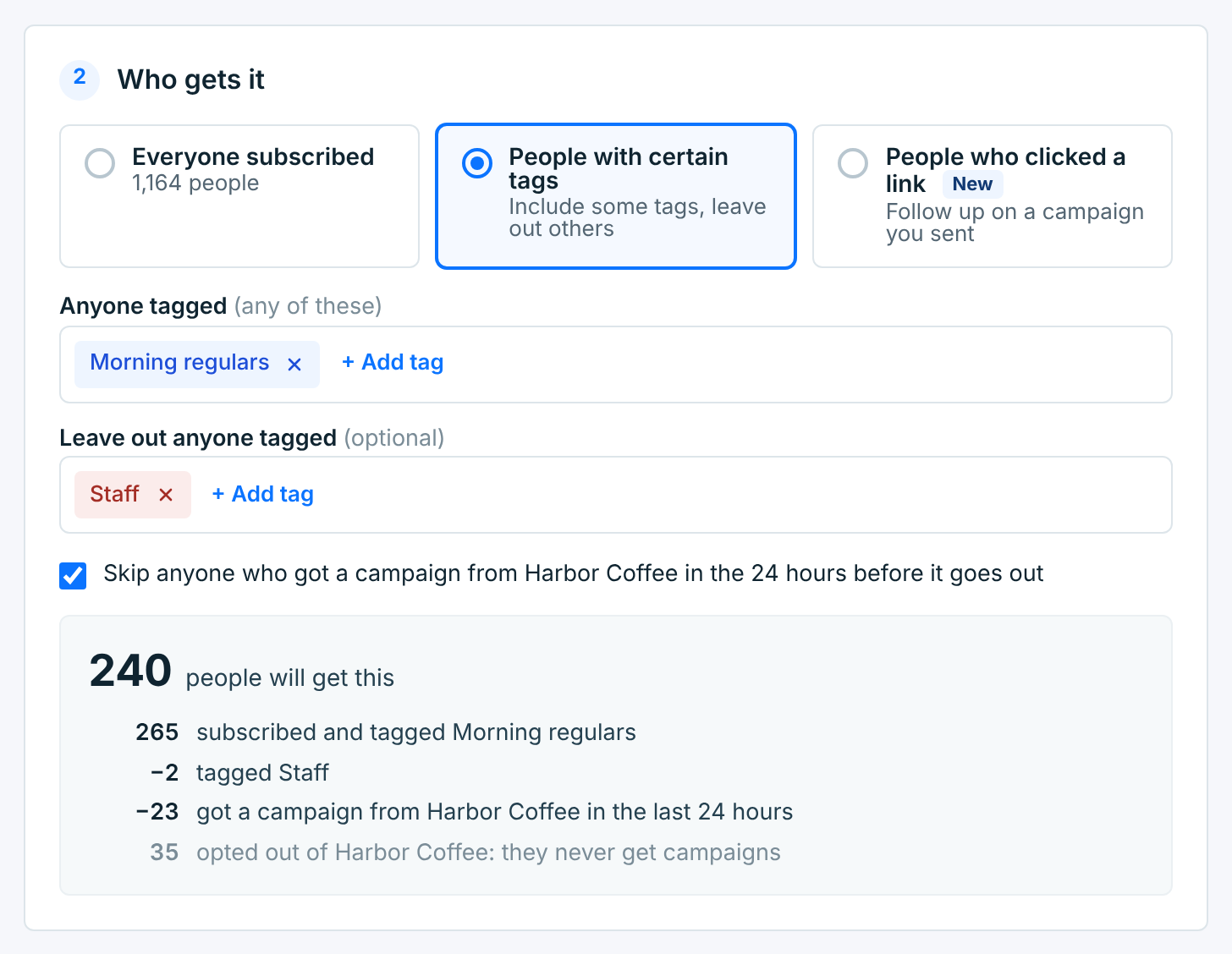
| Choice | Who gets it |
|---|---|
Everyone subscribed |
Every subscriber of the business. |
People with certain tags |
Anyone with at least one of the tags under Anyone tagged, except anyone with a tag under Leave out anyone tagged. Leaving out wins. |
People who clicked a link |
The people who clicked, or didn’t click, a link in a campaign you sent. See Links in your texts. |
Skip anyone who got a campaign from … in the 24 hours before it goes out is ticked to start with, so nobody gets two campaigns in a day. Untick it to send to everyone anyway. The sends of a recurring campaign don’t count against each other.
The box under it counts who gets it right now, and how the number comes about. People who opted out are never in it: they never get a campaign, whatever you pick.
3. Message#
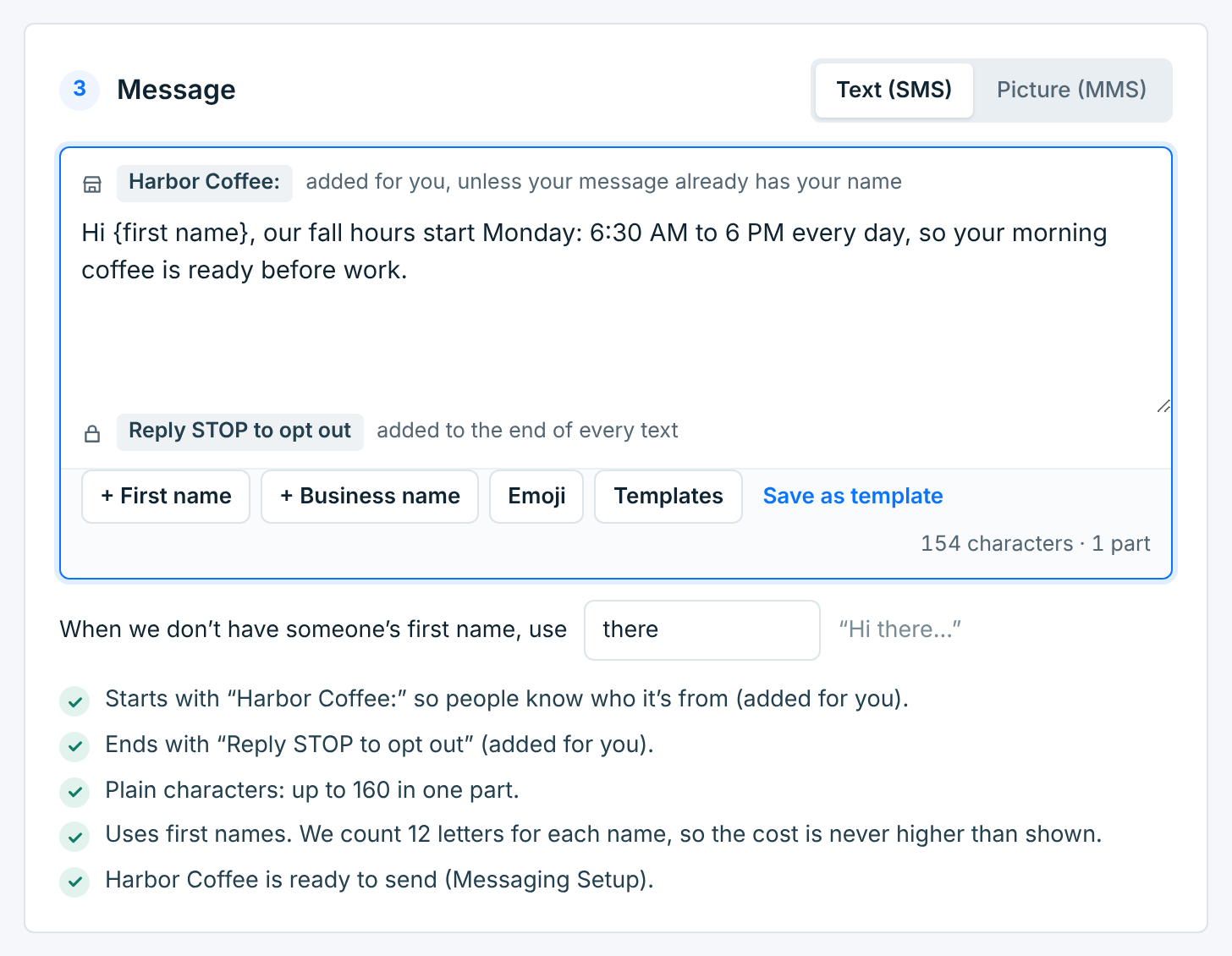
Write what you want to say. Two things are added for you, shown above and below the box:
- the business name at the start (Harbor Coffee:), so people know who it’s from, unless your message already has it;
- Reply STOP to opt out at the end, unless your message already says how to opt out, like Reply STOP to opt out or Text END to stop.
| Button | What it does |
|---|---|
+ First name |
Puts each person’s first name in the text. A box appears for the word to use when there’s no first name on file (there, as in “Hi there”). |
+ Business name |
Puts the business’s name in the text. |
Emoji |
Adds an emoji. See the note below. |
Templates |
Starts from one of your templates, or one from the starter library. Words in brackets, like [OFFER], must be filled in before it can go out. See Use a template. |
Save as template |
Keeps this message to use again. See Save a campaign as a template. |
The counter under the box says how many characters it is and how many parts: a text over 160 characters goes as several parts, and your carrier bills each one. The checks below it say what was added, how long each part can be, and whether the business is ready to send. They also warn when a text asks for a reply nobody would see, or asks people to reply CANCEL, END or QUIT for something else: those words opt people out.
One emoji, or a character outside the plain set (a curly quote typed in some apps, for one), makes every part hold 70 characters instead of 160. A 150-character message becomes 3 parts per person. The checks say when this happens.
A message can be up to 1,600 characters once the business name, the opt-out line and first names are in. Links are shortened as you type: see Links in your texts.
A picture#
Click Picture (MMS) at the top of step 3, then Add a picture: a JPG, PNG or GIF up to 1 MB.
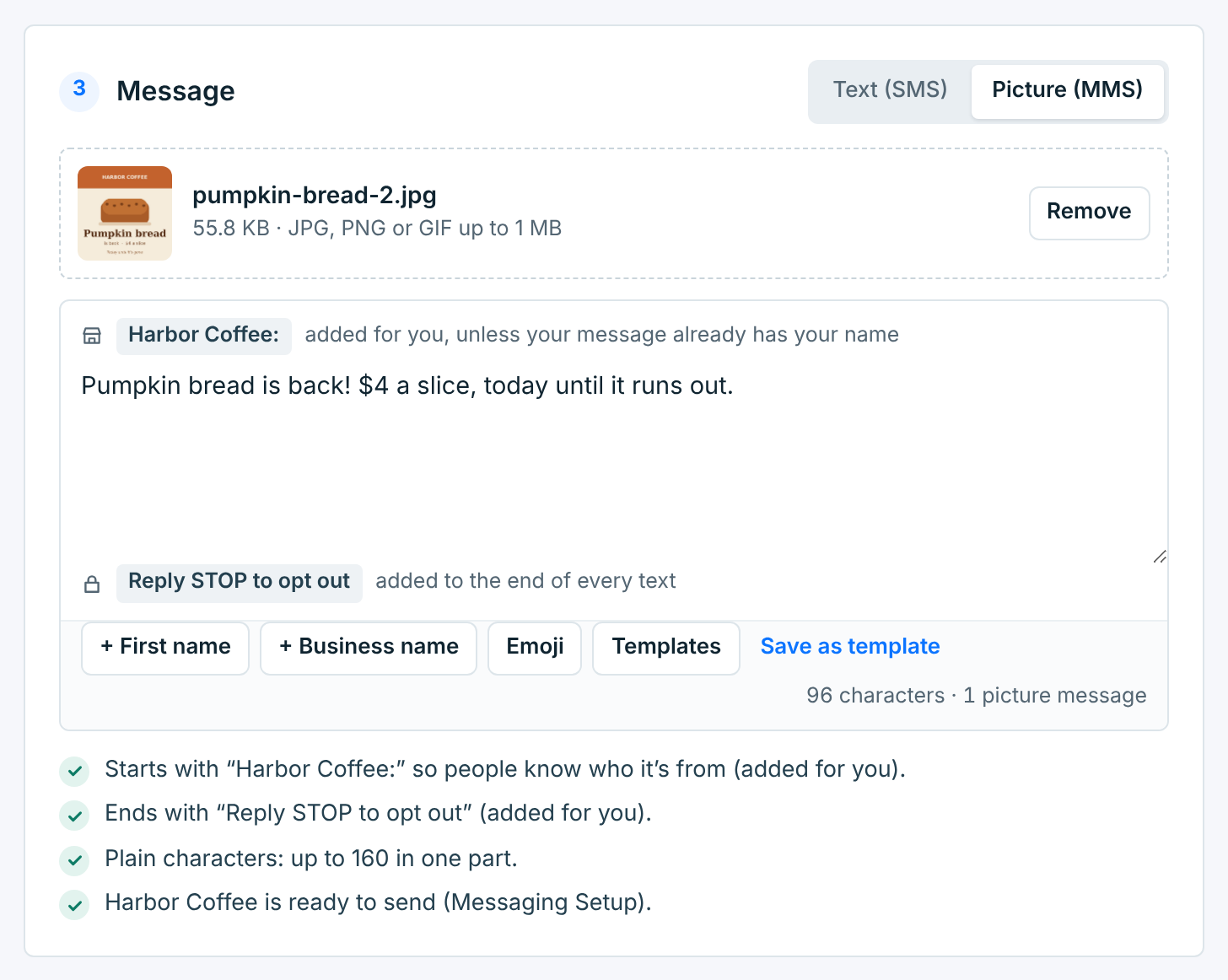
A picture message goes as one message whatever its length, and your carrier bills it at its picture price. Every plan can send them.
4. When it goes out#
Send now sends it as soon as you confirm. Schedule picks a day and time, and Repeat sends it daily, weekly or monthly.
Texts only reach people between 8 AM and 8 PM. Each person’s time comes from their number’s area code, and it must also be 8 AM to 8 PM where the business is. Texas numbers wait until 9 AM, and until noon on Sunday. Someone outside those hours gets it when theirs begin. A campaign can start from 8 AM until 7:30 PM in the business’s time zone; after that, schedule it for the next day.
The preview and the summary#
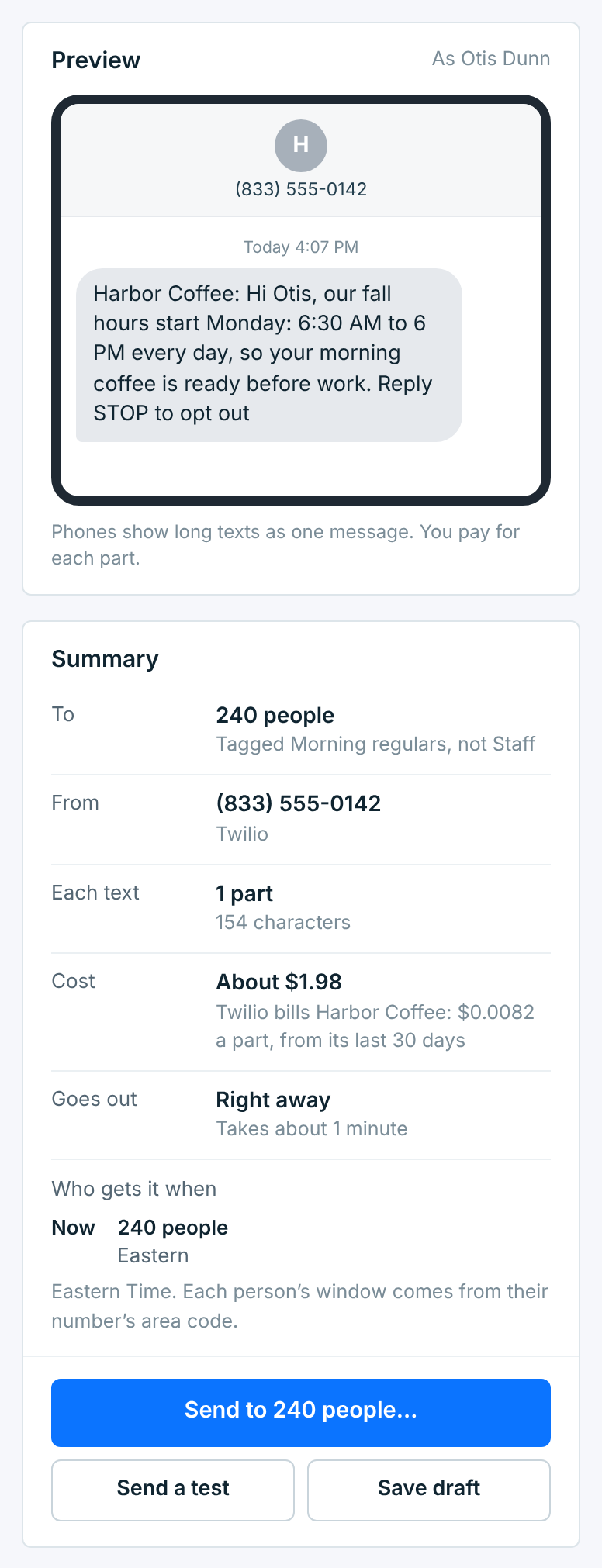
| Line | What it says |
|---|---|
To |
How many people, and who. |
From |
The number and the carrier. |
Each text |
How many parts each person’s text takes, or 1 picture message. |
Links |
How many links are tracked or sent as typed. |
Cost |
About what your carrier will bill: the business’s average price per part over its last 30 days, or the carrier’s list price before it has any history. First names are counted at 12 letters each, so the real cost is never higher. |
Goes out |
When it starts, and about how long it takes. |
Who gets it when |
When each group of people gets it, by their time zone. See Schedule a campaign. |
The preview shows the text as one subscriber gets it, with their first name filled in.
Send a test#
Click Send a test under the summary and enter your mobile number.
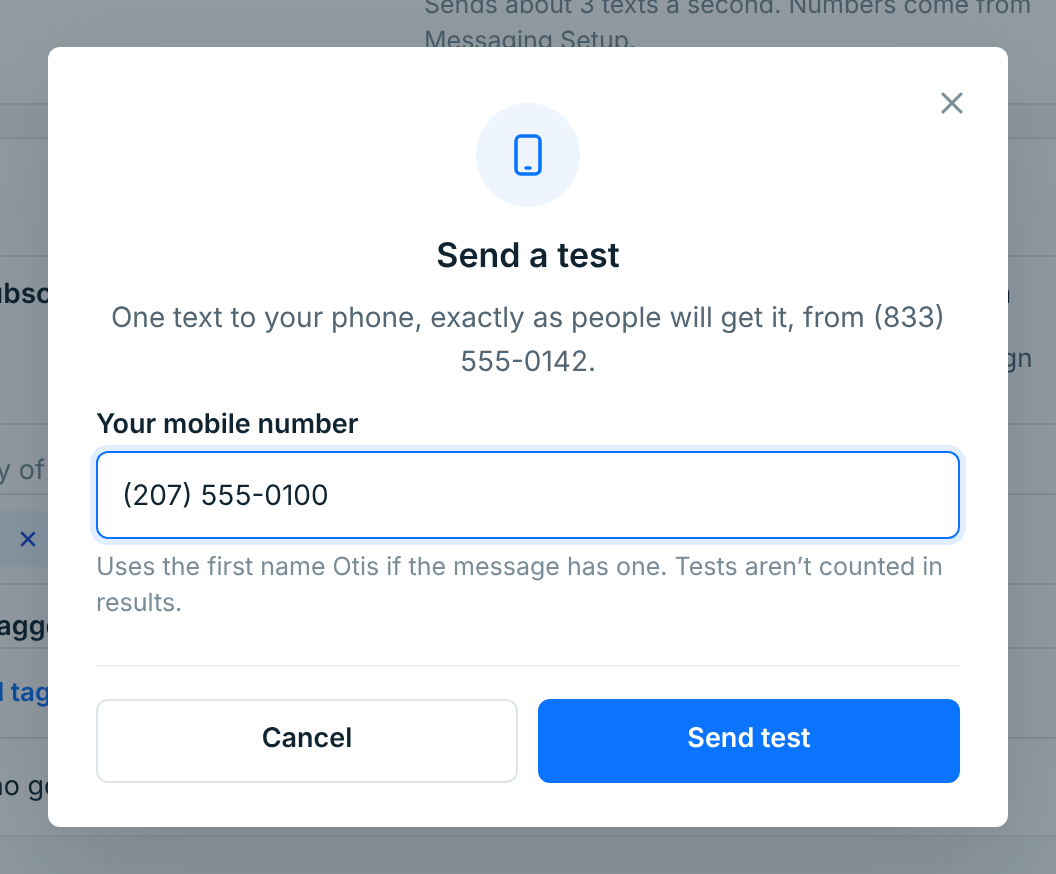
You get one text, exactly as people will, from the business’s main number. If the message has a first name, the test uses the name shown. Its links are real short links that work for 30 days. Tests aren’t counted in the campaign’s results.
Sending it#
When the summary is right, click Send to … people. A last check says who gets it, from which number, what it costs and how long it takes.
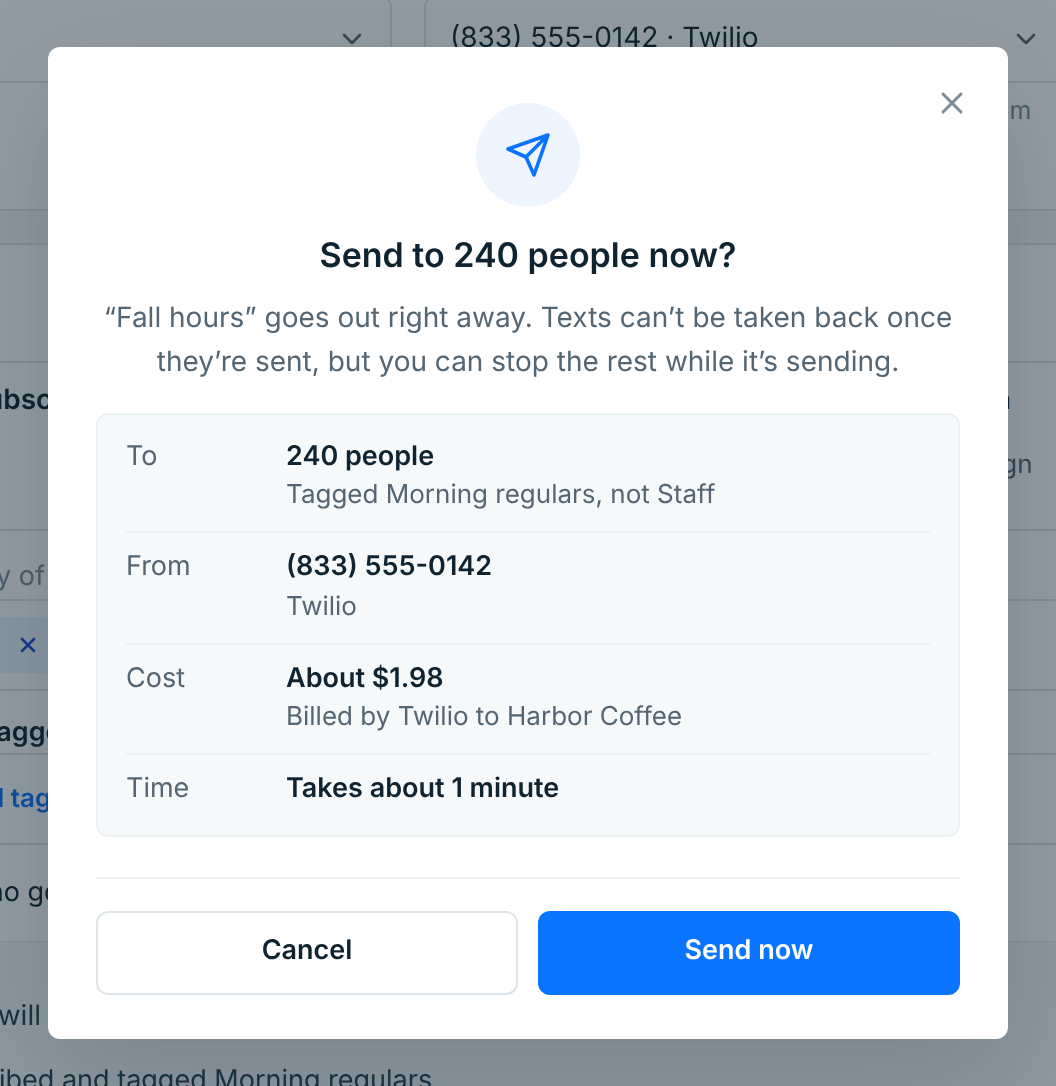
Click Send now. The campaign’s page opens and fills in as it goes out:
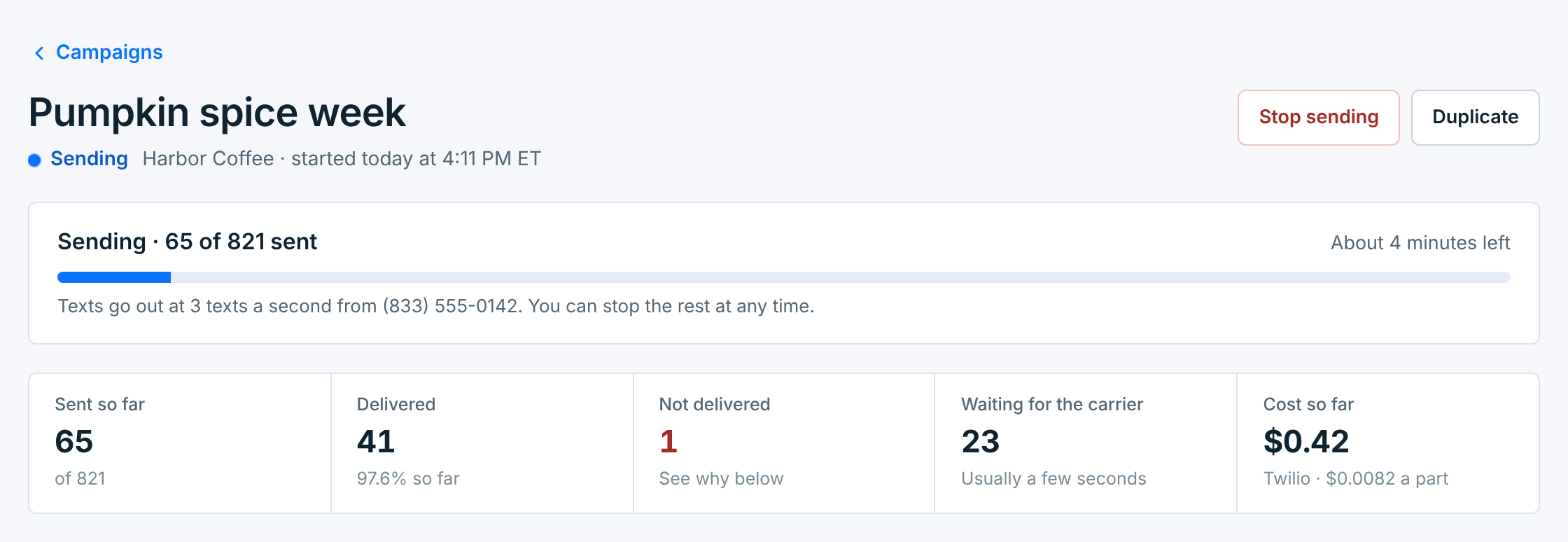
Waiting for the carrier counts texts whose delivery report hasn’t come in yet, usually for a few seconds. You don’t need to keep the page open: it carries on by itself. Once every text has gone to your carrier, the status turns to Sent and the numbers become the campaign’s results. See A campaign’s results.
Stopping it#
While it’s sending, Stop sending on its page (or in its … menu) stops the rest.
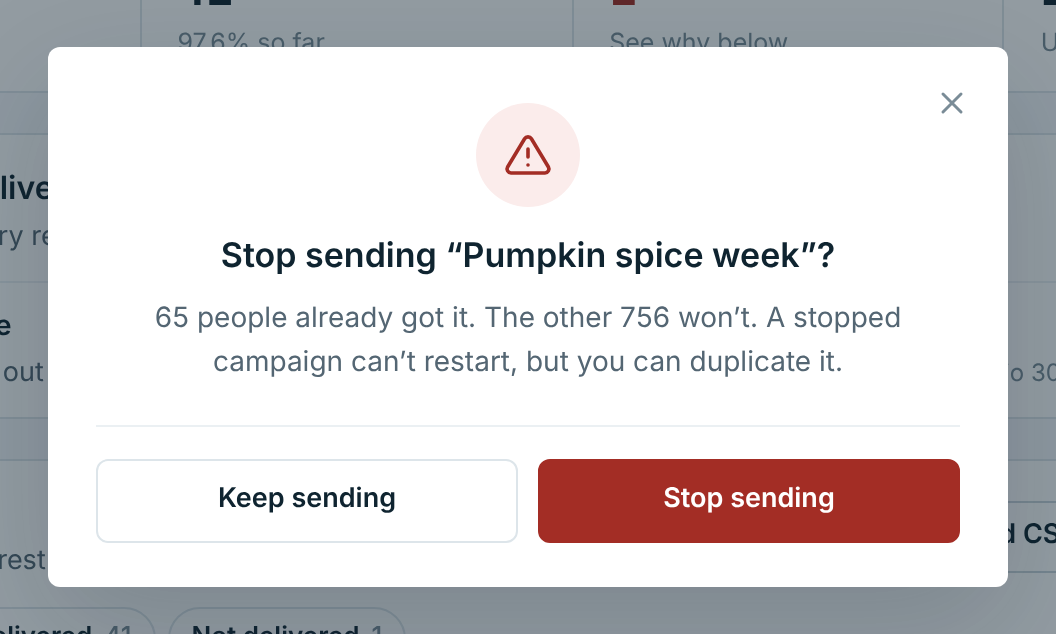
The people who already got it keep it; texts can’t be taken back. Nobody else gets it, and a stopped campaign can’t start again. To send it to the rest later, duplicate it.
Drafts and copies#
Save draft keeps the campaign without sending it. You’ll find it under Drafts on the list. A draft can keep template words in brackets, or a link that needs fixing, until you’re ready.
Duplicate, on any campaign’s page or in its … menu, opens a new campaign with the same business, people and message, named “(copy)”.