Sign-in and security
Your sign-in email, changing your password, 2-step verification, sign-in codes and your time zone.
The Security tab of Account holds how you sign in: your email, your password and 2-step verification. Open Account in the sidebar, then Security. Your own time zone is on the next tab, Preferences: see Your time zone at the end of this guide.
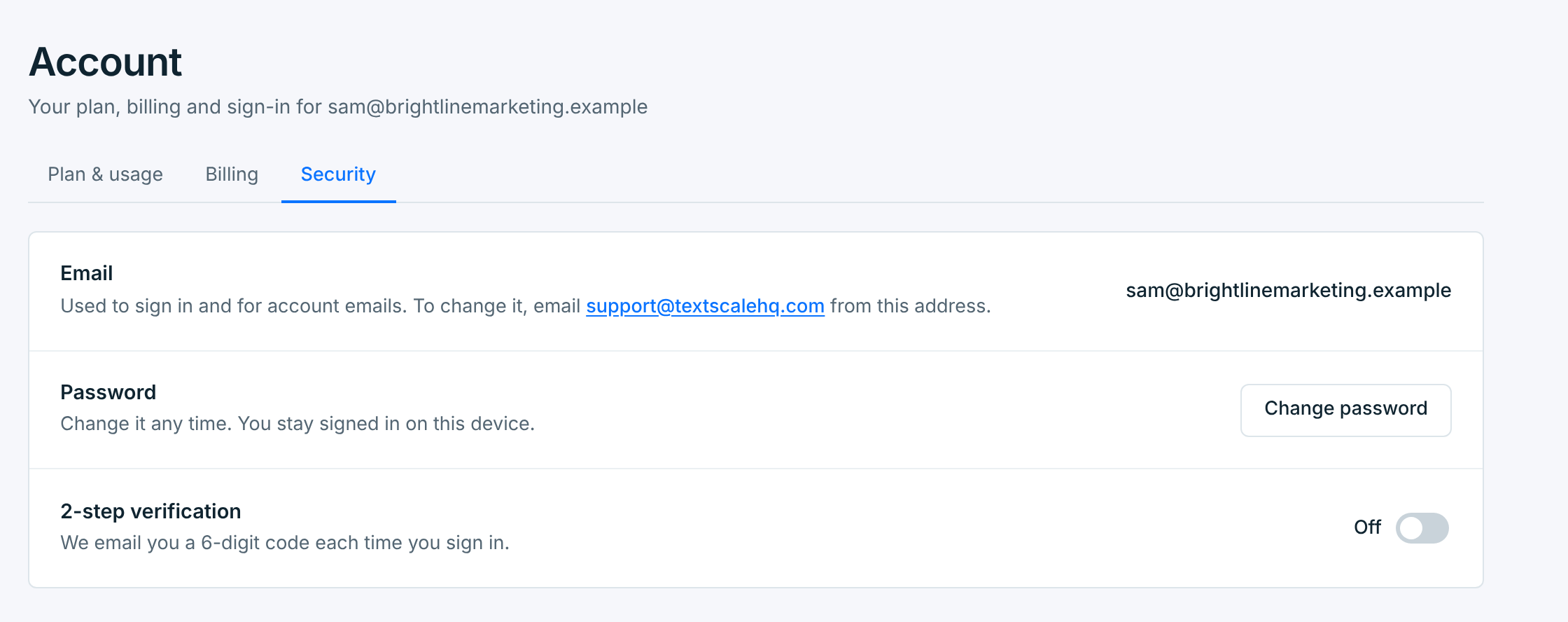
Your email#
The email you sign in with. It’s also where we send everything about your account: sign-in codes, receipts and notices.
To change it, email [email protected] from that address and say which address you want instead. We change it for you, and update it with Stripe too.
Change your password#
Press Change password. Enter your current password, then the new one twice. The new password needs:
- 8 or more characters,
- a letter,
- a number,
- a symbol,
and must be different from the one you have. Each rule turns green once it’s met, and Update password works when they all are and both new passwords match.
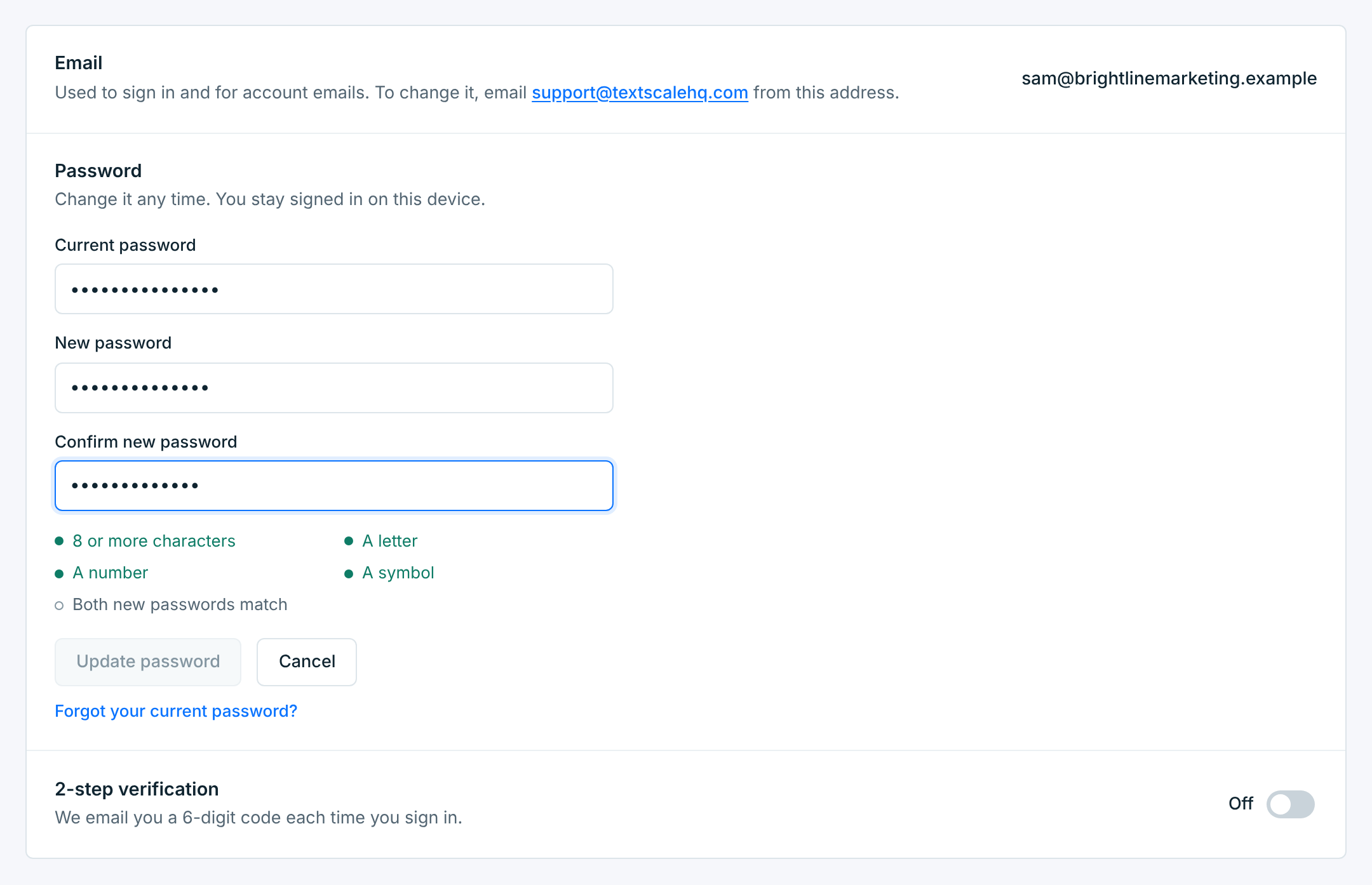
You stay signed in on this device. Anywhere else you were signed in, you’re signed out. We email you that the password was changed: if that wasn’t you, reset your password straight away and contact support.
Don’t know your current password? Forgot your current password? opens the reset page, which emails you a link to set a new one.
2-step verification#
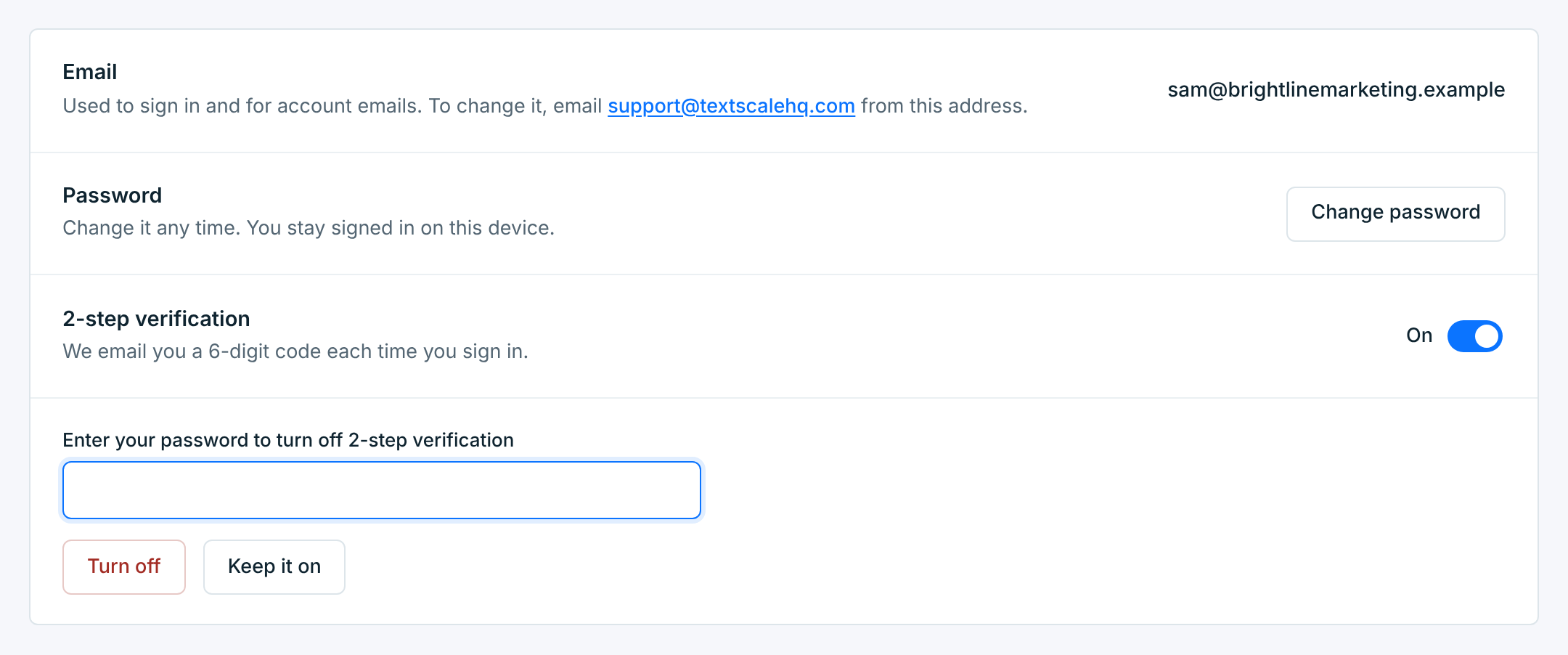
With 2-step verification on, signing in takes your password and a 6-digit code we email you. Turn it on with the switch; it applies from your next sign-in.
To turn it off, flip the switch, enter your password and press Turn off. We email you that it was turned off.
Sign-in codes#
Each code works once, for 10 minutes. Didn’t get it? Check your spam folder; after a minute you can send yourself a new one. After 5 wrong codes, send yourself a new one.
Even with 2-step verification off, we ask for a code:
- when you sign up, to confirm your email is yours;
- after you reset your password;
- after 5 wrong passwords within 15 minutes.
Got an email about a password change or a code you didn’t ask for? Someone may know your password. Reset it from the sign-in page, turn on 2-step verification, and let support know.
Your time zone#
Preferences, the tab after Security, holds your own time zone: where you are. It’s taken from your browser the first time you sign in. To change it, pick another one under Where you are; it saves straight away, and the page reloads in the new time.
Your time zone is used for:
- All businesses on the Dashboard, Reports and Campaigns: the days run midnight to midnight in your time, and times are shown in it;
- the dates in the bell, your billing dates, and the emails we send you.
Each business keeps its own time zone for its campaigns and sending hours, its own reports and its client report. Set that on the business: see Changing the time zone.
When your computer is on another time zone, say while you travel, a strip at the top asks which to use, for example Use Pacific Time or Keep Eastern Time. Keep doesn’t ask again for that time zone.