Use a template
Start a campaign from a template, save a campaign as a template, and put a welcome template on a webform.
A template is a head start: it fills in the message, and you change what you like before it goes out. This guide covers starting a campaign from a template, saving a campaign as a template, and putting a welcome template on a webform.
In a campaign#
There are two ways in:
- On Templates, click Use on a card, or Use in a campaign on a template’s page. New campaign opens with the template in the message, for the business you preview as.
- In New campaign, click Templates under the message.
The picker lists campaign templates, yours and the starters, with search and a category picker. Click one to see it the way this business’s subscribers get it, with its parts and checks:
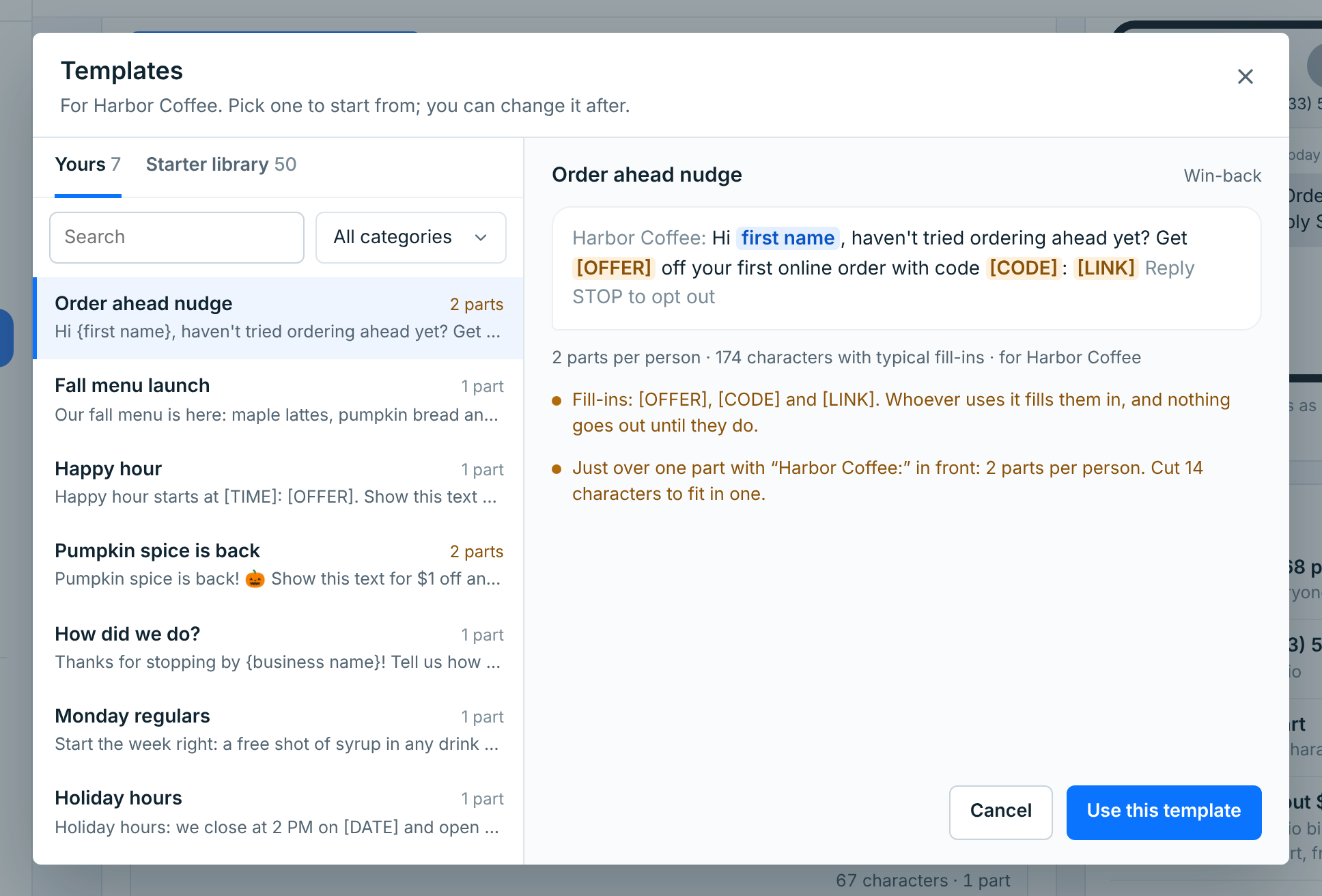
Click Use this template. If the message box already has words in it, it asks first:
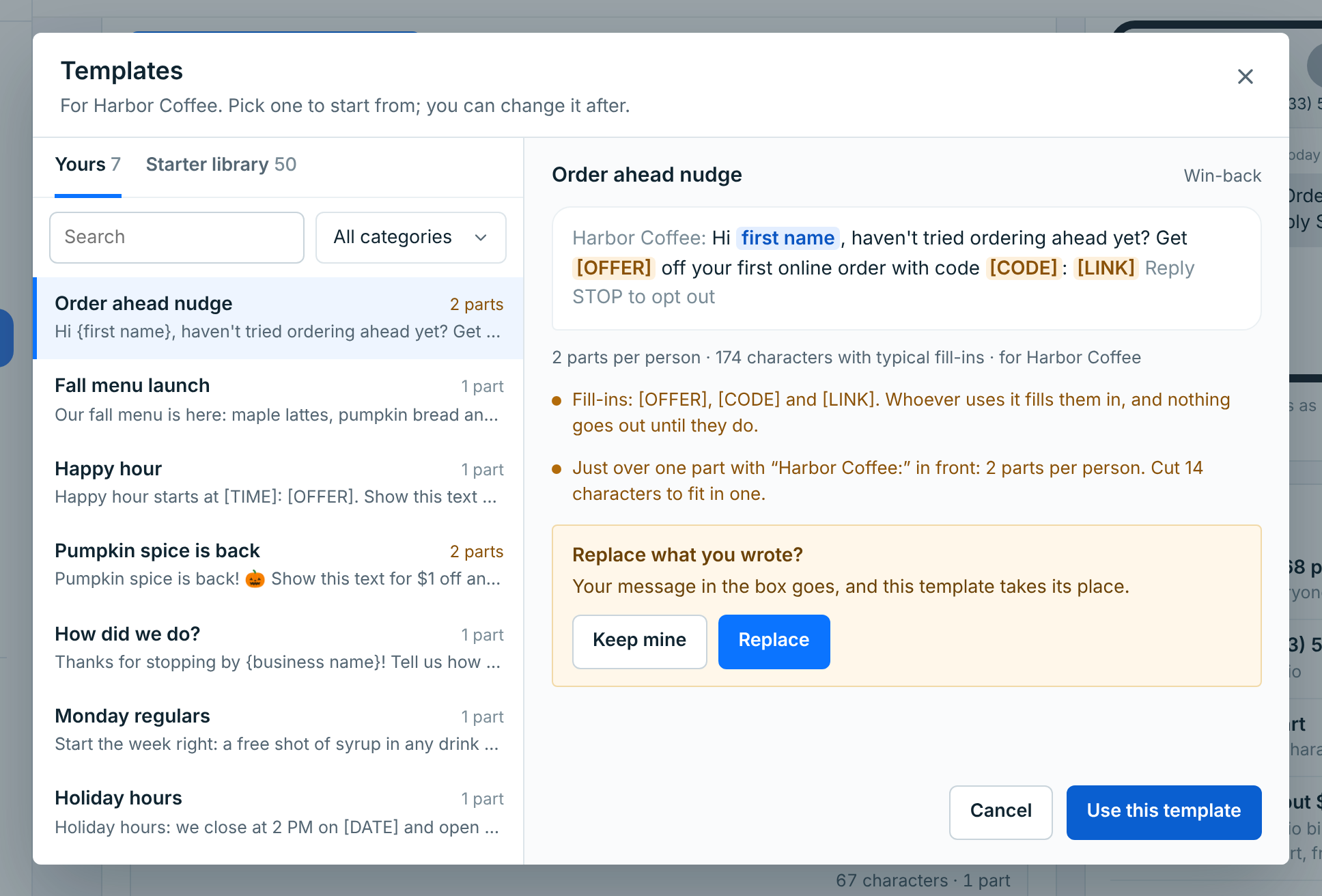
Replace puts the template in the box; Keep mine leaves your message as it is.
Filling it in#
The template is now the campaign’s message, and you can change any of it. Its fill-ins show as a red check:
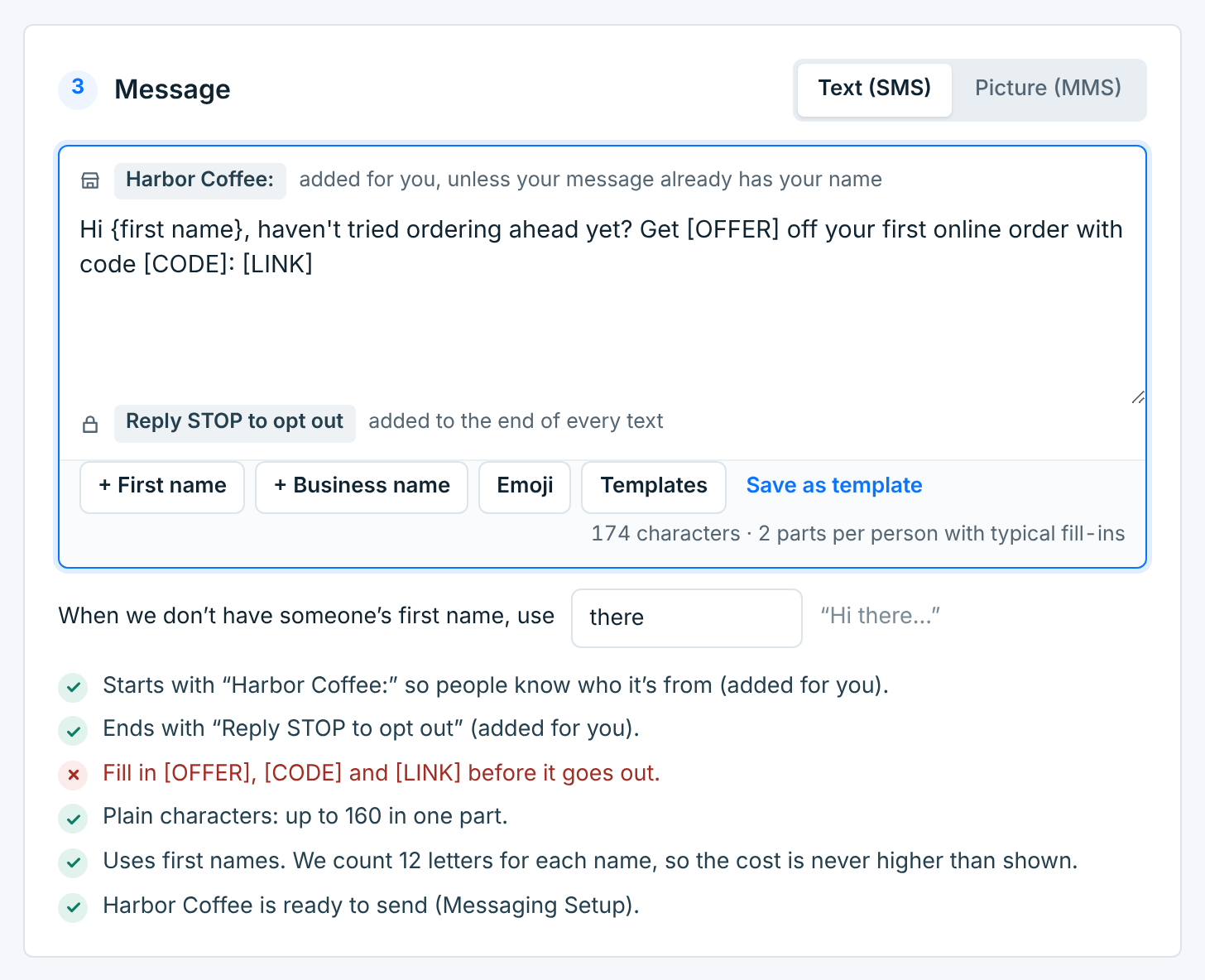
Replace each one, like [OFFER] with “15% off”. Until they’re all gone, the campaign can’t be sent, scheduled or tested, but you can save it as a draft. {first name} is filled in for each person, and {business name} with this business’s name.
Changing the message here doesn’t change the template. See Send a campaign for the rest of the composer.
Save a campaign as a template#
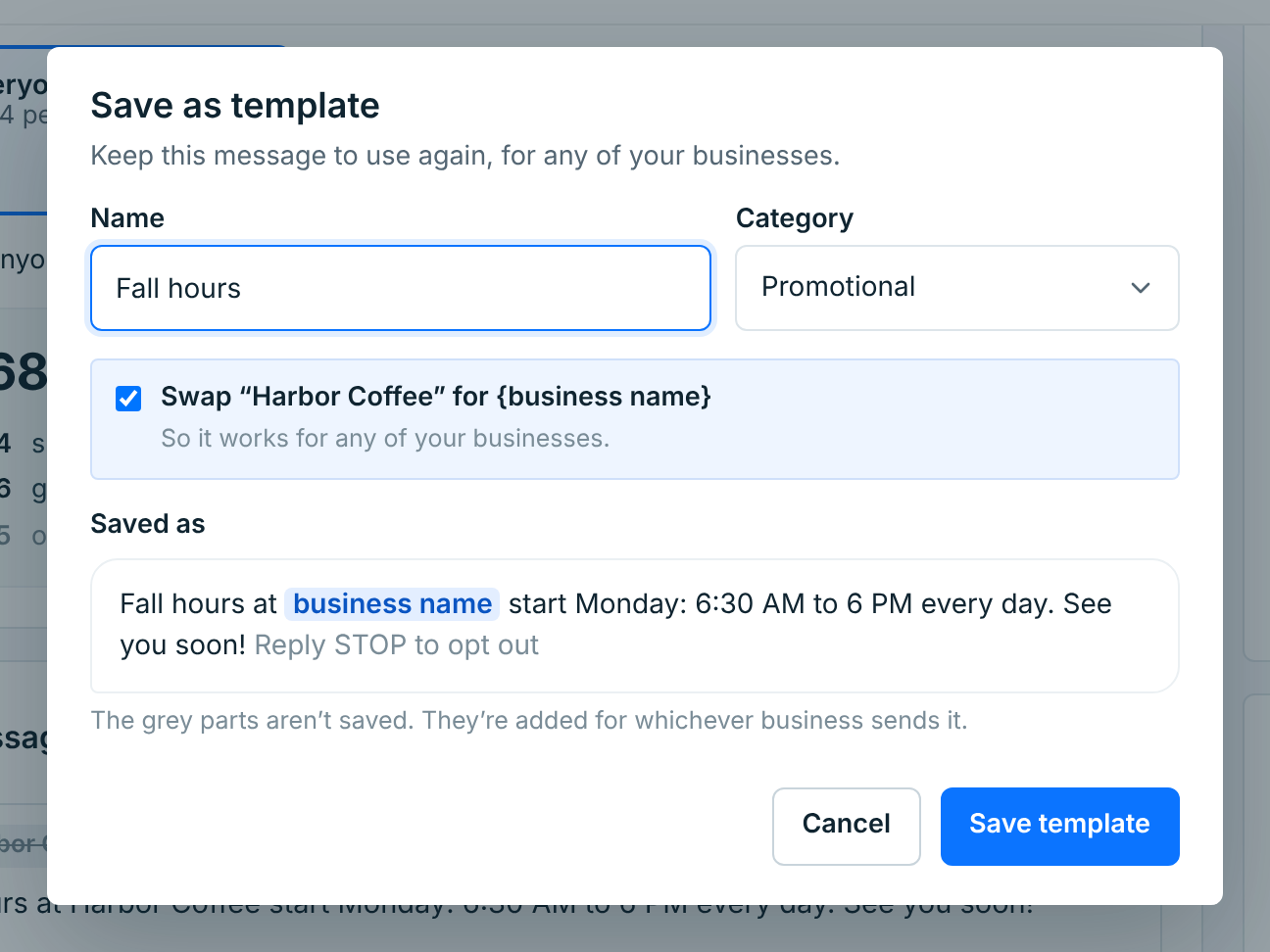
Wrote something worth keeping? Click Save as template under the message:
| Field | What it does |
|---|---|
Name |
Starts as the campaign’s name, selected, so typing replaces it. If you already have a template called that, “(2)” is added. |
Category |
Any category but Welcome. |
Swap … for {business name} |
Only when the message has the business’s name in it. Ticked, the name is saved as {business name}, so the template works for any of your businesses. |
Saved as shows what’s kept. The business name in front and the opt-out line, in grey, aren’t saved: they’re added for whichever business sends it. Click Save template; it’s in Yours straight away, and the campaign carries on as it was.
On a webform#
A welcome template is a webform’s welcome text. On its card or page, click Use or Use on a webform, and pick the webform:
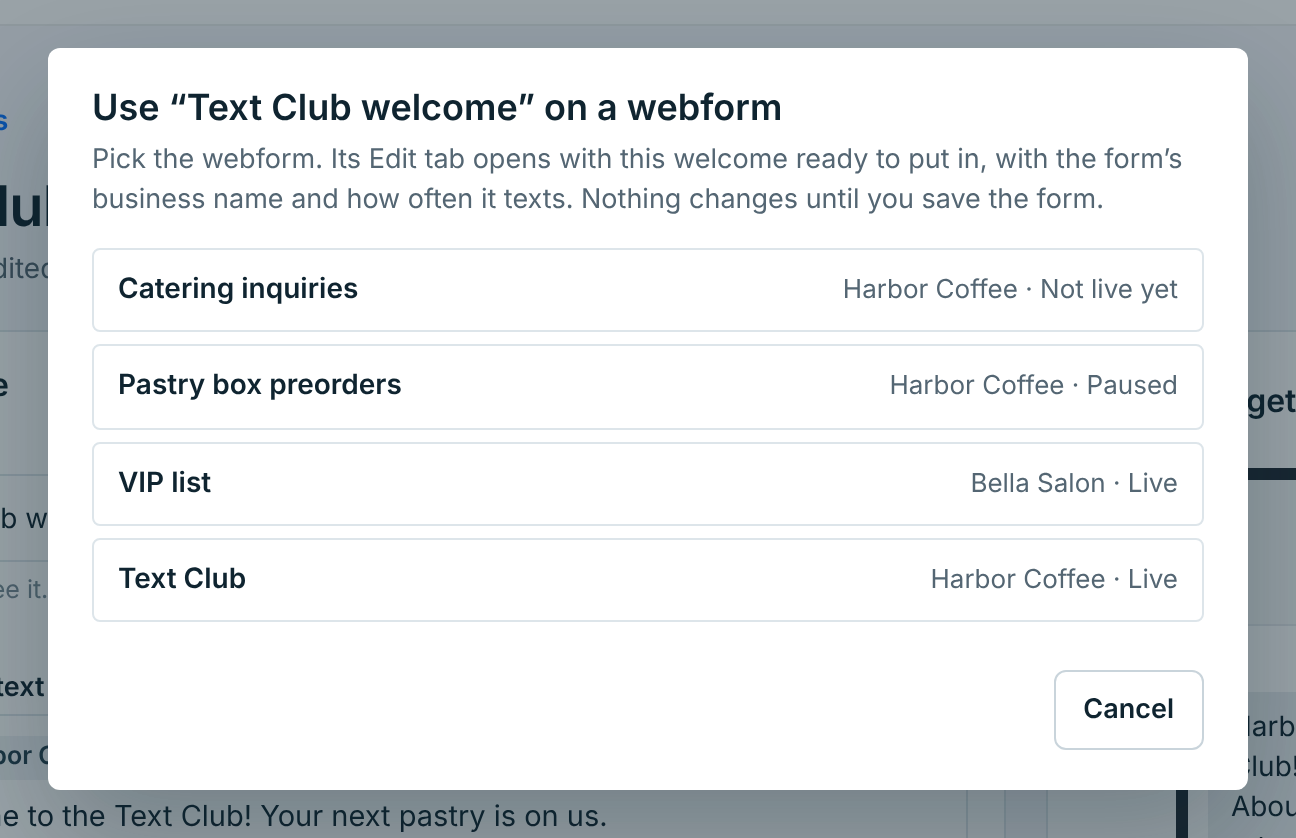
The list has every webform of your businesses that can send, with its business and whether it’s live, paused or not live yet. The webform’s Edit tab opens, with Welcome text › Templates showing the one you picked, filled in for that form: its business name, how often it texts, “Msg & data rates may apply.”, and HELP and STOP.
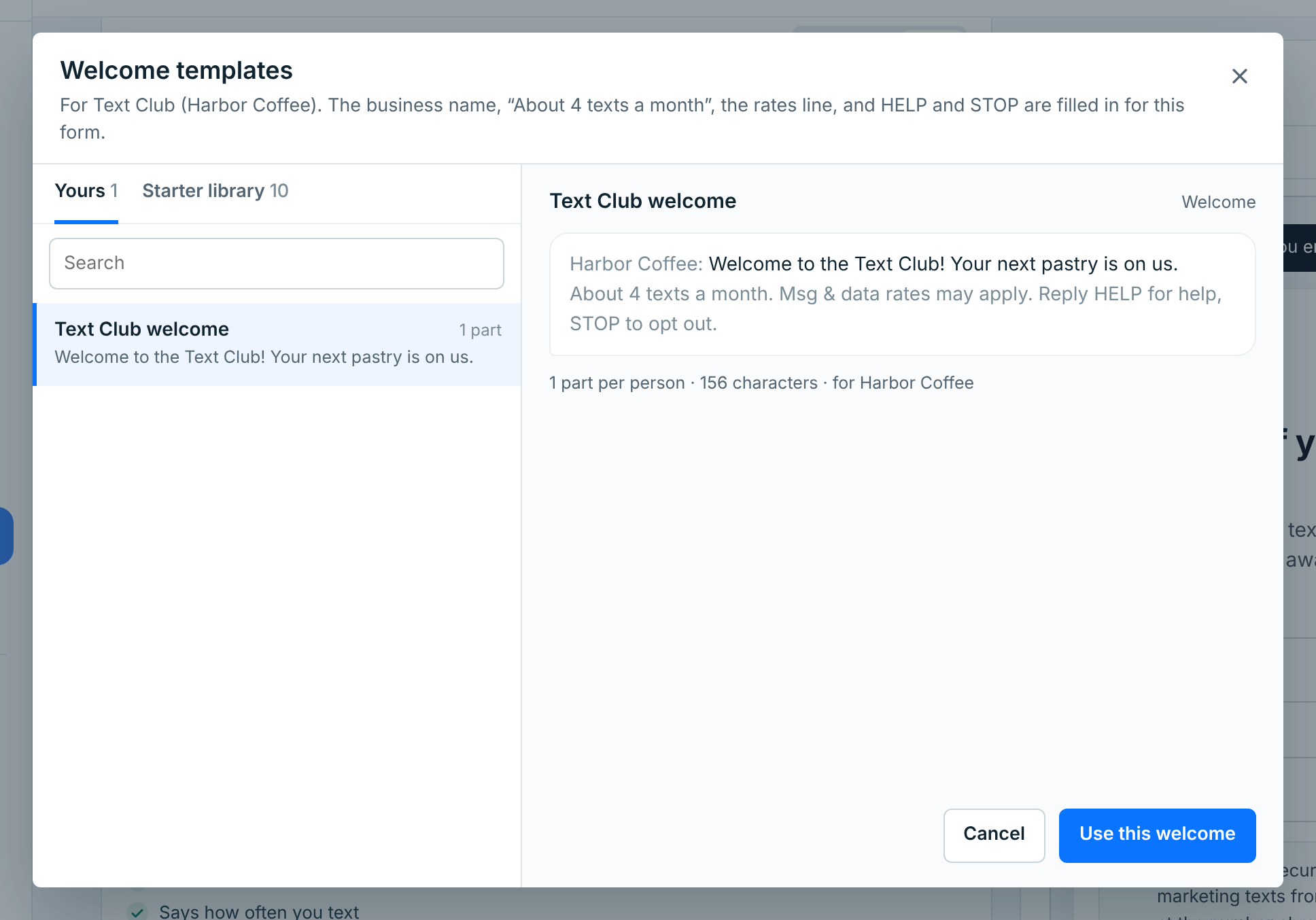
Click Use this welcome. If the form’s welcome text has other words in it, it asks before replacing them. Then save the webform: nothing changes for people who join until you do.
You can also start from the webform: Templates beside its Welcome text opens the same picker. See Create a webform.
A live or paused webform can’t keep a fill-in like [OFFER] in its welcome text. Replace it before you save.